How to Install a RAM Disk for Browser Cache File Storage
Information
A RAM disk utilizes a portion of system memory (RAM) to create a virtual disk within Windows. A great way to utilize your new disk is for storing web browser temporary files.
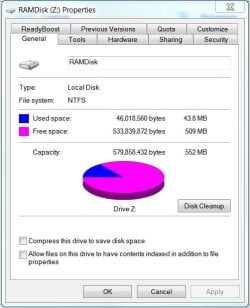
During use, browsers create many small files to record data required to render the sites you visit, thus allowing the browser to quickly re-load this data should it be required in the future. This normally occurs on your system drive, be it a conventional HDD, or an SSD. Because RAM is significantly faster than both a spinning HDD and an SSD, a RAM Disk will significantly enhance your browsing experience by allowing access to temporary files nearly instantaneously. My RAM disk provided a benchmark measurement in Defraggler 552 times faster than my SATA 6 GB/s Seagate 2 TB HDD, which measures random read speeds.
A RAM disk can also be set to clear each time the system is started, providing a measure of security from any potential malware contained within these temporary internet files.
A RAM disk will reserve a portion of system RAM, and use it to create a virtual drive. This amount of memory will not be available to Windows.
During use, browsers create many small files to record data required to render the sites you visit, thus allowing the browser to quickly re-load this data should it be required in the future. This normally occurs on your system drive, be it a conventional HDD, or an SSD. Because RAM is significantly faster than both a spinning HDD and an SSD, a RAM Disk will significantly enhance your browsing experience by allowing access to temporary files nearly instantaneously. My RAM disk provided a benchmark measurement in Defraggler 552 times faster than my SATA 6 GB/s Seagate 2 TB HDD, which measures random read speeds.
A RAM disk can also be set to clear each time the system is started, providing a measure of security from any potential malware contained within these temporary internet files.
A RAM disk will reserve a portion of system RAM, and use it to create a virtual drive. This amount of memory will not be available to Windows.
Note
To undo this procedure:
- Remove the code which was added to the end of the Target: within the Chrome shortcut.
- Open FireFox. Type about:config into the address bar and press Enter . Accept the warning "I'll be careful, I promise!"
- Right-click the object labeled browser.cache.disk.parent_directory and select Delete.
- Open Control Panel > Internet Options
- Select General tab. Under Browsing history click Settings > Move file. Now browse to the path for your Internet Explorer cache directory within your system drive. This is normally C:\Users\"User Name"\AppData\Local\Microsoft\Windows\Temporary Internet Files\, replacing the quoted text with your system user name, without the quotes.
- Go to your Control Panel and select Programs and Features. Select AMD RAMDisk Configuration Utility and select Uninstall.
PART ONE
Install and Setup the RAM Disk
1. Download AMD Radeon RAMDisk. Select the 4 GB free version, unless you happen to have AMD memory in your computer in which case choose the 6 GB free version.
2. Double-click the downloaded installer file and complete the setup process. This installs the driver and configuration utility necessary to create a RAM disk.
3. Open Radeon RAMDisk Configuration Utility from the Start Menu by right-clicking the icon and selecting Run as administrator.
Tip
Always run the configuration utility with administrative privileges to allow for total functionality of the configuration utility.
4. Close out any advertisements asking if you want to upgrade to the paid version of AMD RAMDisk.
Tip
Upgrading to a paid version of the software allows for up to 64 GB RAM disks, and adds a feature designed to allow the RAM disk to function while still loading its full contents during Windows startup. Neither of these features are especially relevant when utilizing the RAM disk for browser cache storage.
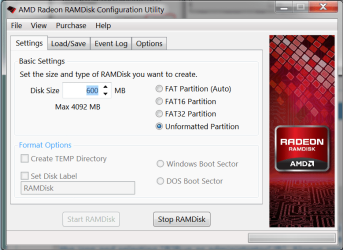
5. Click Settings tab. Enter the size of disk you want to create.
Tip
I predominantly use Chrome for web browsing and currently use a 600 MB RAM disk. If you use multiple browsers regularly, make it bigger. Keep in mind the size of RAM disk you create will deduct that memory from your available system RAM.
6. Select Unformatted Partition radio button.
7. Click the Start RAMDisk button.
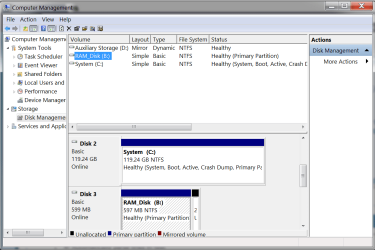
8. Click Start button, right-click My Computer, select Manage.
9. Click Disk Management in the left-hand pane.
10. Right-click the new disk you just created and select Format. It should be listed as Unallocated in the center pane. Disk Management may also prompt you to do this.
11. Select NTFS as the format type and give it a drive letter. I choose B: because it will never be used by other drives on my system. If you choose a different letter, use that instead of B:, which is used within all the following examples.
Information
Your new virtual drive should now be labeled as Healthy in Disk Management.
12. Open Windows Explorer, select B: drive, and click New Folder. Enter "Temporary Internet Files" and click OK. Double-click this folder, then click New Folder again. Enter the name of your browser. Continue to create folders for each browser you use. I chose to use B:\Temporary Internet Files\"Browser Name" for my folder structure.
Example:
Code:
B:\Temporary Internet Files\Chrome
Tip
Create folders for the following browsers, within the Temporary Internet Files folder:
- Chrome
- FireFox
- Internet Explorer
13. Go back to AMD RAMDisk Configuration Utility, click on the Load/Save tab, and click Save Disk Image Now. Place it somewhere on your system drive (normally C:\) and give it a name.
14. Check the box marked Load Disk Image at Startup. Be sure this is the only box checked on this tab.
15. Click Browse button under Image File and browse to the file which you just saved in step 13.
16. Go to Options tab and only leave "Do not create backup file..." checked.
17. Exit AMD RAMDisk Configuration Utility and save settings.
18. Restart your computer.
PART TWO
Update Browsers to Utilize Your New RAM Disk
Google Chrome
1. Locate the shortcut you use to launch Chrome. Right-click, and select Properties.
Tip
If the shortcut is located in the Start menu or Taskbar, go to this location, right-click the shortcut, and right-click again on Google Chrome.
2. Add the following to the end of the Target listed in the shortcut properties menu, replacing the path with the location of the folder you created for Chrome files earlier:
Code:
--disk-cache-dir="B:\Temporary Internet Files\Chrome"
Tip
Note the space in front of this string. It must be included.
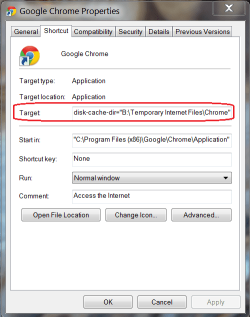
Chrome will now utilize the RAM disk for cache storage beginning the next time you launch the browser from this shortcut.Mozilla FireFox
1. Open FireFox. Type "about:config" into the address bar and press Enter. Accept the warning "I'll be careful, I promise!"
Code:
about:config3. Type browser.cache.disk.parent_directory into the box and click OK .
Code:
browser.cache.disk.parent_directory
Code:
B:\Temporary Internet Files\FireFox1. Open Control Panel > Internet Options.
2. Select the General tab. Under Browsing history click Settings > Move file. Now browse to the path for your Internet Explorer cache directory you created on the RAM disk.
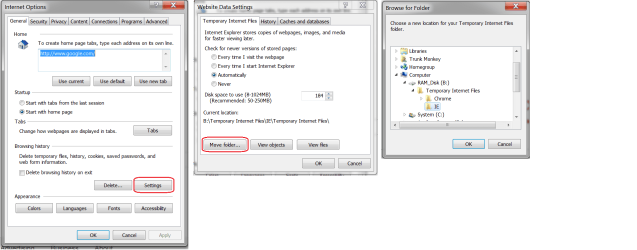
Internet Explorer will now utilize the RAM disk for cache storage next time the browser is launched following a system restart.
Last edited by a moderator: