RAM issues Windows 7 Ultimate 64 Bit

Imogen

New member
Local time
8:21 PM
Messages
2
Hello,

OS: Windows 7 Ultimate 64bit

I put together a computer for the first time and I'm having bother with the RAM. I have 12GB of Corsair Vengeance DDR3 Ram installed, I am using a Gigabyte GA-X58A-UD3R Intel X58 (Socket 1366) DDR3 8 Channel Audio ATX Motherboard.

The motherboard supports up-to 24GB of DDR3 RAM.

When I right click on computer in the start menu and click properties under RAM it says 12GB (8 Usable) and idea how I can get windows too use the remaining 4GB?

Also sometimes when I boot after the BIOS screen where it says verifying pool data (can't quite remember but it's something like that) it will saying checking DRAM SIZE and reboot and it will keep doing this until i turn off my machine. Any idea how to fix this?

The RAM and motherboard are fine as I've checked and replaced them.

Thank you for your time.

Kind Regards,

Imogen


My specs:

OS: Windows 7 Ultimate 64
MOBO: Gigabyte GA-X58A-UD3R
CPU: Intel Core i7 950
GPU: XFX HD 5870 1GB GDDR5
SSD: Crucial 64GB
HDD: Western Digital Caviar Black 1TB x 2
DVD: LiteOn IHAS124-19 24x DVD/RW
Bluray: Pioneer BDR-206DBK 12x BD/RE
PSU: Antec Truepower Quattro 1200W
CASE: Antec Dark Fleet DF-85

Windows Experience Index: 7.3

Just one more quick thing I spent maybe about £800 - £900 on my computer it was my first self-build. Is that an ok score and is there anyway I could improve it using my existing hardware.

Thanks again
 

My Computer

OS
Windows 7 Ultimate x64
Well if the BIOS can't verify the RAM and just keeps rebooting then something is wrong with either the RAM, how it is seated or the motherboard.

What else could it be.

Are you sure you have the RAM modules in the correct slots. On your board there are six slot and should be color coded. All 3 sticks of RAM need to be in the same color slots, that is if they are color coded.
If not then they are set up in 3 banks of 2 slots II II II with a space between them. Make sure the RAM sticks are in the same slot position in each bank I- I- I-
 

My Computer

Computer Manufacturer/Model Number
Built be Me
OS
Windows 7 Pro x64
CPU
i5 760
Motherboard
Asus P7P55D-E Pro
Memory
16GB
Graphics Card(s)
Nvidia GTS450
Sound Card
On board
Monitor(s) Displays
Dell 2007WFP Dell 1800FP
Screen Resolution
1680x1050 1280x1024
Hard Drives
Seagate 250GB & 750GB
WD 1TB
PSU
Antec 750
Case
In Win
Cooling
Cooler Master Hyper 212+
Keyboard
IBM
Mouse
MS
Hello,

OS: Windows 7 Ultimate 64bit

I put together a computer for the first time and I'm having bother with the RAM. I have 12GB of Corsair Vengeance DDR3 Ram installed, I am using a Gigabyte GA-X58A-UD3R Intel X58 (Socket 1366) DDR3 8 Channel Audio ATX Motherboard.

The motherboard supports up-to 24GB of DDR3 RAM.

When I right click on computer in the start menu and click properties under RAM it says 12GB (8 Usable) and idea how I can get windows too use the remaining 4GB?

Also sometimes when I boot after the BIOS screen where it says verifying pool data (can't quite remember but it's something like that) it will saying checking DRAM SIZE and reboot and it will keep doing this until i turn off my machine. Any idea how to fix this?

The RAM and motherboard are fine as I've checked and replaced them.

Thank you for your time.

Kind Regards,

Imogen


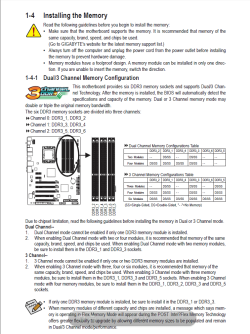
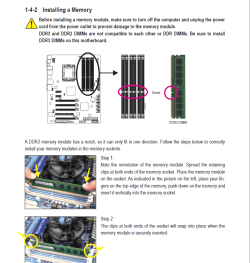
Make sure you have installed the RAM as per the manual


My specs:

OS: Windows 7 Ultimate 64
MOBO: Gigabyte GA-X58A-UD3R
CPU: Intel Core i7 950
GPU: XFX HD 5870 1GB GDDR5
SSD: Crucial 64GB
HDD: Western Digital Caviar Black 1TB x 2
DVD: LiteOn IHAS124-19 24x DVD/RW
Bluray: Pioneer BDR-206DBK 12x BD/RE
PSU: Antec Truepower Quattro 1200W
CASE: Antec Dark Fleet DF-85

Windows Experience Index: 7.3

Just one more quick thing I spent maybe about £800 - £900 on my computer it was my first self-build. Is that an ok score and is there anyway I could improve it using my existing hardware.

Thanks again
The WEI is in a lot of peoples opinion just a number
MHO Its a nice PC :)
 

Attachments

  • Capture.PNG
    Capture.PNG
    68.4 KB · Views: 39
  • Capture1.PNG
    Capture1.PNG
    116.2 KB · Views: 39

My Computer

Computer Manufacturer/Model Number
Something I threw together
OS
Windows 7 Ultimate x64
CPU
Intel Core i7-2600K
Motherboard
Asus P8P67
Memory
16 GB G Skill F3-10666 CL9D-4GBRL
Graphics Card(s)
ATI Radeon HD 6870
Sound Card
ATI Radeon HDMI / Realtek ALC892
Monitor(s) Displays
2 x 22" standard monitors / LG32LC56v TV to watch films
Screen Resolution
1920 x1080
Hard Drives
2 x OCZ Vertex2 111.79GB
3 x Samsung103SJ
1 x Samsung103UJ
1 x WD3200BEVT
1 x Hitachi5K320-160
PSU
Thermaltake Toughpower Cable Management 750W
Case
Antec 300
Cooling
Noctua NH-U12P SE2 and 5 120mm Case fans
Keyboard
Microsoft Comfort Curve Keyboard 2000
Mouse
Hama M3110 / Logitech M305
Internet Speed
16000
Other Info
I have also used Fedora, Suse, Ubuntu Linux
And all other Windows from 95 to date except ME
Hi Imogen,

If you still have issues after trying the previous suggestions of ensuring the RAM chips are properly seated in the RAM slots, then you may need to test each of the chips and slots. Im not sure if you have done that since you mention some "tests" but don't elaborate on what they are.

To do this, start with your first slot, plug in one RAM chip, and boot the computer. Check to see that it is reporting the correct RAM. Keep doing this until you have tested all the RAM chips. If all the RAM chips pass, then repeat the exercise for the remaining RAM slots with a single RAM chip.

Let us know what you find.

Regards,
Golden
 

My Computer

Computer type
PC/Desktop
Computer Manufacturer/Model Number
Golden Mk. I.4
OS
Windows 10 Pro x64 ; Xubuntu x64
CPU
Intel i7 860 @ 2.80 GHz O/C'ed to 4.0GHz
Motherboard
Gigabyte P55A-UD3R Rev.1. Award BIOS F13
Memory
16GB Corsair Vengance DDR3 @ 661 MHz Dual Channel (9-9-9-24)
Graphics Card(s)
EVGA NVidia GTX 560 1024MB
Sound Card
Realtek Integrated
Monitor(s) Displays
Dual Samsung SyncMaster 2494HS
Screen Resolution
1920*1080 and 1920*1080
Hard Drives
1*Samsung 840 EVO 120GB SSD;
1*OCZ Vertex 2 60GB SSD;
2*Samsung F3 SpinPoint 1TB in RAID0;
1*Samsung F1 SpinPoint 1TB;
2*Western Digital 1TB External USB 3.0
1*Western Digital 500GB External USB 3.0
1*Seagate 500GB External USB 2.0
PSU
Thermaltake ToughPower QFan 750W
Case
Thermaltake Element S VK60001W2Z
Cooling
Corsair H60 Water Cooling, 2*230mm and 2*80mm case fans
Keyboard
Logitech G110
Mouse
Logitech MX518
Thanks everyone for your replies, I apologise for not responding sooner but I've been at work all day. I managed to fix the problem with your help, I knew the motherboard RAM sockets where colour coded but it did not say anything about using the same colour for all your RAM in the manual quite the opposite in fact.

I moved the third stick over to a white socket and hay-presto all 12GB working and no boot problems. :D

I can't thank you guys enough :party:

If I may ask does that mean I won't be able to add more RAM to the blue sockets?

Thanks again,

Best Wishes

Imogen
 

My Computer

OS
Windows 7 Ultimate x64
If I may ask does that mean I won't be able to add more RAM to the blue sockets?

Thanks again,

Best Wishes

Imogen

No on the contrary that is why they are there, to add more RAM.

Please look at the manual. It describes exactly how to place RAM in many different configuration. Those pages were also post in this thread.
It give you the placement for 2-3-4-6 pieces of RAM.
 

My Computer

Computer Manufacturer/Model Number
Built be Me
OS
Windows 7 Pro x64
CPU
i5 760
Motherboard
Asus P7P55D-E Pro
Memory
16GB
Graphics Card(s)
Nvidia GTS450
Sound Card
On board
Monitor(s) Displays
Dell 2007WFP Dell 1800FP
Screen Resolution
1680x1050 1280x1024
Hard Drives
Seagate 250GB & 750GB
WD 1TB
PSU
Antec 750
Case
In Win
Cooling
Cooler Master Hyper 212+
Keyboard
IBM
Mouse
MS
Back
Top