Random BSODs during normal work

cocolino

New member
Local time
5:39 PM
Messages
1
Hi,
I'm using my laptop (ThinkPad L512) from 1,5 years and since end of January this year I regularly got BSODs during normal work. There were about 15 of them until now. The only thing that I noticed and think could be useful is that I had about 3,4 of them just after unplugging external monitor. The other ones seems to appear without any specific circumstances (with or without external monitor plugged in).
If you need more infos to solve this problem, I'll do everything needed to get rid of this problem.
 

My Computer

Computer type
Laptop
OS
Windows 7 Professional 64bit
Welcome to Seven Forums.

Very weird pattern of your errors. Lets start with a few basics.

It does not look like you are running an antivirus software, it's never safe to leave the system without one.

Make scans with the following:

-Kaspersky TDSSKiller
-ESET online scanner
We recommended Microsoft Security Essentials from a strict BSOD perspective. Is most compatible & provides most stability compared to other antivirus app/Internet Security Software.
   Warning
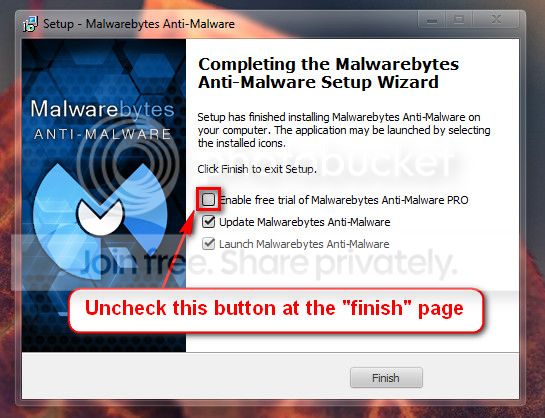
Do not start the free trial of Malware Bytes; remember to deselect that option when prompted.

2013-03-09_224312_zps62dc7c23.jpg

Run a full scan with both (separately) once downloaded, installed and updated.
Please uninstall DAEMON Tools and any Alcohol % software. It uses a driver called sptd.sys which is known to cause BSODs in Windows 7. Uninstall the software using Add/Remove Programs. Reboot the system. Once the program is uninstalled, run sptd.sys uninstaller to remove the driver from your system.
Code:
Start Menu\Programs\DAEMON Tools Lite	Public:Start Menu\Programs\DAEMON Tools Lite	Public
As an alternative, many people recommend the use of Total Mounter or Magic ISO

Perform a System File Check to check the integrity of all protected Windows 7:
  1. Click on the start :orb:
  2. Type CMD on Search
  3. Left click and Run as Administrator
  4. Type
    Code:
    SFC /scannow
Full tutorial here:
Install all updates including service pack 1:
Check your hard drive(s) for errors by running chkdsk:
Number down items at start-up. Keep only your anti-virus, this also improves the time for logging into windows.
If you have a SSD, make sure the firmware is up-to-date.

Upload a screenshot of your hard disk using CrystalDiskInfo:
Make a hard drive test from the hard drive manufacturers website:
Take memtest. Run for 8 passes and test each stick in a know good slot for an additional 6 passes.
   Note
Pay close attention to part 3 of the tutorial in order to rule out the faulty stick.

   Information
Errors are sometimes found after 8 passes.

   Tip
Do this test overnight, before going to bed.

Let us know the results.
 

My Computer

Computer type
PC/Desktop
Computer Manufacturer/Model Number
Self assembled
OS
Windows 10 Home 64Bit
CPU
Intel Core i5 10400 @ 2.90GHz
Motherboard
Intel Corporation DG41WV (PROCESSOR)
Memory
8.00GB Single-Channel Unknown @ 1329MHz (16-20-20-38)
Sound Card
Realtek High Definition Audio
Monitor(s) Displays
DELL E170S
Screen Resolution
1280x1024 pixels
Hard Drives
931GB TOSHIBA DT01ACA100 (SATA)
238GB TEAM TM8PS7256G (SATA SSD)
Case
Nothing Fancy
Cooling
Fans
Keyboard
A4 Tech Co LTD
Mouse
A4 Tech Co Ltd/Logitech
Internet Speed
25 Mbps
Back
Top