Random BSODs During Use

Cbur

New member
Local time
4:35 PM
Messages
1
Hello Everyone,

I've owned my computer for ~9 months now, and only recently have run into BSOD issues. Normally I have multiple programs running at once, so I am not entirely sure as to what could be the potential issue. I have only minimal understanding of how to fix these issues, so I am turning to you guys to find out what could be the issue.

My system specs are as follows (taken from System Info):
CPU - Intel(R) Core(TM) i5-2500K CPU @ 3.30GHz
MOBO - Gigabyte Technology Co., Ltd. Z77MX-D3H
BIOS - BIOS Date: 05/31/12 20:36:15 Ver: 04.06.05
Total/Usable Memory - 8.00 GB/7.96 GB
HDD - (1) WDC WD10EZEX-00RKKA0 (2) Seagate FreeAgent USB Device
Sound Card - (1) VIA High Definition Audio (2) USB Audio Device (3) NVIDIA High Definition Audio
Graphics Card - NVIDIA GeForce GTX 680
OS - Microsoft Windows 7 Professional 64-bit 7601 Multiprocessor Free Service Pack 1

I've attached the info I pulled from the SF Diagnostic Tool. Thank you in advance for any help with this!

Chris
 

My Computer

Computer type
PC/Desktop
Computer Manufacturer/Model Number
custom build
OS
Windows 7 Professional 64bit
CPU
Intel Core i5-2500k
Motherboard
GIGABYTE GA-Z77MX-D3H LGA 1155 Intel Z77 HDMI SATA 6Gb/s
Memory
G.SKILL Ripjaws Series 8GB (2 x 4GB) 240-Pin DDR3 SDRAM DDR3
Graphics Card(s)
NVIDIA GeForce GTX 680
Hard Drives
Western Digital WD Blue WD10EZEX 1TB 7200 RPM
Antivirus
avast! Antivirus
Browser
Mozilla Firefox
Your ZyXEL 802.11g XG762 1211 and Avast in combination.
Code:
fffff880`0af7f998  fffff880`0443c5b0Unable to load image \SystemRoot\system32\DRIVERS\WlanGZG.sys, Win32 error 0n2
*** WARNING: Unable to verify timestamp for WlanGZG.sys
*** ERROR: Module load completed but symbols could not be loaded for WlanGZG.sys
 WlanGZG+0x125b0

lmvm WlanGZG
start             end                 module name
fffff880`0442a000 fffff880`0452d000   WlanGZG  T (no symbols)           
    Loaded symbol image file: WlanGZG.sys
    Image path: \SystemRoot\system32\DRIVERS\WlanGZG.sys
    Image name: WlanGZG.sys
    [COLOR="Blue"][B]Timestamp:        Thu Jul 05 08:58:34 2007 (468C5E5A)[/B][/COLOR]
    CheckSum:         0010A698
    ImageSize:        00103000
    Translations:     0000.04b0 0000.04e4 0409.04b0 0409.04e4
Code:
xg762_vs	ZyXEL 802.11g XG762 1211 Vista Driver	c:\windows\system32\drivers\wlangzg.sys
Code:
*** WARNING: Unable to verify timestamp for WlanGZG.sys
*** ERROR: Module load completed but symbols could not be loaded for WlanGZG.sys
.................................................................................................................
fffff880`0b924798  fffff880`05d872fbUnable to load image \??\C:\Windows\system32\drivers\aswMonFlt.sys, Win32 error 0n2zaswMonFlt+0x222fb
Are you able to update the WlanGZG.sys driver to its latest? (Windows 7 preferably?)
Please remove Avast! using its removal tool from here: Uninstallers (removal tools) for common antivirus software - ESET Knowledgebase

We recommended Microsoft Security Essentials from a strict BSOD perspective.
   Warning
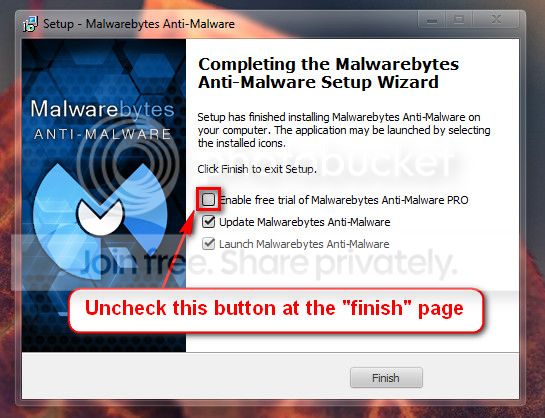
Do not start the free trial of Malware Bytes; remember to deselect that option when prompted.

2013-03-09_224312_zps62dc7c23.jpg

Run a full scan with both (separately) once downloaded, installed and updated.[/option]

Use the System File Checker tool (SFC.exe) to determine which file is causing the issue, and then replace the file.

To do this, follow these steps:
  1. Open an elevated command prompt. To do this, click Start, click All Programs, click Accessories, right-click Command Prompt, and then click Run as administrator. If you are prompted for an administrator password or for a confirmation, type the password, or click Allow.
  2. At the command prompt, type the following command, and then press ENTER: sfc /scannow
    The sfc /scannow command scans all protected system files and replaces incorrect versions with correct Microsoft versions.
http://www.sevenforums.com/tutorials/1538-sfc-scannow-command-system-file-checker.html

Check your hard drive(s) for errors by running chkdsk:
Number down items at start-up. Keep only your anti-virus, this also improves the time for logging into windows.
  • Click on the Start button
  • Type “msconfig (without quotes), click the resulting link. It will open the System Configuration window.
  • Select the “Startup” tab.
  • Deselect all items other than the antivirus.
  • Apply > OK
  • Accept then restart.
Full tutorial:
Code:
Start Menu\Programs\GIGABYTE	Public:Start Menu\Programs\GIGABYTE	Public
Start Menu\Programs\GIGABYTE\AutoGreen	Public:Start Menu\Programs\GIGABYTE\AutoGreen	Public
Start Menu\Programs\GIGABYTE\ET6	Public:Start Menu\Programs\GIGABYTE\ET6	Public
Hope this helps.
 

My Computer

Computer type
PC/Desktop
Computer Manufacturer/Model Number
Self assembled
OS
Windows 10 Home 64Bit
CPU
Intel Core i5 10400 @ 2.90GHz
Motherboard
Intel Corporation DG41WV (PROCESSOR)
Memory
8.00GB Single-Channel Unknown @ 1329MHz (16-20-20-38)
Sound Card
Realtek High Definition Audio
Monitor(s) Displays
DELL E170S
Screen Resolution
1280x1024 pixels
Hard Drives
931GB TOSHIBA DT01ACA100 (SATA)
238GB TEAM TM8PS7256G (SATA SSD)
Case
Nothing Fancy
Cooling
Fans
Keyboard
A4 Tech Co LTD
Mouse
A4 Tech Co Ltd/Logitech
Internet Speed
25 Mbps
Back
Top