Realtek Issues

friednspicy

New member
Local time
5:55 PM
Messages
2
Hello. Just so recently I had to uninstall a few programs due to some texture/bugs. Unfortunately I accidentally uninstalled something in the regards of Realtek. (I am not quite sure what I uninstalled as I did it quickly).

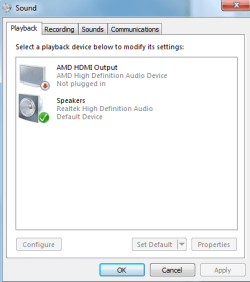
When I hover my mouse above the speaker icon, it says "No speaker or headphones are plugged in". I've tried to restart my computer, and run the System restore. Nothing seems to work, and I am left without sound. :(:(:(:( Please, help me...

Computer Information:

Operating system: 64 Bit

Processor: Intel(R) Core(TM) i7-2600 CPU @ 3.40GHz 3.40 GHz

If any information or pictures are needed, please tell me.
 

Attachments

  • Issue.png
    Issue.png
    1.9 KB · Views: 4
  • Issue1.png
    Issue1.png
    11.1 KB · Views: 4
  • Issue2.png
    Issue2.png
    2.8 KB · Views: 98

My Computer

OS
64 bit, Windows 7 Home Premium
Hi friednspicy,

It appears that you have accidentally removed the 'audio drivers'.

Would like to know the kind of speakers that you are using for the 'audio playback'; are you trying to get 'audio output' through the 'HDMI connector' or are your speakers connected to a 3.5mm audio jack/USB?

In the mean while, you may try re installing the 'audio drivers'. Following steps may help:
- Open 'Control Panel' > Open 'Device Manager' > Expand 'Sound Video and Game controllers' > Right Click the device listed with a 'yellow mark' besides it; and uninstall (This device may also be listed under 'Other Devices' category) > Restart System
(Note: Please capture details of the device that is being installed)

- Download and install the best available 'drivers' for the 'audio device' from the manufacturer website; and restart system

Hope this helps. Do reply with the results; would be glad to assist.
 

My Computer

OS
Windows 7 64bit
Thanks for responding. When I was browsing the 'Sound video and game controllers', I couldn't seem to see anything with a 'yellow mark' beside it.
 

Attachments

  • Issue3.png
    Issue3.png
    6.6 KB · Views: 70

My Computer

OS
64 bit, Windows 7 Home Premium
RIGHT click on the entry for the Realtek to highlight it and then LEFT click "uninstall". DO NOT check the box to also uninstall the drivers. Then restart the PC and when Windows starts it will detect and reinstall the sound. This fixes a lot of Windows corruption problems with the sound and may take care of yours.
 

My Computer

Computer type
PC/Desktop
Computer Manufacturer/Model Number
My Own Build
OS
Windows 10 64 bit
CPU
Intel i7 6700K
Motherboard
ASUS ROG Maximus VIII Hero
Memory
16GB Corsair Dominator
Graphics Card(s)
Intel CPU Graphics
Sound Card
RealTek
Monitor(s) Displays
27" Dell S2719dgf
Screen Resolution
2560X1440
Hard Drives
1 TB Samsung 850 EVO SSD for Win 10 Pro
500GB Samsung 850 EVO SSD for Win 10 Insider
2 TB drive for backup
PSU
EVGA Supernova 750G2
Case
BeQuiet Silent Base 600
Cooling
Deepcool Captain 120EX
Keyboard
Microsoft Wireless 2000
Mouse
Microsoft wireless
Internet Speed
100 MB/sec (Cable)
Antivirus
Microsoft Defender and Malwarebytes
Browser
Edge/Firefox
Other Info
Cakewalk (Sonar) by BandLab and Studio One 4.1 Pro recording studio software. MOTU 896Mk3 Hybrid recording interface, Frontier Tranzport wireless control unit, Behringer X-Touch Control Surface.
Five USB connected optical drives for CD Audio production using Nero BurningROM
Hi friednspicy,

Thank you for the reply.

Though no device listed underneath 'Sound, Video and Game Controllers' appears corrupt, you may still try re-installing the 'Realtek HD Audio' as suggested by 'fireberd'

@fireberd: thank you for the valuable inputs.

If the issue persists, you may also try a 'clean re-install' of 'Realtek Audio drivers'. To perform a clean reinstall, Open 'Device Manager' > Right Click and uninstall 'Realtek Audio' completely (Also include the software, if prompted) > Restart the machine > Click Realtek to 'download and install' the 'Realtek drivers' (Install the drivers from the 'computer manufacturer' website, if OEM applicable) > Follow through to finish the installation

If the issue still persists, please share the following details:
- Which 'audio playback' device are you using? (Do you have speakers plugged in? If yes, share the name/details of the speakers' and mention the 'port details' where you have them plugged in)
- Do you have any 'external display' (TV, etc) connected to the computer? If yes, which 'port' has been used? Is it connected through the 'HDMI, VGA or DVI port'?
- Is this a 'desktop' or a 'laptop'?
- Do you have any discrete 'sound card' in the computer? If yes, please share details
- Also share the details of 'Video Card' (GPU) installed in the system

Hope this helps; do reply with the findings.
 

My Computer

OS
Windows 7 64bit
Back
Top