Doh! I have since shut the program down - I would have to go through the 5 hour scan again. But by partition recover module - that's what I ran first. I left and came back (said it would take an hour). When I had returned, it was going through the deep scan and finding all that huge list of partitions. The only other partition that had the correct size (size of the drive) was Partition 7, which said RAW. When I went to look at the files, there was something there, but they were all in folders classified by their file extension and none of the files were properly named (just excel 1, excel 2, etc., etc.).
I should add that this drive was markted as a Seagate Slim MAC back up drive, but I never had a MAC. I took it out of the box and immediately plugged it into my Windows machine. The drive has been swapped around a few windows machines several times.
OH WAIT! I lied - I initially put this on a Windows machine to backup my video recordings. I took the drive to the library to use the MAC they have there (super powered) for Final Cut Pro (to edit some YouTube videos). So, this has been used on a MAC before, but I was interchanging this drive between Windows and that MAC no problem. Most recently, swapped the drive between only Windows machines . . . again, no problem. Just all of the sudden it wouldn't mount at the new, clean PC install (on several PCs). That's when I did the stupid as described in OP (used DiskPart Clean).
Not sure if any of that info helps.
- - - Updated - - -
Any chance you might have other tricks up your sleeve for restoring HFS+ partition from a Windows machine (seeing I was using it most strictly from a Windows machine)?
Thanks again for your help!
- - - Updated - - -
YAAAAY! I figured it out!
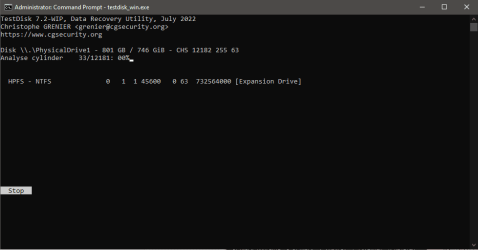
So, finding out it was formatted HFS+, I used TestDisk to Analyze via Apple partition.
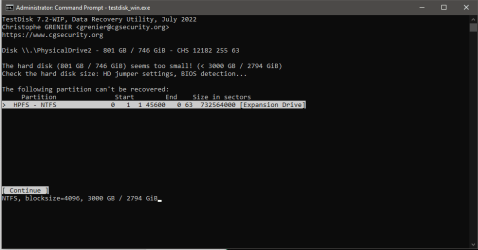
TestDisk did find the main partition (where all my files are located) and gave me the exact starting sector and ending sector.
TestDisk does not rewrite HFS+ type partitions, so the program gave the suggestion to use "parted" command via a Linux environment.
I found GParted (thinking this was the same as "parted" - I'm a Linux know-nothing) and in poking around and researching more, I discovered that "parted" is a command in the Linux system.
Long story short, I used the "rescue" command in the "parted" command/program and discovered if you put an "s" at the end of each start and end number, that means sectors (instead of the default megabytes).
Rescue found the partition and recreated it to the drive for me.
Now, the drive still won't mount on Windows, so I discovered HFSExplorer--an open source, free program for Windows--that allows my Windows machine to discover the file structure in an HFS partition.
As I type, I am running an extraction of the entire HFS partition from the restored drive partition to another external drive.
3.84 GB completed out of 527.56 GB - but I see the files being written to the new, extracted location in real time.
WHOOOPIE! A (so far) successful drive recovery AND at NO COST out of pocket.
Thanks for trying to help - it did allow me to discover the partition type, so quite helpful indeed - thank you!
(And of course, I'll be sure to reformat the original drive in question to the proper Windows accepted format so I can continue to use as my backup and media storage!)
I should add that this drive was markted as a Seagate Slim MAC back up drive, but I never had a MAC. I took it out of the box and immediately plugged it into my Windows machine. The drive has been swapped around a few windows machines several times.
OH WAIT! I lied - I initially put this on a Windows machine to backup my video recordings. I took the drive to the library to use the MAC they have there (super powered) for Final Cut Pro (to edit some YouTube videos). So, this has been used on a MAC before, but I was interchanging this drive between Windows and that MAC no problem. Most recently, swapped the drive between only Windows machines . . . again, no problem. Just all of the sudden it wouldn't mount at the new, clean PC install (on several PCs). That's when I did the stupid as described in OP (used DiskPart Clean).
Not sure if any of that info helps.
It is free for windows, which means ntfs or fat file systems.
There is ( or was) a different program for mac, which is hfs+
It must think it is an hfs+ partition.
What does the partition recovery module say?
- - - Updated - - -
Any chance you might have other tricks up your sleeve for restoring HFS+ partition from a Windows machine (seeing I was using it most strictly from a Windows machine)?
Thanks again for your help!
It is free for windows, which means ntfs or fat file systems.
There is ( or was) a different program for mac, which is hfs+
It must think it is an hfs+ partition.
What does the partition recovery module say?
- - - Updated - - -
YAAAAY! I figured it out!
So, finding out it was formatted HFS+, I used TestDisk to Analyze via Apple partition.
TestDisk did find the main partition (where all my files are located) and gave me the exact starting sector and ending sector.
TestDisk does not rewrite HFS+ type partitions, so the program gave the suggestion to use "parted" command via a Linux environment.
I found GParted (thinking this was the same as "parted" - I'm a Linux know-nothing) and in poking around and researching more, I discovered that "parted" is a command in the Linux system.
Long story short, I used the "rescue" command in the "parted" command/program and discovered if you put an "s" at the end of each start and end number, that means sectors (instead of the default megabytes).
Rescue found the partition and recreated it to the drive for me.
Now, the drive still won't mount on Windows, so I discovered HFSExplorer--an open source, free program for Windows--that allows my Windows machine to discover the file structure in an HFS partition.
As I type, I am running an extraction of the entire HFS partition from the restored drive partition to another external drive.
3.84 GB completed out of 527.56 GB - but I see the files being written to the new, extracted location in real time.
WHOOOPIE! A (so far) successful drive recovery AND at NO COST out of pocket.
Thanks for trying to help - it did allow me to discover the partition type, so quite helpful indeed - thank you!
(And of course, I'll be sure to reformat the original drive in question to the proper Windows accepted format so I can continue to use as my backup and media storage!)
Doh! I have since shut the program down - I would have to go through the 5 hour scan again. But by partition recover module - that's what I ran first. I left and came back (said it would take an hour). When I had returned, it was going through the deep scan and finding all that huge list of partitions. The only other partition that had the correct size (size of the drive) was Partition 7, which said RAW. When I went to look at the files, there was something there, but they were all in folders classified by their file extension and none of the files were properly named (just excel 1, excel 2, etc., etc.).
I should add that this drive was markted as a Seagate Slim MAC back up drive, but I never had a MAC. I took it out of the box and immediately plugged it into my Windows machine. The drive has been swapped around a few windows machines several times.
OH WAIT! I lied - I initially put this on a Windows machine to backup my video recordings. I took the drive to the library to use the MAC they have there (super powered) for Final Cut Pro (to edit some YouTube videos). So, this has been used on a MAC before, but I was interchanging this drive between Windows and that MAC no problem. Most recently, swapped the drive between only Windows machines . . . again, no problem. Just all of the sudden it wouldn't mount at the new, clean PC install (on several PCs). That's when I did the stupid as described in OP (used DiskPart Clean).
Not sure if any of that info helps.
- - - Updated - - -
Any chance you might have other tricks up your sleeve for restoring HFS+ partition from a Windows machine (seeing I was using it most strictly from a Windows machine)?
Thanks again for your help!
My Computers
System One System Two
-
- OS
- Windows 10 Pro 64
-
- Computer type
- PC/Desktop