
removable disk showing RAW

maccaquacker

New member
Member
Local time
1:07 AM
Messages
63
hey guys,

my friend has a gopro hero3 and she wants to get some footage off the camera onto her windows 7 PC. problem is when she connects the camera the windows dialog comes up saying the disk e: needs to be formatted before use, obviously this would delete the footage which we want to avoid

in my computer the device shows up as only removable disk e: yet in disk management there are three separate entries for e:, not partitions, 3 e's, all of which are healthy volumes, primary partitions and 30MB in size. yes 30MB! and here's the problem, where it says NTFS for the computers hard drive, the camera shows up as RAW.

I have tried literally everything I can think of, and numerous disk recovery tools, all of which seem to throw up no files

the camera has worked before in someone else's hands, however they did it on a mac - yet I cannot forsee a problem with this as it should still really be a universal format given its a gopro camera

any idea

thanks
tom
 

My Computer

OS
Windows 7 Professional 32-bit, Windows 8 Pro (sometimes)
Post screenshot of disk management with all fields visible
 

My Computer

Computer type
Laptop
Computer Manufacturer/Model Number
ACER ASPIRE 5742G
OS
Microsoft Windows 7 Home Premium 64-bits 7601 Multiprocessor Free Service Pack 1
CPU
Intel(R) Core(TM) i3 CPU M 370 @ 2.40GHz
Motherboard
Acer Aspire 5742G
Memory
4,00 GB
Graphics Card(s)
ATI Mobility Radeon HD 5400 Series
Sound Card
(1) AMD High Definition Audio Device (2) Realtek High Defi
Screen Resolution
1366 x 768 x 32 bits (4294967296 colors) @ 60 Hz
Hard Drives
WDC WD5000BEVT-22ZAT0

My Computer

Computer type
PC/Desktop
Computer Manufacturer/Model Number
Home Built Desktop By DataTech
OS
Windows 7 Ultimate X64 SP1
CPU
Intel i5-2550K, Differing ~4.4-4.8GHz No built in GPU
Motherboard
ASUS P8Z68-V PRO/GEN3
Memory
16GB G.Skill Sniper 1866MHz @ 2133MHz 2x8GB
Graphics Card(s)
ASUS GTX650TIB-DC2OC-2GD5, (650TI Boost)
Sound Card
Onboard Realtek 5-1
Monitor(s) Displays
Samsung P2570HD
Screen Resolution
1920x1080
Hard Drives
Samsung 840 Pro 256GB SSD for OS, 500GB Seagate Constellation (Enterprise drive) for Data
PSU
Corsair HX650W
Case
Inwin Dragon Rider
Cooling
Hyper 212 EVO w/two Noctua fans, push-pull, @1300 RPM
Keyboard
E-Z Eyes, bright yellow keys with large characters
Mouse
steelseries SENSEI Laser Pro Gaming
Internet Speed
48-51Mbs Mbs down, 11 Mbs up Xfinity Cable
Antivirus
Norton Internet Security 2013
Browser
IE 10, Opera, Pale Moon if needed
Other Info
4 case fans, LG BluRay-RE, ASUS DVD-RW, Mr. Fusion power supply, 1.21 gigawatts.
hey guys,..........the camera has worked before in someone else's hands, however they did it on a mac - yet I cannot forsee a problem with this as it should still really be a universal format given its a gopro camera

any idea

thanks
tom


:) How well or not so well it worked in someone else's hands, do you know?
As of Feb 2013, many users have complained about Gopro3 - their SD Cards especially the 64GB ones suddenly turning unreadable and their losing all the data. There seems to be a camera level problem which GoPro seems to have acknowledged and hopefully working to resolve the problem with an updated firmware.

Have a look at this thread. GoPro HERO3 Black - Keeps telling me there is no SD Card

That's only to keep you informed so that you can follow up the developments.

I would now think you are direly in need of a recovery effort. How successful its gonna be, I cannot foretell.

Now forget about connecting your camera to the PC and try doing anything. (Unless GoPro resolves the problem, you are not going to get anywhere - though you can try so many things with the SD Card you want to use that hopefully keep the aberrations in check. I shall come to it when this problem is resolved oneway or the other. )

Pull out the MicroSD card, put it in an adapter and plug it into your PC(using a good card reader if need be.). ( Do tell us the capacity class and make, how old/new it is and whether you had ever successfully copied/moved your photos/videos on to the PC etc., etc., just for our information)

Now go ahead and put out the screenshots. Let us see it and formulate our ideas on recovery.

I am only a follower in this thread, leaving Kaktussoft and Britton30 in the lead. I just butted in to say no camera connection to the PC. :)
 

My Computer

OS
Windows 7 Home Premium 32 bit
may not be a hardware problem

Recently, I have noticed that when moving disks between different machines the hard drives (in my case) always show up as raw on the new machines. All of these hard drives when placed back on the original machine all work as they should. When you look at computer management they show up as NTFS as they should, and when you open explorer all the files can be accessed. CHKDSK shows no errors of any sort on the drive and a look at the s.m.a.r.t. statistics show nothing of concern. After checking out the drive one last time, I remove for the machine (Win7 Enterprise 64 bit in this case), and connect it to a different machine (Win7 Pro, 64 bit), the drive shows as RAW once again and windows states formatting is required.
Therefore I am thinking the is a Windows issue and not hardware, since it happens on different machines but when the drive goes back to the original machine all is fine (no format required all files readable). One thing to note in every case these are not external USB drives but internal SATA drives being moved. In one case the dell notebook will not keep running long enough to copy the data to a external USB drive, so we are trying to move the drive itself.
Any help would be excellent. BTW, I have tried 3 different recovery tools all without success 9a 4th is running right now).
 

My Computer

Computer type
PC/Desktop
OS
Win 7 pro 64 bit and win 7 enterprise 64 bit
Post screenshot of disk management and tell us what disks you want to move.
Disk management still shows the partitions (only as RAW), but partitions are on same spot as expected?

They are just data disks, no OS on it? Not bitlocker or TRUECRYPT encrypted? No RAID0 or RAID1 or RAID5 set (either software or hardware)?
 

My Computer

Computer type
Laptop
Computer Manufacturer/Model Number
ACER ASPIRE 5742G
OS
Microsoft Windows 7 Home Premium 64-bits 7601 Multiprocessor Free Service Pack 1
CPU
Intel(R) Core(TM) i3 CPU M 370 @ 2.40GHz
Motherboard
Acer Aspire 5742G
Memory
4,00 GB
Graphics Card(s)
ATI Mobility Radeon HD 5400 Series
Sound Card
(1) AMD High Definition Audio Device (2) Realtek High Defi
Screen Resolution
1366 x 768 x 32 bits (4294967296 colors) @ 60 Hz
Hard Drives
WDC WD5000BEVT-22ZAT0
At this time I can not give you a screen shot I have the disk back in the other machine to see what I can get off of it before that machine dies again.
But here is what is true about the disk
1) Currently working fine in a Win 7 Enterprise machine (where it began its life)
2) Currently reading data from it
3) No OS of any sort on this disk
4) No True-crypt anywhere on this disk
5) No raid anywhere on this dick of any sort
6) There are 2 partitions on this disk and both show up under disk manager in the proper locations
7) Once I move this working disk back to the system I am using for this message it will show as raw once again on the Win7 Pro 64bit machine, as it has done for the past 3 days.

I will post some screen shots when I can and thanks for your interest.

BTW: the 7 points above and having a known good HD is what makes me think it is a windows problem, and the fact that I have seen it on 3 other drives also. And all of these drives where good in their original home also.
 

My Computer

Computer type
PC/Desktop
OS
Win 7 pro 64 bit and win 7 enterprise 64 bit
Win 7 Enterprise machine can always read the disk fine? Even after they went RAW on other machine? Did you try to move to a 3rd machine?

If it turns RAW ... whole disk, or do you see 2 raw partitions on 1 physical disk?
 

My Computer

Computer type
Laptop
Computer Manufacturer/Model Number
ACER ASPIRE 5742G
OS
Microsoft Windows 7 Home Premium 64-bits 7601 Multiprocessor Free Service Pack 1
CPU
Intel(R) Core(TM) i3 CPU M 370 @ 2.40GHz
Motherboard
Acer Aspire 5742G
Memory
4,00 GB
Graphics Card(s)
ATI Mobility Radeon HD 5400 Series
Sound Card
(1) AMD High Definition Audio Device (2) Realtek High Defi
Screen Resolution
1366 x 768 x 32 bits (4294967296 colors) @ 60 Hz
Hard Drives
WDC WD5000BEVT-22ZAT0
I want to see a disk management screenshot when partitions are fine. Why can't you do it now?
 

My Computer

Computer type
Laptop
Computer Manufacturer/Model Number
ACER ASPIRE 5742G
OS
Microsoft Windows 7 Home Premium 64-bits 7601 Multiprocessor Free Service Pack 1
CPU
Intel(R) Core(TM) i3 CPU M 370 @ 2.40GHz
Motherboard
Acer Aspire 5742G
Memory
4,00 GB
Graphics Card(s)
ATI Mobility Radeon HD 5400 Series
Sound Card
(1) AMD High Definition Audio Device (2) Realtek High Defi
Screen Resolution
1366 x 768 x 32 bits (4294967296 colors) @ 60 Hz
Hard Drives
WDC WD5000BEVT-22ZAT0
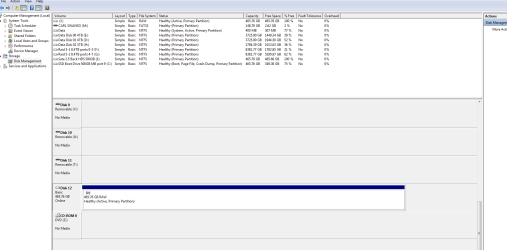
The reason I can not do it now is I am not on that machine. The windows 7 enterprise machine is the one giving me trouble right now. That machine will die after 15 to 20 minutes (or the reason we pulled the 2nd and 3rd disks from it in the first place). So I am dealing with 2 separate and different issues, and that machine will die in 15 to 29 minutes with the 2nd disk in it or not in it. Here is a screen shot of one of the 2 disks that came from a Windows 7 Enterprise machine and placed in a windows 7 Pro machine. Like that other disk it was fine when in the original machine but shows as raw in the new machine.
 

Attachments

  • Capture.PNG
    Capture.PNG
    27.2 KB · Views: 6

My Computer

Computer type
PC/Desktop
OS
Win 7 pro 64 bit and win 7 enterprise 64 bit
DATA 400MB volume is ACTIVE and has the bootmgr and bootmenu. I can't see on which physical disk it is!
 

My Computer

Computer type
Laptop
Computer Manufacturer/Model Number
ACER ASPIRE 5742G
OS
Microsoft Windows 7 Home Premium 64-bits 7601 Multiprocessor Free Service Pack 1
CPU
Intel(R) Core(TM) i3 CPU M 370 @ 2.40GHz
Motherboard
Acer Aspire 5742G
Memory
4,00 GB
Graphics Card(s)
ATI Mobility Radeon HD 5400 Series
Sound Card
(1) AMD High Definition Audio Device (2) Realtek High Defi
Screen Resolution
1366 x 768 x 32 bits (4294967296 colors) @ 60 Hz
Hard Drives
WDC WD5000BEVT-22ZAT0
Drive J 465GB RAW was always 465GB so whole disk? Was it a "basic" disk in working machine? If you put it back to the other machine it works immediately?

What do you mean by "system dies in 29 minutes"? Crashes, reboots... explain.
 

My Computer

Computer type
Laptop
Computer Manufacturer/Model Number
ACER ASPIRE 5742G
OS
Microsoft Windows 7 Home Premium 64-bits 7601 Multiprocessor Free Service Pack 1
CPU
Intel(R) Core(TM) i3 CPU M 370 @ 2.40GHz
Motherboard
Acer Aspire 5742G
Memory
4,00 GB
Graphics Card(s)
ATI Mobility Radeon HD 5400 Series
Sound Card
(1) AMD High Definition Audio Device (2) Realtek High Defi
Screen Resolution
1366 x 768 x 32 bits (4294967296 colors) @ 60 Hz
Hard Drives
WDC WD5000BEVT-22ZAT0
yes, when I put it back in other machine it works just fine no data loss. No format required works as it should. The originating machine has a different unrelated issue it shuts off as if it is over heating after 20 or so minutes some times less. I have hardware tech looking at that since it is a separate issue. It was supposed to be simple move the disk that contains the data to a different machine and just keep going. So much for things are supposed to be simple.
For now we are going to deal with the broken machine and keep the drive with that machine. I am aware of others having this same issue and like others the hardware is not broken. That is why I think it is something in the software.
Also I have run every test you can run on the hard drive short of over writing the data to test it. And it pass all test without issue. It helps to work for a storage hardware company from time to time.
 

My Computer

Computer type
PC/Desktop
OS
Win 7 pro 64 bit and win 7 enterprise 64 bit
Last time I ask you: Assume disk has 2 partitions. Do both partitions become RAW, or becomes whole disk 1 big RAW partition?

Assume the volume letter of RAW volume is R

Code:
diskpart
select vol R
detail vol
detail part
exit

Do it when volume works and when turned RAW. Compare the output. What's different? Run diskpart from an elevated command prompt http://www.sevenforums.com/tutorials/783-elevated-command-prompt.html
 

My Computer

Computer type
Laptop
Computer Manufacturer/Model Number
ACER ASPIRE 5742G
OS
Microsoft Windows 7 Home Premium 64-bits 7601 Multiprocessor Free Service Pack 1
CPU
Intel(R) Core(TM) i3 CPU M 370 @ 2.40GHz
Motherboard
Acer Aspire 5742G
Memory
4,00 GB
Graphics Card(s)
ATI Mobility Radeon HD 5400 Series
Sound Card
(1) AMD High Definition Audio Device (2) Realtek High Defi
Screen Resolution
1366 x 768 x 32 bits (4294967296 colors) @ 60 Hz
Hard Drives
WDC WD5000BEVT-22ZAT0
Thanks for the responses I know I have annoyed some of you a bit. And this post may do that again. The PC, I had that was shutting off after 20 minutes or less has been repaired (new system board). My IT department was able to get a repair person with the part out on a Saturday, sometimes it is good to work for a large organization. This was the reason I had moved my data disk from the Dell (formerly broken) notebook to my Lenovo notebook and to my server. This was a attempt to keep working with the data on that disk. As everyone who has looked at this thread knows by now the disk was showing up as RAW in both the Server and the Lenovo notebook, except it is a properly fine disk formatted with NTFS and 400GB of data on it. Once the Dell notebook was repaired the exact same disk that was showing up as raw in 2 other systems went back into the Dell and is working perfectly fine.
After speaking with my IT department about this they have said they have seen similar things and have recreated the problem. They moved a disk from a Windows 7 Enterprise machine to a Windows 7 Pro machine or the other way around and the disk shows up as RAW in 1 of the 2 machines and is perfectly serviceable in the other. They are opening a ticket with Microsoft since they are planning to move the data disks from our Dell notebooks to our Lenovo Notebooks that we are upgrading too. If they need to do a data copy or restore every time a simple job starts getting a bit larger.
As a summary a disk that shows as raw in one machine and would require formatting for use in that machine works just fine in its original machine. Take the disk from the machine showing needing formatting place it back where it came from and all the data is intact no issues.
In my case the disk had 1 partition only and was formatted for NTFS, I tried different machines (desktop and Lenovo notebook) and different controllers (Intel and Marvel) even recreated the problem with a drive from a different manufacturer (Seagate and Hitachi). I tried different SATA controllers, different SATA speeds SATA II and SATA III. I even tried a LSI mega raid card set as JBOD. No matter what I tried the drive always showed as RAW in these systems, but always worked when put back in the original system. By doing all of these things I was eliminating different points of hardware or firmware as being the issue. The only thing left is software and the common software in this case is Windows 7, that is why my IT department will be opening a ticket with Microsoft.
Thank you to everyone who tried to help, I had been hoping someone had found a way around this issue that did not involve formatting or using data recovery software, it appears no one has. I am always looking for the root cause and just formatting or re-booting is not root cause. I want to know why I have to re-boot or format because if I do not know I should just expect to see this issue again. Once I learn something from my IT department I will post in this thread again.
 

My Computer

Computer type
PC/Desktop
OS
Win 7 pro 64 bit and win 7 enterprise 64 bit
Back
Top