Remove HDD with XP... Boot Problems

Jacques Swan

New member
Local time
1:38 AM
Messages
3
Hi
I have XP on one drive (older) and 7 x64 on another (new). At the moment I have dual boot, but I want to physically remove the XP installed HDD (keep as backup) and swap with new HDD as extra storage.

When I detach the XP HDD though, the PC boots, still asking whether to boot into 7 or older version, but when I try and boot into 7, it says it can't find the source disk.

Any ideas - possibly without having to do a fresh install.

PS
Also made system image backup, but by default 7 included the XP drive as well. What is going to happen if a try and restore the backup?
 

My Computer

OS
Win 7 Ultimate 64bit
CPU
i7 920
Motherboard
MSI
Memory
12BG DDRIII
Graphics Card(s)
MSI
Monitor(s) Displays
Samsung
Hard Drives
2x 500GB
2x 1TB
PSU
Raptor 650W
Case
Raptor
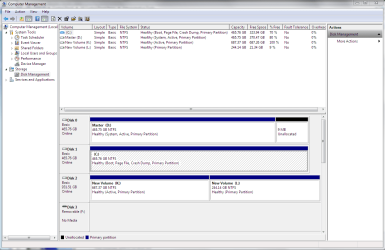
Please post back a screenshot of your full Disk Management drive map, using Snipping Tool in Start Menu, attach file using paper clip in Reply Box.

We will give you the steps to remove XP and recover boot critical files into Win7.

The System Image will only allow you to recover the dual boot as it exists now. But save it in case you want to ever return to Dual Boot without reinstall. You can get a Win7 image when you complete the steps.
 
Last edited:
Thanks

Here Ya goDrive_Map1.PNG
 

My Computer

OS
Win 7 Ultimate 64bit
CPU
i7 920
Motherboard
MSI
Memory
12BG DDRIII
Graphics Card(s)
MSI
Monitor(s) Displays
Samsung
Hard Drives
2x 500GB
2x 1TB
PSU
Raptor 650W
Case
Raptor
Mark Win7 HD Active in XP Disk management, or use free Partition Wizard bootable CD.

Shut down, unplug XP HD, plug it's cable into Win7 HD. Confirm it is now HD set to boot first in BIOS setup, after DVD drive.

Boot Win7 DVD Repair console or Repair CD, click through to Recovery Tools list to run Startup Repair up to 3 separate times with reboots as it will attempt to repair and finally write MBR to Win7 HD. This will always work if Win7 is marked Active.

As you wish to keep XP HD for backup, adding it back will make it bootable via F-Key given on first BIOS boot screen, interrupting Win7 HD set to boot by default.
 
Thanks Greg...

Tried this five times, not working at all. I sometimes get the repair screen, other times, only the boot from DVD, and then the PC hangs.

I have now managed to install my 2nd 1TB drive, but now my case is full. I actually wanted to install an extra drive, the reasoning behind removing the XP one.

Any suggestions would be appreciated.
 

My Computer

OS
Win 7 Ultimate 64bit
CPU
i7 920
Motherboard
MSI
Memory
12BG DDRIII
Graphics Card(s)
MSI
Monitor(s) Displays
Samsung
Hard Drives
2x 500GB
2x 1TB
PSU
Raptor 650W
Case
Raptor
Boot the Partition Wizard CD to make sure only Win7 is marked Active.

If any other HD"s or their partitions are marked Active, rightclick Modify>Set to Inactive.

If Win7 is functional and marked active, running Startup Repair repeatedly with reboots should write MBR to it, as long as another partition isn't interfering.

Although these commands are automated in Startup Repair, sometimes you need to open a Command Line on DVD (Shift F10 at bootup, or choose from Recovery Tools list) to type "Bootrec.exe /fixboot" and "Bootrec.exe /fixmbr" without quotes to force Win7 installation to show up in Repair console. Then run Startup Repair repeatedly with reboots.
 
Could you open up an administrative command window and type bcdedit. Then attach a snipping tool picture of the readout.

It seems strange, if you removed the XP drive, you would still have a boot menu. Perhaps the BCD store has the wrong Drive letter for the Win 7 install.
 

My Computer

Computer Manufacturer/Model Number
Homebuilt
OS
Windows 7 x64
CPU
i7-2600K
Motherboard
Asus P8Z77-v Pro
Memory
8 G
Graphics Card(s)
GTX 480
Sound Card
Onboard
Monitor(s) Displays
LG W2753V
Screen Resolution
1920x1080
Hard Drives
Crucial M4 128 G SSD
Back
Top