
Remove XP and Win 7 Dual boot on separate drives

Phrozenbuns

New member
Local time
8:40 PM
Messages
1
Hi All,
Being a newbie to this forum, I am sure this question has been asked before, but I still need to ask the question anyway:-)
I have a laptop with two 350Gb Hard drives installed.
XP was the original OS loaded on the (C) drive and I recently loaded Win 7 (32bit) on the (D) drive with the dual boot option.
I now have no further use for XP, as I am using Win 7 only, and so I want to delete\remove\re-format the (C) drive so that I only have a Win 7 OS.
Is it possible to remove XP without having to reformat both the hard drives, and thereby losing all my installed programs on the (D) drive, or can I reformat the (C) drive only, without making changes to the (D) drive?
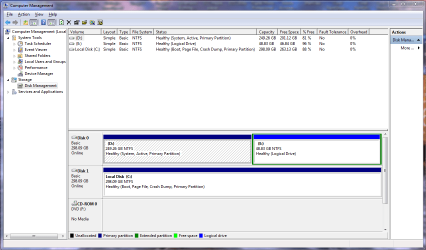
If it helps, I have attached a screen dump of the Drive Management map.
Any help/explanations or pointing me in the right direction will be appreciated.
 

Attachments
  • Disk Management Drive map.PNG
    Disk Management Drive map.PNG
    50.1 KB · Views: 177
Last edited:

My Computer My Computer

At a glance

XP & Win 7
OS
XP & Win 7
Hi phrozen

Welcome to Seven Forums :)
Have a look at this Seven Forums thread

Hope this helps and regards
 

My Computer My Computer

At a glance

Win7 HP (x64)/Win7 Ultimate (x64)Core i7 9206 x 2GB Corsair XMS3CF HD4890
Computer Manufacturer/Model Number
Custom
OS
Win7 HP (x64)/Win7 Ultimate (x64)
CPU
Core i7 920
Motherboard
Intel X58
Memory
6 x 2GB Corsair XMS3
Graphics Card(s)
CF HD4890
Sound Card
Asus Xonar
Monitor(s) Displays
Dell 2408WFP
Screen Resolution
1920 x 1200
Hard Drives
2 x 150GB WDC Velociraptors (Raid 0)
1 x 1TB Seagate
1 x 1.5TB Seagate
PSU
Corsair HX1000W
Case
Antec 1200
Keyboard
Razer Lycosa/N52te
Mouse
Razer Lachesis
Boot into XP to mark Win7 active in Disk Mgmt, power down to Unplug the XP HD, set the Win7 HD as first HD to boot in BIOS setup,

Next boot the WIN7 DVD Repair console or Repair CD, click through to Recovery Tools list to run Startup Repair up to 3 separate times with reboots to repair or rewrite the MBR until Win7 starts on its own.

You should then be able to plug back in the XP HD to format it in Disk Mgmt. If not, boot the Win7 DVD Repair/Repair CD to clean that HD using DISKPART: http://www.sevenforums.com/tutorials/52129-disk-clean-clean-all-diskpart-command.html
 
Last edited:
Might help to mark 7 partition active first.
 

My Computers My Computers

  • At a glance

    7 X64i5 84002x8gb 3200mhz
    Computer type
    PC/Desktop
    OS
    7 X64
    CPU
    i5 8400
    Motherboard
    gigabyte b365m ds3h
    Memory
    2x8gb 3200mhz
    Hard Drives
    various
    PSU
    pure power 11 400w cm
    Case
    Coolermaster
    Cooling
    cryorig m9i
  • At a glance

    7x64g54008gb ddr4 2400
    Computer type
    PC/Desktop
    OS
    7x64
    CPU
    g5400
    Motherboard
    ga b365m ds3h
    Memory
    8gb ddr4 2400
    PSU
    xfx pro 450w
OP says he has WIn7 on D which is already System Active.

Apparently he is quoting drive letters as viewed from XP, when the screenshot is from Win7 relative view.
 
Last edited:
Win7 is on C in that screenshot.

Yes, he will need to mark 7 partition active and create the boot critical files. A few runs of startup repair will do the latter.
 

My Computers My Computers

  • At a glance

    7 X64i5 84002x8gb 3200mhz
    Computer type
    PC/Desktop
    OS
    7 X64
    CPU
    i5 8400
    Motherboard
    gigabyte b365m ds3h
    Memory
    2x8gb 3200mhz
    Hard Drives
    various
    PSU
    pure power 11 400w cm
    Case
    Coolermaster
    Cooling
    cryorig m9i
  • At a glance

    7x64g54008gb ddr4 2400
    Computer type
    PC/Desktop
    OS
    7x64
    CPU
    g5400
    Motherboard
    ga b365m ds3h
    Memory
    8gb ddr4 2400
    PSU
    xfx pro 450w
OK I see now that he's using Win7 Disk Mgmt which is viewing C relatively. He must have posted drive letters as read from XP. Confusing.

OP: If this is the case, you will want to go into XP Disk Management to mark Win7 active,

Power down to unplug XP HD,

Restart into BIOS setup to set Win7 HD as first HD to boot (after DVD drive),

then boot the WIn7 DVD repair console, click through to Recovery Tools list to run Startup Repair up to 3 separate times with reboots until Win7 starts on its own.

You can then power down, plug back in XP HD to format it, or if it interferes run Clean all from WIn7 DVD/CD as given earlier.
 
Back
Top