Solved Removin Linux partition

bagua7

New member
Local time
11:53 AM
Messages
9
Removing Linux partition

I have Linux on dual boot with Wind 7 but no longer want the former. Here's a screenshot of disk management:

351vcr6.jpg


I would like to know what corresponds to Linux in order to make sure I am not deleting Windows stuff!

So what of those "boxes" do I need to delete?

I am following these instructions:

How to Uninstall Windows or Linux After Dual-Booting

Thanks in advance.
 
Last edited:

My Computer

Computer type
Laptop
OS
Windows 7 x 64
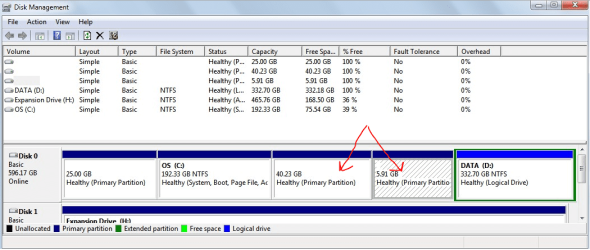
There are usually 2 partitions associated with a classic installation of Linux. I think it might be these 2:

1.PNG

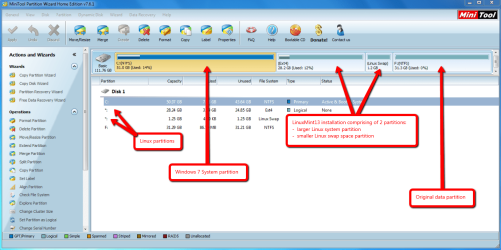
Unfortunately, Windows Disk Management doesn't positively identify them, so its better to use the FREE version of Partition Wizard to confirm this....the 2 Linux partitions should be labelled EXT4 and Linux swap. It should look similar to this image:

2.PNG

Be 100% sure you understand how to take care of the boot manager before deleting those partitions, or you won't be able to boot Windows. If you do NOT require access to OEM recovery features or Bitlocker Drive Encryption, then this is the easiest way to take care of that:

http://www.sevenforums.com/tutorials/209885-bootmgr-move-c-easybcd.html

In fact, I think you are better off following this tutorial for removing Linux, and not the one you linked:
http://www.sevenforums.com/tutorials/210983-dual-boot-delete-os.html
 

My Computer

Computer type
PC/Desktop
Computer Manufacturer/Model Number
Golden Mk. I.4
OS
Windows 10 Pro x64 ; Xubuntu x64
CPU
Intel i7 860 @ 2.80 GHz O/C'ed to 4.0GHz
Motherboard
Gigabyte P55A-UD3R Rev.1. Award BIOS F13
Memory
16GB Corsair Vengance DDR3 @ 661 MHz Dual Channel (9-9-9-24)
Graphics Card(s)
EVGA NVidia GTX 560 1024MB
Sound Card
Realtek Integrated
Monitor(s) Displays
Dual Samsung SyncMaster 2494HS
Screen Resolution
1920*1080 and 1920*1080
Hard Drives
1*Samsung 840 EVO 120GB SSD;
1*OCZ Vertex 2 60GB SSD;
2*Samsung F3 SpinPoint 1TB in RAID0;
1*Samsung F1 SpinPoint 1TB;
2*Western Digital 1TB External USB 3.0
1*Western Digital 500GB External USB 3.0
1*Seagate 500GB External USB 2.0
PSU
Thermaltake ToughPower QFan 750W
Case
Thermaltake Element S VK60001W2Z
Cooling
Corsair H60 Water Cooling, 2*230mm and 2*80mm case fans
Keyboard
Logitech G110
Mouse
Logitech MX518
We know by the System flag on C that it is already booting Win7, so there should be no problem deleting the Linux partitions after confirming the third and fourth partitions are them in Partition Wizard.

Then you can add the Unallocated Space to either C or D using the Partition Wizard Extend function, which I would use from the bootable disk to be safest: How to extend partition easily with Partition Wizard - video help.

Is the 25gb first partition a Recovery Partition? If not you can delete and extend C into it if you want using the PW disk to Extend C.

Always back up your data and a Win7 System image before resizing which can fail with data loss, although we've never had a failure using the PW Boot Disk in thousands of partitioning operations we've helped with here.
 
I would always take a full disk image rather than a system image before making any change at all to the partition structure. That guarantees a way back should you make a mistake or should there be any malfunction. You can do this with the built-in Win 7 backup system or with free third party software such as Macrium Reflect.
 

My Computer

Computer type
PC/Desktop
Computer Manufacturer/Model Number
PC Specialist Custom
OS
Windows 7 Pro 64 bit
CPU
Intel i5
Motherboard
ASUS® H81M-PLUS
Memory
8GB KINGSTON DUAL-DDR3 1600MHz
Graphics Card(s)
2GB AMD RADEON™ R7 250
Hard Drives
120GB KINGSTON V300 SSD
1TB WD CAVIAR BLACK WD1003FZEX
There are usually 2 partitions associated with a classic installation of Linux. I think it might be these 2:

In fact, I think you are better off following this tutorial for removing Linux, and not the one you linked:
http://www.sevenforums.com/tutorials/210983-dual-boot-delete-os.html

Thanks. Here's in mine using PW:


jb0f39.jpg


It doesn't say Linux Swap, but I remember now that when I first installed Linux (now corrupt due to a logon bug in Mint v. 16 which is a nightmare to fix; easier and quicker to uninstall and reinstall the OS again) I allocated to the OS just a small size of the disk. I am quite sure those two are related to Linux. Now, I assume that Win 7 bootmgr resides in C:/, right?:

dxlshw.jpg


Regarding the boot menu. Here's what EasyBCD is showing:

xn6qlw.jpg


So my guess is that I need to do nothing, correct?


Is the 25gb first partition a Recovery Partition? If not you can delete and extend C into it if you want using the PW disk to Extend C.
I have no idea. Can someone confirm this please?
 

My Computer

Computer type
Laptop
OS
Windows 7 x 64
The first partition could only be a Recovery partition unless you deliberately created a 25gb partition when you reinstalled. Is this still the factory preinstall? If so you might want to considering doing the vastly superior Clean Reinstall - Factory OEM Windows 7 in which case you'd delete the Recovery partition since it won't run anyway after reinstall.

If you want further help determining if its a Recovery partition we need to know the maker of your PC. You can see if there is access to Recovery options in the All Programs menu if this is the original factory preinstall. Or you can reboot and use the key given for Factory Recovery or Reset to see if it will even run and queue up, then bail out.

But if you know for sure you don't want it anyway, then you can delete it and recover the space the way I described.

I explained which is the partition booting Win7 - the one which is labeled System is the way we know this. The Boot label you pointed to only means the partition which is presently booted. And Active flag only points to the partition intended to be System.

So you're good to delete the Linux partitions, Extend into the space from C using Disk Mgmt, or if you want to Extend to the left from the Data partition, or into the deleted Recovery partition space from C, you must use the Partition Wizard Extend or Resize function for which I linked you a video tutorial.
 
Yeah. Your boot manager is fine. Simply remove those partitions and you are good to go :thumbsup:
 

My Computer

Computer type
PC/Desktop
Computer Manufacturer/Model Number
Golden Mk. I.4
OS
Windows 10 Pro x64 ; Xubuntu x64
CPU
Intel i7 860 @ 2.80 GHz O/C'ed to 4.0GHz
Motherboard
Gigabyte P55A-UD3R Rev.1. Award BIOS F13
Memory
16GB Corsair Vengance DDR3 @ 661 MHz Dual Channel (9-9-9-24)
Graphics Card(s)
EVGA NVidia GTX 560 1024MB
Sound Card
Realtek Integrated
Monitor(s) Displays
Dual Samsung SyncMaster 2494HS
Screen Resolution
1920*1080 and 1920*1080
Hard Drives
1*Samsung 840 EVO 120GB SSD;
1*OCZ Vertex 2 60GB SSD;
2*Samsung F3 SpinPoint 1TB in RAID0;
1*Samsung F1 SpinPoint 1TB;
2*Western Digital 1TB External USB 3.0
1*Western Digital 500GB External USB 3.0
1*Seagate 500GB External USB 2.0
PSU
Thermaltake ToughPower QFan 750W
Case
Thermaltake Element S VK60001W2Z
Cooling
Corsair H60 Water Cooling, 2*230mm and 2*80mm case fans
Keyboard
Logitech G110
Mouse
Logitech MX518
OK, thanks. Btw, in regards to the tutorial you linked earlier, I still need to finish with steps 3, 4, & 5, right?

If you want further help determining if its a Recovery partition we need to know the maker of your PC.

I'd rather not run through that because I would have to set all up again. I much prefer a quicker and 'easier' way.

I still don't know where the 25 GB come from but as you stated is most likely a boot/recovery partition that came with my Asus K53S notebook.
 
Last edited:

My Computer

Computer type
Laptop
OS
Windows 7 x 64
Step 3,4,5 are not needed since your bootmanger is already on C:....but I would follow those steps anyway just to be 100% sure. It won't harm to do it.
 

My Computer

Computer type
PC/Desktop
Computer Manufacturer/Model Number
Golden Mk. I.4
OS
Windows 10 Pro x64 ; Xubuntu x64
CPU
Intel i7 860 @ 2.80 GHz O/C'ed to 4.0GHz
Motherboard
Gigabyte P55A-UD3R Rev.1. Award BIOS F13
Memory
16GB Corsair Vengance DDR3 @ 661 MHz Dual Channel (9-9-9-24)
Graphics Card(s)
EVGA NVidia GTX 560 1024MB
Sound Card
Realtek Integrated
Monitor(s) Displays
Dual Samsung SyncMaster 2494HS
Screen Resolution
1920*1080 and 1920*1080
Hard Drives
1*Samsung 840 EVO 120GB SSD;
1*OCZ Vertex 2 60GB SSD;
2*Samsung F3 SpinPoint 1TB in RAID0;
1*Samsung F1 SpinPoint 1TB;
2*Western Digital 1TB External USB 3.0
1*Western Digital 500GB External USB 3.0
1*Seagate 500GB External USB 2.0
PSU
Thermaltake ToughPower QFan 750W
Case
Thermaltake Element S VK60001W2Z
Cooling
Corsair H60 Water Cooling, 2*230mm and 2*80mm case fans
Keyboard
Logitech G110
Mouse
Logitech MX518
If you want further help determining if its a Recovery partition we need to know the maker of your PC.

I'd rather not run through that because I would have to set all up again. I much prefer a quicker and 'easier' way.

I still don't know where the 25 GB come from but as you stated is most likely a boot/recovery partition that came with my Asus K53S notebook.

Why would you have to set it up again? I only asked what the make was or said you could look at your Recovery options without running Recovery. If it's Asus, the Win7 Recovery is from the F8
System Recovery Options but is only functional with the factory install. If you've reinstalled or don't want your Recovery partition you can delete it and reclaim the 25gb of space in the fastest sectors of the disk.

There is no reason to transfer the boot files with EasyBCD since they are clearly on C. The tutorial is incorrect that the Active flag points to which is booting Win7. This is the sole purpose of the System flag.
 

My Computer

Computer type
PC/Desktop
Computer Manufacturer/Model Number
Custom built, several laptops HP/ASUS
OS
Linux CENTOS 7 / various Windows OS'es and servers
CPU
Intel i7 Intel i5
Memory
8GB, 16GB
Graphics Card(s)
On Motherboard
Sound Card
Realtek HD audio
Monitor(s) Displays
Apple Cinema display, Samsung LCD
Screen Resolution
1920 X 1080
Hard Drives
4 X 1TB SATA
Mouse
Toshiba wireless laser
Internet Speed
> 20MB up
So, step 3 (clean up the bootmgr) should be skipped in my case, right? Should I allocate the remaining 25 GB to the rest of this disk (how to do that, thanks) or leave them there in case I want to reinstall Linux?

Sorry if I ask so many times, it's my first time ever I get involved with having to remove an OS, rearranging disk sectors, GRUB stuff, etc. It's all too techie for me, I'm afraid. :confused:

Thanks all :)
 

My Computer

Computer type
Laptop
OS
Windows 7 x 64
Problem solved. The remaining 25GB partition was automatically created by the notebook manufacturer, ASUS, as a recovery partition for the OEM Recovery Disks. Thanks.
 
Last edited:

My Computer

Computer type
Laptop
OS
Windows 7 x 64
Back
Top