Removing bad storage drive destroys libraries - DIFFICULT!

Ohmster

New member
Member
Local time
9:43 AM
Messages
46
I am pretty good at Windows and have decades of experience. But this, is a super difficult issue that has me stumped for days. There is a lot to read, I am sorry, but the issue is: I cannot remove an old hard drive without destroying the media libraries for Media Center and Media Player.

Windows 7 Ultimate x64 SP-1

My Videos, My Pictures, My Music moved off Drive C to other mechanical storage drives, one is failing, and if I remove it, I lose my libraries for Media Player & Center.

I have several hard drives and have partitioned off the 1Tb drives to 4 smaller partitions, all for storage, a very long time ago. I wanted an SSD, moved my folder storage off drive C to other partitions on mechanical drives, then cloned drive C to a 500Gb SSD, and rebooted. I recreated the folders for all of the standard storage such as My Videos, My Pictures, My Music, and My Documents on other mechanical drives such as Drive E:\My Videos, etc.. This way I have little to no storage on Drive C which is now my SSD. This worked perfectly for over a year. I have 3 other mechanical drives.

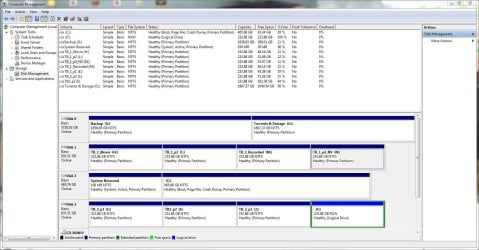
Disk 3 - A 1TB drive partitioned to 4 logical drives; drives E, I, J, & K
Disk 0 - A 1TB drive partitioned to 4 logical drives; drives H, L, M, & N
Disk 2 - A 1TB drive partitioned to 2 logical drives; G, & O

Disk 1 - A 500Gb SSD drive which holds the system disk, drive C

Previously I had My Videos swapped to Drive E:\My Videos, M:\My Music, M:\My Pictures. My Documents still resides on drive C.

Disk 3 is failing. Any sort of write operation fails, chkdsk cannot fix the disk. I moved My Videos to drive O:\My Videos. Changed all library locations to update the changed locations as well as the "user" folder shortcuts. All library data has been copied to another drive, drive O. All well and good.

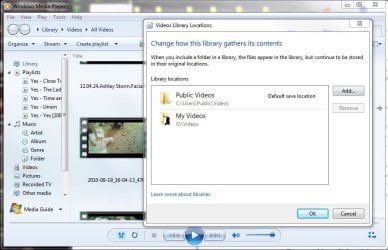
When I actually pull Disk 3 because all data has been backed up to other drives, I completely lose my video library. Media Center and Media Player lose the video libraries, Media Player loses all libraries. I have tried to change the locations of the libraries in Media Center, the change fails to stick. With failed drive removed, Media Center will no longer give me "Manage Video Library", nothing happens. (Screenshot shows what no longer is available after pulling drive E.) All media is lost in Media Player, although it still resides on it's library targets in Explorer. I had to change security settings on the new target, Drive O, because only System had access, now Everyone has read an execute access. This got rid of the "Unresponsive" label I got in Media Player when managing the library on this drive. But still, if I pull the failed drive from the system, my media libraries are lost for Media Player and Media Center. Plug the failing drive back in, the media libraries are restored to Player and Center.

I have been at this for days, I cannot imagine I overlooked anything, yet this issue persists. There are some game shortcuts on the desktop that are unresolved because some games were installed to the failed disk.

Bottom Line: If I pull the now backed up failing drive (No write capacity), I lose my libraries in Player and Center. What else is there left to check? This is NOT an easy problem to fix! Help.

EDIT: I did find some library links in the user folder that were not properly set. I mean the *real* library links with the Location tab in properties. I had some shortcuts created to "My Videos" but the actual library link itself was not changed properly. I made the change and deleted the shortcuts. Have not tested it yet as this is a BIG hassle. Rebooting, unplugging the drive, watching my libraries fail, rebooting, putting the drive back, and rebuilding the libraries again for now.

EDIT 2: The My Music, My Pictures, and My Videos folders are all *gone* again, in a space of a couple of hours! I just saw them, set the locations correct, and deleted the shortcuts I made before because I could not find them. They are gone again. The mystery deepens...

...no wonder nobody is helping. This is a TOTAL PITA! I got back the missing "Magic Folders" in my user folder. Thanks to a very, very good tutorial here:
Repair missing User folders in Windows 7 | Scottie?s Tech.Info

It is almost 5:00 AM, will work on this more tomorrow.
 

Attachments
  • win7001.jpg
    win7001.jpg
    90.3 KB · Views: 1
Last edited:

My Computer

Computer type
PC/Desktop
Computer Manufacturer/Model Number
Built from Maximum PC magazine article
OS
Windows 10 Pro via free update.
CPU
Intel Core i7 3820
Motherboard
Gigabyte X79-UP4
Memory
16,384 MB DDR3-SDRAM
Graphics Card(s)
NVIDIA GeForce GTX 770
Hard Drives
1) - C:/ 500 Gb Samsung SSD 840
2) - 1 Tb SATA drives
1) - 4 Tb SATA Drive
1) - t Tb USB External BU Drive
Antivirus
Avast Free Antivirus 2014.9.0.2006
Browser
Firefox

My Computer

Computer type
PC/Desktop
Computer Manufacturer/Model Number
Home made Desktop
OS
Windows 10 Pro. 64/ version 1709 Windows 7 Pro/64
CPU
Intel i7-6800K @ 4.3
Motherboard
ASUS X-99 Deluxe II
Memory
Corsair Platinum 16 gig @2400
Graphics Card(s)
EVGA GTX 1070 OC
Monitor(s) Displays
Asus 27" LED LCD/VE278Q
Screen Resolution
1920-1080 or 1280-720 HDMI
Hard Drives
INTEL SSD 730-240 Gb Sata 3.0/
PSU
EVGA Platium 1200W
Case
Phanteks Luxe Tempered Glass 8 fans/ one radiator
Cooling
XSPC/ Water Cooled CPU
Keyboard
Das 4 Professional
Mouse
Logitech M705/MX Anywhere 2-S
Internet Speed
100 mbits
Antivirus
Microsoft Security Essentials/ Malwarebytes Premium 3.0/ SAS
Browser
I.E. 11 default/Firefox/ ISP Time Warner Cable/Spectrum
Other Info
LG BluRay Burner/
Sound system-KLipsch-THX/
Icy Dock ssd Hot Swap bays.
Well I'm not sure I can help you.
Those that can will need to see some information.
Please completely (exactly) this tutorial by Golden.

http://www.sevenforums.com/tutorials/274797-disk-management-post-screen-capture-image.html

You want a disk manager shot? Sure, here ya go. The failing drive, Disk 3, is still attached. There is no Drive F, that used to be Drive K, until I tried to format it and failed, leaving raw space, now "Drive F".

I am still rather confused about the missing Magic Folders; My Pictures, My Music, and My Videos. I just rechecked and set the location on them and a few hours later, poof! They were gone. I checked the registry, all good, and setting the permissions in a command prompt did bring them back. Have not tried to pull the drive since. Every time I disconnect that failing drive, I lose My Pictures, My Documents, & My Videos in Media Player and Media Center. Just, ...gone.

Things I have done, since posting:

  1. Removed any of the "drives" (partitions) of the bad drive from Indexing Options.
  2. Set security permissions on the replacement drive to "Everyone: Read & Execute". Previously ONLY System had total access, nothing else. Gave me "Unresponsive" in Media Center libraries.
  3. Set attrib for user, "Magic Folders" My Videos, My Music, & My Pictures, thus restoring them back to the user folder.
Have not shut down and disconnected the drive yet to test again. Will try that this afternoon.
 

Attachments

  • win7002.jpg
    win7002.jpg
    247.2 KB · Views: 2
Last edited:

My Computer

Computer type
PC/Desktop
Computer Manufacturer/Model Number
Built from Maximum PC magazine article
OS
Windows 10 Pro via free update.
CPU
Intel Core i7 3820
Motherboard
Gigabyte X79-UP4
Memory
16,384 MB DDR3-SDRAM
Graphics Card(s)
NVIDIA GeForce GTX 770
Hard Drives
1) - C:/ 500 Gb Samsung SSD 840
2) - 1 Tb SATA drives
1) - 4 Tb SATA Drive
1) - t Tb USB External BU Drive
Antivirus
Avast Free Antivirus 2014.9.0.2006
Browser
Firefox
Did you change your first post? I could swear the last time I read it you state your partitions were logical.

I have no idea what Magic Folders are or is.

If it was my computer I would start with saving all wanted data from the drive causing problems to a external drive.

Then I would unhook all drives.

Then install the drive with Reserve and Windows 7 (C) to make it Drive (0)

Then start the computer to make sure it will boot.

Then I would check the bios and make sure that Drive (0) is set first to boot. In this case I don't know what is on the other drives that might get in the way of booting.

Now I would install the other good drives. Boot the computer again. Take a look again in Disk Management again and see if every thing worked out properly.

At this point I would go into Windows Explorer and check if all Disks are indicated there and are accessible.

Partition (F) on Disk 3 should be Simple, Basic, NTSF like the other partitions. You can have 4 Basic partitions on one drive.

Before going any farther I see a known problem.
Torrent partition. Which rings a large bell giving a warning of infections.

I would scan all drives with my anti virus program and several other security programs.

Well actually if it was my computer their would not be anything on the computer that came from a torrent.

Let me know if you like my ideas. I can continue with ideas if need be. (If it was my computer)
 

My Computer

Computer type
PC/Desktop
Computer Manufacturer/Model Number
Home made Desktop
OS
Windows 10 Pro. 64/ version 1709 Windows 7 Pro/64
CPU
Intel i7-6800K @ 4.3
Motherboard
ASUS X-99 Deluxe II
Memory
Corsair Platinum 16 gig @2400
Graphics Card(s)
EVGA GTX 1070 OC
Monitor(s) Displays
Asus 27" LED LCD/VE278Q
Screen Resolution
1920-1080 or 1280-720 HDMI
Hard Drives
INTEL SSD 730-240 Gb Sata 3.0/
PSU
EVGA Platium 1200W
Case
Phanteks Luxe Tempered Glass 8 fans/ one radiator
Cooling
XSPC/ Water Cooled CPU
Keyboard
Das 4 Professional
Mouse
Logitech M705/MX Anywhere 2-S
Internet Speed
100 mbits
Antivirus
Microsoft Security Essentials/ Malwarebytes Premium 3.0/ SAS
Browser
I.E. 11 default/Firefox/ ISP Time Warner Cable/Spectrum
Other Info
LG BluRay Burner/
Sound system-KLipsch-THX/
Icy Dock ssd Hot Swap bays.
Also, why are you using so many partitions? Organizing data by partitioning locks you into a fixed amount of storage space that will eventually require you to resize partitions as some of them run out of room while others have unused space, adding unnecessary complication. Folders are far better since they will occupy only the drive space they need for their content, leaving the rest of the space on the drive available for the folders to expand into as needed.
 

My Computer

Computer type
PC/Desktop
Computer Manufacturer/Model Number
Custom Build
OS
Win 7 Ultimate 64 bit
CPU
Intel i7-3930K
Motherboard
ASUS P9X79 WS
Memory
Kingston HyperX Genesis 32GB Kit (8x4GB Modules) 1600MHz DDR
Graphics Card(s)
MSI R7850 Twin Frozr 2GD5/OC Radeon HD 7850 2GB 256-bit GDDR
Sound Card
Asus Xonar Essence STX
Monitor(s) Displays
3x Asus VG248QE 24", Vizio 32" TV
Screen Resolution
1920 x 1080, ?
Hard Drives
Samsung 128GB 840 Pro SSD (1),
Samsung 4TB 850 EVO SSDs (4)
Samsung 4TB 850 EVO SSDs (16) external backup drives used in 2.5" hot swap bays in the computer.
PSU
Corsair HX750w
Case
Antec Two Hundred v2 (modified)
Cooling
Cooler Master GeminII S524 120mm (fan replaced with a 140mm)
Keyboard
Logitech G510s
Mouse
Logitech M525 (two in use)
Internet Speed
=< 32Mbps down, 8Mbps up
Antivirus
AVAST!, MBAM, SAS, Spybot S&D (all but MBAM free) Glary Util
Browser
IE11
Other Info
LSI 9211-8i HBA card (8 SATA III ports), 2.5" & 3.5" Hot Swap Bays, HooToo HT-CR001 PCI-E to USB 3.0 Internal Hub + 6 Slot Card Reader, and LG Model CH12LS28 BD-ROM Optical Drive. Also, ScanSnap S1500 ADF duplexing scanner, Canon 9000F flat bed scanner, Corsair SP2500 2.1 speakers, Samsung CLP 415nw laser color printer, Cyberpower PP2200SW UPS
Thank you Lady Fitzgerald for dropping by.

She does a lot of this kind of thing with several drives and backup than I do. Give head to her suggestions.

I agree with the Lady. To many partitions.
Folders was one of the next steps if everything suggested worked out.

Folders are much easier to manage and less constraining.
Windows Explorer can be use to move things around if need be.

I'm thinking that once the suggestion have been done and no data or drives are lost, their is a lot more to do such as folders, defrag, and indexing of the hard drives if it was my computer.
 

My Computer

Computer type
PC/Desktop
Computer Manufacturer/Model Number
Home made Desktop
OS
Windows 10 Pro. 64/ version 1709 Windows 7 Pro/64
CPU
Intel i7-6800K @ 4.3
Motherboard
ASUS X-99 Deluxe II
Memory
Corsair Platinum 16 gig @2400
Graphics Card(s)
EVGA GTX 1070 OC
Monitor(s) Displays
Asus 27" LED LCD/VE278Q
Screen Resolution
1920-1080 or 1280-720 HDMI
Hard Drives
INTEL SSD 730-240 Gb Sata 3.0/
PSU
EVGA Platium 1200W
Case
Phanteks Luxe Tempered Glass 8 fans/ one radiator
Cooling
XSPC/ Water Cooled CPU
Keyboard
Das 4 Professional
Mouse
Logitech M705/MX Anywhere 2-S
Internet Speed
100 mbits
Antivirus
Microsoft Security Essentials/ Malwarebytes Premium 3.0/ SAS
Browser
I.E. 11 default/Firefox/ ISP Time Warner Cable/Spectrum
Other Info
LG BluRay Burner/
Sound system-KLipsch-THX/
Icy Dock ssd Hot Swap bays.
Did you change your first post? I could swear the last time I read it you state your partitions were logical.

I have no idea what Magic Folders are or is.

If it was my computer I would start with saving all wanted data from the drive causing problems to a external drive.

Then I would unhook all drives.

Then install the drive with Reserve and Windows 7 (C) to make it Drive (0)

Then start the computer to make sure it will boot.

Then I would check the bios and make sure that Drive (0) is set first to boot. In this case I don't know what is on the other drives that might get in the way of booting.

Now I would install the other good drives. Boot the computer again. Take a look again in Disk Management again and see if every thing worked out properly.

At this point I would go into Windows Explorer and check if all Disks are indicated there and are accessible.

Partition (F) on Disk 3 should be Simple, Basic, NTSF like the other partitions. You can have 4 Basic partitions on one drive.

Before going any farther I see a known problem.
Torrent partition. Which rings a large bell giving a warning of infections.

I would scan all drives with my anti virus program and several other security programs.

Well actually if it was my computer their would not be anything on the computer that came from a torrent.

Let me know if you like my ideas. I can continue with ideas if need be. (If it was my computer)

The partitions are Primary. I did this years ago when I got a 1Tb drive for storage. At that time, I made a judgement error. Thinking that somehow if I broke the very large disk into smaller partitions, that a "drive" or partition corruption would isolate me from having the entire drive go bad. I was wrong, it was a bad idea and I did it again on the 2nd 1Gb disk. The 3rd disk, a 4 Gb drive was SO big that I broke it down to a backup partition for Windows Backup and the other half for storage.

"Magic Folders" is referred to in my link where I restored the missing "Magic Folders" (Term used in the tutorial because these are not just "folders".) in my user folder. My Pictures, My Videos, and My Music had just "disappeared" from the PC. They are called "Magic" because they are not folders, but library markers that look like folders. They have a Location tab in properties where you can relocate these "folders" to another disk. The 3 libraries mentioned have been relocated to different disks. Downloads, My Documents, and Desktop are also special folders.

I use torrents to download disk image files such as CentOS for my Linux computer, public domain movies, and other very large downloads because they come much faster on dsl with *many* sources such as a good torrent than a single server. I get over 20Mbps with a good torrent, cannot get speeds like that for a single server. I don't download pirate garbage with torrents and manage my PC well for viruses and other attacks.

Partition F on Disk 3 *was* a primary partition like the remaining 3 partitions. Once I had copied all the data from the entire Disk 3 (The disk with failing write access.) to large disk 0, I decided to try formatting the primary partition, it failed of course, and I am left with "Drive F, Raw Space". This entire disk if failing, can read only, any attempt to write fails, including formatting. This disk has to go. When it is unplugged, the Media Libraries fail for Media Player and Media Center. That is the issue. No music to play in Media Player, no videos to watch in Media Center, even if I add the new folder on Disk O to Media Center.

All data I wish to keep has been copied off the failing Disk 3. I cannot delete anything on this drive nor can I format it. I must pull it out of the machine. When I do, I lose my Media in Media Center and Media Player.

I appreciate the instructions Layback Bear, but the are long and confusing. Drive C is an SSD and already has a drive letter C. I cannot change it to drive O and then set the PC to boot from it, as there already is a drive O. I did correct 3 things since last check with drive unplugged, let me try again to see if it helped.
 
Last edited:

My Computer

Computer type
PC/Desktop
Computer Manufacturer/Model Number
Built from Maximum PC magazine article
OS
Windows 10 Pro via free update.
CPU
Intel Core i7 3820
Motherboard
Gigabyte X79-UP4
Memory
16,384 MB DDR3-SDRAM
Graphics Card(s)
NVIDIA GeForce GTX 770
Hard Drives
1) - C:/ 500 Gb Samsung SSD 840
2) - 1 Tb SATA drives
1) - 4 Tb SATA Drive
1) - t Tb USB External BU Drive
Antivirus
Avast Free Antivirus 2014.9.0.2006
Browser
Firefox
Remove the failing drive. Just get it out of the way.

Drive numbers are created and selected as per what sata port on your motherboard you install the sata cable.

You just rearrange them so (C) is indicated as drive (0) in Disk Management.
Your motherboard manual would be handy to help select the proper sata port.

Sometimes the bios will see sata port (1) which Windows 7 will see as Drive (0).
 

My Computer

Computer type
PC/Desktop
Computer Manufacturer/Model Number
Home made Desktop
OS
Windows 10 Pro. 64/ version 1709 Windows 7 Pro/64
CPU
Intel i7-6800K @ 4.3
Motherboard
ASUS X-99 Deluxe II
Memory
Corsair Platinum 16 gig @2400
Graphics Card(s)
EVGA GTX 1070 OC
Monitor(s) Displays
Asus 27" LED LCD/VE278Q
Screen Resolution
1920-1080 or 1280-720 HDMI
Hard Drives
INTEL SSD 730-240 Gb Sata 3.0/
PSU
EVGA Platium 1200W
Case
Phanteks Luxe Tempered Glass 8 fans/ one radiator
Cooling
XSPC/ Water Cooled CPU
Keyboard
Das 4 Professional
Mouse
Logitech M705/MX Anywhere 2-S
Internet Speed
100 mbits
Antivirus
Microsoft Security Essentials/ Malwarebytes Premium 3.0/ SAS
Browser
I.E. 11 default/Firefox/ ISP Time Warner Cable/Spectrum
Other Info
LG BluRay Burner/
Sound system-KLipsch-THX/
Icy Dock ssd Hot Swap bays.
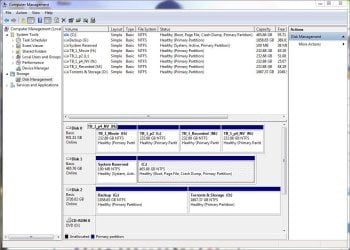
Alright. The failing hard drive, Disk 3 has been unplugged. Media Center and Media Player both have retained their libraries. Meaning at this time, the issue is no longer present. I would love to say that it is "fixed" but I have seen this before an in a matter of hours, the libraries just "melted away" in Media Player and Media Center. Only time will tell. Disk Manager screen shot attached.

What has changed since last attempt to unplug the unruly hard drive?

  1. Removed any of the "drives" (partitions) of the bad drive from Indexing Options.
  2. Set security permissions on the replacement drive to "Everyone: Read & Execute". Previously ONLY System had total access, nothing else. The new drive gave me a "Unresponsive" label in Media Center libraries found in Media Player.
  3. Set attrib for user, "Magic Folders" My Videos, My Music, & My Pictures, thus restoring them back to the user folder.
Step 3 instructions can be found in this tutorial link. You need not read it, just scan it and you will understand. The part that helped me is titled "Last crazy step", scroll down to see this. It is *definitely* worth a look. It won't bite you, please have a look:
Repair missing User folders in Windows 7

If these libraries do not "fade away" in Media Player or Media Center by tomorrow, then the issue is closed and will be marked "Solved".


That is what I was trying to accomplish. The libraries were not disappearing from the PC, only disappearing in the two Windows Media programs and the special folders from my user folder. Now I am keeping my fingers crossed. :rolleyes:


...phew! Everything is working properly. This is what I wanted. Now please, please, do not revert! This PC never shuts off, will report tomorrow if things are stable and close the thread. Or, report back later if it fails again. Wish me luck and thank you all for taking an interest. :)
 

Attachments

  • win7003.jpg
    win7003.jpg
    167.5 KB · Views: 1
Last edited:

My Computer

Computer type
PC/Desktop
Computer Manufacturer/Model Number
Built from Maximum PC magazine article
OS
Windows 10 Pro via free update.
CPU
Intel Core i7 3820
Motherboard
Gigabyte X79-UP4
Memory
16,384 MB DDR3-SDRAM
Graphics Card(s)
NVIDIA GeForce GTX 770
Hard Drives
1) - C:/ 500 Gb Samsung SSD 840
2) - 1 Tb SATA drives
1) - 4 Tb SATA Drive
1) - t Tb USB External BU Drive
Antivirus
Avast Free Antivirus 2014.9.0.2006
Browser
Firefox
If it was my computer I would swap the sata cables on the motherboard on what now is Disk 1 and Disk 0.
I would want my Windows 7 listed as Disk (0)
Or the first sata III port if a ssd is used.


Last edited:

My Computer

Computer type
PC/Desktop
Computer Manufacturer/Model Number
Home made Desktop
OS
Windows 10 Pro. 64/ version 1709 Windows 7 Pro/64
CPU
Intel i7-6800K @ 4.3
Motherboard
ASUS X-99 Deluxe II
Memory
Corsair Platinum 16 gig @2400
Graphics Card(s)
EVGA GTX 1070 OC
Monitor(s) Displays
Asus 27" LED LCD/VE278Q
Screen Resolution
1920-1080 or 1280-720 HDMI
Hard Drives
INTEL SSD 730-240 Gb Sata 3.0/
PSU
EVGA Platium 1200W
Case
Phanteks Luxe Tempered Glass 8 fans/ one radiator
Cooling
XSPC/ Water Cooled CPU
Keyboard
Das 4 Professional
Mouse
Logitech M705/MX Anywhere 2-S
Internet Speed
100 mbits
Antivirus
Microsoft Security Essentials/ Malwarebytes Premium 3.0/ SAS
Browser
I.E. 11 default/Firefox/ ISP Time Warner Cable/Spectrum
Other Info
LG BluRay Burner/
Sound system-KLipsch-THX/
Icy Dock ssd Hot Swap bays.
Moving sata cable location will not remove data.
As long as the drive is seen in Windows 7 and the bios you should be able to access the data on a properly working drive.
 

My Computer

Computer type
PC/Desktop
Computer Manufacturer/Model Number
Home made Desktop
OS
Windows 10 Pro. 64/ version 1709 Windows 7 Pro/64
CPU
Intel i7-6800K @ 4.3
Motherboard
ASUS X-99 Deluxe II
Memory
Corsair Platinum 16 gig @2400
Graphics Card(s)
EVGA GTX 1070 OC
Monitor(s) Displays
Asus 27" LED LCD/VE278Q
Screen Resolution
1920-1080 or 1280-720 HDMI
Hard Drives
INTEL SSD 730-240 Gb Sata 3.0/
PSU
EVGA Platium 1200W
Case
Phanteks Luxe Tempered Glass 8 fans/ one radiator
Cooling
XSPC/ Water Cooled CPU
Keyboard
Das 4 Professional
Mouse
Logitech M705/MX Anywhere 2-S
Internet Speed
100 mbits
Antivirus
Microsoft Security Essentials/ Malwarebytes Premium 3.0/ SAS
Browser
I.E. 11 default/Firefox/ ISP Time Warner Cable/Spectrum
Other Info
LG BluRay Burner/
Sound system-KLipsch-THX/
Icy Dock ssd Hot Swap bays.
Remove the failing drive. Just get it out of the way.

Drive numbers are created and selected as per what sata port on your motherboard you install the sata cable.

You just rearrange them so (C) is indicated as drive (0) in Disk Management.
Your motherboard manual would be handy to help select the proper sata port.

Sometimes the bios will see sata port (1) which Windows 7 will see as Drive (0).

Oh man I answered this and closed the tab while in preview!

Drive is totally disconnected and no longer in service. Will physically remove it from the case once this thread is marked solved.

I switched SATA cables on the 2 hard drives I had, once, a long time ago, when Drive C was showing as Disk 1 instead of Disk 0. Everything "seemed" okay at reboot, but, I quickly noticed that I had lost System Restore. Any attempt to use it failed. Days of troubleshooting cryptic system logs pointed to a now corrupt com database. I did not have that before and put the cables back to where they came from. Too late, once a com database is corrupted, there is no way to fix it. I had to live with no more system restore or reinstall Windows. I reinstalled Windows and have never changed drive C since. It was a long time ago, but my research at that time showed system restore identifies each disk by an ID number, assigned by the bios. By changing over the SATA cables like that, the ID on drive C no longer matched the restore points and system restore always failed. I never, ever changed my C drive SATA assignment since. Because of it.

Thank you Layback Bear. Everything is working the way I want and expected. Drive is out of service and the 2 Windows Media programs have not lost their libraries. I have a few game shortcuts on my desktop that lost their icons, games were installed to the failed drive. This is easy enough to fix, fix the shortcut locations or remove the games. So for now, I am just waiting to make sure the media programs no longer lose their libraries because I use Media Center every night to watch videos, TV, and Netflix. Well, Netflix will soon be gone, that is sad.

This PC never shuts off so if tomorrow the 2 media programs still have their libraries, I will mark the thread "Solved". I did make 3 significant changes to the PC since last attempt. Thank you very much for your help. :)

EDIT: I just saw your reply. I had a really bad experience with this, like I mentioned. I would *never* try that again without making a system image to restore in the event it trashed my system restore again. Right now I have too much on my plate, let it settle please.

By the way, I agree with you. Changing Drive C over to another SATA port should not make a difference, but I spent 6 weeks, putting Windows back to the way it was, over the issue of corrupting system restore's com database. Everything else was fine, only system restore was affected. And it makes sense, system restore needs to know exactly what disk it should restore to. It was a very long time ago. Am I mistaken? Could be, but I am no way going to reinstall Windows all over again if history repeats itself. I just cannot take the chance. Thanks!
 
Last edited:

My Computer

Computer type
PC/Desktop
Computer Manufacturer/Model Number
Built from Maximum PC magazine article
OS
Windows 10 Pro via free update.
CPU
Intel Core i7 3820
Motherboard
Gigabyte X79-UP4
Memory
16,384 MB DDR3-SDRAM
Graphics Card(s)
NVIDIA GeForce GTX 770
Hard Drives
1) - C:/ 500 Gb Samsung SSD 840
2) - 1 Tb SATA drives
1) - 4 Tb SATA Drive
1) - t Tb USB External BU Drive
Antivirus
Avast Free Antivirus 2014.9.0.2006
Browser
Firefox
Restore point should be on the (c) partition so you should never loose them.
You can always make a new restore point when every thing is hooked up again.

A thing I see many do, is start moving things off the the (C) partition that shouldn't be moved and then wonder why Windows 7 can't find them.

Or you could start off fresh with restore points using this tutorial by Brink.

http://www.sevenforums.com/tutorials/336-system-protection-restore-points-delete.html
 

My Computer

Computer type
PC/Desktop
Computer Manufacturer/Model Number
Home made Desktop
OS
Windows 10 Pro. 64/ version 1709 Windows 7 Pro/64
CPU
Intel i7-6800K @ 4.3
Motherboard
ASUS X-99 Deluxe II
Memory
Corsair Platinum 16 gig @2400
Graphics Card(s)
EVGA GTX 1070 OC
Monitor(s) Displays
Asus 27" LED LCD/VE278Q
Screen Resolution
1920-1080 or 1280-720 HDMI
Hard Drives
INTEL SSD 730-240 Gb Sata 3.0/
PSU
EVGA Platium 1200W
Case
Phanteks Luxe Tempered Glass 8 fans/ one radiator
Cooling
XSPC/ Water Cooled CPU
Keyboard
Das 4 Professional
Mouse
Logitech M705/MX Anywhere 2-S
Internet Speed
100 mbits
Antivirus
Microsoft Security Essentials/ Malwarebytes Premium 3.0/ SAS
Browser
I.E. 11 default/Firefox/ ISP Time Warner Cable/Spectrum
Other Info
LG BluRay Burner/
Sound system-KLipsch-THX/
Icy Dock ssd Hot Swap bays.
Restore point should be on the (c) partition so you should never loose them.
You can always make a new restore point when every thing is hooked up again.

A thing I see many do, is start moving things off the the (C) partition that shouldn't be moved and then wonder why Windows 7 can't find them.

Or you could start off fresh with restore points using this tutorial by Brink.

http://www.sevenforums.com/tutorials/336-system-protection-restore-points-delete.html

Hello Bear,

...sigh. You are intelligent and truly trying to help. It is worth my time to go over this with you, Bear. When I did change the SATA cables in an attempt to make Drive C become Disk 0, I did NOT lose restore points. They were all still present. What happened is that system restore would never work again. Sure, it went through the motions, system restore is initiating, all that, and when I finally reached the desktop again, "System Restore failed to restore your PC". Huh? Bad restore point? Try a different one. Same thing. NO restore points would work anymore, not even newly made ones. System Restore was broken. I dug through the system logs and followed all those cryptic 0x00... error codes back to the COM database in Administrative Tools. The COM database should have a gold globe icon, now it was a "broken globe icon". The COM database became corrupted. This database is what makes system restore work, without it, every restore will fail. There is no way to repair it. The irony is, I cannot use system restore to repair system restore because it no longer works. This was a LONG time ago so I do not remember the reason why I did not restore the system image. I may not have had a USB drive setup at that time for Windows Backup like I do now.

NOTHING else was corrupted or broken since swapping the SATA cables around. ONLY the com database used by system restore was ruined and I would never have found it without exhaustive research. True, the restore points themselves are held in a hidden folder on the drive, not in a database, but with that COM database corrupted, (It does link back to system restore.), system restore would FAIL every time after running through all of it's paces. I am "no expert" on this stuff, it took like a week of research to find this out.

I actually did try a system restore to get my libraries back, although they are on a drive that no longer exists, and sure enough, system restore failed after I returned to the desktop. I am hoping this is due to the fact that the library source no longer exists and that system restore is not borked again. I will make a new restore point and see if I can restore to it, once things settle down again. I am a little nervous about that.

I moved my libraries off drive C because I bought an SSD for drive C. These drives are expensive and they do not come in terabyte sizes that anyone can afford. I got a 500 Gb SSD and with all the movies, videos, music, and pictures that I have, it would have overfilled Drive C with no room left for all of it. I used the Location tab of the My Music, etc., folders to put them on mechanical storage drives so that drive C would be speedy to boot and load programs. It worked, my PC took a full 5 minutes to boot up, and a full 10 minutes to reboot. After installing the SSD, the thing boots in 20 seconds! Reboots in under a minute. Now THAT is worth moving storage off drive C for! I did not just move things around, "willy-nilly".

Okay, it is 2:30 in the afternoon. I must go shopping for food and run errands. Nice talking to you Bear, you really do try hard to help. Thank you very much.
 
Last edited:

My Computer

Computer type
PC/Desktop
Computer Manufacturer/Model Number
Built from Maximum PC magazine article
OS
Windows 10 Pro via free update.
CPU
Intel Core i7 3820
Motherboard
Gigabyte X79-UP4
Memory
16,384 MB DDR3-SDRAM
Graphics Card(s)
NVIDIA GeForce GTX 770
Hard Drives
1) - C:/ 500 Gb Samsung SSD 840
2) - 1 Tb SATA drives
1) - 4 Tb SATA Drive
1) - t Tb USB External BU Drive
Antivirus
Avast Free Antivirus 2014.9.0.2006
Browser
Firefox
Happy shopping.
 

My Computer

Computer type
PC/Desktop
Computer Manufacturer/Model Number
Home made Desktop
OS
Windows 10 Pro. 64/ version 1709 Windows 7 Pro/64
CPU
Intel i7-6800K @ 4.3
Motherboard
ASUS X-99 Deluxe II
Memory
Corsair Platinum 16 gig @2400
Graphics Card(s)
EVGA GTX 1070 OC
Monitor(s) Displays
Asus 27" LED LCD/VE278Q
Screen Resolution
1920-1080 or 1280-720 HDMI
Hard Drives
INTEL SSD 730-240 Gb Sata 3.0/
PSU
EVGA Platium 1200W
Case
Phanteks Luxe Tempered Glass 8 fans/ one radiator
Cooling
XSPC/ Water Cooled CPU
Keyboard
Das 4 Professional
Mouse
Logitech M705/MX Anywhere 2-S
Internet Speed
100 mbits
Antivirus
Microsoft Security Essentials/ Malwarebytes Premium 3.0/ SAS
Browser
I.E. 11 default/Firefox/ ISP Time Warner Cable/Spectrum
Other Info
LG BluRay Burner/
Sound system-KLipsch-THX/
Icy Dock ssd Hot Swap bays.
Happy shopping.

Thank you Bear. Shopping was nice, got a decent T-Bone steak that I can afford, mushrooms, and baking potatoes with fresh carrots. Love your sig picture.

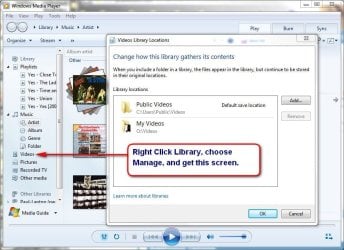
Libraries are holding fast. Right click any library in Media Player (See screen shot.) would give you a Management window. In Media Player, I could not do this at all for Videos. Right click, Manage did nothing! Right click Library in Explorer did give the management screen for videos, but I had the word "Unresponsive" next to the new drive O location. Changing the security settings for Drive O to allow Read & Execute for Everyone took the Unresponsive label away. Now they all work. Pretty confident but will wait for tomorrow just to be sure.

Now, time to make steak, baked potato, fresh salad, and maybe steamed carrots for dinner. Thank you for all of your assistance and persistence. :)
 

Attachments

  • win7004.jpg
    win7004.jpg
    95.5 KB · Views: 0
Last edited:

My Computer

Computer type
PC/Desktop
Computer Manufacturer/Model Number
Built from Maximum PC magazine article
OS
Windows 10 Pro via free update.
CPU
Intel Core i7 3820
Motherboard
Gigabyte X79-UP4
Memory
16,384 MB DDR3-SDRAM
Graphics Card(s)
NVIDIA GeForce GTX 770
Hard Drives
1) - C:/ 500 Gb Samsung SSD 840
2) - 1 Tb SATA drives
1) - 4 Tb SATA Drive
1) - t Tb USB External BU Drive
Antivirus
Avast Free Antivirus 2014.9.0.2006
Browser
Firefox
This is rock solid. Things are now "clicking into place" the way they should be. I do not have to wait until tomorrow to mark this thread as Solved. Bad hard drive removed, all libraries all working properly. Lesson Learned for me: Do not break large hard drives into smaller partitions unless there is a good reason for it.

What fixed it? A LOT of things. Normally, this should not be such a hassle, Windows is pretty good about maintaining it's own libraries and special folders in the user folder. But yanking a drive out that was a source for libraries was a bit too much for Windows to manage. This is what it amounted to:

  1. Removed any of the "drives" (partitions) of the bad drive from Indexing Options.
  2. Set security permissions on the replacement drive to "Everyone: Read & Execute". Previously ONLY System had total access, nothing else. This drive gave me a "Unresponsive" label in Media Center libraries Management panels.
  3. Repaired all of my user, "Special Folders"; i.e.: My Videos, My Music, & My Pictures, thus restoring them back to the user folder. TUTORIAL HERE
  4. Removed ALL non-existing folders in each library.
This might not sound like much, but all of these "fixes" are in different places and all of them have to do with a working library system on Windows. One of the "Biggies" was setting the security on the replacement drive to allow access to everyone. Thanks everyone for all of the very detailed help here, special thanks to Layback Bear. :cool:
 
Last edited:

My Computer

Computer type
PC/Desktop
Computer Manufacturer/Model Number
Built from Maximum PC magazine article
OS
Windows 10 Pro via free update.
CPU
Intel Core i7 3820
Motherboard
Gigabyte X79-UP4
Memory
16,384 MB DDR3-SDRAM
Graphics Card(s)
NVIDIA GeForce GTX 770
Hard Drives
1) - C:/ 500 Gb Samsung SSD 840
2) - 1 Tb SATA drives
1) - 4 Tb SATA Drive
1) - t Tb USB External BU Drive
Antivirus
Avast Free Antivirus 2014.9.0.2006
Browser
Firefox
Back
Top