edward2000
New member
- Local time
- 2:31 AM
- Messages
- 3
I am having a problem with my win7 installation. I have 2 250GB drives (1 with the original XP on it and 1 other with the new win7 installed on it). After I got all my files moved over and was happy with win7, I set about trying to reclaim the old xp drive to use for storage.
I followed the instructions from a previous post on here about using DISKPART to make the old XP drive inactive and running Startup Repair 3 times. Here are the instructions I was following:
However, after using DISKPART and running Startup Repair for the first time, I am prompted to restart and:
1. if I boot from CD and return to Startup Repair, it can't find a problem.
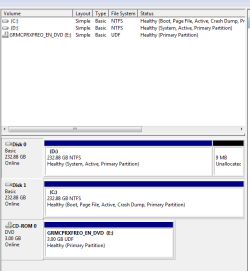
2. if I skip the boot CD, I get the dual boot menu and win7 boots fine (but disk management shows both disks as "active" and the old XP drive still as "system")
3. if I remove the CD before restart, I get an error about BOOTMGR missing, and an option to use Ctrl-Alt-Del to restart.
So, now I am lost again. It appears that Startup Repair is "fixing" the startup by making the old XP drive active again, and I confused about running it 3 times when it can't find a problem.
I followed the instructions from a previous post on here about using DISKPART to make the old XP drive inactive and running Startup Repair 3 times. Here are the instructions I was following:
To accomplish what you want you must set Windows 7 drive as first HD to boot in BIOS boot order, mark XP and the Media drives inactive, mark the Windows 7 drive active, then recover the MBR to Windows 7 by running Startup Repair 3 separate times.
Back up your files and a Windows 7 system image externally or to the other drive.
Now reboot, Enter BIOS Setup by tapping key given on first bootup screen, set Windows 7 partition as first HDD to boot, after DVD drive. Save settings and exit BIOS.
Boot into Windows 7 DVD Repair console, click through to Recovery tools list and open a Command Prompt, type:
DISKPART
LIST DISK
SELECT DISK # (for XP drive)
LIST PARTITION
SELECT PARTITION # (for XP partition)
INACTIVE
SELECT DISK # (for Windows 7 drive)
SELECT PARTITION # (for Media partition)
INACTIVE
SELECT PARTITION # (for Windows 7 Partition)
ACTIVE
EXIT
Return to DVD Recovery Tools list and run Startup Repair 3 separate times to attempt repair and then rewrite MBR to Windows 7.
Check Disk Management that Windows 7 is now System Active so you can now format your XP HD.
However, after using DISKPART and running Startup Repair for the first time, I am prompted to restart and:
1. if I boot from CD and return to Startup Repair, it can't find a problem.
2. if I skip the boot CD, I get the dual boot menu and win7 boots fine (but disk management shows both disks as "active" and the old XP drive still as "system")
3. if I remove the CD before restart, I get an error about BOOTMGR missing, and an option to use Ctrl-Alt-Del to restart.
So, now I am lost again. It appears that Startup Repair is "fixing" the startup by making the old XP drive active again, and I confused about running it 3 times when it can't find a problem.
My Computer
- Computer Manufacturer/Model Number
- Custom
- OS
- Windows 7 Professional 64-bit
- CPU
- INtel Core 2 Duo 3.00GHz
- Motherboard
- Abit
- Monitor(s) Displays
- Samsung SyncMaster 206BW
- Case
- Coolmaster Cosmos
- Keyboard
- Enermax
- Mouse
- Razer Diamondback