Removing Dual Boot Vista 64

dread74

New member
Local time
11:20 AM
Messages
7
Hi,

I have a dual boot setup on 2 physical disks. the first install was Vista 64 bit and then i added Windows 7 ultimate 64. I would like to remove the Vista 64 so i am just using W7

I have tried to find info on the best way to do this but it all mostly talks about XP.

i know that my bootloader is stored on the vista drive. i know it is in boot\bcd
i don't know where i should copy this file too on the w7 drive. when i installed W7 i didn't use the option to have the 200mb drive created.

Can anyone please tell me the steps required please.

thanks in advance
 

My Computer

OS
Windows 7 Ultimate 64
Hi,

I have a dual boot setup on 2 physical disks. the first install was Vista 64 bit and then i added Windows 7 ultimate 64. I would like to remove the Vista 64 so i am just using W7

I have tried to find info on the best way to do this but it all mostly talks about XP.

i know that my bootloader is stored on the vista drive. i know it is in boot\bcd
i don't know where i should copy this file too on the w7 drive. when i installed W7 i didn't use the option to have the 200mb drive created.

Can anyone please tell me the steps required please.

thanks in advance

It would be the best that you post a screenshot of your disk management to understand the situation correctly ( http://www.sevenforums.com/tutorials/9733-how-post-screenshot-seven-forums.html ).

Roughly it can be said that as you installed vista earlied, it is the primary and system active partition. For the pourpous of recovery you must need the Free Download Partition Wizard . At first, download it and burn in a cd. Without this tool , the process will be very hard.

In if you upload the disk management window, it would be easier to understand the entire situation.
 

My Computer

Computer type
PC/Desktop
Computer Manufacturer/Model Number
Self Assembled
OS
Microsoft Windows 10 Pro Insider Preview 64-bit
CPU
Intel(R) Core(TM) i3-4130 CPU @ 3.40GHz
Motherboard
Gigabyte Technology Co., Ltd. B85M-D3H
Memory
Corsair Vengence 4GB x2 (8.00GB Dual-Channel DDR3 @ 798MHz)
Graphics Card(s)
2047MB GeForce GTS 450 (ZOTAC International)
Sound Card
Onboard (Realtek High Definition Audio)
Monitor(s) Displays
LG Flatron E2040T
Screen Resolution
1600x900
Hard Drives
Western Digital 1 TB
Seagate 500 GB
PSU
Corsair VS550
Case
Cooler Master K380
Cooling
Cooler Master Seidon 120V Plus
Keyboard
Logitech MK260r
Mouse
Logitech MK260r
Internet Speed
PMPL Broadband
Antivirus
Windows Defender + MBAM
Browser
Firefox
Other Info
Dell Studio 15" Laptop
You can put the boot files on the Win 7 install using the bcdboot command. You can then make the Win 7 partition active and boot to it if the Vista drive is either removed or set to secondary in the bios.

Boot into Win 7 and use the drive letter of the Win 7 install. Open an administrative command window and type the following and hit return and wait for a response.

bcdboot C:\Windows /s C:

You should now see bootmgr and a boot folder in the Win 7 install, and it is a hidden system file.

Now open Disk Management and make sure the Win 7 partition is active. Then you should be able to swap drives in the bios, or disconnect the Vista one. If you have an F12 option during boot, you could use that each time.

If something goes wrong, put the Vista drive back to primary in the bios and you will be back where you started.

As Arc mentions, having a third party partitioning utility is sometimes useful in case of some type of emergency.....But alway back up....
 

My Computer

Computer Manufacturer/Model Number
Homebuilt
OS
Windows 7 x64
CPU
i7-2600K
Motherboard
Asus P8Z77-v Pro
Memory
8 G
Graphics Card(s)
GTX 480
Sound Card
Onboard
Monitor(s) Displays
LG W2753V
Screen Resolution
1920x1080
Hard Drives
Crucial M4 128 G SSD
So all i have to do is type this bcdboot C:\Windows /s C: then shut down and unplug the vista drive and it should work fine?

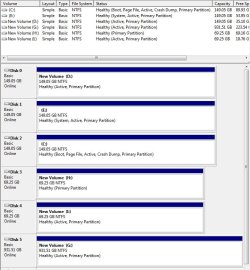
disk management.jpg

Disk 1 is the vista drive
Disk 2 is the W7 drive.

the only difference is the vista drive shows it as the system drive... if i run that command that should set disk 2 as the system right?
 

My Computer

OS
Windows 7 Ultimate 64
You also need to set the HD containing 7 as first in the bios HD boot order.
 

My Computers

System One System Two

  • Computer type
    PC/Desktop
    OS
    7 X64
    CPU
    i5 8400
    Motherboard
    gigabyte b365m ds3h
    Memory
    2x8gb 3200mhz
    Hard Drives
    various
    PSU
    pure power 11 400w cm
    Case
    Coolermaster
    Cooling
    cryorig m9i
  • Computer type
    PC/Desktop
    OS
    7x64
    CPU
    g5400
    Motherboard
    ga b365m ds3h
    Memory
    8gb ddr4 2400
    PSU
    xfx pro 450w
ok i will give it a crack and let you know... i was hoping it was going to be this easy as i really didn't want to do the repair installs
 

My Computer

OS
Windows 7 Ultimate 64
Well i gave this a go and it worked. followed all the instructions and i am now single booting W7. thanks for your help. i was hoping it would be this easy. i have rearranged the drives so the c is now Disk 0
 

My Computer

OS
Windows 7 Ultimate 64
Back
Top