Removing the active partition in a dual boot setup

kktk

New member
Local time
7:19 PM
Messages
25
My single hard drive has 1 primary partition and 3 logical drives in the extended partition.

The primary partition had XP installed on it and is obviously the Active partition(got drive letter C).
I then installed 7 on one of the logical drives.(got drive letter D).

The boot loader(I am assuming) is probably on the Active partition.

I am trying to delete the primary partition as I dont need the XP any longer --to claim some space on the drive.

What's the easiest way to accomplish this?
 

My Computer My Computer

OS
7
It appears you know the primary partition is active and the boot files are there. Since you cannot make a logical partition active, then it should follow you need to make another partition primary to be able to make it active.

You can use Partition Wizard to make a logical partition a primary partition. I will assume you will choose the Win 7 partition. You can then make it active and run the Win 7 Startup Repair 2 or 3 times to get Win 7 to boot from it.

After that, moving or resizing partitions can be done with Partition Wizard, but be aware it can be risky, so back up.
 

My Computer My Computer

Computer Manufacturer/Model Number
Homebuilt
OS
Windows 7 x64
CPU
i7-2600K
Motherboard
Asus P8Z77-v Pro
Memory
8 G
Graphics Card(s)
GTX 480
Sound Card
Onboard
Monitor(s) Displays
LG W2753V
Screen Resolution
1920x1080
Hard Drives
Crucial M4 128 G SSD
I undestand the part about making another primary partition(or converting the existing logical partition to primary).

Once that new partition has been marked active--wont that disable the current XP on C partition from being active? and hence not booting with it? and subsequently available for me to delete?

Why does the repair CD come into play and what exactly is it doing?
 

My Computer My Computer

OS
7
I undestand the part about making another primary partition(or converting the existing logical partition to primary).

Once that new partition has been marked active--wont that disable the current XP on C partition from being active? and hence not booting with it? and subsequently available for me to delete?

Why does the repair CD come into play and what exactly is it doing?
Hello kktk, and welcome to Windows Seven Forums.

A second option you might consider is to convert your current "Primary" "Active" partition to the 100MB "System Reserved" partition and you will not need to alter any of your logical partitions.

Please check out this link? http://www.sevenforums.com/installation-setup/58680-solve-dual-boot-problem-windows-7-a.html

Cheers!
Robert
 

My Computer My Computer

OS
...
hmmm logically both answers seem to make sense---although I am leaning towards the link referenced in the last note---mainly because there are detailed instructions for me to follow :)

Logically speaking---why(or how) are the 2 solutions mentioned above different from one another?
 

My Computer My Computer

OS
7
hmmm logically both answers seem to make sense---although I am leaning towards the link referenced in the last note---mainly because there are detailed instructions for me to follow :)

Logically speaking---why(or how) are the 2 solutions mentioned above different from one another?
Either way will work, both have risks.

The 100MB "System Reserved" partition used as a boot partition was introduced with Vista (it was 200MB then, I think). Windows 7 was designed to use the separate boot partition, however you can get along without it. One advantage is your boor code is protected in a separate "System" partition. Otherwise your boot code goes to the first "Active" partition, in your case, into your new "Primary" "Active" partition that you would have to create (or convert from a logical partition).

To turn your current XP partition into the "System Reserved" you would use the Disk Management Utility in Windows 7. You would delete the XP partition, create a 100MB partition in its place (and leave the empty space for the moment) and mark the new partition "Active". The Windows 7 install DVD will run its "Startup Repair" for you and complete the process of making your new boot partition work (we sometimes have to repeat the process 3 times to complete all the repairs). Then you would need a third party utility like the free Partition Wizard to extend first your "Extended Partition" into the empty space left by XP, then the Windows 7 partition into the empty space. The risk here is that moving the data in a partition like this can, on rare occasions, corrupt the data. For example if there was a power outage and your computer shuts down in the middle of the move. So with either choice, backup, backup, backup!
 

My Computer My Computer

OS
...
So, in either solution, a new system reserved partition is being created?
This is where the bootmgr lives?---and going forward we need to keep this new partition?
If so, does this new system reserved partition land up being the primary and active partition on the harddrive?

Also, the bootmgr cannot be on the same partition as Win7 anymore?
 

My Computer My Computer

OS
7
So, in either solution, a new system reserved partition is being created?
This is where the bootmgr lives?---and going forward we need to keep this new partition?
If so, does this new system reserved partition land up being the primary and active partition on the harddrive?

Also, the bootmgr cannot be on the same partition as Win7 anymore?
There must be a "Primary" partition. Windows will not boot FROM a logical partition. When you delete XP, you will be deleting the only "Primary" partition on your system. You will have to have a "Primary" partition. Saltgrass suggested you make your current Windows 7 partition a "Primary" partition, and place it where XP is now, outside the Extended partition and the logical partitions. The risks there are similar. You will either convert the current partition from logical to primary, or move the data from the logical partition to a "Primary" partition you create. Moving the data in this way has much the same risk. Therefore backup, backup, backup.

The difference will be whether the "System Reserved" partition is the only "Primary" partition on your system and acting as the boot partition (there is no problem booting TO a logical partition) or whether you will have your Windows 7 partition as your only "Primary" partition (with all of your boot code there).

In my opinion, there are less steps to creating the 100MB boot partition and extending into the empty space (and possibly less risk) than converting or moving the Windows 7 data from logical to primary. But in the end the choice is yours and we will assist you however we can either way you decide to go.

Cheers!
Robert
 

My Computer My Computer

OS
...
Thanks..I understand better---let me go and try this today.
 

My Computer My Computer

OS
7
Oh--does it matter which version of the product we are using?(professional, ultimate etc)
And whether we had installed a full product or an upgraded version?
 

My Computer My Computer

OS
7
Oh--does it matter which version of the product we are using?(professional, ultimate etc)
And whether we had installed a full product or an upgraded version?
No, nothing you mention here will make any difference in what you aim to accomplish.
 

My Computer My Computer

OS
...
If you will post back a screenshot of your full Disk management drive map, we can give you the exact steps for deleting XP partition and recovering it's disk space, active flag and MBR into Win7 partition.

The best tool used for this is free Partition Wizard bootable CD, which has been used here to help remove over 150 dual boots successfully without data loss.

Use the Snipping Tool in Start Menu, attach the file with paper clip in Reply box. Let us know what you would prefer the partitioning to look like afterward.
 
ok so I tried the recommended solutions above.
used the partition manager and booted from the cd....and set the partition where 7 was installed as the primary(active)....which automatically removed the XP primary partition from the active list....so far so good.

Then, started the repair from the Win7 Cd---which tried to fix the bootmgr I assume.
So far so good---had to reboot 3 times I believe and then I was able to boot into 7.

Now here's where I ran into issues. The desktop doesnt come up for me---only a blank screen that states that the copy is not genuine. I swear it is :)

That's why I had asked the question if this being a 7 copy that was upgraded from XP---if that was going to cause any issues now that the XP partition isnt involved in the boot process----??

Not sure where to go next.

So as it stands---the XP partition was left as a primary.(inactive).
The 7 logical drive was converted from a logical drive to a partition and made active.
And the repair CD was run to make the boot process work.

What next?
 

My Computer My Computer

OS
7
Looks like the conversion has irritated the activation. Has nothing to do with XP>Win7 upgrade.

See if you can boot into Safe Mode to reinstall Product Key at Computer>Properties.

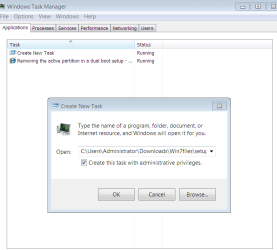
If not start normally, access the Task manager using Cntrl Alt Delete, then on Applications tab click New Task and type D:\setup replacing D with your DVD drive, where you have placed your Win7 DVD.

If Setup will start, run an Upgrade (repair) install to reset activation and get it started up, then insert key at Computer>Properties.

If this fails, boot Win7 DVD Repair console>Recovery Tools to try a System Restore.

I have asked the top expert on this SIW2 to look at this, hopefully tmw morning.
 
Last edited:
Safe mode comes up with the same screen--an empty desktop with nothing that I can do.
Starting normally and trying to run setup doesnt work either...it finds the file on the DVD but I cant launch it.
It tells me that windows cannot find the file...although it sees it just fine.
 

My Computer My Computer

OS
7
In order to run an elevated command from Run box, you need to use Ctrl+Shift + Enter. You will be prompted with the obnoxious User Account Control dialog… but it will then open up a command prompt in Administrator mode.

You can use Alt+Y to close the User Account Control dialog.

Now try D:setup or D:\Setup to run Repair Install.

What has also worked before is to use the commands to reinsert Product Key. Am looking now.
 
I dont have the "run" cmd option...I can only hit the new task from the task manager....which gives me a create new task window----CTRL SHIFT ENTER doesnt do anything here...
 

My Computer My Computer

OS
7
Can you see a box to check in New Task to "Run with Administrative Privileges?" Tick that.

Capture.PNG

When I type in the path to my Win7 Setup, it starts up here.

Try running these commands from Run Box:

slmgr -ipk xxxxx-xxxxx-xxxxx-xxxxx-xxxxx (inserts Product Key -replace x's with key)

slmgr -ato (activates Product key against the MS server)

If this fails, then see if you can System Restore using Win7 DVD Repair.
 
Man---from one problem to the next...thanks for helping BTW...
Ok--I can just type in cmd and then do CTRL-SHIFT-ENTER to get to what I think is a command prompt with admin rights... type in the first command---and it errors on a "cannot find script engine "VBScript" for slmgr.vbs

Arrgh!
 

My Computer My Computer

OS
7
Back
Top