Removing XP from Dual Boot

traceyw

New member
Power User
Local time
8:21 AM
Messages
84
Location
Essex, UK
Hi

I've been looking at this thread as I want to remove XP and work only with Win7. However, it would appear that Partition Wizard (PW) has either changed OR I've a problem with my Win7 installation. The problem is the very first step, i.e. deleting the XP partition and making the Win7 partition active (all part of step one). Yes, I can delete XP but no way can I make Win7 active as PW has it greyed out.

My question therefore is: where do I go from here? Yes, I can make Win7 active using Disk Management but what will happen when I delete XP? Will I still be running in Win7? (I suspect XP is ONLY required during the boot process) I'm just not sure what to do now. I'm not in any panic to remove XP so I'll take my time and make sure I know what is needed before doing anything. There must be a way of achieving my aim but I'm just not sure how. I would therefore appreciate help in making Win7 active as this must be done before I can go to doing three Startup Repairs.

Tracey

PS: I feel I've not really explained myself very well so if any further info required then please get back to me.
 

My Computer

Computer type
PC/Desktop
Computer Manufacturer/Model Number
Self built
OS
Windows 7 Home Premium 64-bit and Window 10 Pro (dual boot)
CPU
Intel i5-4690K
Motherboard
Gigabyte Z97P-D3
Memory
8Gb Vengeance
Graphics Card(s)
Nvidia GTX760
Sound Card
Integrated with Mobo (Realtek 887)
Monitor(s) Displays
Iiyama E2407HDS (x2)
Screen Resolution
1920 x 1080
Hard Drives
1 x 240GB Kingston (System disk)
1 x 256GB Samsung SSD
1 x 1TB Samsung hard disk (internal)
1 x 3TB WD My Book (external)
PSU
Atrix 500W
Case
Antec One
Cooling
Corsair H80i
Keyboard
Logitech wireless
Mouse
Logitech wireless
Internet Speed
Up to 24Mb
Antivirus
Avast! Free antivirus
Browser
Opera, Firefox, Chrome
Other Info
Wacom Bamboo Tablet
If Windows 7 partion is active there should be no problems deleting the XP partition. You have only to delete the XP boot entry in BCD.

If XP is your active partition then just do 3 steps:
1. Download BCD Editor - Windows 7 / Vista and install. It has a "Dual-boot Repair" tool. (You can do the fix in XP or in Windows 7).
2. Run "Dual-boot Repair" - click on Disk Management (shortcut to OS Disk Management) and set Windows 7 partition as active. (or any other partition which is not the partition to be deleted next)
3. Click on "Automatic Repair" (in tool "Dual-boot Repair"). Confirm. That's it.

Reboot.
Windows 7 should boot by default. If everything is OK delete the XP partition (format it).

Note:
It is best if the first primary partition on disk is also the active partition.
 

My Computer

Computer Manufacturer/Model Number
Acer Notebook
OS
Win 8 RP, Win 7, XP
CPU
Intel
Boyans

I've followed your instructions as above albeit with a little confusion. The page you directed me to only seemed to contain a copy of Visual BCD Editor and having installed it it was quite clearly not what I needed. However, further down the page is a link to how to do a "Dual Boot Repair" and I found what I needed on that page.

Anyway, having installed it I followed your instructions but still have a boot menu come up. No longer is XP mentioned but I now have "Windows 7 Home Premium N (Recovered)" listed and in Visual BCD Editor under loaders I have four OSs listed in the following order: "Windows 7 Home Premium N (Recovered)", "Windows Recovery Environment (recovered) - listed twice neither of which appear in the boot menu, and "Windows 7". How do I make the necessary mods so I can boot straight into Win7 without having to select from a menu? I assume it's a case of at least deleting "Windows 7 Home Premium N (recovered)" from within Visual BCD Editor but what about the two entries "Windows Recovery Environment (recovered)" - do these come out as well?

Perhaps you could advise me please. Thanks.

Tracey
 

My Computer

Computer type
PC/Desktop
Computer Manufacturer/Model Number
Self built
OS
Windows 7 Home Premium 64-bit and Window 10 Pro (dual boot)
CPU
Intel i5-4690K
Motherboard
Gigabyte Z97P-D3
Memory
8Gb Vengeance
Graphics Card(s)
Nvidia GTX760
Sound Card
Integrated with Mobo (Realtek 887)
Monitor(s) Displays
Iiyama E2407HDS (x2)
Screen Resolution
1920 x 1080
Hard Drives
1 x 240GB Kingston (System disk)
1 x 256GB Samsung SSD
1 x 1TB Samsung hard disk (internal)
1 x 3TB WD My Book (external)
PSU
Atrix 500W
Case
Antec One
Cooling
Corsair H80i
Keyboard
Logitech wireless
Mouse
Logitech wireless
Internet Speed
Up to 24Mb
Antivirus
Avast! Free antivirus
Browser
Opera, Firefox, Chrome
Other Info
Wacom Bamboo Tablet
Hello.


   Note

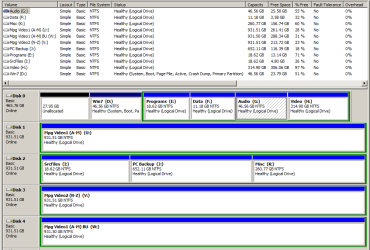
Before we make any specific recommendations will you please post a snip/screen-shot of the entire Windows disk management drive map with a full description as to which drive/partition is which, so we can see what you have going on as there may be a fairly simple way to resolve the situation.

In the Windows start menu right click computer and click manage, in the left pane of the "Computer Management" window that opens click disk management and post a maximized snip of that.


My Computer

Computer Manufacturer/Model Number
* BFK Customs *
OS
W 7 64-bit Ultimate
CPU
Intel Q9550 Yorkfield
Motherboard
ASUS P5Q Pro
Memory
8GB Dominator 8500C5D
Graphics Card(s)
ATI : XFX 5870
Sound Card
Realtek HD Audio 7-1
Monitor(s) Displays
1x 47" LCD HDMI & 3x 26" LCD HDMI
Screen Resolution
1920x1080P & 1920x1200
Hard Drives
1x 80GB Intel X25-M G2 SSD : 1x 500GB & 1x 640GB WD Caviar Black(s)
PSU
Corsair 620HX
Case
Cooler Master RC-690
Cooling
Tuniq Tower 120, 2x 140mm and 3x 120mm case fans
Keyboard
Microsoft 500
Mouse
Razer Diamondback 3G
Internet Speed
14 Mb/s
Other Info
1x Koutech 3Gb/s SATA HDD Hot Swap Rack
You needed to use Partition Wizard bootable CD not the Windows version.

If stray listings remain on Boot menu you can remove them in msconfig>Boot or in the Edit OS tab of EasyBCD.

But let us see the Disk management screenshot so we can confirm the other OS has been deleted and Win7 is correctly configured. Use the Snipping Tool in Start menu, attach using paper clip in Reply box.
 
Hi Bare Foot Kid and gregrocker

I think I know what I need to do now. Nevertheless, I shall hold off until I hear back from you.

As requested I attach a graphic of my drive layout. As you can see there is a 30Gb section of unallocated disk at the front of the drive which is where XP was located. Once I've got the booting sorted out I intend to share that space with other partitions on the drive. I shan't worry about not having a drive C: as long as Win7 works OK as it seems to be at present.

Tracey
 

Attachments

  • Drive Map.PNG
    Drive Map.PNG
    21.8 KB · Views: 30

My Computer

Computer type
PC/Desktop
Computer Manufacturer/Model Number
Self built
OS
Windows 7 Home Premium 64-bit and Window 10 Pro (dual boot)
CPU
Intel i5-4690K
Motherboard
Gigabyte Z97P-D3
Memory
8Gb Vengeance
Graphics Card(s)
Nvidia GTX760
Sound Card
Integrated with Mobo (Realtek 887)
Monitor(s) Displays
Iiyama E2407HDS (x2)
Screen Resolution
1920 x 1080
Hard Drives
1 x 240GB Kingston (System disk)
1 x 256GB Samsung SSD
1 x 1TB Samsung hard disk (internal)
1 x 3TB WD My Book (external)
PSU
Atrix 500W
Case
Antec One
Cooling
Corsair H80i
Keyboard
Logitech wireless
Mouse
Logitech wireless
Internet Speed
Up to 24Mb
Antivirus
Avast! Free antivirus
Browser
Opera, Firefox, Chrome
Other Info
Wacom Bamboo Tablet
Hi Tracey -

You really need that space in C so I would boot free Partition Wizard bootable CD (not the installed version) rightclick on C to Resize, drag left grey border all the way to the left, OK, Apply.

Back up your files when doing any repartitioning however we have never had PW CD fail in thousands of similar operations we've helped with here.

Everything else looks fine. :geek:
 
The tutorial linked below shows the steps to recover that space into the D: Windows partition safely.

As good and reliable a program as Partition Wizard is, I would not trust the installed version for the operation you need, use the boot CD as suggested and be sure to post back with any further questions you may have and to keep us informed.

First download the Partition Wizard Bootable Disk (PWBD) ISO file to the desktop, be sure to get the PWBD and not the installed version; scroll down to see the download link for the Bootable CD ISO file at this link below.
 

My Computer

Computer Manufacturer/Model Number
* BFK Customs *
OS
W 7 64-bit Ultimate
CPU
Intel Q9550 Yorkfield
Motherboard
ASUS P5Q Pro
Memory
8GB Dominator 8500C5D
Graphics Card(s)
ATI : XFX 5870
Sound Card
Realtek HD Audio 7-1
Monitor(s) Displays
1x 47" LCD HDMI & 3x 26" LCD HDMI
Screen Resolution
1920x1080P & 1920x1200
Hard Drives
1x 80GB Intel X25-M G2 SSD : 1x 500GB & 1x 640GB WD Caviar Black(s)
PSU
Corsair 620HX
Case
Cooler Master RC-690
Cooling
Tuniq Tower 120, 2x 140mm and 3x 120mm case fans
Keyboard
Microsoft 500
Mouse
Razer Diamondback 3G
Internet Speed
14 Mb/s
Other Info
1x Koutech 3Gb/s SATA HDD Hot Swap Rack
Hi Bare Foot Kid and gregrocker

The last thing I expected to be told was that I need the space vacated by XP!!! WHY? I've been operating with a 50Gb partition with XP in a dual-boot config for the last 18 months and as you can see I still have half of the space free - and its been like that for most of the time I've been using Win7!!! On the very few occasions when I have apparently been running low on disk space I've found that it was due to accidentally putting big MPGs on the drive. Putting the files where they should be and then emptying the Recycle Bin has very quickly sorted that out. So why do I NEED the space?

As far as using PW is concerned, I've been using it for several years. In fact I've been using partition software since way before Partition Magic was bought up by Symantec - and they all work in basically the same way. In addition, before using any partitioning software I always backup the files on the drives to be adjusted.

What I was expecting was perhaps a mod to the instructions re getting rid of extra and unwanted listings in the boot menu. I presume nothing has changed in that respect. I shall therefore delete the unwanted entry and check the appropriate box to skip the boot menu. Will come back to you when done.

Tracey
 

My Computer

Computer type
PC/Desktop
Computer Manufacturer/Model Number
Self built
OS
Windows 7 Home Premium 64-bit and Window 10 Pro (dual boot)
CPU
Intel i5-4690K
Motherboard
Gigabyte Z97P-D3
Memory
8Gb Vengeance
Graphics Card(s)
Nvidia GTX760
Sound Card
Integrated with Mobo (Realtek 887)
Monitor(s) Displays
Iiyama E2407HDS (x2)
Screen Resolution
1920 x 1080
Hard Drives
1 x 240GB Kingston (System disk)
1 x 256GB Samsung SSD
1 x 1TB Samsung hard disk (internal)
1 x 3TB WD My Book (external)
PSU
Atrix 500W
Case
Antec One
Cooling
Corsair H80i
Keyboard
Logitech wireless
Mouse
Logitech wireless
Internet Speed
Up to 24Mb
Antivirus
Avast! Free antivirus
Browser
Opera, Firefox, Chrome
Other Info
Wacom Bamboo Tablet
Perhaps I didn't read through well enough, this tutorial shows how to edit the BCD store.

If you are happy with the unallocated space ahead of the Windows 7 partition, leave it so mate.
 

My Computer

Computer Manufacturer/Model Number
* BFK Customs *
OS
W 7 64-bit Ultimate
CPU
Intel Q9550 Yorkfield
Motherboard
ASUS P5Q Pro
Memory
8GB Dominator 8500C5D
Graphics Card(s)
ATI : XFX 5870
Sound Card
Realtek HD Audio 7-1
Monitor(s) Displays
1x 47" LCD HDMI & 3x 26" LCD HDMI
Screen Resolution
1920x1080P & 1920x1200
Hard Drives
1x 80GB Intel X25-M G2 SSD : 1x 500GB & 1x 640GB WD Caviar Black(s)
PSU
Corsair 620HX
Case
Cooler Master RC-690
Cooling
Tuniq Tower 120, 2x 140mm and 3x 120mm case fans
Keyboard
Microsoft 500
Mouse
Razer Diamondback 3G
Internet Speed
14 Mb/s
Other Info
1x Koutech 3Gb/s SATA HDD Hot Swap Rack
We always assume that if space is available in the preferred lower HD address where the disk reader parks and thus is faster to read, that a savvy User will want the better performance by Resizing Win7 into that space.

There was also no way to know you prefer tiny partitions for Win7 as most Users do not.

We have experience here with all of the partition managers and only one has never failed when run from its boot disk in thousands of repartitionings we have successfully helped with here. Partition Magic isn't even compatible with Win7 and will almost certainly fail.

I gave you two methods to remove stray boot menu listings earlier.
 
I have no intention of leaving all that space at the start of the drive. As I said in Post 6, I intend to share it between the other partitions on the drive so that drive D: will be as far to the left as possible. The other partitions will benefit by being made a little larger to take up the space used by XP.

gregrocker
As far as my partition size is concerned, it is massive in comparison with the partition size of other OSs I've had. Since I have 25+Gb still free why should I need any more. I ALWAYS try to make sure that wherever possible, only Windows files are located on the OS drive. All data is located elsewhere as are all the programs I use. I have a separate partition for audio and video and Backups have their own 650+Gb partition as do my misc files and all my source files (application installation files, drivers etc.). I have oodles of disk space so I don't have to skimp but I do consider 50Gb plenty enough for Win7.

In the next few days I shall be using PW to move Win7 to the start of the drive and the space left by the deletion of XP will be added as necessary to other partitions on the drive which will be moved and enlarged as necessary.

On a more pleasing note, I've now done what I wanted using EasyBCD 2.1 and my PC now boots straight into Win7 although it did seem to take a somewhat longer to do so. Anyway whatever your contribution to this discussion, thanks very much.

Tracey
 

My Computer

Computer type
PC/Desktop
Computer Manufacturer/Model Number
Self built
OS
Windows 7 Home Premium 64-bit and Window 10 Pro (dual boot)
CPU
Intel i5-4690K
Motherboard
Gigabyte Z97P-D3
Memory
8Gb Vengeance
Graphics Card(s)
Nvidia GTX760
Sound Card
Integrated with Mobo (Realtek 887)
Monitor(s) Displays
Iiyama E2407HDS (x2)
Screen Resolution
1920 x 1080
Hard Drives
1 x 240GB Kingston (System disk)
1 x 256GB Samsung SSD
1 x 1TB Samsung hard disk (internal)
1 x 3TB WD My Book (external)
PSU
Atrix 500W
Case
Antec One
Cooling
Corsair H80i
Keyboard
Logitech wireless
Mouse
Logitech wireless
Internet Speed
Up to 24Mb
Antivirus
Avast! Free antivirus
Browser
Opera, Firefox, Chrome
Other Info
Wacom Bamboo Tablet
but I now have "Windows 7 Home Premium N (Recovered)" listed and in Visual BCD Editor under loaders I have four OSs listed in the following order: "Windows 7 Home Premium N (Recovered)", "Windows Recovery Environment (recovered) - listed twice neither of which appear in the boot menu, and "Windows 7". How do I make the necessary mods so I can boot straight into Windows 7 without having to select from a menu?

Maybe I am late with the answer but anyway.

Visual BCD Editor displays and edits everything that is in the BCD. Other tools like EasyBCD show only (and deal partially with) OS loader entries.

"Windows 7 Home Premium N (Recovered)", "Windows Recovery Environment (recovered) - listed twice
should be deleted by right clicking on every individual entry and selecting delete.

To create an actual entry for "Windows Recovery Environment"
you can use Windows utility "reagentc.exe" - how - see here Dual-boot Repair Windows 7/Vista, last part.

If there is only one "partition" (operating system) loader entry in the BCD, no boot menu is displayed and Windows boot manager continues loading this single operating system. If the timeout is set to 0 again no boot menu is displayed and booting continues with the default boot loader entry.

Important:
When moving/resizing a partition which contains the Operating system (Windows 7) itself the BCD loader entry becomes invalid !! A "Windows Startup Repair" is the best solution in this case, so have your Windows 7 Repair CD ready.
 

My Computer

Computer Manufacturer/Model Number
Acer Notebook
OS
Win 8 RP, Win 7, XP
CPU
Intel
Back
Top