Renaming files

jgriffin

New member
Local time
1:52 PM
Messages
1
In windows vista, when I wanted to rename files in a folder all I had to do was right click on one file, rename it and click tab to move to the next file to rename. I didn't have to right click every single file, click rename, type the name, press enter and then move on. This has become a huge problem for me in windows 7 and I cannot seem to find an answer of solution to this problem.

I open a folder that has 27 pictures; I want to rename those pictures in a consectutive order, but in the order I want them to be; for example: R2290-01 and I want that exact style to follow through until R2290-27. I am okay with renaming every file by hand, but I want to be able to "TAB" between them and not right click and rename everytime.

HELP ME PLEASE! This is driving me absolutely nuts.
 

My Computer

OS
windows 7 professional x64

My Computer

Computer Manufacturer/Model Number
Insane hobo technologies. ;-)
OS
Windows 7 x64
CPU
Intel i7 2600k
Motherboard
Asrock z68 extreme 4 gen 3
Memory
G.skill Ripjaw 16gigs @ 1866
Graphics Card(s)
Nvidia gtx580 (evga)
Sound Card
Integrated HD audio + hdmi
Monitor(s) Displays
24" ASUS widescreen + 42" insignia
Screen Resolution
1080p (1920x1080)
Hard Drives
128 Samsung 830
256 Samsung 840
3 x 1tb storage drive (various)
1 western digital 1tb (eSATA)
1 Seagate 1tb (eSATA)
PSU
1 kilowatt SLI/Crossfire rated Silverstone modular
Case
NZXT Phantom + additional 220 fan
Cooling
Zalmann
Keyboard
Microsoft wireless 3000 (v2)
Mouse
MS - wireless 5000 (bluetrack)
Internet Speed
depends on if you ask me or my provider.
Other Info
The above information is provided as is, and the author assumes no responsibility for issues it may cause with your sanity or fanboyism.
I didn't even know about the tab thing to move between files, but I agree with Maguscreed.

If you do it regularly, use a tool.

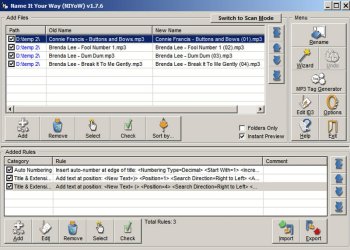
I use Name It Your Way, an easily found free tool that works well on Windows 7. Below is a screenshot of the results I just got after fiddling for 20 minutes or so. I had never attempted "auto-numbering", but as you can see, I got it to work. You can no doubt adapt it to your needs.

I used 4 random mp3s as a test case. You see their original names under "old name" in the upper left. You see the new name in the upper right. The auto-numbering increments from (01) to (04). You could just as easily made it increment as -01, -02... or for that matter Z-01, Z-02. You choose the characters and spacing.

The characters and spacing is controlled by "rules" that you make to fit the exact case. You can see the 3 rules I used in the bottom panel.

The rules are applied in the order in which they are shown.

The first rule adds the number to the end of the name, just before file extension.

The second rule adds the right paren ) to the right edge of the name, ignoring the extension.

The third rule adds a space and the left paren ( 4 characters from the right edge of the name, ignoring the extension.

The learning curve is modest and the interface is highly intuitive. The dropdowns are explained. There is a "Wizard", but I don't use it. This is a great tool that can rename 1000 files in a few seconds. You just write your own rules to govern your precise requirements.
 

Attachments

  • Untitled-1.jpg
    Untitled-1.jpg
    98.1 KB · Views: 30

My Computer

Computer type
PC/Desktop
Computer Manufacturer/Model Number
Ignatz Special; 4 speed manual gearbox; factory air conditioning; one of one
OS
Windows 7 Home Premium SP1, 64-bit
CPU
Intel Skylake i5-6600K, not overclocked
Motherboard
AsRock Z170M Extreme 4, micro ATX
Memory
8 GB HyperX DDR4-2666 (2 x 4 GB)
Graphics Card(s)
none; graphics are integrated on CPU
Sound Card
onboard: Realtek ALC1150; external: USB Behringer UF0-202
Monitor(s) Displays
Dell S2340M 23 inch IPS
Screen Resolution
1600 x 900
Hard Drives
System: Crucial MX100 series SSD, 128 GB;
Data: Samsung Spinpoint 103SJ, 1 TB;
Backup: WD Caviar Green WD30EZRX-00D8PB0, 3 TB
PSU
Rosewill SilentNight 500 watt fanless, semi-modular
Case
Antec Solo II
Cooling
Noctua NH-U12S; Noctua F12 intake, Noctua S12A exhaust
Keyboard
Microsoft 200 6JH-00001 USB
Mouse
Dell or Microsoft optical wired; USB
Antivirus
Microsoft Security Essentials and Malwarebytes Premium
Browser
Pale Moon
Other Info
All fans PWM; speeds at idle: CPU circa 500 rpm; intake circa 600 rpm; exhaust circa 600 rpm; CPU temps 27 idle and 47 C load in a warm room (27 C/81 F) when running Intel Extreme Tuning Utility stress test.
Instead of the Tab key, use the down arrow and press the Space bar, then F2.
 

My Computer

Computer type
PC/Desktop
Computer Manufacturer/Model Number
Lenovo IdeaCenter 450
OS
Windows 10 Pro X64
CPU
Intel Quad Core i7-4770 @ 3.4Ghz
Memory
16.0GB PC3-12800 DDR3 SDRAM 1600 MHz
Graphics Card(s)
Intel Integrated HD Graphics
Sound Card
Realtek HD Audio
Monitor(s) Displays
HP 22" LCD
Screen Resolution
1680 x 1050
Hard Drives
250GB Samsung EVO SATA-3 SSD
2TB Seagate ST2000DM001 SATA-2
1.5TB Seagate ST3150041AS SATA
Keyboard
Dell USB
Mouse
Lenovo USB
Internet Speed
Cable via Road Runner 3MB Upload, 30MB Download
Antivirus
Windows Defender, MBAM Pro, MBAE
Browser
Seamonkey
Other Info
UEFI/GPT
PLDS DVD-RW DH16AERSH
Back
Top