"Repear"Fill picture position

Maia711

New member
Local time
7:15 PM
Messages
5
Hallo!
I'm using Windows 7 Ultimate OS. Probably I've done something (i haven't understood what) that changed my desktop background settings. There's a cute penguin photo that I'd like to use as a wallpaper but when I press the apply button the penguins heads are being cut off and the image itself gets really huge. That happens when I chose "Fill"picture position. I've got no problem with any other option. I would really want to fix this çause all the pictures used as wallpapers looked great in "Fill"" picture position before I unwittingly changed something.
I'll be more than happy if someone knows how to return to normal size pictures in this particular option
Regards!

Ed. I forgot to mention that I have 23"" Philips 234 LC monitor -1920 x 1080 resolution, 60 Hz
 
Last edited:

My Computer

OS
Windows 7 Ultimate
Without seeing the picture ...

"Fill" is probably stretching the picture (so it reaches the side of your screen) which is making it taller.

You have 2 options:

  • Edit the picture using a picture editor (i.e. make it the same dimensions as your screen).
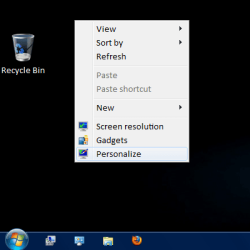
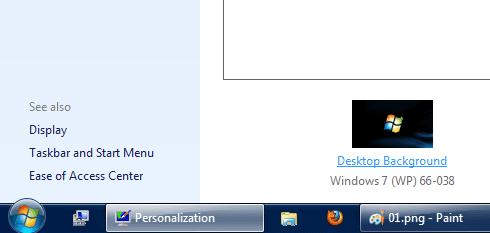
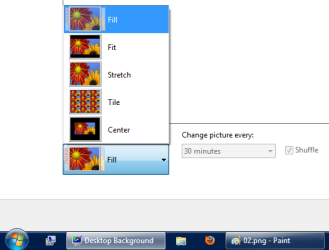
  • Choose "Center" or "Fit" in the options (Personalize > Desktop Background > Picture Options).
1 - Personalize
Personalize 01.png
2 - Desktop Background
Desktop Background 02.png
3 - Picture Options
Options 03.png
 
Last edited:

My Computer

Computer type
PC/Desktop
Computer Manufacturer/Model Number
n/a
OS
W7 Ultimate SP1, LM19.2 MATE, W10 Home 1703, W10 Pro 1703 VM, #All 64 bit
CPU
AMD Phenom II x6 1100T, 3.3 GHz
Motherboard
ASUS M4A88T-M/USB3 (AM3)
Memory
12GB DDR3 1333 G-Skill (4GB x 2), G-Skill (2GB x 2)
Graphics Card(s)
NVIDIA GeForce GTX 660
Sound Card
Realtek?
Monitor(s) Displays
Samsung S23B350
Screen Resolution
1920x1080
Hard Drives
WD Green 2TB (SATA), WD Green 3TB (SATA), WD Blue 4TB (SATA), WD Blue 6TB (SATA)
PSU
Cooler Master
Case
Antec GX300 Tower
Cooling
3x Antec TRICOOL 120mm Fans
Mouse
Wired Optical
Internet Speed
DSL
Antivirus
Avast
Browser
Pale Moon (64 bit)
Other Info
2018-12-27 Upgraded HDDs
2015-12-10 Upgraded case, graphics card, storage
2015-08-15 Upgraded motherboard & RAM
2015-07-15 Upgraded LM17.1 to LM17.2
Hallo lehnerus2000! Thank you for your reply. I cannot imagine resizing every picture I'm using as a wallpaper because I'm changing it very often. Besides wnen the "Fill"option worked properly, the PC automaticaly was doing that (so that's why I need to go back to those settings and have the PC resizing pics for me). And I don't really think the resolution is the problem. I figure that there has to be some checkbox somewhere that has to be (un)checked or something....
 

My Computer

OS
Windows 7 Ultimate
Try "Fit" instead of "Fill".

The Picture Options picture (in my previous post) shows you what happens, if the picture isn't the same dimensions as your monitor.

The resolution will affect it.
If the picture is 1920x1080 (on your monitor) it will appear the same regardless of the option selected ("Fill", "Fit", "Stretch", "Tile" or "Center").

However:

  • When using "Fill", a picture that is 1000 pixels wide, will be cropped (top and bottom and made 1920 wide) on a 1920x1080 monitor.
  • When using "Fit", a picture that is 1200 pixels tall, will be shrunk (to 1080 tall) on a 1920x1080 monitor.
  • When using "Center", a picture that is 1200 pixels tall, will be cropped (top and bottom) on a 1920x1080 monitor.
 
Last edited:

My Computer

Computer type
PC/Desktop
Computer Manufacturer/Model Number
n/a
OS
W7 Ultimate SP1, LM19.2 MATE, W10 Home 1703, W10 Pro 1703 VM, #All 64 bit
CPU
AMD Phenom II x6 1100T, 3.3 GHz
Motherboard
ASUS M4A88T-M/USB3 (AM3)
Memory
12GB DDR3 1333 G-Skill (4GB x 2), G-Skill (2GB x 2)
Graphics Card(s)
NVIDIA GeForce GTX 660
Sound Card
Realtek?
Monitor(s) Displays
Samsung S23B350
Screen Resolution
1920x1080
Hard Drives
WD Green 2TB (SATA), WD Green 3TB (SATA), WD Blue 4TB (SATA), WD Blue 6TB (SATA)
PSU
Cooler Master
Case
Antec GX300 Tower
Cooling
3x Antec TRICOOL 120mm Fans
Mouse
Wired Optical
Internet Speed
DSL
Antivirus
Avast
Browser
Pale Moon (64 bit)
Other Info
2018-12-27 Upgraded HDDs
2015-12-10 Upgraded case, graphics card, storage
2015-08-15 Upgraded motherboard & RAM
2015-07-15 Upgraded LM17.1 to LM17.2
I have tried all options avaible but "Fit"and "Center"" leave sidelines and I don't like that (nor would I use background colors). It doesn't matter what size the picture is or what website I got it from - it keeps cutting off the objects when I chose Fill. I'm wondering what has happend to my setting that makes everything looks so big! Well, guess I'm stuck with the "Stretched"option (being the closest thing to what I want to have). Thank you anyway!
 

My Computer

OS
Windows 7 Ultimate
The "sidelines" indicate that the picture isn't the same dimensions as your monitor (i.e. 1920x1080).

If you go to where your picture is stored on your HDD, you can see the dimensions by:

  • Hovering the mouse pointer over it, a screentip should pop up with the dimensions.
  • right click on the picture icon and select properties.
  • If you have the "Details" pane on, you can left click on the picture and the dimensions should be listed.
Maybe these pictures will help.

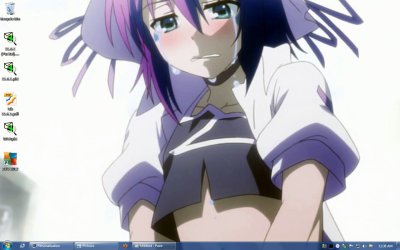
This W7 VM is set to 1440x900 screen resolution (Backgound colour set to Black).

Original Picture (600x600 - smaller than the screen in both dimensions)
0-Yumekui Merry.jpg

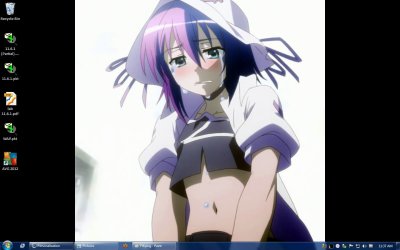
Fill
(picture dimensions are increased to 1440x1440)
1-Fill.jpg

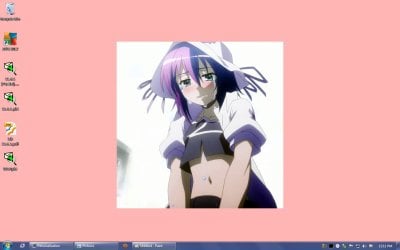
Fit
(picture dimensions are increased to 900x900)
2-Fit.jpg

Stretch
(picture dimensions are increased to 1440x900)
3-Stretch.jpg

Tile
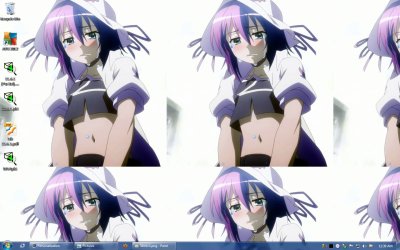
(picture dimensions are unchanged and it is repeated as many times as required to fill the screen)
4-Tile.jpg

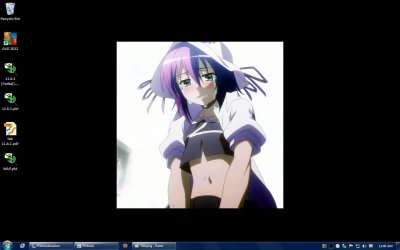
Center
(picture dimensions are unchanged 600x600)
5-Center.jpg
Since the original picture is smaller, than the screen resolution, "Fill", "Fit" and "Stretch" increase the picture size.
If the picture was larger, than the screen resolution, "Fill", "Fit" and "Stretch" would reduce the picture size.


If I edit the picture to match the screen dimensions, "Fill", "Fit" and "Stretch" won't change the picture size.

Edited Picture (1440x900)
6-Yumekui Merry.jpg
If the picture is too difficult to edit, you have no choice but to put up with it being distorted, or sidelines appearing.

Did you recently get a new monitor?
If so, your old monitor may have had a different screen resolution (e.g. 1600x1200).
If you swapped from a CRT monitor to a LCD monitor the behaviour may be different (i.e. a CRT can be set to any resolution, but a LCD can't be).
 
Last edited:

My Computer

Computer type
PC/Desktop
Computer Manufacturer/Model Number
n/a
OS
W7 Ultimate SP1, LM19.2 MATE, W10 Home 1703, W10 Pro 1703 VM, #All 64 bit
CPU
AMD Phenom II x6 1100T, 3.3 GHz
Motherboard
ASUS M4A88T-M/USB3 (AM3)
Memory
12GB DDR3 1333 G-Skill (4GB x 2), G-Skill (2GB x 2)
Graphics Card(s)
NVIDIA GeForce GTX 660
Sound Card
Realtek?
Monitor(s) Displays
Samsung S23B350
Screen Resolution
1920x1080
Hard Drives
WD Green 2TB (SATA), WD Green 3TB (SATA), WD Blue 4TB (SATA), WD Blue 6TB (SATA)
PSU
Cooler Master
Case
Antec GX300 Tower
Cooling
3x Antec TRICOOL 120mm Fans
Mouse
Wired Optical
Internet Speed
DSL
Antivirus
Avast
Browser
Pale Moon (64 bit)
Other Info
2018-12-27 Upgraded HDDs
2015-12-10 Upgraded case, graphics card, storage
2015-08-15 Upgraded motherboard & RAM
2015-07-15 Upgraded LM17.1 to LM17.2
Yes, I got my new monitor a week ago and it is LCD. The package included a CD cintaining drivers for so called "Smart control"". Once the drivers were installed some changes were applied to program windows, desktop icons which I didn't like. So I uninstalled the drives but the changes remained
Thank you for all your information, I really appreciate the time you took
:)
 

My Computer

OS
Windows 7 Ultimate
No problems. :)

I've actually spent months editing my wallpaper collection, so that I have versions that all have the same dimensions (1200x900).
That size leaves space around the outside to place icons (my monitor is 1600x1200).

The only problem is that I collect pictures faster, than I can edit them. :D
 

My Computer

Computer type
PC/Desktop
Computer Manufacturer/Model Number
n/a
OS
W7 Ultimate SP1, LM19.2 MATE, W10 Home 1703, W10 Pro 1703 VM, #All 64 bit
CPU
AMD Phenom II x6 1100T, 3.3 GHz
Motherboard
ASUS M4A88T-M/USB3 (AM3)
Memory
12GB DDR3 1333 G-Skill (4GB x 2), G-Skill (2GB x 2)
Graphics Card(s)
NVIDIA GeForce GTX 660
Sound Card
Realtek?
Monitor(s) Displays
Samsung S23B350
Screen Resolution
1920x1080
Hard Drives
WD Green 2TB (SATA), WD Green 3TB (SATA), WD Blue 4TB (SATA), WD Blue 6TB (SATA)
PSU
Cooler Master
Case
Antec GX300 Tower
Cooling
3x Antec TRICOOL 120mm Fans
Mouse
Wired Optical
Internet Speed
DSL
Antivirus
Avast
Browser
Pale Moon (64 bit)
Other Info
2018-12-27 Upgraded HDDs
2015-12-10 Upgraded case, graphics card, storage
2015-08-15 Upgraded motherboard & RAM
2015-07-15 Upgraded LM17.1 to LM17.2
Months! Wow! I don't got that much time! Your collection must be impressive then! :)
 

My Computer

OS
Windows 7 Ultimate
6 Years

I've been collecting pictures (mostly anime and celebrity/supermodel) for about 6 years.

When I say, "months editing my wallpaper collection", I mean 1 or 2 hours occasionally for about 6 years, so it must add up to months by now.

I've currently got about:


  • 1300 anime wallpapers completed (~266 MB).
  • 152 celebrity/supermodel wallpapers completed (~33 MB).
My entire photo/picture/scan/screenshot collection is ~58,000 images in ~3900 folders (~22 GB).
That also includes 3000 pages of a manga (Claymore) that I am collecting.

Additional
I know a way that you could try to resize all of your pictures automatically.
I use a program called "IrfanView" to view my pictures (it also can show video and play music).

IrfanView

IrfanView - Official Homepage - one of the most popular viewers worldwide

It has a batch feature which can do operations to entire folders, like:


  • Mass picture renaming.
  • Mass picture format conversions (e.g. png to jpg).
  • Mass resizing of pictures.
You could download it (and the plugins) and install it on your PC.
Then you could copy your pictures to another folder (so you have the originals and a set of backups).
You could run the batch resize routine on the copies.
It should be possible to make them all the same height (e.g. 1080).

I could give you instructions on how to do it.
 
Last edited:

My Computer

Computer type
PC/Desktop
Computer Manufacturer/Model Number
n/a
OS
W7 Ultimate SP1, LM19.2 MATE, W10 Home 1703, W10 Pro 1703 VM, #All 64 bit
CPU
AMD Phenom II x6 1100T, 3.3 GHz
Motherboard
ASUS M4A88T-M/USB3 (AM3)
Memory
12GB DDR3 1333 G-Skill (4GB x 2), G-Skill (2GB x 2)
Graphics Card(s)
NVIDIA GeForce GTX 660
Sound Card
Realtek?
Monitor(s) Displays
Samsung S23B350
Screen Resolution
1920x1080
Hard Drives
WD Green 2TB (SATA), WD Green 3TB (SATA), WD Blue 4TB (SATA), WD Blue 6TB (SATA)
PSU
Cooler Master
Case
Antec GX300 Tower
Cooling
3x Antec TRICOOL 120mm Fans
Mouse
Wired Optical
Internet Speed
DSL
Antivirus
Avast
Browser
Pale Moon (64 bit)
Other Info
2018-12-27 Upgraded HDDs
2015-12-10 Upgraded case, graphics card, storage
2015-08-15 Upgraded motherboard & RAM
2015-07-15 Upgraded LM17.1 to LM17.2
Back
Top