Replacing Vista - drivers and system programs?

Mayzie

New member
Local time
3:55 AM
Messages
10
Hi all. Thanks to all the many, many helpful people and posts on here. I’m sorry if this has been asked before but I’ve looked through and don’t see my questions addressed exactly.

I have a brand new Toshiba laptop with Vista. It arrived just a few days before the Win7 release so I put the Toshiba aside and waited for the free Win7 upgrade disk, which just arrived.

Since I haven’t used the Toshiba yet, there’s no data or personal programs to protect. I don’t want to keep Vista, and of course I don’t want to keep all the bloatware. Currently, Vista is on the C disk; there is a recovery or backup partition (D); and E is free for data. The Toshiba did not come with a Vista restore disk so I will burn recovery disks with Vista before I install Win7.

Like everyone, I want a fresh, clean sparkling brand-new install of Win7. I can follow the tutorials to boot from the Win7 upgrade disk, go to advanced tools and re-format the partition with Vista (i.e. C) and then install Win7. I should have no problem with registration or activation since Win7 will see Vista before it’s deleted. I’m not 100% clear whether the recovery partition (D) will be maintained but it shouldn’t matter much because I’ve got recovery disks … right?

My two questions:

1) Do I need to worry about losing my drivers in this scenario? Should I be taking a copy of all drivers ahead of time, and if so, is there somewhere (on the Toshiba) I can easily find them all? Or will they all be on the recovery disks I burn, should I need them?

2) What about the one or two Toshiba-specific programs I might want to keep, like Config-free and facial recognition software? Are they gone with the clean install, or can I also get them off the recovery disks (or recovery partition, if it still exists post-clean install)?

Is there anything else I need to know before I get started?? I’d like to make this as painless as possible ...


Thanks for your help.


My Computer

Computer Manufacturer/Model Number
Toshiba A500
OS
Vista
CPU
P7450
Memory
4 G
For your driver question, run Windows 7 Upgrade Advisor, that will tell you if there are any updates required. As long as the network works, you can always find drivers after the install.

As for the programs, they will be gone. You will not be able to reinstall or recover them from the recovery disc you burn.

If the programs are important to you, then consider creating your recovery disc, then cleaning up the current Vista install to get rid of all the bloatware and any other stuff you don't want.

Install and run CCleaner to get rid of any accumulated junk, then try a upgrad install of Windows 7, see how the computer runs. If it's okay then you may still have access to your programs. If not or if you have any problems, you can always do a clean install.
 

My Computer

Computer type
PC/Desktop
Computer Manufacturer/Model Number
Lenovo IdeaCenter 450
OS
Windows 10 Pro X64
CPU
Intel Quad Core i7-4770 @ 3.4Ghz
Memory
16.0GB PC3-12800 DDR3 SDRAM 1600 MHz
Graphics Card(s)
Intel Integrated HD Graphics
Sound Card
Realtek HD Audio
Monitor(s) Displays
HP 22" LCD
Screen Resolution
1680 x 1050
Hard Drives
250GB Samsung EVO SATA-3 SSD
2TB Seagate ST2000DM001 SATA-2
1.5TB Seagate ST3150041AS SATA
Keyboard
Dell USB
Mouse
Lenovo USB
Internet Speed
Cable via Road Runner 3MB Upload, 30MB Download
Antivirus
Windows Defender, MBAM Pro, MBAE
Browser
Seamonkey
Other Info
UEFI/GPT
PLDS DVD-RW DH16AERSH
Look on the Toshiba website's Support Downloads page for your model and you'll see what drivers and apps are avialable there.

The Upgrade Kit should have a clean Windows 7 DVD (required by MS this time) as well as a driver/apps disk from Toshiba where you can select apps you want to install, or browse for drivers not in the Win7 installer.

However, the Win7 DVD is nearly driver-complete and newer ones come in quickly on Windows Updates, and are even updated during install if you plug ethernet and select "Keep me connected to internet during install."

MS has the drivers first this time because they sponsored the WHQL partnership with manufacturers to build Win7 drivers, enticing manufacturers to make more apps/programs compatible up front with Win7. And since MS paid the bill, they get them first.

So you can boot from the DVD and get the cleanest possible install by selecting Custom>Advanced drive tools and formatting. I would first delete the recovery partition (after making Vistas recov disk) since it is diisabled by install anyway, then Create new partition(s) as you wish before formatting and installing.

Hunting down favorite programs from Toshiba, apps disk, and finding apps like Adobe flash/Reader and Java runtime, a reader (Java has an ofc compatible free one), you will experience what tech enthusiasts have been doing for years to overcome the corruption which bloatware introduces, even when it is uninstalled.


If there was ever a time to go completely clean, this is it with the greatest OS ever - made easier by MS pressure on manufacturers to free us from the bloatware monster.
 
The Upgrade Kit should have a clean Windows 7 DVD (required by MS this time) as well as a driver/apps disk from Toshiba where you can select apps you want to install, or browse for drivers not in the Windows 7 installer.

I know you weren't responding to me, but thanks for this. I didn't know this was how it worked. Good to know. The same should be true for other vendors then, right?
 

My Computer

Computer type
PC/Desktop
Computer Manufacturer/Model Number
Lenovo IdeaCenter 450
OS
Windows 10 Pro X64
CPU
Intel Quad Core i7-4770 @ 3.4Ghz
Memory
16.0GB PC3-12800 DDR3 SDRAM 1600 MHz
Graphics Card(s)
Intel Integrated HD Graphics
Sound Card
Realtek HD Audio
Monitor(s) Displays
HP 22" LCD
Screen Resolution
1680 x 1050
Hard Drives
250GB Samsung EVO SATA-3 SSD
2TB Seagate ST2000DM001 SATA-2
1.5TB Seagate ST3150041AS SATA
Keyboard
Dell USB
Mouse
Lenovo USB
Internet Speed
Cable via Road Runner 3MB Upload, 30MB Download
Antivirus
Windows Defender, MBAM Pro, MBAE
Browser
Seamonkey
Other Info
UEFI/GPT
PLDS DVD-RW DH16AERSH
Thanks very much, Gregrocker.

Just to let you know, the Upgrade DVD I got only includes the Windows 7 disk - no driver/apps disk. (I'm in Canada so maybe it's different here.) But I checked the support pages at toshiba.ca, and just like you said, all the drivers are there as well as all the Toshiba utilities I'm interested in. So I'm fine with that.

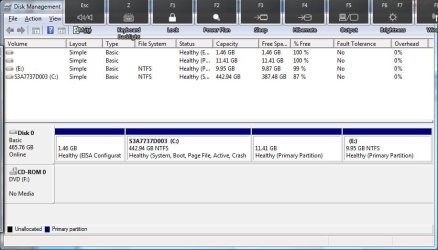
Unfortunately I was wrong about the disk management I have on the Toshiba though, and now I'm confused. I'm attaching a screen shot from the Disk Management tool. As you may see, there seem to be 4 primary partitions. Two are small unnamed partitions, one with "EISA configuation". Both of these seem to be empty. Then there is a big partition called C which seems to have the system files, and another called E which I can see has two files - "$RECYCLE BIN" and "System Volume Information".

All four only seem to add up to 465 Gigs and it's supposed to be a 500 Gig HD so is it possible maybe there's another partition somewhere?? Could that be the recovery partition and if so how can I find it (to delete it)?

I'm guessing I should a) install Win7 to C; b) remove all other partitions; and c) create a new partition for data and shrink the C partition down to 20 Gigs. You mentioned that the recovery partition will be disabled after the install so I assume all these other partitions will also be unavailable post-install, and if so, I'd rather not lose all that disk space.

I'd also rather not lose the invisible 35 Gigs or so, but don't know how to locate them to delete whatever's there. Any ideas (or should I be posting on a Toshiba forum)?

Do I need to delete the three primary partitions (E plus the two unnamed ones) first, via the Disk Management tool? Or can I do this from Advanced Drive Tools and Formatting during the install? Can I create the new partition (for data) and shrink C to 20 Gigs during the installation as well?

I've heard that EISA drives can't be deleted using the Disk Management tool but since that one is just 1.5 Gigs I can leave it if necessary.

Sorry, I realize these are more disk management questions than installation questions but I'm trying to figure out what I have to do in advance of the install to make sure all goes smoothly.

Thanks again.
 

Attachments

  • disk management.jpg
    disk management.jpg
    58.5 KB · Views: 30

My Computer

Computer Manufacturer/Model Number
Toshiba A500
OS
Vista
CPU
P7450
Memory
4 G
Before advising you further, need to know for sure if that DVD is a clean copy of Windows 7. Please put it in your DVD drive, restart the computer and see if you can boot from it by "hit any key to boot from CD/DVD" prompt.

If so, click through the first menu and confirm you can access both the Installer and Repair My Computer tools.

You can also browse the files on the DVD and make sure they are the usual 7 installer files:
View attachment 40825

The reason is because this is the first Upgrade kit sent by manufacturer which does not have a separate CD with drivers/apps, so I am wondering if instead your maker didnt construct a special DVD that may not function correctly for the formatted clean install desired, or access the Repair tools needed to recover the MBR when we delete those partitions.

While you are doing that, I will be studying your config.
 
Sorry! I think I can (partly) answer my own questions. I went ahead and booted from the upgrade disk to see what options are available with the Advanced Drive Tools and Formatting menu.

There I could see the four primary partitions. #1 is the small EISA, which is "OEM Reserved", #2 is the big System one, #3 is called HDD Recovery (so there it is), and #4 is unnamed. Both #3 and #4 are unavailable for installing Win7.

So I should:
a) delete #3 and #4
b) create new (for data)
c) shrink #2 to 20 Gigs if possible (?)
d) format #2
d) proceed with the install on #2.

If c) doesn't work, I can always shrink #2 and expand the newly created data partition using the Disk Management Tool later.

I'd be happy to get confirmation that I have this right. :-)

I'm still wondering what happened to the other 35 Gigs of my HDD though. I know you typically lose a little hard drive space but 35 out of 500 seems like a lot.
 

My Computer

Computer Manufacturer/Model Number
Toshiba A500
OS
Vista
CPU
P7450
Memory
4 G
I would see if you can make the Vista Recovery Disks from that EISA partition, or order them later from Toshiba if needed - which they won't be since reinstalls are now replaced by WIn7 Backup Imaging and you don't need Vista to reinstall Win7 Upgrade anyway. (Acer provides them free within 90 days of purchase if you call; others charge handling).

Otherwise EISA is not needed, becomes disabled anyway and should be deleted off that prime lower address. It requires special DiskPart commands that can be run from the Win7 DVD Repair console Command Line:

Delete and Remove to Unlock EISA Hidden Recovery or Diagnostic Partition in Vista My Digital Life

Then plug ethernet, Boot back into the Win7 DVD, select Install Now, choose "Connect to internet during installation," Choose Custom Install and use Advanced Drive Tools to Delete everything, Create New partition(s) as you wish, and Format before install.

The Win7 installer is driver complete because MS funded the partnership (WHQL) to develop Win7 drivers with all manufacturers, so they have them first since they paid the bill. The installer will even be updated during installation if you stay plugged during install, and Windows Updates will have newer when you start up.

Don't worry about the missing space; some of it may be recovered but there is always some taken away.
 
Thank you again for your help, Gregrocker. And thanks for the cautions about my upgrade DVD which, as you suspected, is not at all standard.

To clarify - yes, I was able to make Vista recovery disks, no problem.

Before advising you further, need to know for sure if that DVD is a clean copy of Windows 7. Please put it in your DVD drive, restart the computer and see if you can boot from it by "hit any key to boot from CD/DVD" prompt.
Yes, I can definitely boot from the upgrade DVD.

If so, click through the first menu and confirm you can access both the Installer and Repair My Computer tools.
No, there's no sign of Repair My Computer tools anywhere.

Here's the sequence when I boot from the upgrade DVD:

Windows is loading files ...
Starting Windows [MS name and logo]
[Then a customized Toshiba screen. I couldn't get a screencap and it's too long to type, but basically it says, "If you don't want to do a 'clean install', leave now. If you do want to do a 'clean install', continue.]
[Then back to Windows screens]
Setup is starting ...
[language selection]
[license terms]
Which type of installation do you want? [upgrade or custom]
Where do you want to install Windows? [list of partitions as I described before]
[There is a "Drive options" link here - gives Refresh, Delete, Format, New, Load driver, Extend]
[Then starts installing]

You can also browse the files on the DVD and make sure they are the usual 7 installer files:
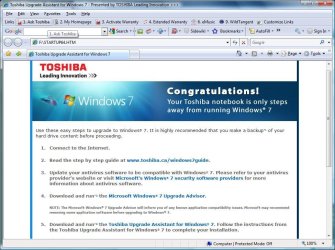
They are not. The upgrade dvd just has one file on it (see attachment) which, when opened, launches a Toshiba page on Explorer (see second attachment).

I guess they really want to make sure you get all those Toshiba utilities!

The reason is because this is the first Upgrade kit sent by manufacturer which does not have a separate CD with drivers/apps, so I am wondering if instead your maker didnt construct a special DVD that may not function correctly for the formatted clean install desired, or access the Repair tools needed to recover the MBR when we delete those partitions.
Your guess was right. But how big a problem is it?

Looks like I can still delete partitions, create new ones, and format, then do a clean install. But I don't have any repair tools. Which means I can't do this:

Otherwise EISA is not needed, becomes disabled anyway and should be deleted off that prime lower address. It requires special DiskPart commands that can be run from the Windows 7 DVD Repair console Command Line:

Delete and Remove to Unlock EISA Hidden Recovery or Diagnostic Partition in Vista My Digital Life

Is it a problem to just leave the 1.5G EISA as the first partition?

Should I go ahead and do the clean install even if I can't delete the EISA? Is there anything else I need the Repair tools for during installation?

I'm really not willing to do an upgrade install at this point - I really want that clean, fast, uncluttered start. If I have to, I'll go buy an upgrade DVD (but that will be really annoying, considering I already paid $20 for this "free" upgrade from Toshiba!)

Thank you again for your help and advice - I really appreciate it. And so far I have no trouble following what you're saying!
 

Attachments

  • DVD file.jpg
    DVD file.jpg
    43.9 KB · Views: 17
  • startup64.jpg
    startup64.jpg
    104.3 KB · Views: 12

My Computer

Computer Manufacturer/Model Number
Toshiba A500
OS
Vista
CPU
P7450
Memory
4 G
Well Toshiba may have done their best to confound the WIN7 clean install DVD but I think that you will get a clean install from it all the same!

I would imagine that EISA will not get in the way of the clean install (with formatting) that you want. It might block deleting it with that hybrid clean installer, however it would do that with a regular Win7 DVD, as EISA requires special diskpart commands run from Repair console's Command Line: http://www.mydigitallife.info/2008/...en-recovery-or-diagnostic-partition-in-vista/

But it might let this EISA be deleted now since this is Toshiba's edited installer, so you might try at least to delete it, then I'd delete all of the other partitions, create New partition(s) as you wish and format (very important) at least the WIn7 partition before installing. Or you can just format C:

Do not worry about there not being a Repair console evident on that DVD, as one of the first things you need to do after you get your Win7 up and running is to make a Win7 Backup Image of your HD saved externally (and to a Primary formatted partition if you want) so that reinstalls are never again necessary, just reimage the HD or its replacement from the Repair disk. The Backup Center will offer to make the needed Repair CD when it saves your first Backup Image, or just type Repair in Start search box.

So you'll likely have a Repair CD and an Install DVD with no sneaky bloatware, best possible situation.

Let us know how it goes.
 
Last edited:
Mayzie:

The "missing space" on a HD is around 7%, so 465 out of 500 is about right. I have a 640 gig drive that comes in at 596 gigs.
 

My Computer

Computer type
PC/Desktop
Computer Manufacturer/Model Number
Ignatz Special; 4 speed manual gearbox; factory air conditioning; one of one
OS
Windows 7 Home Premium SP1, 64-bit
CPU
Intel Skylake i5-6600K, not overclocked
Motherboard
AsRock Z170M Extreme 4, micro ATX
Memory
8 GB HyperX DDR4-2666 (2 x 4 GB)
Graphics Card(s)
none; graphics are integrated on CPU
Sound Card
onboard: Realtek ALC1150; external: USB Behringer UF0-202
Monitor(s) Displays
Dell S2340M 23 inch IPS
Screen Resolution
1600 x 900
Hard Drives
System: Crucial MX100 series SSD, 128 GB;
Data: Samsung Spinpoint 103SJ, 1 TB;
Backup: WD Caviar Green WD30EZRX-00D8PB0, 3 TB
PSU
Rosewill SilentNight 500 watt fanless, semi-modular
Case
Antec Solo II
Cooling
Noctua NH-U12S; Noctua F12 intake, Noctua S12A exhaust
Keyboard
Microsoft 200 6JH-00001 USB
Mouse
Dell or Microsoft optical wired; USB
Antivirus
Microsoft Security Essentials and Malwarebytes Premium
Browser
Pale Moon
Other Info
All fans PWM; speeds at idle: CPU circa 500 rpm; intake circa 600 rpm; exhaust circa 600 rpm; CPU temps 27 idle and 47 C load in a warm room (27 C/81 F) when running Intel Extreme Tuning Utility stress test.

My Computer

Computer Manufacturer/Model Number
Toshiba A500
OS
Vista
CPU
P7450
Memory
4 G
Yes the EISA unlock Diskpart override commands are in my last two posts as well. I used them when I clean reinstalled my roommates Acer Vista and it works fine.

Use the Command Prompt shortcut on the Start menu or you can type CMD in the Run dialog box, rightclick result and Run As Administrator. When you boot into the Win7 DVD EISA should be gone.

But do it as last step before booting DVD as there is a slight chance Vista might not start up again.

When you boot the DVD again, check one more time for a Repair My Computer link on the second screen after choosing Language/Keyboard. Sounds like that part of the DVD is what was customized by Toshiba, hopefully no more.
 
Yes the EISA unlock Diskpart override commands are in my last two posts as well. I used them when I clean reinstalled my roommates Acer Vista and it works fine.

Sorry! I misunderstood - thought you were saying this could only be done in Win7.

In any case - I was able to delete the EISA partition right from the Win7 DVD as I started the installation process.

Everything worked perfectly! The install went very smoothly and I was able to activate manually with no problem.

When you boot the DVD again, check one more time for a Repair My Computer link on the second screen after choosing Language/Keyboard. Sounds like that part of the DVD is what was customized by Toshiba, hopefully no more.
There was definitely no Repair option but I did as you suggested and took an image of my computer as soon as Win7 was installed. As you said, that prompted me to create a Repair disc, which I did. So I should be fine now.

I'm downloading some of the Toshiba utilities and some work, some don't - but I guess those are questions for Toshiba forums.

I do have a couple of smaller questions following the install:

1) I actually took the image before I activated Windows (during the install I unchecked the automatic activation box, as recommended). Would that be a problem if I restore from the image later? Should I delete that image and take another one?

2) I ended up with 2 partitions. I meant to use one for system files and one for everything else. But for some reason I can't shrink the volume of the system partition below about 200 Gigs - even though only about 20 Gigs are being used. Would a de-frag help, maybe?

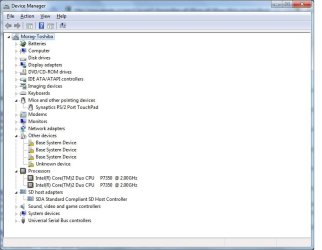
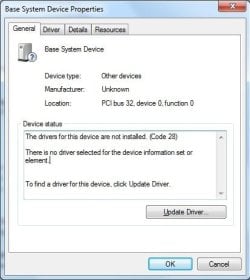
3) I'm sure this question is more for the Drivers forum so I'll post it there. Device manager now shows four unrecognized devices - see screencap. "Update driver" just gets back a message saying Windows was unable to install the device. (There were two unknown devices but one went away after I installed the Synaptics driver, and the Touchpad showed up under Mouse and Pointing Devices at the same time).

Anyway, thanks again for all your help! It did work great. Should I put some kind of check mark on this thread?
 

Attachments

  • device manager.jpg
    device manager.jpg
    47.5 KB · Views: 3
  • base system device.jpg
    base system device.jpg
    24.6 KB · Views: 4

My Computer

Computer Manufacturer/Model Number
Toshiba A500
OS
Vista
CPU
P7450
Memory
4 G
Mayzie:

The "missing space" on a HD is around 7%, so 465 out of 500 is about right. I have a 640 gig drive that comes in at 596 gigs.

Thanks ignatzatsonic. I really didn't realize 7% was about normal.
 

My Computer

Computer Manufacturer/Model Number
Toshiba A500
OS
Vista
CPU
P7450
Memory
4 G
I do have a couple of smaller questions following the install:

1) I actually took the image before I activated Windows (during the install I unchecked the automatic activation box, as recommended). Would that be a problem if I restore from the image later? Should I delete that image and take another one?

If you have the space, you can save the previous image (just append .old to it) and save another once you get everything exactly where you want it and activated.

Then you have an unactivated one if you need to reimage to another machine which will trade out all of the drivers (quite a show) and activate on the new hardware signature.

You have to rename the backup WindowsImageBackup and place in root of external for detection.

2) I ended up with 2 partitions. I meant to use one for system files and one for everything else. But for some reason I can't shrink the volume of the system partition below about 200 Gigs - even though only about 20 Gigs are being used. Would a de-frag help, maybe?

Yes exactly. Then if it won't shrink enough, try Partition Wizard which is more aggressive. Update your backup image first.

A stubborn shrink case may need to have system files moved out of far right field. The tool that does this is PerfectDisk trial version Offline Files defrag.

3) I'm sure this question is more for the Drivers forum so I'll post it there. Device manager now shows four unrecognized devices - see screencap.

These base system devices are most likely the card readers built into your p.c.

Check the Toshiba Support>Downloads>drivers page for your model. The A500's listed have card reader drivers listed for Vista and Win7. Unzip and browse the drivers files from Device Manager.
 
Last edited:
I just wanted to come back here and say that everything worked out fine - as suggested, I just needed to go download drivers to get rid of the unidentified devices.

In fact I ended up installing almost all of the drivers on Toshiba's support page for my model. Maybe they get installed automatically when you do the upgrade install but not with the clean install. I've also used the repair disk and image backup a couple of times already and they work fine.

One last question - If I decide to go back and re-install Win7 from scratch on this same laptop (i.e. delete partitions, format drives, and do a full clean install again) ... will I be able to activate using the same product key and activation code a second time on the same computer? I understand you can do this with a full version of Win7. But with the upgrade version, will it be looking for an existing version of Vista? Is that going to cause trouble in the future if I should ever want to start from scratch again (on the same machine)?

Thanks again for everyone's help here.
 

My Computer

Computer Manufacturer/Model Number
Toshiba A500
OS
Vista
CPU
P7450
Memory
4 G
Mayzie, glad it is working out for you.

I'm not sure I would trust all of the drivers on Toshiba's support page without comparing them to the Win7 driver installed. MS sponsored the partnership with manufacturers to build Win7 Drivers, so they have them first. Of course if Windows Update feels you have an outdated one, it will offer a newer one anyway. You should be ok.

When you get ready to reinstall, just boot from the DVD and it will see the OS and allow you to insert Upgrade key, even if you then use Advanced drive tools to repartition and format. If not, it only requires a repair install from the new desktop to allow key to be inserted.

Better yet, make a Win7 backup image now stored externally so you never have to reinstall again, just boot from the DVD and reimage the HD or a replacement.
 
Back
Top