ROBOCOPY - Create Backup Script

How to Create a Backup Script using ROBOCOPY Command


   Information
There are many paid and free software solutions available to backup critical data and files on a computer system. Many users, however, are unaware of an inbuilt Windows 7 command called ROBOCOPY (Robust File Copy) that allows users to create simple or highly advanced backup strategies.


In its simplist form, ROBOCOPY can be likened to an extension of XCOPY on steroids. Some of the more important features that make ROBOCOPY an attractive backup alternative are:
  • multi-threaded copying
  • mirroring or synchronisation mode between the destination and source
  • automatic retry and copy resumption
The examples shown below are primarily geared towards less experienced users, especially those that are unfamilar with batch file creation and running. More experienced users, however, are welcome to explore some of the advanced functionality offered by ROBOCOPY here:

http://technet.microsoft.com/en-us/library/cc733145(WS.10).aspx

and also here:

http://www.theether.net/download/Microsoft/Utilities/robocopy.pdf

or by simply typing robocopy /? at a cmd window prompt.


   Note
ROBOCOPY is a FOLDER copier, not a FILE copier - the source and destination syntax arguments in ROBOCOPY can only be folder names.


:note: Creating a BACKUP strategy

The easiest way to use the ROBOCOPY command to create a backup strategy is by creating a batch (.BAT) file. A batch file is a simple text file, that when executed, runs several commands one after the other.

Step 1

Click :orb: and in the search box, type notepad. Select Notepad to open up a new blank Notepad document.


Step 2

Type the ROBOCOPY commands into the Notepad document, save it as a .BAT file, and then execute it.

In the example below, I have 3 folders (Data1, Data2, and Data3) containing some data that I wish to backup. One folder is located on E: drive and the other two are located on F: drive. I wish to back these up as follows:

Data1 folder on E: backup to a folder called Backups on G: (external USB drive)
Data2 folder on F: backup to a folder called Backups on G: (external USB drive)
Data3 folder on F: backup to a folder called Backups on Q: (network storage drive)

The general format of the ROBOCOPY command is:

Code:
robocopy <source> <destination> <options>
In the empty Notepad document, the simplist form of the command would look like this:

Code:
robocopy E:\Data1 G:\Backups\Data1
robocopy F:\Data2 G:\Backups\Data2
robocopy F:\Data3 Q:\Backups\Data3
pause
   Tip
If source or destination paths contain spaces in them, enclose these in double quotes e.g. "C:\My Data\My Music"


Only the source
  • E:\Data1
  • F:\Data2
  • F:\Data3
and the destination
  • G:\Backups\Data1
  • G:\Backups\Data2
  • Q:\Backups\Data3
are mandatory inputs into the ROBOCOPY command.

   Tip
The PAUSE command at the bottom of the .BAT file allows the cmd window to stay open after it has completed to allow me to see the output from ROBOCOPY.


If I save the .BAT file to my Desktop, and run it by double-clicking it, then a cmd window is opened and the .BAT file executes the three ROBOCOPY commands as shown below.
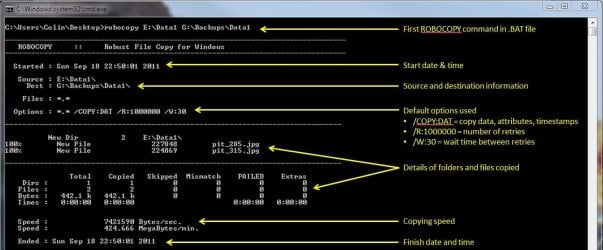
R1.JPG

The same information is repeated for every ROBOCOPY line in the .BAT file.


In order to utilise some of the powerful functionality in ROBOCOPY, I need to utilise some options in the ROBOCOPY command line. In this next example I want to edit my existing backup strategy such that:
  1. All sub-folders within my data folders are backed up, even if they are empty.
  2. The backup only copies newer files to my existing backup - this means a faster backup time.
  3. The percentage progress counter for copying is not shown - this neatens the overall appearance of the ROBOCOPY information, and creates a smaller log file.
  4. The information normally echoed to the cmd window is saved to a log file that I can examine at a later stage.
In order to do this, I need to specify some additional options in my ROBOCOPY commands like this:

Code:
robocopy E:\Data1 G:\Backups\Data1 [B][COLOR=red]/e /mir /np /log:backup_log.txt[/COLOR][/B]
robocopy F:\Data2 G:\Backups\Data2 [B][COLOR=red]/e /mir /np /log+:backup_log.txt[/COLOR][/B]
robocopy F:\Data3 Q:\Backups\Data3 [B][COLOR=red]/e /mir /np /log+:backup_log.txt[/COLOR][/B]
pause
Where:
/e = copy all sub-folders, even empty ones
/mir = mirror (check the files in the destination, and only copy newer files)
/np = no progress counter
/log: = create a logfile

   Tip

Note the use of the /log+: option in the 2nd and 3rd line of the .BAT file. This option ensures that the results of the 2nd and 3rd ROBOCOPY are appended to the log file created in the 1st ROBOCOPY line, meaning I only need one log file to capture all the information I backup.

The log file is always saved to the same folder as the .BAT file - in my case, the folder is saved to my Desktop.


Since the output from ROBOCOPY is written to the log file, the cmd window will not display the output from ROBOCOPY. If I wish to have this information written to both the log file and the cmd window for visual tracking of the backup process, then I can add the /tee option to each line in the .BAT file, as shown below.

Code:
robocopy E:\Data1 G:\Backups\Data1 /e /mir /np [B][COLOR=red]/te[/COLOR][COLOR=red]e[/COLOR][/B] /log:backup_log.txt
robocopy F:\Data2 G:\Backups\Data2 /e /mir /np [COLOR=red][B]/tee[/B][/COLOR] /log+:backup_log.txt
robocopy F:\Data3 Q:\Backups\Data3 /e /mir /np[COLOR=red][B] /tee[/B][/COLOR] /log+:backup_log.txt
pause
This is an example of the typical output to the the log file - it looks exactly the same as what is echoed to the cmd window.

Code:
-------------------------------------------------------------------------------
   ROBOCOPY     ::     Robust File Copy for Windows                              
-------------------------------------------------------------------------------
  Started : Sun Sep 18 23:35:01 2011
   Source : E:\Data1\
     Dest : G:\Backups\Data1\
    Files : *.*
 
  Options : *.* /S /E /COPY:DAT /PURGE /MIR /R:1000000 /W:30 
------------------------------------------------------------------------------
                    2 E:\Data1\
------------------------------------------------------------------------------
               Total    Copied   Skipped  Mismatch    FAILED    Extras
    Dirs :         1         0         1         0         0         0
   Files :         2         0         2         0         0         0
   Bytes :   442.1 k         0   442.1 k         0         0         0
   Times :   0:00:00   0:00:00                       0:00:00   0:00:00
   Ended : Sun Sep 18 23:35:01 2011
Since one of the data folders I am backing up is being copied across a network, I want to ensure that any possible network outages do not cause some critical files to be skipped in the backup. To do this, I can make use of the /z option in the 3rd line of my .BAT file (backup to my network storage) as shown below.

Code:
robocopy E:\Data1 G:\Backups\Data1 /e /mir /np /tee /log:backup_log.txt
robocopy F:\Data2 G:\Backups\Data2 /e /mir /np /tee /log+:backup_log.txt
robocopy F:\Data3 Q:\Backups\Data3 /e /mir /np [B][COLOR=red]/z[/COLOR][/B] /tee /log+:backup_log.txt
This option implements a "retry" for the copying. If I were part way through the copying process, and I lost connection with the network, then ROBOCOPY would automatically restart the copying at the point of failure once the network connection was re-established. It would retrying a million times every 30 seconds (the default settings shown in the image above). The only drawback with this option, is that it can significantly increase the backup time.

ROBOCOPY also has the ability to perform faster multi-threaded copying by simply using the option /mt. I can choose the number of threads to use by specifying a number between 1 and 128 after the /mt option, or if I just specify /mt without a number then the it will use 8 threads by default. In the example below, I use 4 threads to copy to my USB drive, and 8 threads (no number) to copy to my network drive.

Code:
robocopy E:\Data1 G:\Backups\Data1 /e /mir /np /tee [B][COLOR=red]/mt:4[/COLOR][/B] /log:backup_log.txt
robocopy F:\Data2 G:\Backups\Data2 /e /mir /np /tee [COLOR=red][B]/mt:4[/B][/COLOR] /log+:backup_log.txt
robocopy F:\Data3 Q:\Backups\Data3 /e /mir /np [COLOR=black]/z[/COLOR] /tee [COLOR=red][B]/mt[/B][/COLOR] /log+:backup_log.txt
Below is a template that you can use to create your own backup strategy using ROBOCOPY. Simply copy and paste the lines into a blank text document, and then edit as appropriate.

Code:
rem --- Edit the lines below to create your own backup strategy
rem --- The /mir option has been left out for safety sake
rem --- Add more lines for each new folder requiring backup
rem --- Specified 4 threads to use for multi-threaded copying
rem --- The results of the backup can be found in my_backup_log.txt 
robocopy <source> <destination> /e /np /tee /mt:4 /log:my_backup_log.txt
robocopy <source> <destination> /e /np /tee /mt:4 /log+:my_backup_log.txt
pause
   Tip

The can automate your backup's by using the Windows 7 Task Scheduler to run the .BAT file at specific times.

For more information please refer to this tutorial by Orbital Shark:
http://www.sevenforums.com/tutorials/12444-task-scheduler-create-new-task.html


I hope this brief tutorial helps you access the power and simplicity of ROBOCOPY to create some effective backup strategies.

Regards,
Golden
 
Last edited by a moderator:
Thank you Golden, I have to report Progress, of sorts!

Below is copied from the screen shot after running the program.


C:\Users\Alans PC\Documents>robocopy C:\Users\Alans PC\TEST FOLDER F:\Outlook Data Files /e /np /tee /mt:4 /log:my_backup_log.txt

-------------------------------------------------------------------------------
ROBOCOPY :: Robust File Copy for Windows

-------------------------------------------------------------------------------

Started : Wed Mar 21 10:12:08 2012

Source - C:\Users\Alans\
Dest - C:\Users\Alans PC\Documents\PC\TEST\

Files : FOLDER

Options : /COPY AT /R:1000000 /W:30

------------------------------------------------------------------------------

ERROR : Invalid Parameter #4 : "F:\Outlook"

Simple Usage :: ROBOCOPY source destination /MIR

source :: Source Directory (drive:\path or \\server\share\path).
destination :: Destination Dir (drive:\path or \\server\share\path).
/MIR :: Mirror a complete directory tree.

For more usage information run ROBOCOPY /?

**** /MIR can DELETE files as well as copy them !

C:\Users\Alans PC\Documents>pause
Press any key to continue . . .

END.

The destination is as follows, copied from the address bar of my F: drive as text.

F:\Outlook Data Files

I note that the source and destination are both C:

Source - C:\Users\Alans\
Dest - C:\Users\Alans PC\Documents\PC\TEST
:confused:

The above does not agree with the script you wrote or I copied to notepad, I wondered if my original script was somehow corrupting this one so I deleted my original and tried again with the same result.

Perhaps you could shed some light on what maybe wrong.

Many thanks.
 

My Computer

Computer type
PC/Desktop
Computer Manufacturer/Model Number
Home Build
OS
Windows 7 Professional 64bit
CPU
i5-2500K 3.30Hz 6MB Cache
Motherboard
ASUS P8P67 Pro B3 Revision
Memory
16GB DDR3
Graphics Card(s)
ASUSGeforce GTX1050Ti 4GB
Sound Card
On-Board
Monitor(s) Displays
LG23MP65HQ-P
Hard Drives
WD Caviar Green 500gb
Maxtor 300gb
WD External USB 120gb
WD My Passport USB 2TB
LUX3 External USB 1TB
PSU
Corsair 800W
Case
Antec
Cooling
Arctic 13 Cooler
Antivirus
Bitdefender Total Security 2017
Browser
FireFox
Whenever there is a space in the file path you need to put quotes around it.

e.g.
"C:\Users\Alans PC\Documents\PC\TEST"

Just to keep it simple for a second, does it work if you try:
robocopy "C:\Users\Alans\" "C:\Users\Alans PC\Documents\PC\TEST"

Regards,
JDobbsy1987
 

My Computer

Computer type
PC/Desktop
Computer Manufacturer/Model Number
Self Built
OS
Windows 8.1 Pro x64
CPU
Intel Core i5-2500K @ 3.30GHz - S1155
Motherboard
Asus P8P67 LE Rev3, Intel P67, S115
Memory
8GB Corsair DDR3 XMS3, PC3-12800
Graphics Card(s)
NVIDIA GeForce GTX 650
Sound Card
On-Board
Monitor(s) Displays
3 x 24" {Extended Display}
Screen Resolution
1920 x 1080
Hard Drives
300GB Seagate Barracuda 7200
PSU
550W Coolermaster GX550
Case
Silverstone Precision PS04B
Cooling
Stock
Keyboard
Logitech K120
Mouse
World of Warcraft Cataclysm MMO Gaming Mouse
Internet Speed
80 MB
Antivirus
MSE / Windows Defender
Browser
Chrome
Hi JDobbsy1987.

Thanks for that suggestion, I have added the quotation marks to my script which is now looking like:

robocopy "C:\Users\Alans PC\TEST FOLDER" "F:\Outlook Data Files" /e /np /tee /mt:4 /log:my_backup_log.txt
pause
I put a File in my TEST FOLDER called 'calender 2012' on running the above script I now have a copy of the 'calender 2012' file in my F:\Outlook Data Files Folder:D:D.

I would have thought that I would be copying the whole folder, in my case TEST FOLDER to my F: Drive, as in the instruction: "C:\Users\Alans PC\TEST FOLDER".

The following is copied from the CMD prompt window.

C:\Users\Alans PC\Documents>robocopy "C:\Users\Alans PC\TEST FOLDER" "F:\Outlook
Data Files" /e /np /tee /mt:4 /log:my_backup_log.txt

Log File : C:\Users\Alans PC\Documents\my_backup_log.txt

-------------------------------------------------------------------------------
ROBOCOPY :: Robust File Copy for Windows

-------------------------------------------------------------------------------

Started : Wed Mar 21 16:40:11 2012

Source : C:\Users\Alans PC\TEST FOLDER\
Dest : F:\Outlook Data Files\

Files : *.*

Options : *.* /TEE /S /E /COPY AT /NP /MT:4 /R:1000000 /W:30

------------------------------------------------------------------------------

*EXTRA Dir -1 F:\Outlook Data Files\Outlook - OLD Pre 2012\
*EXTRA Dir -1 F:\Outlook Data Files\Outlook Files - NEW 21 03
2012\
1 C:\Users\Alans PC\TEST FOLDER\
100% New File 120320 calendar 2012.xls

------------------------------------------------------------------------------

Total Copied Skipped Mismatch FAILED Extras
Dirs : 1 0 1 0 0 2
Files : 1 1 0 0 0 0
Bytes : 117.5 k 1 17.5 k 0 0 0 0
Times : 0:00:00 0:00:00 0:00:00 0:00:00

Ended : Wed Mar 21 16:40:12 2012

C:\Users\Alans PC\Documents>pause
Press any key to continue . . .
If I wish to copy 'Folder XX' to my F: drive should I have put 'Folder XX' in my TEST FOLDER? :eek::eek: I.e not the individual file.

Perhaps the headers showing;
...........Total Copied Skipped Mismatch FAILED Extras
Dirs : ......1 ......0 ........1 .........0 ..........0 .......2
Files : .....1 ......1 ........0 .........0 ..........0 .......0

May have something to do with it?

Anyway at last I have been able to copy a file with 2 key strokes instead of many strokes and less chance of errors. :D

Will this script automatically overwrite the preceding copy when the script is run again, replacing copy 1 with copy 2 etc?
 
Last edited:

My Computer

Computer type
PC/Desktop
Computer Manufacturer/Model Number
Home Build
OS
Windows 7 Professional 64bit
CPU
i5-2500K 3.30Hz 6MB Cache
Motherboard
ASUS P8P67 Pro B3 Revision
Memory
16GB DDR3
Graphics Card(s)
ASUSGeforce GTX1050Ti 4GB
Sound Card
On-Board
Monitor(s) Displays
LG23MP65HQ-P
Hard Drives
WD Caviar Green 500gb
Maxtor 300gb
WD External USB 120gb
WD My Passport USB 2TB
LUX3 External USB 1TB
PSU
Corsair 800W
Case
Antec
Cooling
Arctic 13 Cooler
Antivirus
Bitdefender Total Security 2017
Browser
FireFox
I would have thought that I would be copying the whole folder, in my case TEST FOLDER to my F: Drive, as in the instruction: "C:\Users\Alans PC\TEST FOLDER".

Robocopy copies the 'contents' of the folder you specify in the script as opposed to the actual folder itself.


If I wish to copy 'Folder XX' to my F: drive should I have put 'Folder XX' in my TEST FOLDER? :eek::eek: I.e not the individual file.

The answer is yes :)


Will this script automatically overwrite the preceding copy when the script is run again, replacing copy 1 with copy 2 etc?

I'm pretty certain it will overwrite the preceding copy, it did when i tested before writing this reply.


Robocopy has a lot of features/switches to allow you to do quite a lot, you can take a look at these by running the following command in a command prompt:

Code:
robocopy /?

If you do want to make your script go that step further then please feel free to open a support thread in the forum and send me a pm and i will do my best to mentor you through as much as i can :thumbsup:

Regards,
JDobbsy1987
 

My Computer

Computer type
PC/Desktop
Computer Manufacturer/Model Number
Self Built
OS
Windows 8.1 Pro x64
CPU
Intel Core i5-2500K @ 3.30GHz - S1155
Motherboard
Asus P8P67 LE Rev3, Intel P67, S115
Memory
8GB Corsair DDR3 XMS3, PC3-12800
Graphics Card(s)
NVIDIA GeForce GTX 650
Sound Card
On-Board
Monitor(s) Displays
3 x 24" {Extended Display}
Screen Resolution
1920 x 1080
Hard Drives
300GB Seagate Barracuda 7200
PSU
550W Coolermaster GX550
Case
Silverstone Precision PS04B
Cooling
Stock
Keyboard
Logitech K120
Mouse
World of Warcraft Cataclysm MMO Gaming Mouse
Internet Speed
80 MB
Antivirus
MSE / Windows Defender
Browser
Chrome
Hi,

Yes, Dobsy is correct : when source and/or destinations have spaced in them, enclose the folders with " ". I might add that to the tutorial.

Each time you run ROBOCOPY without the /MIR switch, it will always overwite the preceeding copy - in effect it operates like XCOPY. If you add the /MIR switch to your ROBOCOPY command, then only the newest information in that folder is copied to your backup. This is a great time-saving feature.

Regards,
Golden
 

My Computer

Computer type
PC/Desktop
Computer Manufacturer/Model Number
Golden Mk. I.4
OS
Windows 10 Pro x64 ; Xubuntu x64
CPU
Intel i7 860 @ 2.80 GHz O/C'ed to 4.0GHz
Motherboard
Gigabyte P55A-UD3R Rev.1. Award BIOS F13
Memory
16GB Corsair Vengance DDR3 @ 661 MHz Dual Channel (9-9-9-24)
Graphics Card(s)
EVGA NVidia GTX 560 1024MB
Sound Card
Realtek Integrated
Monitor(s) Displays
Dual Samsung SyncMaster 2494HS
Screen Resolution
1920*1080 and 1920*1080
Hard Drives
1*Samsung 840 EVO 120GB SSD;
1*OCZ Vertex 2 60GB SSD;
2*Samsung F3 SpinPoint 1TB in RAID0;
1*Samsung F1 SpinPoint 1TB;
2*Western Digital 1TB External USB 3.0
1*Western Digital 500GB External USB 3.0
1*Seagate 500GB External USB 2.0
PSU
Thermaltake ToughPower QFan 750W
Case
Thermaltake Element S VK60001W2Z
Cooling
Corsair H60 Water Cooling, 2*230mm and 2*80mm case fans
Keyboard
Logitech G110
Mouse
Logitech MX518
Gentlemen.:thumbsup::thumbsup:

Thank you both for your kind assistance with these problems of mine, I have printed off the Robocopy switches (A very long list!)

I will now have a play over the next day or so and see what I can achieve.

I will leave the /mir switch out until I am more confident, I have time but with my luck I will screw it up and lose the original files.:cry:

If I need to post into which forum would this come under, it could cover a few listed?
 

My Computer

Computer type
PC/Desktop
Computer Manufacturer/Model Number
Home Build
OS
Windows 7 Professional 64bit
CPU
i5-2500K 3.30Hz 6MB Cache
Motherboard
ASUS P8P67 Pro B3 Revision
Memory
16GB DDR3
Graphics Card(s)
ASUSGeforce GTX1050Ti 4GB
Sound Card
On-Board
Monitor(s) Displays
LG23MP65HQ-P
Hard Drives
WD Caviar Green 500gb
Maxtor 300gb
WD External USB 120gb
WD My Passport USB 2TB
LUX3 External USB 1TB
PSU
Corsair 800W
Case
Antec
Cooling
Arctic 13 Cooler
Antivirus
Bitdefender Total Security 2017
Browser
FireFox
Your very welcome Trapper.

If you need to post further, just post under the "Backup & Restore" section. I'm confident you will be using the /MIR switch in no time at all.

There is only one trick to remember with /MIR:

If you have a folder that is already backed-up and you no longer require it - always delete it at the source (NOT at the destination) and then run ROBOCOPY. This way, ROBOCOPY will take care of it (delete it) at the destination for you automatically (this is the mirroring effect). Follow that rule, and you will never go wrong with the /MIR switch :)

In summary:

1, Delete folder at source
2. Run ROBOCOPY with /MIR switch
3. Folder is automatically deleted for you at destination.

Regards,
Golden
 

My Computer

Computer type
PC/Desktop
Computer Manufacturer/Model Number
Golden Mk. I.4
OS
Windows 10 Pro x64 ; Xubuntu x64
CPU
Intel i7 860 @ 2.80 GHz O/C'ed to 4.0GHz
Motherboard
Gigabyte P55A-UD3R Rev.1. Award BIOS F13
Memory
16GB Corsair Vengance DDR3 @ 661 MHz Dual Channel (9-9-9-24)
Graphics Card(s)
EVGA NVidia GTX 560 1024MB
Sound Card
Realtek Integrated
Monitor(s) Displays
Dual Samsung SyncMaster 2494HS
Screen Resolution
1920*1080 and 1920*1080
Hard Drives
1*Samsung 840 EVO 120GB SSD;
1*OCZ Vertex 2 60GB SSD;
2*Samsung F3 SpinPoint 1TB in RAID0;
1*Samsung F1 SpinPoint 1TB;
2*Western Digital 1TB External USB 3.0
1*Western Digital 500GB External USB 3.0
1*Seagate 500GB External USB 2.0
PSU
Thermaltake ToughPower QFan 750W
Case
Thermaltake Element S VK60001W2Z
Cooling
Corsair H60 Water Cooling, 2*230mm and 2*80mm case fans
Keyboard
Logitech G110
Mouse
Logitech MX518
Excluding Folders that are many levels deep.

Golden;
In my folder structure, every project has subfolders named Archive, Inbox, Temp, etc. They are always 4 levels below the drive root, but the parent project name is unique. Is there a way to exclude these subfolders?

Thanks much,
Ron
 

My Computer

Computer Manufacturer/Model Number
Dell Precision workstation T3500
OS
Windows 7 Pro
CPU
Xeon
Graphics Card(s)
NVidia 512mb
Golden;
In my folder structure, every project has subfolders named Archive, Inbox, Temp, etc. They are always 4 levels below the drive root, but the parent project name is unique. Is there a way to exclude these subfolders?

Thanks much,
Ron

Hi Ron

As long as you don't add one of these switches it should not copy subdirectories:

/e or /s

Example, change Golden's example from
Code:
robocopy E:\Data1 G:\Backups\Data1 /e /mir /np /log:backup_log.txt
to
Code:
robocopy E:\Data1 G:\Backups\Data1 /mir /np /log:backup_log.txt

Regards,
JDobbsy1987
 

My Computer

Computer type
PC/Desktop
Computer Manufacturer/Model Number
Self Built
OS
Windows 8.1 Pro x64
CPU
Intel Core i5-2500K @ 3.30GHz - S1155
Motherboard
Asus P8P67 LE Rev3, Intel P67, S115
Memory
8GB Corsair DDR3 XMS3, PC3-12800
Graphics Card(s)
NVIDIA GeForce GTX 650
Sound Card
On-Board
Monitor(s) Displays
3 x 24" {Extended Display}
Screen Resolution
1920 x 1080
Hard Drives
300GB Seagate Barracuda 7200
PSU
550W Coolermaster GX550
Case
Silverstone Precision PS04B
Cooling
Stock
Keyboard
Logitech K120
Mouse
World of Warcraft Cataclysm MMO Gaming Mouse
Internet Speed
80 MB
Antivirus
MSE / Windows Defender
Browser
Chrome
Some folders yes, some folders no

Understood. But at that same level (4 deep from the root) are the folders that are the core of our projects and need to be backed up...
Is there a way to not back up some that are identically named and located but not others at the same folder depth?

Thanks, Ron
 

My Computer

Computer Manufacturer/Model Number
Dell Precision workstation T3500
OS
Windows 7 Pro
CPU
Xeon
Graphics Card(s)
NVidia 512mb
can you provide an example of the file paths with a description of what needs backing up and what doesnt?

e.g.
Code:
c:\projects\seven_forums\posts
c:\projects\seven_forums\threads
c:\projects\seven_forums\data
c:\projects\seven_forums\admin
c:\projects\seven_forums\stuff
i would want folders posts, threads and data backed up.

something along those lines so i can understand your requirements a little better.

Cheers
 

My Computer

Computer type
PC/Desktop
Computer Manufacturer/Model Number
Self Built
OS
Windows 8.1 Pro x64
CPU
Intel Core i5-2500K @ 3.30GHz - S1155
Motherboard
Asus P8P67 LE Rev3, Intel P67, S115
Memory
8GB Corsair DDR3 XMS3, PC3-12800
Graphics Card(s)
NVIDIA GeForce GTX 650
Sound Card
On-Board
Monitor(s) Displays
3 x 24" {Extended Display}
Screen Resolution
1920 x 1080
Hard Drives
300GB Seagate Barracuda 7200
PSU
550W Coolermaster GX550
Case
Silverstone Precision PS04B
Cooling
Stock
Keyboard
Logitech K120
Mouse
World of Warcraft Cataclysm MMO Gaming Mouse
Internet Speed
80 MB
Antivirus
MSE / Windows Defender
Browser
Chrome
Folder structure

Below is a typical folder structure:
(we have 100's of these with the difference being in the bldg# and Proj#)

R:
--Bldg# or ProjectType
----Project#1
------500_CAD
--------3D
--------A
--------C
--------D
--------E
--------G
--------M
--------S
--------Archive
--------xArchive
--------xImage
--------xInbox
--------xIssue
--------xOutbox
--------xPlot
--------xSupport
(i.e., R:\234A\60101003\500_CAD\xInbox)

The folders to be excluded are Archive, xArchive, xInbox, xSupport, xTemp

Thanks, Ron
 

My Computer

Computer Manufacturer/Model Number
Dell Precision workstation T3500
OS
Windows 7 Pro
CPU
Xeon
Graphics Card(s)
NVidia 512mb
Below is a typical folder structure:
(we have 100's of these with the difference being in the bldg# and Proj#)

R:
--Bldg# or ProjectType
----Project#1
------500_CAD
--------3D
--------A
--------C
--------D
--------E
--------G
--------M
--------S
--------Archive
--------xArchive
--------xImage
--------xInbox
--------xIssue
--------xOutbox
--------xPlot
--------xSupport
(i.e., R:\234A\60101003\500_CAD\xInbox)

The folders to be excluded are Archive, xArchive, xInbox, xSupport, xTemp

Thanks, Ron

Try the following:
Code:
robocopy <source> <destination> /e /xd Archive xArchive xInbox xSupport xTemp

/e = include all directories including subdirectories
/xd - exclude directories <dir1> <dir2> <dir3> (this would exclude any folder with the stated names)

the other option would be to use a wildcard, for example, if you wanted to exclude all folders starting with an x then the following would also work:
Code:
robocopy <source> <destination> /e /xd x*

Hope this helps?

Regards,
JDobbsy1987
 

My Computer

Computer type
PC/Desktop
Computer Manufacturer/Model Number
Self Built
OS
Windows 8.1 Pro x64
CPU
Intel Core i5-2500K @ 3.30GHz - S1155
Motherboard
Asus P8P67 LE Rev3, Intel P67, S115
Memory
8GB Corsair DDR3 XMS3, PC3-12800
Graphics Card(s)
NVIDIA GeForce GTX 650
Sound Card
On-Board
Monitor(s) Displays
3 x 24" {Extended Display}
Screen Resolution
1920 x 1080
Hard Drives
300GB Seagate Barracuda 7200
PSU
550W Coolermaster GX550
Case
Silverstone Precision PS04B
Cooling
Stock
Keyboard
Logitech K120
Mouse
World of Warcraft Cataclysm MMO Gaming Mouse
Internet Speed
80 MB
Antivirus
MSE / Windows Defender
Browser
Chrome
I am already using code as you showed, including the * in the excluded folder list.
But, per an earlier post (my apologies as I thought I was still in my earlier thread), Golden replied "Robocopy treats the * as part of the name, and of course Windows does not allow a folder to contain a * in its name."

But if my excluded folders list includes "Archive", will it exclude every folder that is named "Archive"?

Thanks much, Ron
 

My Computer

Computer Manufacturer/Model Number
Dell Precision workstation T3500
OS
Windows 7 Pro
CPU
Xeon
Graphics Card(s)
NVidia 512mb
an earlier post (my apologies as I thought I was still in my earlier thread), Golden replied "Robocopy treats the * as part of the name, and of course Windows does not allow a folder to contain a * in its name."

I have just tested the following script and it worked fine:
Code:
robocopy <source> <destination> /e /xd x*
It copied all folders but not any folders starting with an X

But if my excluded folders list includes "Archive", will it exclude every folder that is named "Archive"?
Correct... unless you explicitly specified the file path/folder e.g.
Code:
robocopy <source> <destination> /e /xd "R:\234A\60101003\500_CAD\xInbox"

Do you have a lot of folders with the same name where some you would want to back up and others you wouldn't?
 

My Computer

Computer type
PC/Desktop
Computer Manufacturer/Model Number
Self Built
OS
Windows 8.1 Pro x64
CPU
Intel Core i5-2500K @ 3.30GHz - S1155
Motherboard
Asus P8P67 LE Rev3, Intel P67, S115
Memory
8GB Corsair DDR3 XMS3, PC3-12800
Graphics Card(s)
NVIDIA GeForce GTX 650
Sound Card
On-Board
Monitor(s) Displays
3 x 24" {Extended Display}
Screen Resolution
1920 x 1080
Hard Drives
300GB Seagate Barracuda 7200
PSU
550W Coolermaster GX550
Case
Silverstone Precision PS04B
Cooling
Stock
Keyboard
Logitech K120
Mouse
World of Warcraft Cataclysm MMO Gaming Mouse
Internet Speed
80 MB
Antivirus
MSE / Windows Defender
Browser
Chrome
Hello all,

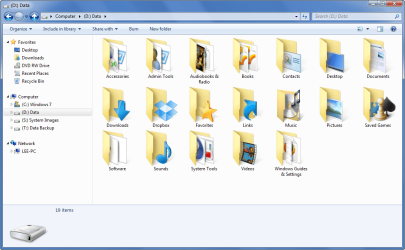
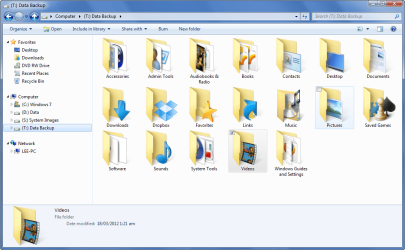
I would like to copy all the files from my T:\Data Backup drive to my D:\Data drive (I'm going to be wiping everything off D: and restoring all the files from my T: drive).

Capture-04.png

Capture-05.png

I'm wanting to copy everything, all subfolders, files, dates, times, attributes and security permissions. And using 12 threads as I am copying about 540gb of data.

Would this command do the job?

Code:
robocopy T:\ D:\ /COPY:DATSOU /MT:12 /e /np /log+:backup_log.txt

Any help would be appreciated. :)
 

My Computer

Computer type
PC/Desktop
Computer Manufacturer/Model Number
Custom Build
OS
Win 7 Ultimate, Win 8.1 Pro, Linux Mint 19 Cinnamon (All 64-Bit)
CPU
Intel i5 4690K
Motherboard
Gigabyte Z97X-UD3H
Memory
Corsair Vengeance LP 32GB DDR3
Graphics Card(s)
MSI GTX 1060 GAMING X 6GB
Sound Card
Onboard
Hard Drives
Samsung 850 EVO 250GB SSD (x2)
Samsung 860 EVO 1TB SSD (x2)
Crucial MX300 525GB SSD
WD Blue 2TB 5400rpm Intellipark Disabled (x2)
PSU
Corsair HX750i
Case
Phanteks Enthoo Pro
Cooling
CM Hyper 212 EVO on CPU, Noctua Redux NF-P14S 1500rpm (x6)
Keyboard
Corsair K70 RGB LUX
Mouse
Corsair Sabre RGB
Antivirus
Avast Free, MalwareBytes, SAS & CryptoPrevent
Browser
Chrome
Other Info
StarTech PEXESAT322I 2 Port PCI-E SATA Card
ASUS PCE-AC56 Dual-band AC1300 Wireless Card
Akasa FC.Six Manual Fan Controller
And a Partridge in a Pear Tree!
Hello all,

I would like to copy all the files from my T:\Data Backup drive to my D:\Data drive (I'm going to be wiping everything off D: and restoring all the files from my T: drive).

View attachment 204309

View attachment 204310

I'm wanting to copy everything, all subfolders, files, dates, times, attributes and security permissions. And using 12 threads as I am copying about 540gb of data.

Would this command do the job?

Code:
robocopy T:\ D:\ /COPY:DATSOU /MT:12 /e /np /log+:backup_log.txt

Any help would be appreciated. :)

I don't see why that wouldn't work but me personally would remove the /np so i can see the progress it is making plus i would put some retry option in just encase there was an issue accessing the destination drive during the copy:

e.g.
Code:
/Z /R:10 /W:20

this way the copy shouldn't fail but wait 20 seconds and try again (the retry enables it to carry on from where it stopped rather than starting it all over again.)

Regards,
JDobbsy1987
 

My Computer

Computer type
PC/Desktop
Computer Manufacturer/Model Number
Self Built
OS
Windows 8.1 Pro x64
CPU
Intel Core i5-2500K @ 3.30GHz - S1155
Motherboard
Asus P8P67 LE Rev3, Intel P67, S115
Memory
8GB Corsair DDR3 XMS3, PC3-12800
Graphics Card(s)
NVIDIA GeForce GTX 650
Sound Card
On-Board
Monitor(s) Displays
3 x 24" {Extended Display}
Screen Resolution
1920 x 1080
Hard Drives
300GB Seagate Barracuda 7200
PSU
550W Coolermaster GX550
Case
Silverstone Precision PS04B
Cooling
Stock
Keyboard
Logitech K120
Mouse
World of Warcraft Cataclysm MMO Gaming Mouse
Internet Speed
80 MB
Antivirus
MSE / Windows Defender
Browser
Chrome
Thanks JDobbsy,

so would this command be ok?

Code:
robocopy <source> <destination> /E /Z /COPYALL /MT:12 /log+:backup_log.txt /R:10 /W:20
 

My Computer

Computer type
PC/Desktop
Computer Manufacturer/Model Number
Custom Build
OS
Win 7 Ultimate, Win 8.1 Pro, Linux Mint 19 Cinnamon (All 64-Bit)
CPU
Intel i5 4690K
Motherboard
Gigabyte Z97X-UD3H
Memory
Corsair Vengeance LP 32GB DDR3
Graphics Card(s)
MSI GTX 1060 GAMING X 6GB
Sound Card
Onboard
Hard Drives
Samsung 850 EVO 250GB SSD (x2)
Samsung 860 EVO 1TB SSD (x2)
Crucial MX300 525GB SSD
WD Blue 2TB 5400rpm Intellipark Disabled (x2)
PSU
Corsair HX750i
Case
Phanteks Enthoo Pro
Cooling
CM Hyper 212 EVO on CPU, Noctua Redux NF-P14S 1500rpm (x6)
Keyboard
Corsair K70 RGB LUX
Mouse
Corsair Sabre RGB
Antivirus
Avast Free, MalwareBytes, SAS & CryptoPrevent
Browser
Chrome
Other Info
StarTech PEXESAT322I 2 Port PCI-E SATA Card
ASUS PCE-AC56 Dual-band AC1300 Wireless Card
Akasa FC.Six Manual Fan Controller
And a Partridge in a Pear Tree!
Thanks JDobbsy,

so would this command be ok?

Code:
robocopy <source> <destination> /E /Z /COPYALL /MT:12 /log+:backup_log.txt /R:10 /W:20

That looks like it will do a good job :thumbsup:
As a precautionary... I would always do a quick test on some MOC up folders/files

Regards,
JDobbsy1987
 

My Computer

Computer type
PC/Desktop
Computer Manufacturer/Model Number
Self Built
OS
Windows 8.1 Pro x64
CPU
Intel Core i5-2500K @ 3.30GHz - S1155
Motherboard
Asus P8P67 LE Rev3, Intel P67, S115
Memory
8GB Corsair DDR3 XMS3, PC3-12800
Graphics Card(s)
NVIDIA GeForce GTX 650
Sound Card
On-Board
Monitor(s) Displays
3 x 24" {Extended Display}
Screen Resolution
1920 x 1080
Hard Drives
300GB Seagate Barracuda 7200
PSU
550W Coolermaster GX550
Case
Silverstone Precision PS04B
Cooling
Stock
Keyboard
Logitech K120
Mouse
World of Warcraft Cataclysm MMO Gaming Mouse
Internet Speed
80 MB
Antivirus
MSE / Windows Defender
Browser
Chrome
Brilliant, thanks for the help JDobbsy!

Just one quick question, is the
command the same as
/COPY: DATSOU

I have an old backup drive that I use for testing, I'll try it out on that first. :)
 

My Computer

Computer type
PC/Desktop
Computer Manufacturer/Model Number
Custom Build
OS
Win 7 Ultimate, Win 8.1 Pro, Linux Mint 19 Cinnamon (All 64-Bit)
CPU
Intel i5 4690K
Motherboard
Gigabyte Z97X-UD3H
Memory
Corsair Vengeance LP 32GB DDR3
Graphics Card(s)
MSI GTX 1060 GAMING X 6GB
Sound Card
Onboard
Hard Drives
Samsung 850 EVO 250GB SSD (x2)
Samsung 860 EVO 1TB SSD (x2)
Crucial MX300 525GB SSD
WD Blue 2TB 5400rpm Intellipark Disabled (x2)
PSU
Corsair HX750i
Case
Phanteks Enthoo Pro
Cooling
CM Hyper 212 EVO on CPU, Noctua Redux NF-P14S 1500rpm (x6)
Keyboard
Corsair K70 RGB LUX
Mouse
Corsair Sabre RGB
Antivirus
Avast Free, MalwareBytes, SAS & CryptoPrevent
Browser
Chrome
Other Info
StarTech PEXESAT322I 2 Port PCI-E SATA Card
ASUS PCE-AC56 Dual-band AC1300 Wireless Card
Akasa FC.Six Manual Fan Controller
And a Partridge in a Pear Tree!
Back
Top