
ROBOCOPY - Create Backup Script

How to Create a Backup Script using ROBOCOPY Command


   Information
There are many paid and free software solutions available to backup critical data and files on a computer system. Many users, however, are unaware of an inbuilt Windows 7 command called ROBOCOPY (Robust File Copy) that allows users to create simple or highly advanced backup strategies.


In its simplist form, ROBOCOPY can be likened to an extension of XCOPY on steroids. Some of the more important features that make ROBOCOPY an attractive backup alternative are:
  • multi-threaded copying
  • mirroring or synchronisation mode between the destination and source
  • automatic retry and copy resumption
The examples shown below are primarily geared towards less experienced users, especially those that are unfamilar with batch file creation and running. More experienced users, however, are welcome to explore some of the advanced functionality offered by ROBOCOPY here:

http://technet.microsoft.com/en-us/library/cc733145(WS.10).aspx

and also here:

http://www.theether.net/download/Microsoft/Utilities/robocopy.pdf

or by simply typing robocopy /? at a cmd window prompt.


   Note
ROBOCOPY is a FOLDER copier, not a FILE copier - the source and destination syntax arguments in ROBOCOPY can only be folder names.


:note: Creating a BACKUP strategy

The easiest way to use the ROBOCOPY command to create a backup strategy is by creating a batch (.BAT) file. A batch file is a simple text file, that when executed, runs several commands one after the other.

Step 1

Click :orb: and in the search box, type notepad. Select Notepad to open up a new blank Notepad document.


Step 2

Type the ROBOCOPY commands into the Notepad document, save it as a .BAT file, and then execute it.

In the example below, I have 3 folders (Data1, Data2, and Data3) containing some data that I wish to backup. One folder is located on E: drive and the other two are located on F: drive. I wish to back these up as follows:

Data1 folder on E: backup to a folder called Backups on G: (external USB drive)
Data2 folder on F: backup to a folder called Backups on G: (external USB drive)
Data3 folder on F: backup to a folder called Backups on Q: (network storage drive)

The general format of the ROBOCOPY command is:

Code:
robocopy <source> <destination> <options>
In the empty Notepad document, the simplist form of the command would look like this:

Code:
robocopy E:\Data1 G:\Backups\Data1
robocopy F:\Data2 G:\Backups\Data2
robocopy F:\Data3 Q:\Backups\Data3
pause
   Tip
If source or destination paths contain spaces in them, enclose these in double quotes e.g. "C:\My Data\My Music"


Only the source
  • E:\Data1
  • F:\Data2
  • F:\Data3
and the destination
  • G:\Backups\Data1
  • G:\Backups\Data2
  • Q:\Backups\Data3
are mandatory inputs into the ROBOCOPY command.

   Tip
The PAUSE command at the bottom of the .BAT file allows the cmd window to stay open after it has completed to allow me to see the output from ROBOCOPY.


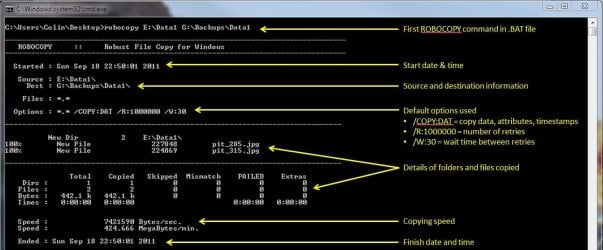
If I save the .BAT file to my Desktop, and run it by double-clicking it, then a cmd window is opened and the .BAT file executes the three ROBOCOPY commands as shown below.
R1.JPG

The same information is repeated for every ROBOCOPY line in the .BAT file.


In order to utilise some of the powerful functionality in ROBOCOPY, I need to utilise some options in the ROBOCOPY command line. In this next example I want to edit my existing backup strategy such that:
  1. All sub-folders within my data folders are backed up, even if they are empty.
  2. The backup only copies newer files to my existing backup - this means a faster backup time.
  3. The percentage progress counter for copying is not shown - this neatens the overall appearance of the ROBOCOPY information, and creates a smaller log file.
  4. The information normally echoed to the cmd window is saved to a log file that I can examine at a later stage.
In order to do this, I need to specify some additional options in my ROBOCOPY commands like this:

Code:
robocopy E:\Data1 G:\Backups\Data1 [B][COLOR=red]/e /mir /np /log:backup_log.txt[/COLOR][/B]
robocopy F:\Data2 G:\Backups\Data2 [B][COLOR=red]/e /mir /np /log+:backup_log.txt[/COLOR][/B]
robocopy F:\Data3 Q:\Backups\Data3 [B][COLOR=red]/e /mir /np /log+:backup_log.txt[/COLOR][/B]
pause
Where:
/e = copy all sub-folders, even empty ones
/mir = mirror (check the files in the destination, and only copy newer files)
/np = no progress counter
/log: = create a logfile

   Tip

Note the use of the /log+: option in the 2nd and 3rd line of the .BAT file. This option ensures that the results of the 2nd and 3rd ROBOCOPY are appended to the log file created in the 1st ROBOCOPY line, meaning I only need one log file to capture all the information I backup.

The log file is always saved to the same folder as the .BAT file - in my case, the folder is saved to my Desktop.


Since the output from ROBOCOPY is written to the log file, the cmd window will not display the output from ROBOCOPY. If I wish to have this information written to both the log file and the cmd window for visual tracking of the backup process, then I can add the /tee option to each line in the .BAT file, as shown below.

Code:
robocopy E:\Data1 G:\Backups\Data1 /e /mir /np [B][COLOR=red]/te[/COLOR][COLOR=red]e[/COLOR][/B] /log:backup_log.txt
robocopy F:\Data2 G:\Backups\Data2 /e /mir /np [COLOR=red][B]/tee[/B][/COLOR] /log+:backup_log.txt
robocopy F:\Data3 Q:\Backups\Data3 /e /mir /np[COLOR=red][B] /tee[/B][/COLOR] /log+:backup_log.txt
pause
This is an example of the typical output to the the log file - it looks exactly the same as what is echoed to the cmd window.

Code:
-------------------------------------------------------------------------------
   ROBOCOPY     ::     Robust File Copy for Windows                              
-------------------------------------------------------------------------------
  Started : Sun Sep 18 23:35:01 2011
   Source : E:\Data1\
     Dest : G:\Backups\Data1\
    Files : *.*
 
  Options : *.* /S /E /COPY:DAT /PURGE /MIR /R:1000000 /W:30 
------------------------------------------------------------------------------
                    2 E:\Data1\
------------------------------------------------------------------------------
               Total    Copied   Skipped  Mismatch    FAILED    Extras
    Dirs :         1         0         1         0         0         0
   Files :         2         0         2         0         0         0
   Bytes :   442.1 k         0   442.1 k         0         0         0
   Times :   0:00:00   0:00:00                       0:00:00   0:00:00
   Ended : Sun Sep 18 23:35:01 2011
Since one of the data folders I am backing up is being copied across a network, I want to ensure that any possible network outages do not cause some critical files to be skipped in the backup. To do this, I can make use of the /z option in the 3rd line of my .BAT file (backup to my network storage) as shown below.

Code:
robocopy E:\Data1 G:\Backups\Data1 /e /mir /np /tee /log:backup_log.txt
robocopy F:\Data2 G:\Backups\Data2 /e /mir /np /tee /log+:backup_log.txt
robocopy F:\Data3 Q:\Backups\Data3 /e /mir /np [B][COLOR=red]/z[/COLOR][/B] /tee /log+:backup_log.txt
This option implements a "retry" for the copying. If I were part way through the copying process, and I lost connection with the network, then ROBOCOPY would automatically restart the copying at the point of failure once the network connection was re-established. It would retrying a million times every 30 seconds (the default settings shown in the image above). The only drawback with this option, is that it can significantly increase the backup time.

ROBOCOPY also has the ability to perform faster multi-threaded copying by simply using the option /mt. I can choose the number of threads to use by specifying a number between 1 and 128 after the /mt option, or if I just specify /mt without a number then the it will use 8 threads by default. In the example below, I use 4 threads to copy to my USB drive, and 8 threads (no number) to copy to my network drive.

Code:
robocopy E:\Data1 G:\Backups\Data1 /e /mir /np /tee [B][COLOR=red]/mt:4[/COLOR][/B] /log:backup_log.txt
robocopy F:\Data2 G:\Backups\Data2 /e /mir /np /tee [COLOR=red][B]/mt:4[/B][/COLOR] /log+:backup_log.txt
robocopy F:\Data3 Q:\Backups\Data3 /e /mir /np [COLOR=black]/z[/COLOR] /tee [COLOR=red][B]/mt[/B][/COLOR] /log+:backup_log.txt
Below is a template that you can use to create your own backup strategy using ROBOCOPY. Simply copy and paste the lines into a blank text document, and then edit as appropriate.

Code:
rem --- Edit the lines below to create your own backup strategy
rem --- The /mir option has been left out for safety sake
rem --- Add more lines for each new folder requiring backup
rem --- Specified 4 threads to use for multi-threaded copying
rem --- The results of the backup can be found in my_backup_log.txt 
robocopy <source> <destination> /e /np /tee /mt:4 /log:my_backup_log.txt
robocopy <source> <destination> /e /np /tee /mt:4 /log+:my_backup_log.txt
pause
   Tip

The can automate your backup's by using the Windows 7 Task Scheduler to run the .BAT file at specific times.

For more information please refer to this tutorial by Orbital Shark:
http://www.sevenforums.com/tutorials/12444-task-scheduler-create-new-task.html


I hope this brief tutorial helps you access the power and simplicity of ROBOCOPY to create some effective backup strategies.

Regards,
Golden
 
Last edited by a moderator:
I would suspect the user would be logged off. Since the scheduled task would run at night, we could instruct them to log off each weeknight when they leave for the day.
 

My Computer My Computer

At a glance

Windows 7 32 and 64 bit
OS
Windows 7 32 and 64 bit
batch file creation

Hi Golden

Haven't heard anything from you since my last question. The boss wants me to figure this out by tomorrow ( 6-26-2012 ). He also said he is more concerned with backing up the profile than restoring it. Could you possible show me how to create a batch file to automatically back up the currently logged in user profile to either an external drive, or a network location?
I am going to experiment with some of the examples given here.
 

My Computer My Computer

At a glance

Windows 7 32 and 64 bit
OS
Windows 7 32 and 64 bit
Hi Hugh,

I have made some queries on your behalf, but haven't heard anything back yet. Try this:

Code:
robocopy C:\Users\{username} Z:\UserProfiles /COPYALL /MIR /E

Regards,
Golden
 

My Computer My Computer

At a glance

Windows 10 Pro x64 ; Xubuntu x64Intel i7 860 @ 2.80 GHz O/C'ed to 4.0GHz16GB Corsair Vengance DDR3 @ 661 MHz Dual Cha...EVGA NVidia GTX 560 1024MB
Computer type
PC/Desktop
Computer Manufacturer/Model Number
Golden Mk. I.4
OS
Windows 10 Pro x64 ; Xubuntu x64
CPU
Intel i7 860 @ 2.80 GHz O/C'ed to 4.0GHz
Motherboard
Gigabyte P55A-UD3R Rev.1. Award BIOS F13
Memory
16GB Corsair Vengance DDR3 @ 661 MHz Dual Channel (9-9-9-24)
Graphics Card(s)
EVGA NVidia GTX 560 1024MB
Sound Card
Realtek Integrated
Monitor(s) Displays
Dual Samsung SyncMaster 2494HS
Screen Resolution
1920*1080 and 1920*1080
Hard Drives
1*Samsung 840 EVO 120GB SSD;
1*OCZ Vertex 2 60GB SSD;
2*Samsung F3 SpinPoint 1TB in RAID0;
1*Samsung F1 SpinPoint 1TB;
2*Western Digital 1TB External USB 3.0
1*Western Digital 500GB External USB 3.0
1*Seagate 500GB External USB 2.0
PSU
Thermaltake ToughPower QFan 750W
Case
Thermaltake Element S VK60001W2Z
Cooling
Corsair H60 Water Cooling, 2*230mm and 2*80mm case fans
Keyboard
Logitech G110
Mouse
Logitech MX518
Thanks babysister - I hope you find it useful
 

My Computer My Computer

At a glance

Windows 10 Pro x64 ; Xubuntu x64Intel i7 860 @ 2.80 GHz O/C'ed to 4.0GHz16GB Corsair Vengance DDR3 @ 661 MHz Dual Cha...EVGA NVidia GTX 560 1024MB
Computer type
PC/Desktop
Computer Manufacturer/Model Number
Golden Mk. I.4
OS
Windows 10 Pro x64 ; Xubuntu x64
CPU
Intel i7 860 @ 2.80 GHz O/C'ed to 4.0GHz
Motherboard
Gigabyte P55A-UD3R Rev.1. Award BIOS F13
Memory
16GB Corsair Vengance DDR3 @ 661 MHz Dual Channel (9-9-9-24)
Graphics Card(s)
EVGA NVidia GTX 560 1024MB
Sound Card
Realtek Integrated
Monitor(s) Displays
Dual Samsung SyncMaster 2494HS
Screen Resolution
1920*1080 and 1920*1080
Hard Drives
1*Samsung 840 EVO 120GB SSD;
1*OCZ Vertex 2 60GB SSD;
2*Samsung F3 SpinPoint 1TB in RAID0;
1*Samsung F1 SpinPoint 1TB;
2*Western Digital 1TB External USB 3.0
1*Western Digital 500GB External USB 3.0
1*Seagate 500GB External USB 2.0
PSU
Thermaltake ToughPower QFan 750W
Case
Thermaltake Element S VK60001W2Z
Cooling
Corsair H60 Water Cooling, 2*230mm and 2*80mm case fans
Keyboard
Logitech G110
Mouse
Logitech MX518
Hi Golden,

Thanks for the reply. I have been experimenting with this. It will copy the NTUSER.DAT file if I run it from another administrator account. I havent tried it, but I would hope if it is set to run as a scheduled task, using domain admin creds, and the user logs off, it would be able to copy the NTUSER.DAT file. YThe boss tells me it is imperative that we do back that file up.

robocopy "C:\Users\username" "G:\username" /e /MIR /R:0 /ZB /COPYALL /XD "Temporary Internet Files" /W:0 /NP /FFT /log:"G:\TH\username_LOG.txt" /NDL

I also added the /MT:16 switch and robocopy errored out saying the /MT switch was an invalid parameter
 
Last edited:

My Computer My Computer

At a glance

Windows 7 32 and 64 bit
OS
Windows 7 32 and 64 bit
Robocopy - Create Backup Script

Thanks for a very helpful article Golden.

Just a query about the /MIR option. You write that you include this to "check the files in the destination, and only copy newer files". I've only just started to research Robocopy but I have read that the default action of this programme is only to replace files in the destination folder which have a different time stamp or a different size to the source file. This implies that updated source files will always overwrite the destination file and unchanged files will not.

If this is so then perhaps one doesn't need to use the /MIR option. Perhaps there is another reason. I realise that omiting it will mean that files which have been deleted from the source folder will remain in the destination folder.
 

My Computer My Computer

At a glance

Windows 7 Home Premium 32 bit
OS
Windows 7 Home Premium 32 bit
Hi Azion,

Welcome to SevenForums and thanks for the comment,

Perhaps you are correct. I re-read the robocopy entry in Wikipedia, and it seems to imply the /MIR switch is more useful for removing files from the destination, if they are no longer present at the source:

Mirror A to B, destroying any files in B that are not present in A (/MIR)
https://en.wikipedia.org/wiki/Robocopy

The technet article simply states that the directory structures are mirrored.

Regards,
Golden
 

My Computer My Computer

At a glance

Windows 10 Pro x64 ; Xubuntu x64Intel i7 860 @ 2.80 GHz O/C'ed to 4.0GHz16GB Corsair Vengance DDR3 @ 661 MHz Dual Cha...EVGA NVidia GTX 560 1024MB
Computer type
PC/Desktop
Computer Manufacturer/Model Number
Golden Mk. I.4
OS
Windows 10 Pro x64 ; Xubuntu x64
CPU
Intel i7 860 @ 2.80 GHz O/C'ed to 4.0GHz
Motherboard
Gigabyte P55A-UD3R Rev.1. Award BIOS F13
Memory
16GB Corsair Vengance DDR3 @ 661 MHz Dual Channel (9-9-9-24)
Graphics Card(s)
EVGA NVidia GTX 560 1024MB
Sound Card
Realtek Integrated
Monitor(s) Displays
Dual Samsung SyncMaster 2494HS
Screen Resolution
1920*1080 and 1920*1080
Hard Drives
1*Samsung 840 EVO 120GB SSD;
1*OCZ Vertex 2 60GB SSD;
2*Samsung F3 SpinPoint 1TB in RAID0;
1*Samsung F1 SpinPoint 1TB;
2*Western Digital 1TB External USB 3.0
1*Western Digital 500GB External USB 3.0
1*Seagate 500GB External USB 2.0
PSU
Thermaltake ToughPower QFan 750W
Case
Thermaltake Element S VK60001W2Z
Cooling
Corsair H60 Water Cooling, 2*230mm and 2*80mm case fans
Keyboard
Logitech G110
Mouse
Logitech MX518
I just want to say a massive Thanks to Golden for creating this thread. Never even used Robocopy before this and now I'm using it everyday with different switches for different scenarios! Love it!
 

My Computer My Computer

At a glance

Win 7 Ultimate, Win 8.1 Pro, Linux Mint 19 Ci...Intel i5 4690KCorsair Vengeance LP 32GB DDR3MSI GTX 1060 GAMING X 6GB
Computer type
PC/Desktop
Computer Manufacturer/Model Number
Custom Build
OS
Win 7 Ultimate, Win 8.1 Pro, Linux Mint 19 Cinnamon (All 64-Bit)
CPU
Intel i5 4690K
Motherboard
Gigabyte Z97X-UD3H
Memory
Corsair Vengeance LP 32GB DDR3
Graphics Card(s)
MSI GTX 1060 GAMING X 6GB
Sound Card
Onboard
Hard Drives
Samsung 850 EVO 250GB SSD (x2)
Samsung 860 EVO 1TB SSD (x2)
Crucial MX300 525GB SSD
WD Blue 2TB 5400rpm Intellipark Disabled (x2)
PSU
Corsair HX750i
Case
Phanteks Enthoo Pro
Cooling
CM Hyper 212 EVO on CPU, Noctua Redux NF-P14S 1500rpm (x6)
Keyboard
Corsair K70 RGB LUX
Mouse
Corsair Sabre RGB
Antivirus
Avast Free, MalwareBytes, SAS & CryptoPrevent
Browser
Chrome
Other Info
StarTech PEXESAT322I 2 Port PCI-E SATA Card
ASUS PCE-AC56 Dual-band AC1300 Wireless Card
Akasa FC.Six Manual Fan Controller
And a Partridge in a Pear Tree!
No worries Burdus - glad you are finding it useful :thumbsup:
 

My Computer My Computer

At a glance

Windows 10 Pro x64 ; Xubuntu x64Intel i7 860 @ 2.80 GHz O/C'ed to 4.0GHz16GB Corsair Vengance DDR3 @ 661 MHz Dual Cha...EVGA NVidia GTX 560 1024MB
Computer type
PC/Desktop
Computer Manufacturer/Model Number
Golden Mk. I.4
OS
Windows 10 Pro x64 ; Xubuntu x64
CPU
Intel i7 860 @ 2.80 GHz O/C'ed to 4.0GHz
Motherboard
Gigabyte P55A-UD3R Rev.1. Award BIOS F13
Memory
16GB Corsair Vengance DDR3 @ 661 MHz Dual Channel (9-9-9-24)
Graphics Card(s)
EVGA NVidia GTX 560 1024MB
Sound Card
Realtek Integrated
Monitor(s) Displays
Dual Samsung SyncMaster 2494HS
Screen Resolution
1920*1080 and 1920*1080
Hard Drives
1*Samsung 840 EVO 120GB SSD;
1*OCZ Vertex 2 60GB SSD;
2*Samsung F3 SpinPoint 1TB in RAID0;
1*Samsung F1 SpinPoint 1TB;
2*Western Digital 1TB External USB 3.0
1*Western Digital 500GB External USB 3.0
1*Seagate 500GB External USB 2.0
PSU
Thermaltake ToughPower QFan 750W
Case
Thermaltake Element S VK60001W2Z
Cooling
Corsair H60 Water Cooling, 2*230mm and 2*80mm case fans
Keyboard
Logitech G110
Mouse
Logitech MX518
i hope my prayers come true and someone can help me create a backup script, also shows the users how many % is it doing,
actually i want to copy the users documents, and pictures and outlook PST files to different Partition,
thank you so much
 

My Computer My Computer

At a glance

Win7 64bit
OS
Win7 64bit
Hi jamerson,

No worries. Can you provide some more information about users/paths/file/etc. and I'll write one for you?

Regards,
Golden
 

My Computer My Computer

At a glance

Windows 10 Pro x64 ; Xubuntu x64Intel i7 860 @ 2.80 GHz O/C'ed to 4.0GHz16GB Corsair Vengance DDR3 @ 661 MHz Dual Cha...EVGA NVidia GTX 560 1024MB
Computer type
PC/Desktop
Computer Manufacturer/Model Number
Golden Mk. I.4
OS
Windows 10 Pro x64 ; Xubuntu x64
CPU
Intel i7 860 @ 2.80 GHz O/C'ed to 4.0GHz
Motherboard
Gigabyte P55A-UD3R Rev.1. Award BIOS F13
Memory
16GB Corsair Vengance DDR3 @ 661 MHz Dual Channel (9-9-9-24)
Graphics Card(s)
EVGA NVidia GTX 560 1024MB
Sound Card
Realtek Integrated
Monitor(s) Displays
Dual Samsung SyncMaster 2494HS
Screen Resolution
1920*1080 and 1920*1080
Hard Drives
1*Samsung 840 EVO 120GB SSD;
1*OCZ Vertex 2 60GB SSD;
2*Samsung F3 SpinPoint 1TB in RAID0;
1*Samsung F1 SpinPoint 1TB;
2*Western Digital 1TB External USB 3.0
1*Western Digital 500GB External USB 3.0
1*Seagate 500GB External USB 2.0
PSU
Thermaltake ToughPower QFan 750W
Case
Thermaltake Element S VK60001W2Z
Cooling
Corsair H60 Water Cooling, 2*230mm and 2*80mm case fans
Keyboard
Logitech G110
Mouse
Logitech MX518
Hi jamerson,

No worries. Can you provide some more information about users/paths/file/etc. and I'll write one for you?

Regards,
Golden
Thank you So much,
is it possibly to back up the whole C:\Users\James or it gonna take long time?
actually i don't need the whole folder only the importants one where windows saves document or pictures,
here are the Paths and want them to be saved to W:\Backup folder
C:\Users\James\Desktop
C:\Users\James\Favorites
C:\Users\James\Pictures
C:\Users\James\Documents
C:\Users\James\Music
C:\Users\James\Videos
C:\Users\JamesAppData\Local\Microsoft\Outlook
also i want outlook PST folder to be backed up which is on the Apps folder,so i added the path too,

once again much appreciate your support
 

My Computer My Computer

At a glance

Win7 64bit
OS
Win7 64bit
No problem James. Can you tell me the driver letter of the partition you want to backup too?

The time for backup depends on how large the folders are. If its very large, then initially the backup takes as long as it would if you used a straightforward Windows copy command, but we can use the 'mirror' facility of robocopy so that subsequent backups only copy recent files (new files or changes to existing files), whic means it will be quicker.

*EDIT : I see you mentioned W: so thats OK. I'll post back in a few minutes with the .BAT file.
 

My Computer My Computer

At a glance

Windows 10 Pro x64 ; Xubuntu x64Intel i7 860 @ 2.80 GHz O/C'ed to 4.0GHz16GB Corsair Vengance DDR3 @ 661 MHz Dual Cha...EVGA NVidia GTX 560 1024MB
Computer type
PC/Desktop
Computer Manufacturer/Model Number
Golden Mk. I.4
OS
Windows 10 Pro x64 ; Xubuntu x64
CPU
Intel i7 860 @ 2.80 GHz O/C'ed to 4.0GHz
Motherboard
Gigabyte P55A-UD3R Rev.1. Award BIOS F13
Memory
16GB Corsair Vengance DDR3 @ 661 MHz Dual Channel (9-9-9-24)
Graphics Card(s)
EVGA NVidia GTX 560 1024MB
Sound Card
Realtek Integrated
Monitor(s) Displays
Dual Samsung SyncMaster 2494HS
Screen Resolution
1920*1080 and 1920*1080
Hard Drives
1*Samsung 840 EVO 120GB SSD;
1*OCZ Vertex 2 60GB SSD;
2*Samsung F3 SpinPoint 1TB in RAID0;
1*Samsung F1 SpinPoint 1TB;
2*Western Digital 1TB External USB 3.0
1*Western Digital 500GB External USB 3.0
1*Seagate 500GB External USB 2.0
PSU
Thermaltake ToughPower QFan 750W
Case
Thermaltake Element S VK60001W2Z
Cooling
Corsair H60 Water Cooling, 2*230mm and 2*80mm case fans
Keyboard
Logitech G110
Mouse
Logitech MX518
No problem James. Can you tell me the driver letter of the partition you want to backup too?

The time for backup depends on how large the folders are. If its very large, then initially the backup takes as long as it would if you used a straightforward Windows copy command, but we can use the 'mirror' facility of robocopy so that subsequent backups only copy recent files (new files or changes to existing files), whic means it will be quicker.

*EDIT : I see you mentioned W: so thats OK. I'll post back in a few minutes with the .BAT file.
Thank you So much Golden, really appreciated,
the script you gonna make, it gonna show the process as well?
 

My Computer My Computer

At a glance

Win7 64bit
OS
Win7 64bit
No problem James. Can you tell me the driver letter of the partition you want to backup too?

The time for backup depends on how large the folders are. If its very large, then initially the backup takes as long as it would if you used a straightforward Windows copy command, but we can use the 'mirror' facility of robocopy so that subsequent backups only copy recent files (new files or changes to existing files), whic means it will be quicker.

*EDIT : I see you mentioned W: so thats OK. I'll post back in a few minutes with the .BAT file.
Thank you So much Golden, really appreciated,
the script you gonna make, it gonna show the process as well?

Yes, it will show progress.
 

My Computer My Computer

At a glance

Windows 10 Pro x64 ; Xubuntu x64Intel i7 860 @ 2.80 GHz O/C'ed to 4.0GHz16GB Corsair Vengance DDR3 @ 661 MHz Dual Cha...EVGA NVidia GTX 560 1024MB
Computer type
PC/Desktop
Computer Manufacturer/Model Number
Golden Mk. I.4
OS
Windows 10 Pro x64 ; Xubuntu x64
CPU
Intel i7 860 @ 2.80 GHz O/C'ed to 4.0GHz
Motherboard
Gigabyte P55A-UD3R Rev.1. Award BIOS F13
Memory
16GB Corsair Vengance DDR3 @ 661 MHz Dual Channel (9-9-9-24)
Graphics Card(s)
EVGA NVidia GTX 560 1024MB
Sound Card
Realtek Integrated
Monitor(s) Displays
Dual Samsung SyncMaster 2494HS
Screen Resolution
1920*1080 and 1920*1080
Hard Drives
1*Samsung 840 EVO 120GB SSD;
1*OCZ Vertex 2 60GB SSD;
2*Samsung F3 SpinPoint 1TB in RAID0;
1*Samsung F1 SpinPoint 1TB;
2*Western Digital 1TB External USB 3.0
1*Western Digital 500GB External USB 3.0
1*Seagate 500GB External USB 2.0
PSU
Thermaltake ToughPower QFan 750W
Case
Thermaltake Element S VK60001W2Z
Cooling
Corsair H60 Water Cooling, 2*230mm and 2*80mm case fans
Keyboard
Logitech G110
Mouse
Logitech MX518
No problem James. Can you tell me the driver letter of the partition you want to backup too?

The time for backup depends on how large the folders are. If its very large, then initially the backup takes as long as it would if you used a straightforward Windows copy command, but we can use the 'mirror' facility of robocopy so that subsequent backups only copy recent files (new files or changes to existing files), whic means it will be quicker.

*EDIT : I see you mentioned W: so thats OK. I'll post back in a few minutes with the .BAT file.
Thank you So much Golden, really appreciated,
the script you gonna make, it gonna show the process as well?

Yes, it will show progress.

Thank you so much, i am waiting for your script, really much appreciate it
 

My Computer My Computer

At a glance

Win7 64bit
OS
Win7 64bit
Hi,

OK. Here it is.

Instructions:
1. Download the attached .bat file, and save it to your desktop

View attachment jamerson.bat

2. Ensure OUTLOOK has been closed before running this BAT file
3. Right-click on the BAT file and choose Run as Administrator
4. If prompted by UAC, click YES
5. The BAT file will now run

It will copy everything under \\James (incl. folders) to W:\Backup. It will also copy everything under \\Outlook to W:\Backup. It will shows the progress on the screen, and also create a file called backup_log.txt on your desktop which you can open using NotePad to view the history of the backup.

At this stage, I haven't used the /mir switch - we can do that once you have seen how the BAT works, and are happy with it. Once you have run it, place a copy of the backup_log.txt file so I can check that it worked correctly.

Regards,
Golden
 

My Computer My Computer

At a glance

Windows 10 Pro x64 ; Xubuntu x64Intel i7 860 @ 2.80 GHz O/C'ed to 4.0GHz16GB Corsair Vengance DDR3 @ 661 MHz Dual Cha...EVGA NVidia GTX 560 1024MB
Computer type
PC/Desktop
Computer Manufacturer/Model Number
Golden Mk. I.4
OS
Windows 10 Pro x64 ; Xubuntu x64
CPU
Intel i7 860 @ 2.80 GHz O/C'ed to 4.0GHz
Motherboard
Gigabyte P55A-UD3R Rev.1. Award BIOS F13
Memory
16GB Corsair Vengance DDR3 @ 661 MHz Dual Channel (9-9-9-24)
Graphics Card(s)
EVGA NVidia GTX 560 1024MB
Sound Card
Realtek Integrated
Monitor(s) Displays
Dual Samsung SyncMaster 2494HS
Screen Resolution
1920*1080 and 1920*1080
Hard Drives
1*Samsung 840 EVO 120GB SSD;
1*OCZ Vertex 2 60GB SSD;
2*Samsung F3 SpinPoint 1TB in RAID0;
1*Samsung F1 SpinPoint 1TB;
2*Western Digital 1TB External USB 3.0
1*Western Digital 500GB External USB 3.0
1*Seagate 500GB External USB 2.0
PSU
Thermaltake ToughPower QFan 750W
Case
Thermaltake Element S VK60001W2Z
Cooling
Corsair H60 Water Cooling, 2*230mm and 2*80mm case fans
Keyboard
Logitech G110
Mouse
Logitech MX518
Hi,

OK. Here it is.

Instructions:
1. Download the attached .bat file, and save it to your desktop

View attachment 223928

2. Ensure OUTLOOK has been closed before running this BAT file
3. Right-click on the BAT file and choose Run as Administrator
4. If prompted by UAC, click YES
5. The BAT file will now run

It will copy everything under \\James (incl. folders) to W:\Backup. It will also copy everything under \\Outlook to W:\Backup. It will shows the progress on the screen, and also create a file called backup_log.txt on your desktop which you can open using NotePad to view the history of the backup.

At this stage, I haven't used the /mir switch - we can do that once you have seen how the BAT works, and are happy with it. Once you have run it, place a copy of the backup_log.txt file so I can check that it worked correctly.

Regards,
Golden
Thank you so much,
this script gonna works with Windows scheduele? and will use Admin access if i add it to the windows scheduele?
Edit: I tried the script somehow it can't read or copy the files located on AppData/Microsoft/Outlook
i used the script with admin right!
 

My Computer My Computer

At a glance

Win7 64bit
OS
Win7 64bit
Hi,

Is this path correct?

C:\Users\JamesAppData\Local\Microsoft\Outlook

or should it be

C:\Users\James\AppData\Local\Microsoft\Outlook

You can edit the BAT file and correct the path if required, and try it again please?
 

My Computer My Computer

At a glance

Windows 10 Pro x64 ; Xubuntu x64Intel i7 860 @ 2.80 GHz O/C'ed to 4.0GHz16GB Corsair Vengance DDR3 @ 661 MHz Dual Cha...EVGA NVidia GTX 560 1024MB
Computer type
PC/Desktop
Computer Manufacturer/Model Number
Golden Mk. I.4
OS
Windows 10 Pro x64 ; Xubuntu x64
CPU
Intel i7 860 @ 2.80 GHz O/C'ed to 4.0GHz
Motherboard
Gigabyte P55A-UD3R Rev.1. Award BIOS F13
Memory
16GB Corsair Vengance DDR3 @ 661 MHz Dual Channel (9-9-9-24)
Graphics Card(s)
EVGA NVidia GTX 560 1024MB
Sound Card
Realtek Integrated
Monitor(s) Displays
Dual Samsung SyncMaster 2494HS
Screen Resolution
1920*1080 and 1920*1080
Hard Drives
1*Samsung 840 EVO 120GB SSD;
1*OCZ Vertex 2 60GB SSD;
2*Samsung F3 SpinPoint 1TB in RAID0;
1*Samsung F1 SpinPoint 1TB;
2*Western Digital 1TB External USB 3.0
1*Western Digital 500GB External USB 3.0
1*Seagate 500GB External USB 2.0
PSU
Thermaltake ToughPower QFan 750W
Case
Thermaltake Element S VK60001W2Z
Cooling
Corsair H60 Water Cooling, 2*230mm and 2*80mm case fans
Keyboard
Logitech G110
Mouse
Logitech MX518
Back
Top