ROBOCOPY - Create Backup Script

How to Create a Backup Script using ROBOCOPY Command


   Information
There are many paid and free software solutions available to backup critical data and files on a computer system. Many users, however, are unaware of an inbuilt Windows 7 command called ROBOCOPY (Robust File Copy) that allows users to create simple or highly advanced backup strategies.


In its simplist form, ROBOCOPY can be likened to an extension of XCOPY on steroids. Some of the more important features that make ROBOCOPY an attractive backup alternative are:
  • multi-threaded copying
  • mirroring or synchronisation mode between the destination and source
  • automatic retry and copy resumption
The examples shown below are primarily geared towards less experienced users, especially those that are unfamilar with batch file creation and running. More experienced users, however, are welcome to explore some of the advanced functionality offered by ROBOCOPY here:

http://technet.microsoft.com/en-us/library/cc733145(WS.10).aspx

and also here:

http://www.theether.net/download/Microsoft/Utilities/robocopy.pdf

or by simply typing robocopy /? at a cmd window prompt.


   Note
ROBOCOPY is a FOLDER copier, not a FILE copier - the source and destination syntax arguments in ROBOCOPY can only be folder names.


:note: Creating a BACKUP strategy

The easiest way to use the ROBOCOPY command to create a backup strategy is by creating a batch (.BAT) file. A batch file is a simple text file, that when executed, runs several commands one after the other.

Step 1

Click :orb: and in the search box, type notepad. Select Notepad to open up a new blank Notepad document.


Step 2

Type the ROBOCOPY commands into the Notepad document, save it as a .BAT file, and then execute it.

In the example below, I have 3 folders (Data1, Data2, and Data3) containing some data that I wish to backup. One folder is located on E: drive and the other two are located on F: drive. I wish to back these up as follows:

Data1 folder on E: backup to a folder called Backups on G: (external USB drive)
Data2 folder on F: backup to a folder called Backups on G: (external USB drive)
Data3 folder on F: backup to a folder called Backups on Q: (network storage drive)

The general format of the ROBOCOPY command is:

Code:
robocopy <source> <destination> <options>
In the empty Notepad document, the simplist form of the command would look like this:

Code:
robocopy E:\Data1 G:\Backups\Data1
robocopy F:\Data2 G:\Backups\Data2
robocopy F:\Data3 Q:\Backups\Data3
pause
   Tip
If source or destination paths contain spaces in them, enclose these in double quotes e.g. "C:\My Data\My Music"


Only the source
  • E:\Data1
  • F:\Data2
  • F:\Data3
and the destination
  • G:\Backups\Data1
  • G:\Backups\Data2
  • Q:\Backups\Data3
are mandatory inputs into the ROBOCOPY command.

   Tip
The PAUSE command at the bottom of the .BAT file allows the cmd window to stay open after it has completed to allow me to see the output from ROBOCOPY.


If I save the .BAT file to my Desktop, and run it by double-clicking it, then a cmd window is opened and the .BAT file executes the three ROBOCOPY commands as shown below.
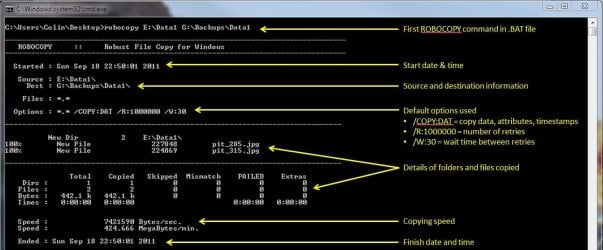
R1.JPG

The same information is repeated for every ROBOCOPY line in the .BAT file.


In order to utilise some of the powerful functionality in ROBOCOPY, I need to utilise some options in the ROBOCOPY command line. In this next example I want to edit my existing backup strategy such that:
  1. All sub-folders within my data folders are backed up, even if they are empty.
  2. The backup only copies newer files to my existing backup - this means a faster backup time.
  3. The percentage progress counter for copying is not shown - this neatens the overall appearance of the ROBOCOPY information, and creates a smaller log file.
  4. The information normally echoed to the cmd window is saved to a log file that I can examine at a later stage.
In order to do this, I need to specify some additional options in my ROBOCOPY commands like this:

Code:
robocopy E:\Data1 G:\Backups\Data1 [B][COLOR=red]/e /mir /np /log:backup_log.txt[/COLOR][/B]
robocopy F:\Data2 G:\Backups\Data2 [B][COLOR=red]/e /mir /np /log+:backup_log.txt[/COLOR][/B]
robocopy F:\Data3 Q:\Backups\Data3 [B][COLOR=red]/e /mir /np /log+:backup_log.txt[/COLOR][/B]
pause
Where:
/e = copy all sub-folders, even empty ones
/mir = mirror (check the files in the destination, and only copy newer files)
/np = no progress counter
/log: = create a logfile

   Tip

Note the use of the /log+: option in the 2nd and 3rd line of the .BAT file. This option ensures that the results of the 2nd and 3rd ROBOCOPY are appended to the log file created in the 1st ROBOCOPY line, meaning I only need one log file to capture all the information I backup.

The log file is always saved to the same folder as the .BAT file - in my case, the folder is saved to my Desktop.


Since the output from ROBOCOPY is written to the log file, the cmd window will not display the output from ROBOCOPY. If I wish to have this information written to both the log file and the cmd window for visual tracking of the backup process, then I can add the /tee option to each line in the .BAT file, as shown below.

Code:
robocopy E:\Data1 G:\Backups\Data1 /e /mir /np [B][COLOR=red]/te[/COLOR][COLOR=red]e[/COLOR][/B] /log:backup_log.txt
robocopy F:\Data2 G:\Backups\Data2 /e /mir /np [COLOR=red][B]/tee[/B][/COLOR] /log+:backup_log.txt
robocopy F:\Data3 Q:\Backups\Data3 /e /mir /np[COLOR=red][B] /tee[/B][/COLOR] /log+:backup_log.txt
pause
This is an example of the typical output to the the log file - it looks exactly the same as what is echoed to the cmd window.

Code:
-------------------------------------------------------------------------------
   ROBOCOPY     ::     Robust File Copy for Windows                              
-------------------------------------------------------------------------------
  Started : Sun Sep 18 23:35:01 2011
   Source : E:\Data1\
     Dest : G:\Backups\Data1\
    Files : *.*
 
  Options : *.* /S /E /COPY:DAT /PURGE /MIR /R:1000000 /W:30 
------------------------------------------------------------------------------
                    2 E:\Data1\
------------------------------------------------------------------------------
               Total    Copied   Skipped  Mismatch    FAILED    Extras
    Dirs :         1         0         1         0         0         0
   Files :         2         0         2         0         0         0
   Bytes :   442.1 k         0   442.1 k         0         0         0
   Times :   0:00:00   0:00:00                       0:00:00   0:00:00
   Ended : Sun Sep 18 23:35:01 2011
Since one of the data folders I am backing up is being copied across a network, I want to ensure that any possible network outages do not cause some critical files to be skipped in the backup. To do this, I can make use of the /z option in the 3rd line of my .BAT file (backup to my network storage) as shown below.

Code:
robocopy E:\Data1 G:\Backups\Data1 /e /mir /np /tee /log:backup_log.txt
robocopy F:\Data2 G:\Backups\Data2 /e /mir /np /tee /log+:backup_log.txt
robocopy F:\Data3 Q:\Backups\Data3 /e /mir /np [B][COLOR=red]/z[/COLOR][/B] /tee /log+:backup_log.txt
This option implements a "retry" for the copying. If I were part way through the copying process, and I lost connection with the network, then ROBOCOPY would automatically restart the copying at the point of failure once the network connection was re-established. It would retrying a million times every 30 seconds (the default settings shown in the image above). The only drawback with this option, is that it can significantly increase the backup time.

ROBOCOPY also has the ability to perform faster multi-threaded copying by simply using the option /mt. I can choose the number of threads to use by specifying a number between 1 and 128 after the /mt option, or if I just specify /mt without a number then the it will use 8 threads by default. In the example below, I use 4 threads to copy to my USB drive, and 8 threads (no number) to copy to my network drive.

Code:
robocopy E:\Data1 G:\Backups\Data1 /e /mir /np /tee [B][COLOR=red]/mt:4[/COLOR][/B] /log:backup_log.txt
robocopy F:\Data2 G:\Backups\Data2 /e /mir /np /tee [COLOR=red][B]/mt:4[/B][/COLOR] /log+:backup_log.txt
robocopy F:\Data3 Q:\Backups\Data3 /e /mir /np [COLOR=black]/z[/COLOR] /tee [COLOR=red][B]/mt[/B][/COLOR] /log+:backup_log.txt
Below is a template that you can use to create your own backup strategy using ROBOCOPY. Simply copy and paste the lines into a blank text document, and then edit as appropriate.

Code:
rem --- Edit the lines below to create your own backup strategy
rem --- The /mir option has been left out for safety sake
rem --- Add more lines for each new folder requiring backup
rem --- Specified 4 threads to use for multi-threaded copying
rem --- The results of the backup can be found in my_backup_log.txt 
robocopy <source> <destination> /e /np /tee /mt:4 /log:my_backup_log.txt
robocopy <source> <destination> /e /np /tee /mt:4 /log+:my_backup_log.txt
pause
   Tip

The can automate your backup's by using the Windows 7 Task Scheduler to run the .BAT file at specific times.

For more information please refer to this tutorial by Orbital Shark:
http://www.sevenforums.com/tutorials/12444-task-scheduler-create-new-task.html


I hope this brief tutorial helps you access the power and simplicity of ROBOCOPY to create some effective backup strategies.

Regards,
Golden
 
Last edited by a moderator:
Thanks NailIT! Welcome to SevenForums!
 

My Computer

Computer type
PC/Desktop
Computer Manufacturer/Model Number
Golden Mk. I.4
OS
Windows 10 Pro x64 ; Xubuntu x64
CPU
Intel i7 860 @ 2.80 GHz O/C'ed to 4.0GHz
Motherboard
Gigabyte P55A-UD3R Rev.1. Award BIOS F13
Memory
16GB Corsair Vengance DDR3 @ 661 MHz Dual Channel (9-9-9-24)
Graphics Card(s)
EVGA NVidia GTX 560 1024MB
Sound Card
Realtek Integrated
Monitor(s) Displays
Dual Samsung SyncMaster 2494HS
Screen Resolution
1920*1080 and 1920*1080
Hard Drives
1*Samsung 840 EVO 120GB SSD;
1*OCZ Vertex 2 60GB SSD;
2*Samsung F3 SpinPoint 1TB in RAID0;
1*Samsung F1 SpinPoint 1TB;
2*Western Digital 1TB External USB 3.0
1*Western Digital 500GB External USB 3.0
1*Seagate 500GB External USB 2.0
PSU
Thermaltake ToughPower QFan 750W
Case
Thermaltake Element S VK60001W2Z
Cooling
Corsair H60 Water Cooling, 2*230mm and 2*80mm case fans
Keyboard
Logitech G110
Mouse
Logitech MX518
I just joined after finding your excellent discussion from a Google search. Thanks for all the good information. I'm just starting to set a backup strategy to an external USB drive. I first just copied the directories but I noticed that the dates on the directories changed to the current date and some of the file dates changed also--that will not work for me.

I used your most simple command line:
robocopy E:\Data1 G:\Backups\Data1 /e /mir /np /log:backup_log.txt

When I ran this with my direcotires and qiuckly checked the desintation, which was blank. created new directories with the current date--again not what I wanted.

2 Questions---

1 Is there a way to use Robocopy to preserve all the dates for all directories and all files?

2 Is there a way to select copies from the source by FILE CREATION DATE? (Secondarily, can you point me to a good reference to dates for files and directories--I have heard that there are three different dates, creation, last modified, and last accessed)

Thank you.
 

My Computer

Computer Manufacturer/Model Number
Gateway
OS
Windows 7 64 bit Home
Hi Mooring10,

Thanks for the feedback, and apologies for the delayed reply.

The modified date of the folder will always change to the date that the copy is performed, since the folder is newly created on the USB device. The modified date of the files, however, should not change. Can you please check:
- the date of the folder
- the date of the files

To be sure that the file attributes (incl. dates) are copied and preserved, add the /COPYALL option as shown below:

Code:
robocopy E:\Data1 G:\Backups\Data1 /e /mir /np [COLOR=Red][B]/copyall[/B][/COLOR] /log:backup_log.txt

To select files based on date, you need to use the /MAXLAD or /MINLAD OPTIONS. Please type the following at a command prompt and refer to those under the file selection options:

Code:
robocopy /?

I found this articel that explains the different dates:
All Windows file systems record the same three values:

  • Time/Date Created: When you create a new file or directory, this value is set and does not normally change (unless you deliberately change it). If you make a new copy of a file and save it to a different location, it is treated as a new file and a new creation time stamp is set. Moving a file or simply renaming it does not create a new file, and thus does not give the file a new creation time stamp. (Note: It is possible to end up with a file that has a modification time that's earlier than its creation time when you make a new copy of a file.)
  • Time/Date Modified: This is also called the Last Written date. Whenever the contents of the file are changed, or files are added to or deleted from a directory, this time stamp changes. Renaming the file doesn’t change the modification time stamp. Neither does opening the file without making any changes to it.
  • Time/Date Accessed: This is supposed to show the last time the file was accessed, but experience proves that opening and reading a file without making changes does not immediately change this time stamp in Windows XP (this is because of the variance in resolution time mentioned earlier).
Build Your Skills: Learn to manipulate file time stamps in Windows | TechRepublic

Regards,
Golden
 

My Computer

Computer type
PC/Desktop
Computer Manufacturer/Model Number
Golden Mk. I.4
OS
Windows 10 Pro x64 ; Xubuntu x64
CPU
Intel i7 860 @ 2.80 GHz O/C'ed to 4.0GHz
Motherboard
Gigabyte P55A-UD3R Rev.1. Award BIOS F13
Memory
16GB Corsair Vengance DDR3 @ 661 MHz Dual Channel (9-9-9-24)
Graphics Card(s)
EVGA NVidia GTX 560 1024MB
Sound Card
Realtek Integrated
Monitor(s) Displays
Dual Samsung SyncMaster 2494HS
Screen Resolution
1920*1080 and 1920*1080
Hard Drives
1*Samsung 840 EVO 120GB SSD;
1*OCZ Vertex 2 60GB SSD;
2*Samsung F3 SpinPoint 1TB in RAID0;
1*Samsung F1 SpinPoint 1TB;
2*Western Digital 1TB External USB 3.0
1*Western Digital 500GB External USB 3.0
1*Seagate 500GB External USB 2.0
PSU
Thermaltake ToughPower QFan 750W
Case
Thermaltake Element S VK60001W2Z
Cooling
Corsair H60 Water Cooling, 2*230mm and 2*80mm case fans
Keyboard
Logitech G110
Mouse
Logitech MX518
Thanks for your reply.

I trie your suggestion and used this line:

robocopy "C:\Data 01" "P:\WD My Book ES\Backups\Data 01" /e /mir /np /copyall /log:backup_log.txt
pause

Note I think the command line is word wrapping on me.

It goes to the pause statement without copying any files?
 
Last edited:

My Computer

Computer Manufacturer/Model Number
Gateway
OS
Windows 7 64 bit Home
Hello. Awesome tutorial. I don't know yet how I've missed this robocopy command all those years.

Nevertheless, I have two questions:

1 - Which version is the current version or robocopy?
2 - How do I know which version do I have?

Believe me, I know how to use google, but I'm giving up. Also, there are at least two hot-fixes:
A robocopy command updates DACLs incorrectly in Windows 7 or in Windows Server 2008 R2
"Robocopy /B" does not copy the security information such as ACL in Windows 7 and in Windows Server 2008 R2

But, since I don't know which version I have I can't say for sure if I should apply them.
My current system is Windows 7 x64 SP1 with the latest updates.

Thanks in advance, and thanks again for this thread.

PS: The only "Manual" I can find is a file called robocopy.pdf with the title "Robocopy.exe Robust File Copy Utility Version XP010"... As far as I know that product version in fairly outdated...
 

My Computer

OS
Windows 7 x64
Hi,

Thanks for the compliment.

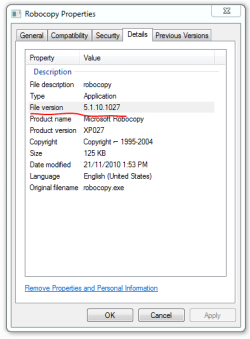
In C:\Windows\System32, find and right-click on Robocopy, then click Properties. Under the Details tab, you will find the version of Robocopy.

capture.png

Regards,
Golden
 

My Computer

Computer type
PC/Desktop
Computer Manufacturer/Model Number
Golden Mk. I.4
OS
Windows 10 Pro x64 ; Xubuntu x64
CPU
Intel i7 860 @ 2.80 GHz O/C'ed to 4.0GHz
Motherboard
Gigabyte P55A-UD3R Rev.1. Award BIOS F13
Memory
16GB Corsair Vengance DDR3 @ 661 MHz Dual Channel (9-9-9-24)
Graphics Card(s)
EVGA NVidia GTX 560 1024MB
Sound Card
Realtek Integrated
Monitor(s) Displays
Dual Samsung SyncMaster 2494HS
Screen Resolution
1920*1080 and 1920*1080
Hard Drives
1*Samsung 840 EVO 120GB SSD;
1*OCZ Vertex 2 60GB SSD;
2*Samsung F3 SpinPoint 1TB in RAID0;
1*Samsung F1 SpinPoint 1TB;
2*Western Digital 1TB External USB 3.0
1*Western Digital 500GB External USB 3.0
1*Seagate 500GB External USB 2.0
PSU
Thermaltake ToughPower QFan 750W
Case
Thermaltake Element S VK60001W2Z
Cooling
Corsair H60 Water Cooling, 2*230mm and 2*80mm case fans
Keyboard
Logitech G110
Mouse
Logitech MX518
That was easy. Sorry, I've installed Win7 yesterday for the first time, hence my disorientation... hehe.

Well... I have the same version like you: 5.1.10.1027 but, shouldn't we have the 6.1.7601 bundled with Windows 7 (as Wikipedia says?) and if there is no 6.17601 version do you think I should apply those fixes?

UPDATE:

Ok, here is the thing: the latest version bundled with win7 and vista is this one: 5.1.10.1027 (which is not the same version even when they share the same version number).

So I was thinking that there is no such a thing as version 6.1, and we have to correct wikipedia. But, reading here:

http://en.wikipedia.org/wiki/Talk:Robocopy#TWO_versions_of_Robocopy_XP027.21.21.21

There is a link to one of the hotfixes which, aparently, updates robocopy to a 6.1 version...
http://support.microsoft.com/kb/2639043/en-us

I cannot confirm all this, but makes sense to me now.

Still I dunno if I should apply the fix....
 
Last edited:

My Computer

OS
Windows 7 x64
I would only apply it if you need it.....setup a test run to see what happens.
 

My Computer

Computer type
PC/Desktop
Computer Manufacturer/Model Number
Golden Mk. I.4
OS
Windows 10 Pro x64 ; Xubuntu x64
CPU
Intel i7 860 @ 2.80 GHz O/C'ed to 4.0GHz
Motherboard
Gigabyte P55A-UD3R Rev.1. Award BIOS F13
Memory
16GB Corsair Vengance DDR3 @ 661 MHz Dual Channel (9-9-9-24)
Graphics Card(s)
EVGA NVidia GTX 560 1024MB
Sound Card
Realtek Integrated
Monitor(s) Displays
Dual Samsung SyncMaster 2494HS
Screen Resolution
1920*1080 and 1920*1080
Hard Drives
1*Samsung 840 EVO 120GB SSD;
1*OCZ Vertex 2 60GB SSD;
2*Samsung F3 SpinPoint 1TB in RAID0;
1*Samsung F1 SpinPoint 1TB;
2*Western Digital 1TB External USB 3.0
1*Western Digital 500GB External USB 3.0
1*Seagate 500GB External USB 2.0
PSU
Thermaltake ToughPower QFan 750W
Case
Thermaltake Element S VK60001W2Z
Cooling
Corsair H60 Water Cooling, 2*230mm and 2*80mm case fans
Keyboard
Logitech G110
Mouse
Logitech MX518
Backup Script

I am having an issue with backing up the c:\user\username folder.
Here is my script:
robocopy "C:\Users\VocWorks User" E:\Backup /MIR /E
pause

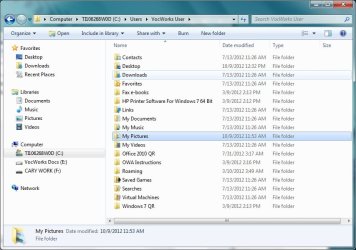
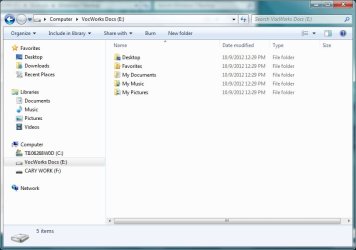
It will copy Desktop, Favorites, My Documents, My Music and My Pictures. If there is any other folder in that directory it will not copy it. I have attached pictures of the Main drive and the Backup drive. Also it will only copy to the root of the drive not into a Folder called Backup. Any help would be greatly appropriated. :D
 

Attachments

  • Main.jpg
    Main.jpg
    148.1 KB · Views: 336
  • Backup.jpg
    Backup.jpg
    90.1 KB · Views: 565

My Computer

OS
Windows 7 64bit
@champ488: Just for curiosity, why are you using both "/MIR /E" ? The manual says that "/MIR" Mirrors a directory tree (equivalent to /e plus /purge). So why the combination?

About the latest update to 6.1: Robocopy is working beautiful for me even when the Owner flag is not copied or updated with any possible switch combination. So, I will not take a risk breaking what already works, I'll wait for a proper release.
 

My Computer

OS
Windows 7 x64
Hi,

This might be a permissions issue. Please try the following:

Code:
robocopy "C:\Users\VocWorks User" E:\Backup /MIR /E[COLOR=Red] /COPYALL[/COLOR]

I just noticed that /mir also implies /e - I think that must have changed recently, or perhaps I missed it, so yes, you could disregard the /e, but only if you are using /mir.

Regards,
Golden
 

My Computer

Computer type
PC/Desktop
Computer Manufacturer/Model Number
Golden Mk. I.4
OS
Windows 10 Pro x64 ; Xubuntu x64
CPU
Intel i7 860 @ 2.80 GHz O/C'ed to 4.0GHz
Motherboard
Gigabyte P55A-UD3R Rev.1. Award BIOS F13
Memory
16GB Corsair Vengance DDR3 @ 661 MHz Dual Channel (9-9-9-24)
Graphics Card(s)
EVGA NVidia GTX 560 1024MB
Sound Card
Realtek Integrated
Monitor(s) Displays
Dual Samsung SyncMaster 2494HS
Screen Resolution
1920*1080 and 1920*1080
Hard Drives
1*Samsung 840 EVO 120GB SSD;
1*OCZ Vertex 2 60GB SSD;
2*Samsung F3 SpinPoint 1TB in RAID0;
1*Samsung F1 SpinPoint 1TB;
2*Western Digital 1TB External USB 3.0
1*Western Digital 500GB External USB 3.0
1*Seagate 500GB External USB 2.0
PSU
Thermaltake ToughPower QFan 750W
Case
Thermaltake Element S VK60001W2Z
Cooling
Corsair H60 Water Cooling, 2*230mm and 2*80mm case fans
Keyboard
Logitech G110
Mouse
Logitech MX518
robocopy "C:\Users\VocWorks User" E:\Backup /MIR /E /COPYALL
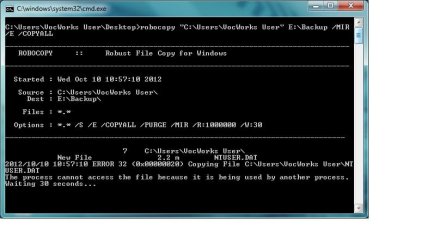
I did the about as suggest. I even took the /E out. I am getting an error. Screen shot attached.
 

Attachments

  • Error.jpg
    Error.jpg
    85 KB · Views: 577

My Computer

OS
Windows 7 64bit
I support the mention about permissions. Windows 7 is quite problematic if you don't know how to handle it properly.

So try to run robocopy as an administrator (even when you already are). If you're using the cmd.exe to run robocopy do this: Start / type: cmd in the search field / right click on the cmd icon / click on 'run as administrator'

Then you paste or type: robocopy "C:\Users\VocWorks User" E:\Backup /MIR

Alternatively, you can exclude problematic files adding this switch at the end: /xf "C:\Users\VocWorks User/NTUSER.DAT".
 

My Computer

OS
Windows 7 x64
Don't understand why, but it works.....

I'm sort of new to RoboCopy and I have become very impressed with what it can do. I played around with the following problem until I got it resolved, but I don't understand why it works.

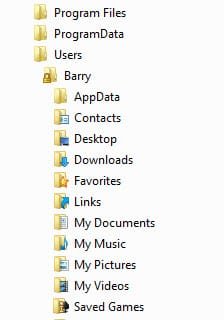
This is part of the directory structure on my 'c' drive:
directory.jpg

If I use this command:
robocopy "c:\users\Barry\My Documents" "g:\users\Barry\My Documents" /e /mt:4 /tee /w:2 /xj

It appears that the command works just fine, BUT the 'My Documents' folder doesn't get created on the 'g' drive.

However, if I use this command:
robocopy "c:\users\Barry\Documents" "g:\users\Barry\Documents" /e /mt:4 /tee /w:2 /xj

The 'My Documents' folder DOES get created and the folders/files get created/copied to 'g'.

Why does this work???
 

My Computer

OS
Windows 7 Home Premium 32 bit
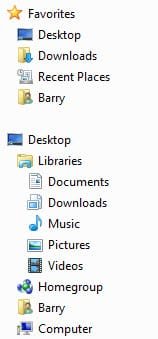
This is what I see when I open Explorer:
directory1.jpg

Thanks for any knowledge sharing......
 

My Computer

OS
Windows 7 Home Premium 32 bit
Hi Epoc,

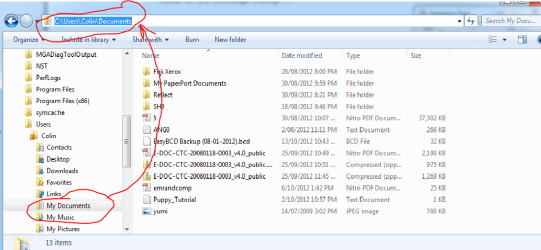
My Documents is one of those mystical junction points in Windows Explorer - its real name isn't 'My Documents', its actually just 'Documents', which is why your second version works just fine.

See below (notice the name in the bar at the top of the image).
 

Attachments

  • Capture.PNG
    Capture.PNG
    106.7 KB · Views: 326

My Computer

Computer type
PC/Desktop
Computer Manufacturer/Model Number
Golden Mk. I.4
OS
Windows 10 Pro x64 ; Xubuntu x64
CPU
Intel i7 860 @ 2.80 GHz O/C'ed to 4.0GHz
Motherboard
Gigabyte P55A-UD3R Rev.1. Award BIOS F13
Memory
16GB Corsair Vengance DDR3 @ 661 MHz Dual Channel (9-9-9-24)
Graphics Card(s)
EVGA NVidia GTX 560 1024MB
Sound Card
Realtek Integrated
Monitor(s) Displays
Dual Samsung SyncMaster 2494HS
Screen Resolution
1920*1080 and 1920*1080
Hard Drives
1*Samsung 840 EVO 120GB SSD;
1*OCZ Vertex 2 60GB SSD;
2*Samsung F3 SpinPoint 1TB in RAID0;
1*Samsung F1 SpinPoint 1TB;
2*Western Digital 1TB External USB 3.0
1*Western Digital 500GB External USB 3.0
1*Seagate 500GB External USB 2.0
PSU
Thermaltake ToughPower QFan 750W
Case
Thermaltake Element S VK60001W2Z
Cooling
Corsair H60 Water Cooling, 2*230mm and 2*80mm case fans
Keyboard
Logitech G110
Mouse
Logitech MX518
Windows, what would we do without it.......

Thank you for the reply. (Your tutorial is actually what got me started using RoboCopy)
 

My Computer

OS
Windows 7 Home Premium 32 bit
:thumbsup:
 

My Computer

Computer type
PC/Desktop
Computer Manufacturer/Model Number
Golden Mk. I.4
OS
Windows 10 Pro x64 ; Xubuntu x64
CPU
Intel i7 860 @ 2.80 GHz O/C'ed to 4.0GHz
Motherboard
Gigabyte P55A-UD3R Rev.1. Award BIOS F13
Memory
16GB Corsair Vengance DDR3 @ 661 MHz Dual Channel (9-9-9-24)
Graphics Card(s)
EVGA NVidia GTX 560 1024MB
Sound Card
Realtek Integrated
Monitor(s) Displays
Dual Samsung SyncMaster 2494HS
Screen Resolution
1920*1080 and 1920*1080
Hard Drives
1*Samsung 840 EVO 120GB SSD;
1*OCZ Vertex 2 60GB SSD;
2*Samsung F3 SpinPoint 1TB in RAID0;
1*Samsung F1 SpinPoint 1TB;
2*Western Digital 1TB External USB 3.0
1*Western Digital 500GB External USB 3.0
1*Seagate 500GB External USB 2.0
PSU
Thermaltake ToughPower QFan 750W
Case
Thermaltake Element S VK60001W2Z
Cooling
Corsair H60 Water Cooling, 2*230mm and 2*80mm case fans
Keyboard
Logitech G110
Mouse
Logitech MX518
thought i would point out colin that the font color in the first two steps of the tutorial makes it unviewable with the sf black theme, try it and see what i mean.
i can see it by highlighting the area
 

My Computer

Computer Manufacturer/Model Number
Hewlett packard/p6512uk
OS
Microsoft Windows 7 Home Premium 64-bit 7600
CPU
IIx4 amd athelon 635 processor
Motherboard
FOXCONN 2AA9
Memory
2x2gb
Graphics Card(s)
ati radeon HD 5450
Sound Card
(1) Realtek High Definition Audio (2) AMD High Definition
Monitor(s) Displays
samsung lcd tv 32"
Screen Resolution
1360x 768
Hard Drives
(1) WDC WD10 01FAES-60Z2A0 SATA Disk Device (2) Maxtor OneTouch USB Device (3) ST310003 33AS USB Device (4) WD My Book 1111 USB Device
PSU
?
Cooling
air!
Keyboard
wireless hp
Mouse
wireless Hp,optical
Internet Speed
1.10mb/s
Antivirus
MSE
Browser
Firefox
Cheers Julian - I never noticed that before, but looking closer Step 1 and 2 are black, and the rest is the default? colour, whatever it is - it doesn't show in the box. I'll find out what it is and fix it.

EDIT: Fixed!
 

My Computer

Computer type
PC/Desktop
Computer Manufacturer/Model Number
Golden Mk. I.4
OS
Windows 10 Pro x64 ; Xubuntu x64
CPU
Intel i7 860 @ 2.80 GHz O/C'ed to 4.0GHz
Motherboard
Gigabyte P55A-UD3R Rev.1. Award BIOS F13
Memory
16GB Corsair Vengance DDR3 @ 661 MHz Dual Channel (9-9-9-24)
Graphics Card(s)
EVGA NVidia GTX 560 1024MB
Sound Card
Realtek Integrated
Monitor(s) Displays
Dual Samsung SyncMaster 2494HS
Screen Resolution
1920*1080 and 1920*1080
Hard Drives
1*Samsung 840 EVO 120GB SSD;
1*OCZ Vertex 2 60GB SSD;
2*Samsung F3 SpinPoint 1TB in RAID0;
1*Samsung F1 SpinPoint 1TB;
2*Western Digital 1TB External USB 3.0
1*Western Digital 500GB External USB 3.0
1*Seagate 500GB External USB 2.0
PSU
Thermaltake ToughPower QFan 750W
Case
Thermaltake Element S VK60001W2Z
Cooling
Corsair H60 Water Cooling, 2*230mm and 2*80mm case fans
Keyboard
Logitech G110
Mouse
Logitech MX518
Back
Top