ROBOCOPY - Create Backup Script

How to Create a Backup Script using ROBOCOPY Command


   Information
There are many paid and free software solutions available to backup critical data and files on a computer system. Many users, however, are unaware of an inbuilt Windows 7 command called ROBOCOPY (Robust File Copy) that allows users to create simple or highly advanced backup strategies.


In its simplist form, ROBOCOPY can be likened to an extension of XCOPY on steroids. Some of the more important features that make ROBOCOPY an attractive backup alternative are:
  • multi-threaded copying
  • mirroring or synchronisation mode between the destination and source
  • automatic retry and copy resumption
The examples shown below are primarily geared towards less experienced users, especially those that are unfamilar with batch file creation and running. More experienced users, however, are welcome to explore some of the advanced functionality offered by ROBOCOPY here:

http://technet.microsoft.com/en-us/library/cc733145(WS.10).aspx

and also here:

http://www.theether.net/download/Microsoft/Utilities/robocopy.pdf

or by simply typing robocopy /? at a cmd window prompt.


   Note
ROBOCOPY is a FOLDER copier, not a FILE copier - the source and destination syntax arguments in ROBOCOPY can only be folder names.


:note: Creating a BACKUP strategy

The easiest way to use the ROBOCOPY command to create a backup strategy is by creating a batch (.BAT) file. A batch file is a simple text file, that when executed, runs several commands one after the other.

Step 1

Click :orb: and in the search box, type notepad. Select Notepad to open up a new blank Notepad document.


Step 2

Type the ROBOCOPY commands into the Notepad document, save it as a .BAT file, and then execute it.

In the example below, I have 3 folders (Data1, Data2, and Data3) containing some data that I wish to backup. One folder is located on E: drive and the other two are located on F: drive. I wish to back these up as follows:

Data1 folder on E: backup to a folder called Backups on G: (external USB drive)
Data2 folder on F: backup to a folder called Backups on G: (external USB drive)
Data3 folder on F: backup to a folder called Backups on Q: (network storage drive)

The general format of the ROBOCOPY command is:

Code:
robocopy <source> <destination> <options>
In the empty Notepad document, the simplist form of the command would look like this:

Code:
robocopy E:\Data1 G:\Backups\Data1
robocopy F:\Data2 G:\Backups\Data2
robocopy F:\Data3 Q:\Backups\Data3
pause
   Tip
If source or destination paths contain spaces in them, enclose these in double quotes e.g. "C:\My Data\My Music"


Only the source
  • E:\Data1
  • F:\Data2
  • F:\Data3
and the destination
  • G:\Backups\Data1
  • G:\Backups\Data2
  • Q:\Backups\Data3
are mandatory inputs into the ROBOCOPY command.

   Tip
The PAUSE command at the bottom of the .BAT file allows the cmd window to stay open after it has completed to allow me to see the output from ROBOCOPY.


If I save the .BAT file to my Desktop, and run it by double-clicking it, then a cmd window is opened and the .BAT file executes the three ROBOCOPY commands as shown below.
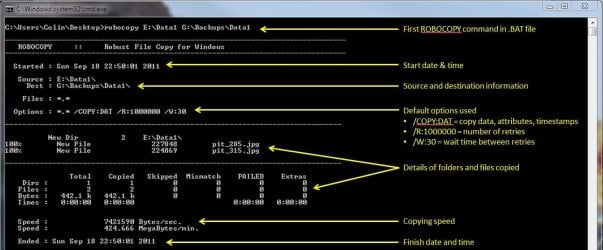
R1.JPG

The same information is repeated for every ROBOCOPY line in the .BAT file.


In order to utilise some of the powerful functionality in ROBOCOPY, I need to utilise some options in the ROBOCOPY command line. In this next example I want to edit my existing backup strategy such that:
  1. All sub-folders within my data folders are backed up, even if they are empty.
  2. The backup only copies newer files to my existing backup - this means a faster backup time.
  3. The percentage progress counter for copying is not shown - this neatens the overall appearance of the ROBOCOPY information, and creates a smaller log file.
  4. The information normally echoed to the cmd window is saved to a log file that I can examine at a later stage.
In order to do this, I need to specify some additional options in my ROBOCOPY commands like this:

Code:
robocopy E:\Data1 G:\Backups\Data1 [B][COLOR=red]/e /mir /np /log:backup_log.txt[/COLOR][/B]
robocopy F:\Data2 G:\Backups\Data2 [B][COLOR=red]/e /mir /np /log+:backup_log.txt[/COLOR][/B]
robocopy F:\Data3 Q:\Backups\Data3 [B][COLOR=red]/e /mir /np /log+:backup_log.txt[/COLOR][/B]
pause
Where:
/e = copy all sub-folders, even empty ones
/mir = mirror (check the files in the destination, and only copy newer files)
/np = no progress counter
/log: = create a logfile

   Tip

Note the use of the /log+: option in the 2nd and 3rd line of the .BAT file. This option ensures that the results of the 2nd and 3rd ROBOCOPY are appended to the log file created in the 1st ROBOCOPY line, meaning I only need one log file to capture all the information I backup.

The log file is always saved to the same folder as the .BAT file - in my case, the folder is saved to my Desktop.


Since the output from ROBOCOPY is written to the log file, the cmd window will not display the output from ROBOCOPY. If I wish to have this information written to both the log file and the cmd window for visual tracking of the backup process, then I can add the /tee option to each line in the .BAT file, as shown below.

Code:
robocopy E:\Data1 G:\Backups\Data1 /e /mir /np [B][COLOR=red]/te[/COLOR][COLOR=red]e[/COLOR][/B] /log:backup_log.txt
robocopy F:\Data2 G:\Backups\Data2 /e /mir /np [COLOR=red][B]/tee[/B][/COLOR] /log+:backup_log.txt
robocopy F:\Data3 Q:\Backups\Data3 /e /mir /np[COLOR=red][B] /tee[/B][/COLOR] /log+:backup_log.txt
pause
This is an example of the typical output to the the log file - it looks exactly the same as what is echoed to the cmd window.

Code:
-------------------------------------------------------------------------------
   ROBOCOPY     ::     Robust File Copy for Windows                              
-------------------------------------------------------------------------------
  Started : Sun Sep 18 23:35:01 2011
   Source : E:\Data1\
     Dest : G:\Backups\Data1\
    Files : *.*
 
  Options : *.* /S /E /COPY:DAT /PURGE /MIR /R:1000000 /W:30 
------------------------------------------------------------------------------
                    2 E:\Data1\
------------------------------------------------------------------------------
               Total    Copied   Skipped  Mismatch    FAILED    Extras
    Dirs :         1         0         1         0         0         0
   Files :         2         0         2         0         0         0
   Bytes :   442.1 k         0   442.1 k         0         0         0
   Times :   0:00:00   0:00:00                       0:00:00   0:00:00
   Ended : Sun Sep 18 23:35:01 2011
Since one of the data folders I am backing up is being copied across a network, I want to ensure that any possible network outages do not cause some critical files to be skipped in the backup. To do this, I can make use of the /z option in the 3rd line of my .BAT file (backup to my network storage) as shown below.

Code:
robocopy E:\Data1 G:\Backups\Data1 /e /mir /np /tee /log:backup_log.txt
robocopy F:\Data2 G:\Backups\Data2 /e /mir /np /tee /log+:backup_log.txt
robocopy F:\Data3 Q:\Backups\Data3 /e /mir /np [B][COLOR=red]/z[/COLOR][/B] /tee /log+:backup_log.txt
This option implements a "retry" for the copying. If I were part way through the copying process, and I lost connection with the network, then ROBOCOPY would automatically restart the copying at the point of failure once the network connection was re-established. It would retrying a million times every 30 seconds (the default settings shown in the image above). The only drawback with this option, is that it can significantly increase the backup time.

ROBOCOPY also has the ability to perform faster multi-threaded copying by simply using the option /mt. I can choose the number of threads to use by specifying a number between 1 and 128 after the /mt option, or if I just specify /mt without a number then the it will use 8 threads by default. In the example below, I use 4 threads to copy to my USB drive, and 8 threads (no number) to copy to my network drive.

Code:
robocopy E:\Data1 G:\Backups\Data1 /e /mir /np /tee [B][COLOR=red]/mt:4[/COLOR][/B] /log:backup_log.txt
robocopy F:\Data2 G:\Backups\Data2 /e /mir /np /tee [COLOR=red][B]/mt:4[/B][/COLOR] /log+:backup_log.txt
robocopy F:\Data3 Q:\Backups\Data3 /e /mir /np [COLOR=black]/z[/COLOR] /tee [COLOR=red][B]/mt[/B][/COLOR] /log+:backup_log.txt
Below is a template that you can use to create your own backup strategy using ROBOCOPY. Simply copy and paste the lines into a blank text document, and then edit as appropriate.

Code:
rem --- Edit the lines below to create your own backup strategy
rem --- The /mir option has been left out for safety sake
rem --- Add more lines for each new folder requiring backup
rem --- Specified 4 threads to use for multi-threaded copying
rem --- The results of the backup can be found in my_backup_log.txt 
robocopy <source> <destination> /e /np /tee /mt:4 /log:my_backup_log.txt
robocopy <source> <destination> /e /np /tee /mt:4 /log+:my_backup_log.txt
pause
   Tip

The can automate your backup's by using the Windows 7 Task Scheduler to run the .BAT file at specific times.

For more information please refer to this tutorial by Orbital Shark:
http://www.sevenforums.com/tutorials/12444-task-scheduler-create-new-task.html


I hope this brief tutorial helps you access the power and simplicity of ROBOCOPY to create some effective backup strategies.

Regards,
Golden
 
Last edited by a moderator:
Robocopy

Great!! Now is working perfectly in both ways. Manual and Task Scheduler. Many many thanks.
 

My Computer

Computer type
PC/Desktop
Computer Manufacturer/Model Number
Dell
OS
W7 64bit
CPU
Intel Core I7
Memory
8 GB
Graphics Card(s)
ATI Radeon HD 4800
Hard Drives
Hitachi
Antivirus
Microsoft Essential
Browser
Explorer
My pleasure - thanks for feedback :thumbsup:
 

My Computer

Computer type
PC/Desktop
Computer Manufacturer/Model Number
Golden Mk. I.4
OS
Windows 10 Pro x64 ; Xubuntu x64
CPU
Intel i7 860 @ 2.80 GHz O/C'ed to 4.0GHz
Motherboard
Gigabyte P55A-UD3R Rev.1. Award BIOS F13
Memory
16GB Corsair Vengance DDR3 @ 661 MHz Dual Channel (9-9-9-24)
Graphics Card(s)
EVGA NVidia GTX 560 1024MB
Sound Card
Realtek Integrated
Monitor(s) Displays
Dual Samsung SyncMaster 2494HS
Screen Resolution
1920*1080 and 1920*1080
Hard Drives
1*Samsung 840 EVO 120GB SSD;
1*OCZ Vertex 2 60GB SSD;
2*Samsung F3 SpinPoint 1TB in RAID0;
1*Samsung F1 SpinPoint 1TB;
2*Western Digital 1TB External USB 3.0
1*Western Digital 500GB External USB 3.0
1*Seagate 500GB External USB 2.0
PSU
Thermaltake ToughPower QFan 750W
Case
Thermaltake Element S VK60001W2Z
Cooling
Corsair H60 Water Cooling, 2*230mm and 2*80mm case fans
Keyboard
Logitech G110
Mouse
Logitech MX518
Dear All I have a simple script to backup a folder that I work on to a USB HD. I have another HD that Has over 40 folder and looking for a script that will copy all the folders to another HD.

Is this the only way?

robocopy E:\folderA G:\folderA
robocopy E:\folderB G:\folderB and so on or is there another way.

any help is welcome

Reagards
 

My Computer

Computer type
PC/Desktop
Computer Manufacturer/Model Number
dell
OS
windows 8.1 64
CPU
xps
Dear All I have a simple script to backup a folder that I work on to a USB HD. I have another HD that Has over 40 folder and looking for a script that will copy all the folders to another HD.

Is this the only way?

robocopy E:\folderA G:\folderA
robocopy E:\folderB G:\folderB and so on or is there another way.

any help is welcome

Reagards
You want to copy ALL folders from E to G (same structure)?
Also all files in E: ?

You want to keep all permissions, readonly attributes, creationdat/modifictaondates, file owner.... etc?
 

My Computer

Computer type
Laptop
Computer Manufacturer/Model Number
ACER ASPIRE 5742G
OS
Microsoft Windows 7 Home Premium 64-bits 7601 Multiprocessor Free Service Pack 1
CPU
Intel(R) Core(TM) i3 CPU M 370 @ 2.40GHz
Motherboard
Acer Aspire 5742G
Memory
4,00 GB
Graphics Card(s)
ATI Mobility Radeon HD 5400 Series
Sound Card
(1) AMD High Definition Audio Device (2) Realtek High Defi
Screen Resolution
1366 x 768 x 32 bits (4294967296 colors) @ 60 Hz
Hard Drives
WDC WD5000BEVT-22ZAT0
Dear All I have a simple script to backup a folder that I work on to a USB HD. I have another HD that Has over 40 folder and looking for a script that will copy all the folders to another HD.

Is this the only way?

robocopy E:\folderA G:\folderA
robocopy E:\folderB G:\folderB and so on or is there another way.

any help is welcome

Reagards
Code:
robocopy e:\  g:\  /e /b /efsraw /copyall /dcopy:t /r:2 /w:5 /xj /xd "System Volume Information" /XF pagefile.sys hiberfil.sys
 

My Computer

Computer type
Laptop
Computer Manufacturer/Model Number
ACER ASPIRE 5742G
OS
Microsoft Windows 7 Home Premium 64-bits 7601 Multiprocessor Free Service Pack 1
CPU
Intel(R) Core(TM) i3 CPU M 370 @ 2.40GHz
Motherboard
Acer Aspire 5742G
Memory
4,00 GB
Graphics Card(s)
ATI Mobility Radeon HD 5400 Series
Sound Card
(1) AMD High Definition Audio Device (2) Realtek High Defi
Screen Resolution
1366 x 768 x 32 bits (4294967296 colors) @ 60 Hz
Hard Drives
WDC WD5000BEVT-22ZAT0
Hi Kaktussoft

Thank you very much for the script it works exactly as I wanted it to.

Thanks again and keep the good work up.

Regards
 

My Computer

Computer type
PC/Desktop
Computer Manufacturer/Model Number
dell
OS
windows 8.1 64
CPU
xps
Let me know if I should start a new thread for this.

In regards to the multithread switch MT[:n] I'm using a Intel 2600K so naturally I would set it to 8 threads (I know /MT is 8 thread by default) but Robocopy allows for up to 128 threads. What are the advantages/disadvantages of using more threads? Will it copy faster or slower? All my transfers are from one physical hdd to another.

If I use the multithread switch will I increase fragmentation on the source drive? or does Robocopy pre-allocate files before copying?


*UPDATE*

After experimenting with the /MT swtich I noticed 2 things/bugs:

1) 'Date Modified' timestamp for nested directories is not copied over if /MT switch is used. Lets say you have folder A and within folder A you have folders 1, 2, 3, 4 and 5. If /MT switch is used 'Date Modified' timestamp will not be copied over for folders 1 through 5, however 'Date Created' will be copied over.

2) Speed in Bytes/sec. and MegaBytes/min. will not be displayed/reported when job is complete.
 
Last edited:

My Computer

Computer type
PC/Desktop
Computer Manufacturer/Model Number
Less is more
OS
Windows 7 Ultimate x64 SP1
CPU
Core i7 2600k (4.6GHz)
Motherboard
ASUS P8Z68 Deluxe (3603)
Memory
16GB G.SKILL Ares 1600MHz
Graphics Card(s)
MSI R6970 Lightning
Sound Card
Asus Xonar Essence ST (UNi drivers 1.41)
Monitor(s) Displays
Samsung P2570, CrossOver 27Q LED-P
Screen Resolution
1920*1080, 2560*1440
Hard Drives
256GB OCZ Vector, 2x Hitachi 4TB (7K4000), Hitachi 3TB (7K3000 & 5K3000)
PSU
Seasonic X750
Case
Lian-Li PC-P80N
Cooling
NZXT HAVIK 140 (2x GELID Wing12PL Push/Pull)
Keyboard
CM Storm Trigger (Brown Switch)
Mouse
Logitech G400
Internet Speed
55Mbps/10Mbps
Other Info
Speakers - Klipsch ProMedia 2.1
Headphones - Sennheiser HD595
Router - ASUS RT-N66U
Webcam - Logitech C910
Looking to RoboCopy from cell phone

I decided to use RoboCopy to backup my cell phone. I have been using it to backup several PCs and servers for about a year with excellent results.

The issue - when I attach my phone to a PC with a USB cable, I see it listed in Windows Explorer along with the hard drives and DVD on the PC. It's labeled "SPH-L710".

I use the DiskPart command as part of my RoboCopy script to show me the drives on the PC. However, DiskPart doesn't show the phone as a hard drive (or anything else).

I looked in Explorer and sure enough there is no drive letter associated with the phone.

Question is... How do I reference the phone as a location to copy from ??
 

My Computer

OS
Windows 7 Home Premium 32 bit
I decided to use RoboCopy to backup my cell phone. I have been using it to backup several PCs and servers for about a year with excellent results.

The issue - when I attach my phone to a PC with a USB cable, I see it listed in Windows Explorer along with the hard drives and DVD on the PC. It's labeled "SPH-L710".

I use the DiskPart command as part of my RoboCopy script to show me the drives on the PC. However, DiskPart doesn't show the phone as a hard drive (or anything else).

I looked in Explorer and sure enough there is no drive letter associated with the phone.

Question is... How do I reference the phone as a location to copy from ??

Have a look here:

The Phone is not mounted as a standard USB device, so it isn't assigned a drive letter. Instead it is being mounted as a MTP device. Microsoft is being "user friendly" in the Explorer shell by giving it a path, and you can browse the folders etc. But I think it is only being seen by Explorer, and it isn't recognized as a storage device at the actual OS level. So the robocopy command doesn't see it.

2nd post HERE

A Guy
 

My Computer

Computer type
PC/Desktop
OS
Windows 10 Home x64
CPU
INTEL Core i5-750 Quad-Core 3.37GHz
Motherboard
ASUS P7P55D
Memory
HyperX Fury Black Series 8GB (2 x 4GB) 1866Mhz
Graphics Card(s)
EVGA GeForce GTX 750 Superclocked 1GB 128-Bit GDDR5
Monitor(s) Displays
LG 32MA68HY 32" IPS
Screen Resolution
1920 x 1080
Hard Drives
Samsung 840 Evo 120GB, SEAGATE 500GB Barracuda® 7200.12, SATA 3 Gb/s, 7200 RPM, 16MB cache
PSU
ANTEC TruePower New TP-550, 80 PLUS, 550W
Case
ANTEC Three Hundred Illusion
Cooling
COOLER MASTER Hyper 212 Plus, 4 x 120mm 1 x 140mm Noctua's
Internet Speed
85 + Mbps
Antivirus
Avast
Browser
Vivaldi
I decided to use RoboCopy to backup my cell phone. I have been using it to backup several PCs and servers for about a year with excellent results.
...
I looked in Explorer and sure enough there is no drive letter associated with the phone.
RoboCopy needs both source and target paths and cannot be used if either of them has no valid path available.

Not knowing what phone you have and not knowing other than Windows / Symbian / Meego / Maemo phones, I cannot be sure if your phone offers this option, but for instance my older Nokia N900 phone lets me select the mode when I connect it to PC, either a PC Suite Mode (no drive letter) or Mass Storage Mode (phone acts as normal external USB storage with drive letter).

My Windows Phones always get a drive letter automatically.
 

My Computer

Computer type
Laptop
Computer Manufacturer/Model Number
HP ENVY 17-1150eg
OS
Windows 10 Pro x64 EN-GB
CPU
1.6 GHz Intel Core i7-720QM Processor
Memory
6 GB
Graphics Card(s)
ATI Mobility Radeon HD 5850 Graphics
Sound Card
Beats sound system with integrated subwoofer
Monitor(s) Displays
17" laptop display, 22" LED and 32" Full HD TV through HDMI
Screen Resolution
1600*900 (1), 1920*1080 (2&3)
Hard Drives
Internal: 2 x 500 GB SATA Hard Disk Drive 7200 rpm
External: 2TB for backups, 3TB USB3 network drive for media
Cooling
As Envy runs a bit warm, I have it on a Cooler Master pad
Keyboard
Logitech diNovo Media Desktop Laser (bluetooth)
Mouse
Logitech Performance Mouse MX
Internet Speed
50/10 Mbps VDSL
Antivirus
Windows Defender 4.3.9431.0
Browser
Maxthon 3.5.2., IE11
The issue - when I attach my phone to a PC with a USB cable, I see it listed in Windows Explorer along with the hard drives and DVD on the PC. It's labeled "SPH-L710".

Specs - Sprint Cell Phones SPH-L710 | Samsung Cell Phones

Following on Kari's advice about using Mass Storage Mode to be able to give it a drive letter.

There does seem to be quite a few queries about how to enable this, everything I could find requires the phone to be rooted though.
 

My Computer

Computer type
PC/Desktop
Computer Manufacturer/Model Number
Self Built
OS
Win 10 Pro x64
CPU
Intel I5-2500K @3.3GHz
Motherboard
Asrock P67 Extreme4
Memory
16GB G.Skill Ripjaws X (4x4GB)
Graphics Card(s)
EVGA GeForce 750 Ti SC 2GB
Sound Card
ASUS Xonar DG 5.1 Channels 24-bit 96KHz PCI Interface Sound
Monitor(s) Displays
auria eq2367
Screen Resolution
1920 x 1080
Hard Drives
250GB Samsung 850 EVO SSD
1TB WD Blue
1TB Hitachi
PSU
SeaSonic X 650W 80 Plus Gold
Case
Corsair Obsidian 750D
Cooling
Corsair H60, Three 140mm case fans
Keyboard
Logitech Wireless Keyboard K520
Mouse
Logitech Wireless Mouse M310
Internet Speed
Wave Broadband ~ 100 dn 5 up
Antivirus
Windows Defender, Malwarebytes Premium
Browser
Edge, IE11, Chrome
Other Info
Laptop specs: HP g7-1365dx /
CPU: AMD A6-3420M APU with Radeon(tm) HD Graphics /
RAM: Crucial 8Gb (2x4Gb) /
SSD: Crucial M4-CT128M4SSD2 ATA Device/ FW 000F /
GFX: AMD Radeon HD 6520G /
OS: Windows 10 Pro x64
My searches all said the phone must be rooted for the various workarounds (apps, etc.). A Guy
 

My Computer

Computer type
PC/Desktop
OS
Windows 10 Home x64
CPU
INTEL Core i5-750 Quad-Core 3.37GHz
Motherboard
ASUS P7P55D
Memory
HyperX Fury Black Series 8GB (2 x 4GB) 1866Mhz
Graphics Card(s)
EVGA GeForce GTX 750 Superclocked 1GB 128-Bit GDDR5
Monitor(s) Displays
LG 32MA68HY 32" IPS
Screen Resolution
1920 x 1080
Hard Drives
Samsung 840 Evo 120GB, SEAGATE 500GB Barracuda® 7200.12, SATA 3 Gb/s, 7200 RPM, 16MB cache
PSU
ANTEC TruePower New TP-550, 80 PLUS, 550W
Case
ANTEC Three Hundred Illusion
Cooling
COOLER MASTER Hyper 212 Plus, 4 x 120mm 1 x 140mm Noctua's
Internet Speed
85 + Mbps
Antivirus
Avast
Browser
Vivaldi
I appreciate the feedback. I won't be ale to root the phone due to a situation outside my control (employer security controls, and they pay the bill). I will just do copy/paste to backup the cell phone for now.

Again, thank you for the replies.
 

My Computer

OS
Windows 7 Home Premium 32 bit
Need help

Hi ,
I have been having hard time getting a script working my target is the following ,
1- TO have the script prompt the user for their windows user name
2- Prompt the user for their USB drive letter X:
3- Back up the entire user profile based on the user name input considering some users on XP other on 7
4- Backup will copy PST files
5- Backup C:\Program Files (x86)\Notes\Data

There was a post it does the same task but for some reason it’s not working for me .

Thank you in advance .
 

My Computer

Computer type
Laptop
Computer Manufacturer/Model Number
Dell
OS
Win7
...... ROBOCOPY is designed to backup/copy folders to another destination (different disk, external USB drive). The idea is that if the original files are accidently deleted or damaged, you can simply copy the required from the backup location to where you need them.

If you need help setting up a robocopy script to backup your data, then let me know and I'll write one for you.

Regards,
Golden

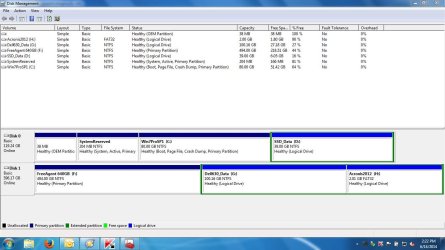
Hello - I indeed need help with the syntax for running a robocopy script to copy my data in three folders on external HDD (partition G) to the main data folder on the internal SSD data partition D with the parameters below...am attaching the disk management info of the disks/partitions

· Copy all subfolders (there are over 1000 folders) and files
· Keep the original time/date stamps of all folders and files
· Keep original attributes, permissions/access/owner info, etc.
· One of the three folders is about 30GB so please help with the multi-thread parameter set up
· Keep a copy of log file to know that the script ran okay and if any files couldn’t be copied over.

20140614 - diskmgmt SSD + ext HDD.JPG

Also, to which location should the script be saved (I have 2 user accounts: an admin and a standard user) in the standard user's Users folder? or in C partition? and I probably need to run as administrator, right?

2) I had used an older version of SyncBack for data backup and just tried FreeFileSync. But with both programs, all the subfolders had newly created dates and did not retain the original folders’ date/time stamps when the data was copied. Is such a setting available in these programs that I didn't see to set up?

3) If not, can robocopy be used for incremental backups as well as full? How to schedule the script to run a set backup routine?

5) A side question: I plan to use a 1TB external HDD for the image backups and the data backups; should I have just one partition and make two main folders to keep these backups separate or should I make separate partitions? How should the security tab read for permissions/access - that is, should both user accounts have full control

I've been working on this for several days without much luck so greatly appreciate some timely help!
 

My Computer

Computer type
Laptop
Computer Manufacturer/Model Number
Dell XPS 13 (L321X) x64
OS
Windows 7 Pro Version 6.1.7601 Service Pack 1 Build 7601, clean OEM re-install
CPU
Intel core i5-2467M CPU @160GHz
Motherboard
Dell Inc. 085X6F A00
Memory
4Gb installed RAM
Graphics Card(s)
Intel HD Graphics 3000
Hard Drives
SAMSUNG SSD PM830 mSATA 128GB ATA Device, ACHI enabled
SEAGATE FREEAGENT USB HDD - 640GB
Antivirus
Kaspersky Internet Security 2014 G patch
Browser
Firefox 29.1

My Computer

Computer type
Laptop
Computer Manufacturer/Model Number
ACER ASPIRE 5742G
OS
Microsoft Windows 7 Home Premium 64-bits 7601 Multiprocessor Free Service Pack 1
CPU
Intel(R) Core(TM) i3 CPU M 370 @ 2.40GHz
Motherboard
Acer Aspire 5742G
Memory
4,00 GB
Graphics Card(s)
ATI Mobility Radeon HD 5400 Series
Sound Card
(1) AMD High Definition Audio Device (2) Realtek High Defi
Screen Resolution
1366 x 768 x 32 bits (4294967296 colors) @ 60 Hz
Hard Drives
WDC WD5000BEVT-22ZAT0
Thank you...I don't have encrypted files to copy onto the SSD so will remove the /EFSRAW parameter to be able to use the /MT:16 parameter and give this a try. ---dpwoodpecker
 

My Computer

Computer type
Laptop
Computer Manufacturer/Model Number
Dell XPS 13 (L321X) x64
OS
Windows 7 Pro Version 6.1.7601 Service Pack 1 Build 7601, clean OEM re-install
CPU
Intel core i5-2467M CPU @160GHz
Motherboard
Dell Inc. 085X6F A00
Memory
4Gb installed RAM
Graphics Card(s)
Intel HD Graphics 3000
Hard Drives
SAMSUNG SSD PM830 mSATA 128GB ATA Device, ACHI enabled
SEAGATE FREEAGENT USB HDD - 640GB
Antivirus
Kaspersky Internet Security 2014 G patch
Browser
Firefox 29.1
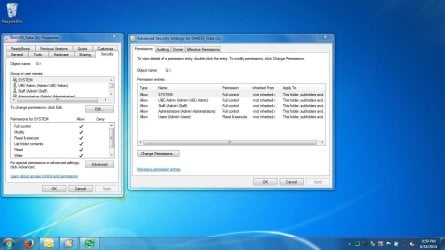
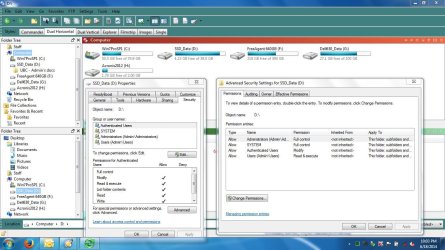
I got errors running the command line suggested – flags that my admin user doesn’t have Manage Auditing user rights needed for parameter /copyall. Then was flagged with not having Backup and Restore rights when I changed to /copy: with DATSO just to see it would run at all. Attached is the log and the properties/security tab info for source G: (external HDD) and the destination D: (internal SSD).

View attachment 20140618 Robocopy log.txt

20140614 - partition G securitytab info.JPG

20140614 - partition D securitytab info2.JPG

Background info: I was logged on admin user account and I just typed cmd in the run…command box that opened up the command prompt window with the blinking cursor at prompt C:\Users\UBC-Admin> ----just wondered whether the robocopy command should be executed from this directory.

I would also appreciate getting help in doing this in a way that I can use notepad to edit the necessary command line parameters as needed and then somehow run the command from that file instead of having to retype the entire long line every time and to add to the log file instead of overwriting it.....hope this make sense and thank you for timely help!
 
Last edited:

My Computer

Computer type
Laptop
Computer Manufacturer/Model Number
Dell XPS 13 (L321X) x64
OS
Windows 7 Pro Version 6.1.7601 Service Pack 1 Build 7601, clean OEM re-install
CPU
Intel core i5-2467M CPU @160GHz
Motherboard
Dell Inc. 085X6F A00
Memory
4Gb installed RAM
Graphics Card(s)
Intel HD Graphics 3000
Hard Drives
SAMSUNG SSD PM830 mSATA 128GB ATA Device, ACHI enabled
SEAGATE FREEAGENT USB HDD - 640GB
Antivirus
Kaspersky Internet Security 2014 G patch
Browser
Firefox 29.1
Catastrophic failure

I imagine it is possible for the remote file structure to be compromised in such a way that running the backup script will simply replace your backup copy with an empty directory or empty files.

I've thought of a few ways to counteract this - one would be to create rolling backups by date and perhaps check size - if there is a major change in size, then throw an alert. Unfortunately this increases copy time as you're copying the whole file structure again each time.

The other option is to have it go through a dry run (/L), note if an inoranate number of files have been removed and don't perform the final action without interactive authorization but otherwise execute it automatically. (this is what I'm doing now, albeit manually).

Any more strategies that may be out there?

Or am I just being overly paranoid? Do these glitches just not happen? Remote mount points or file structure links get switched is just not something that happens?

Reviewed the prior posts in this thread but didn't see this brought up.

Thanks!
 

My Computer

OS
Windows 7 Ultimate 32-bit
Don't Understand Robocopy Actions

Greetings,

I have a written a Robocopy bat file to back up the files on my laptop to a portable USB connected drive. I had some issues with the date functions but got that straightened out.

Here is the bat file:

@Echo Off
Echo.
Echo.
Echo You must run this file by right clicking and run as Administrator.
Echo If not you won't get all the files. Crtl C exits.
Echo.
Echo.
If exist E:\ (Echo. External USB HD ready for BackUp) else (Echo. No External USB HD detected & Goto :EOF)
Echo.
pause
Echo.


For /f "tokens=2-4 delims=/ " %%a in ('date /t') do (set ToDay=%%c-%%a-%%b)

Robocopy "C:\Users\%UserName%\Favorites" "E:\Ray_BackUp-%ToDay%\Favorites" /E /Z /XA:H /R:10 /W:20

Robocopy "C:\Users\%UserName%\Desktop\*.bat" "E:\Ray_BackUp_%ToDay%\Desktop" /E/Z /XA:H /R:10 /W:20

Robocopy "C:\Users\%UserName%\Documents" "E:\Ray_BackUp_%ToDay%\My Documents" /E /Z /XA:H /R:10 /W:20

Robocopy "C:\Users\%UserName%\AppData\Local\Microsoft\Windows Live Mail" "E:\Ray_BackUp_%ToDay%\Windows Mail" /E/Z /XA:H /R:10 /W:20

Robocopy "C:\Xnews_test 2006.06.28" "E:\Ray_BackUp_%ToDay%\XNEWS" /E /COPYALL /R:10 /W:20

Set ToDay=
::END_OF_BATCH
Echo.
Echo.
Echo. All Done
pause


When I run this bat file as an Administrator, it produces 5 folders:

Ray_BackUp_2014-08-27 which contains the Favorites folder and its contents
Ray_BackUp_2014-08-27 which contains the Desktop folder and this bat file
Ray_BackUp_2014-08-27 which contains the My Documents folder and its contents
Ray_BackUp_2014-08-27 which contains the Windows Live Mail Folder and its contents
Ray_BackUp_2014-08-27 which contains the XNEWS Folder and its contents.

So everything gets copied, however, I really wanted something like this:

Ray_BackUp_2014-08-27 with a subfolder for Favorites
a subfolder for Desktop
a subfolder for My Documents
a subfolder for Windows Live Mail
a subfolder for XNEWS

Just so you know, I keep 2 backups and delete the oldest backup so I don't want to mess with using the feature that copies only the newest files, etc.

So can someone help me fix my bat file to get the desired results?

Thanks in advance for your help and suggestions!
 

My Computer

Computer type
Laptop
Computer Manufacturer/Model Number
Dell Studio
OS
Windows 7
Antivirus
Norton
Browser
FoxFire
Back
Top