
ROBOCOPY - Create Backup Script

How to Create a Backup Script using ROBOCOPY Command


   Information
There are many paid and free software solutions available to backup critical data and files on a computer system. Many users, however, are unaware of an inbuilt Windows 7 command called ROBOCOPY (Robust File Copy) that allows users to create simple or highly advanced backup strategies.


In its simplist form, ROBOCOPY can be likened to an extension of XCOPY on steroids. Some of the more important features that make ROBOCOPY an attractive backup alternative are:
  • multi-threaded copying
  • mirroring or synchronisation mode between the destination and source
  • automatic retry and copy resumption
The examples shown below are primarily geared towards less experienced users, especially those that are unfamilar with batch file creation and running. More experienced users, however, are welcome to explore some of the advanced functionality offered by ROBOCOPY here:

http://technet.microsoft.com/en-us/library/cc733145(WS.10).aspx

and also here:

http://www.theether.net/download/Microsoft/Utilities/robocopy.pdf

or by simply typing robocopy /? at a cmd window prompt.


   Note
ROBOCOPY is a FOLDER copier, not a FILE copier - the source and destination syntax arguments in ROBOCOPY can only be folder names.


:note: Creating a BACKUP strategy

The easiest way to use the ROBOCOPY command to create a backup strategy is by creating a batch (.BAT) file. A batch file is a simple text file, that when executed, runs several commands one after the other.

Step 1

Click :orb: and in the search box, type notepad. Select Notepad to open up a new blank Notepad document.


Step 2

Type the ROBOCOPY commands into the Notepad document, save it as a .BAT file, and then execute it.

In the example below, I have 3 folders (Data1, Data2, and Data3) containing some data that I wish to backup. One folder is located on E: drive and the other two are located on F: drive. I wish to back these up as follows:

Data1 folder on E: backup to a folder called Backups on G: (external USB drive)
Data2 folder on F: backup to a folder called Backups on G: (external USB drive)
Data3 folder on F: backup to a folder called Backups on Q: (network storage drive)

The general format of the ROBOCOPY command is:

Code:
robocopy <source> <destination> <options>
In the empty Notepad document, the simplist form of the command would look like this:

Code:
robocopy E:\Data1 G:\Backups\Data1
robocopy F:\Data2 G:\Backups\Data2
robocopy F:\Data3 Q:\Backups\Data3
pause
   Tip
If source or destination paths contain spaces in them, enclose these in double quotes e.g. "C:\My Data\My Music"


Only the source
  • E:\Data1
  • F:\Data2
  • F:\Data3
and the destination
  • G:\Backups\Data1
  • G:\Backups\Data2
  • Q:\Backups\Data3
are mandatory inputs into the ROBOCOPY command.

   Tip
The PAUSE command at the bottom of the .BAT file allows the cmd window to stay open after it has completed to allow me to see the output from ROBOCOPY.


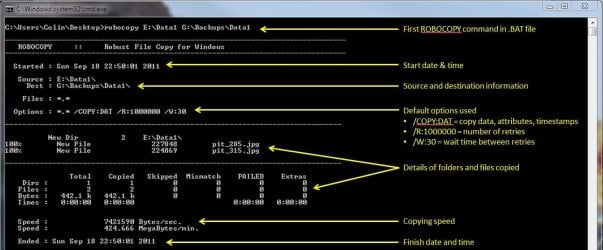
If I save the .BAT file to my Desktop, and run it by double-clicking it, then a cmd window is opened and the .BAT file executes the three ROBOCOPY commands as shown below.
R1.JPG

The same information is repeated for every ROBOCOPY line in the .BAT file.


In order to utilise some of the powerful functionality in ROBOCOPY, I need to utilise some options in the ROBOCOPY command line. In this next example I want to edit my existing backup strategy such that:
  1. All sub-folders within my data folders are backed up, even if they are empty.
  2. The backup only copies newer files to my existing backup - this means a faster backup time.
  3. The percentage progress counter for copying is not shown - this neatens the overall appearance of the ROBOCOPY information, and creates a smaller log file.
  4. The information normally echoed to the cmd window is saved to a log file that I can examine at a later stage.
In order to do this, I need to specify some additional options in my ROBOCOPY commands like this:

Code:
robocopy E:\Data1 G:\Backups\Data1 [B][COLOR=red]/e /mir /np /log:backup_log.txt[/COLOR][/B]
robocopy F:\Data2 G:\Backups\Data2 [B][COLOR=red]/e /mir /np /log+:backup_log.txt[/COLOR][/B]
robocopy F:\Data3 Q:\Backups\Data3 [B][COLOR=red]/e /mir /np /log+:backup_log.txt[/COLOR][/B]
pause
Where:
/e = copy all sub-folders, even empty ones
/mir = mirror (check the files in the destination, and only copy newer files)
/np = no progress counter
/log: = create a logfile

   Tip

Note the use of the /log+: option in the 2nd and 3rd line of the .BAT file. This option ensures that the results of the 2nd and 3rd ROBOCOPY are appended to the log file created in the 1st ROBOCOPY line, meaning I only need one log file to capture all the information I backup.

The log file is always saved to the same folder as the .BAT file - in my case, the folder is saved to my Desktop.


Since the output from ROBOCOPY is written to the log file, the cmd window will not display the output from ROBOCOPY. If I wish to have this information written to both the log file and the cmd window for visual tracking of the backup process, then I can add the /tee option to each line in the .BAT file, as shown below.

Code:
robocopy E:\Data1 G:\Backups\Data1 /e /mir /np [B][COLOR=red]/te[/COLOR][COLOR=red]e[/COLOR][/B] /log:backup_log.txt
robocopy F:\Data2 G:\Backups\Data2 /e /mir /np [COLOR=red][B]/tee[/B][/COLOR] /log+:backup_log.txt
robocopy F:\Data3 Q:\Backups\Data3 /e /mir /np[COLOR=red][B] /tee[/B][/COLOR] /log+:backup_log.txt
pause
This is an example of the typical output to the the log file - it looks exactly the same as what is echoed to the cmd window.

Code:
-------------------------------------------------------------------------------
   ROBOCOPY     ::     Robust File Copy for Windows                              
-------------------------------------------------------------------------------
  Started : Sun Sep 18 23:35:01 2011
   Source : E:\Data1\
     Dest : G:\Backups\Data1\
    Files : *.*
 
  Options : *.* /S /E /COPY:DAT /PURGE /MIR /R:1000000 /W:30 
------------------------------------------------------------------------------
                    2 E:\Data1\
------------------------------------------------------------------------------
               Total    Copied   Skipped  Mismatch    FAILED    Extras
    Dirs :         1         0         1         0         0         0
   Files :         2         0         2         0         0         0
   Bytes :   442.1 k         0   442.1 k         0         0         0
   Times :   0:00:00   0:00:00                       0:00:00   0:00:00
   Ended : Sun Sep 18 23:35:01 2011
Since one of the data folders I am backing up is being copied across a network, I want to ensure that any possible network outages do not cause some critical files to be skipped in the backup. To do this, I can make use of the /z option in the 3rd line of my .BAT file (backup to my network storage) as shown below.

Code:
robocopy E:\Data1 G:\Backups\Data1 /e /mir /np /tee /log:backup_log.txt
robocopy F:\Data2 G:\Backups\Data2 /e /mir /np /tee /log+:backup_log.txt
robocopy F:\Data3 Q:\Backups\Data3 /e /mir /np [B][COLOR=red]/z[/COLOR][/B] /tee /log+:backup_log.txt
This option implements a "retry" for the copying. If I were part way through the copying process, and I lost connection with the network, then ROBOCOPY would automatically restart the copying at the point of failure once the network connection was re-established. It would retrying a million times every 30 seconds (the default settings shown in the image above). The only drawback with this option, is that it can significantly increase the backup time.

ROBOCOPY also has the ability to perform faster multi-threaded copying by simply using the option /mt. I can choose the number of threads to use by specifying a number between 1 and 128 after the /mt option, or if I just specify /mt without a number then the it will use 8 threads by default. In the example below, I use 4 threads to copy to my USB drive, and 8 threads (no number) to copy to my network drive.

Code:
robocopy E:\Data1 G:\Backups\Data1 /e /mir /np /tee [B][COLOR=red]/mt:4[/COLOR][/B] /log:backup_log.txt
robocopy F:\Data2 G:\Backups\Data2 /e /mir /np /tee [COLOR=red][B]/mt:4[/B][/COLOR] /log+:backup_log.txt
robocopy F:\Data3 Q:\Backups\Data3 /e /mir /np [COLOR=black]/z[/COLOR] /tee [COLOR=red][B]/mt[/B][/COLOR] /log+:backup_log.txt
Below is a template that you can use to create your own backup strategy using ROBOCOPY. Simply copy and paste the lines into a blank text document, and then edit as appropriate.

Code:
rem --- Edit the lines below to create your own backup strategy
rem --- The /mir option has been left out for safety sake
rem --- Add more lines for each new folder requiring backup
rem --- Specified 4 threads to use for multi-threaded copying
rem --- The results of the backup can be found in my_backup_log.txt 
robocopy <source> <destination> /e /np /tee /mt:4 /log:my_backup_log.txt
robocopy <source> <destination> /e /np /tee /mt:4 /log+:my_backup_log.txt
pause
   Tip

The can automate your backup's by using the Windows 7 Task Scheduler to run the .BAT file at specific times.

For more information please refer to this tutorial by Orbital Shark:
http://www.sevenforums.com/tutorials/12444-task-scheduler-create-new-task.html


I hope this brief tutorial helps you access the power and simplicity of ROBOCOPY to create some effective backup strategies.

Regards,
Golden
 
Last edited by a moderator:
Ok - I think this will work... Can you look it over and let me know
Thanks for your help guys

The source will be the NAS file mapped to a drive letter in this example T and the 2tb External USB will be U
Now I am assuming that I could add a prompt to remind him to unplug the USB

rem --- Day Zero Backup Strategy
rem --- This file MUST not be changed
rem --- The script will run every Thursday at 3.00pm exactly and results will be shown in Backup_Log.txt
echo --- Backup In Process of day zero files to external drive please wait
robocopy <t:\dayzero> <U:\dayzero> /e /np /tee /mt:4 /log:Backup_Log.txt
pause
echo --- Backup complete - Remove the USB drive and store safely. Please check Backup_log.txt for errors and notify if required
pause
 

My Computer

Computer type
PC/Desktop
Computer Manufacturer/Model Number
Custom
OS
Win7 Ult x64
CPU
I7 3770k
Motherboard
Gigavyte x77
Memory
32gb
Graphics Card(s)
On Board Intel 4000
Hard Drives
250 Samsung 850 Evo SSD
1TB Seagate Spinner

---
Other system same spec but Radeon 7800 x2
PSU
750 Corsair
Case
Custom
Cooling
Non Stock
Keyboard
Microsoft Wired 600
Mouse
Microsoft Wired Wheel Mouse
Internet Speed
Crap
Antivirus
ESET Smart Security MBAM (Pro) MBAE (Pro)
Browser
Firefox, Chrome
Other Info
These specs are only 2 of the multiple systems i have
Those angle brackets should not be there.

Code:
robocopy t:\dayzero U:\dayzero /e /np /tee /mt:4 /log:Backup_Log.txt
 

My Computer

Computer type
PC/Desktop
OS
Windows 10, Windows 8.1 Pro, Windows 7 Professional, OS X El Capitan
Those angle brackets should not be there.

Code:
robocopy t:\dayzero U:\dayzero /e /np /tee /mt:4 /log:Backup_Log.txt

Cheers, I kinda thought that but wasn't sure.. so I left them in

Question - will the message appear on the screen that is in the echo or do I have to add some more commands to make that 'pop up' to remind him to unplug the External drive?
 

My Computer

Computer type
PC/Desktop
Computer Manufacturer/Model Number
Custom
OS
Win7 Ult x64
CPU
I7 3770k
Motherboard
Gigavyte x77
Memory
32gb
Graphics Card(s)
On Board Intel 4000
Hard Drives
250 Samsung 850 Evo SSD
1TB Seagate Spinner

---
Other system same spec but Radeon 7800 x2
PSU
750 Corsair
Case
Custom
Cooling
Non Stock
Keyboard
Microsoft Wired 600
Mouse
Microsoft Wired Wheel Mouse
Internet Speed
Crap
Antivirus
ESET Smart Security MBAM (Pro) MBAE (Pro)
Browser
Firefox, Chrome
Other Info
These specs are only 2 of the multiple systems i have
Chrishammond, echo will display text on the console. If you want a popup box to happen, theres the msg command, though it’s heavily depreciated and doesn’t even work in Windows 10.

Here’s what I use for popup boxes in batch.
Code:
mshta vbscript:code(close(MsgBox("Hello World",0,"Title")))


You can get help for most commands by typing the command and following it with “/?” on the command line.
E.g.,
Code:
dir /?
 

My Computer

Computer type
PC/Desktop
OS
Windows 10, Windows 8.1 Pro, Windows 7 Professional, OS X El Capitan
I wish i'd never have asked now :) thanks for your help
 

My Computer

Computer type
PC/Desktop
Computer Manufacturer/Model Number
Custom
OS
Win7 Ult x64
CPU
I7 3770k
Motherboard
Gigavyte x77
Memory
32gb
Graphics Card(s)
On Board Intel 4000
Hard Drives
250 Samsung 850 Evo SSD
1TB Seagate Spinner

---
Other system same spec but Radeon 7800 x2
PSU
750 Corsair
Case
Custom
Cooling
Non Stock
Keyboard
Microsoft Wired 600
Mouse
Microsoft Wired Wheel Mouse
Internet Speed
Crap
Antivirus
ESET Smart Security MBAM (Pro) MBAE (Pro)
Browser
Firefox, Chrome
Other Info
These specs are only 2 of the multiple systems i have
ok... This is why i hate batch files....

rem --- The script will fail if the external HDD is not in
robocopy z:\ u:\backup /e /np /tee /mt:4 /log:Backup_Log.txt
robocopy b:\ u:\backup /e /np /tee /mt:4 /log:Backup_Log.txt
pause
I got the script to run ONCE but it only backed up certain number of files before it seemed to stop, i say seemed to stop as it only grabbed 780mb ish and there are 34gb to grab, I tried to recreate the pattern and it now has a epic failure every time.

I'm pulling my hair out (and believe me i dont have much left)
 

My Computer

Computer type
PC/Desktop
Computer Manufacturer/Model Number
Custom
OS
Win7 Ult x64
CPU
I7 3770k
Motherboard
Gigavyte x77
Memory
32gb
Graphics Card(s)
On Board Intel 4000
Hard Drives
250 Samsung 850 Evo SSD
1TB Seagate Spinner

---
Other system same spec but Radeon 7800 x2
PSU
750 Corsair
Case
Custom
Cooling
Non Stock
Keyboard
Microsoft Wired 600
Mouse
Microsoft Wired Wheel Mouse
Internet Speed
Crap
Antivirus
ESET Smart Security MBAM (Pro) MBAE (Pro)
Browser
Firefox, Chrome
Other Info
These specs are only 2 of the multiple systems i have
I looks like you are trying to backup an entire drive. Robocopy backs up folders. After Z:/ you need a folder name which will be backed up. For example

robocopy z:\data u:\backup /e /np /tee /mt:4 /log:Backup_Log.txt

That should backup a folder named Z:\data to U:\backup.
 

My Computers

System One System Two

  • Computer type
    PC/Desktop
    Computer Manufacturer/Model Number
    ALWAYS UNDER CONSTRUCTION
    OS
    Windows 11 Pro
    CPU
    Ryzen 9 5900X
    Motherboard
    Asus X570 Crosshair Viii Hero
    Memory
    32GB G Skill DDR4-3600
    Graphics Card(s)
    EVGA RTX 3080 FTW 3 Ultra
    Sound Card
    On Board/Sennheiser PC37X Headset
    Monitor(s) Displays
    3 X Asus 27"
    Screen Resolution
    2560x1440
    Hard Drives
    2 X 1 TB NVME drives
    PSU
    EVGA 850
    Case
    Phanteks Eclipse P400A
    Cooling
    EVGA 280 AIO
    Keyboard
    Logitech G510s/ Logitech G13
    Mouse
    Logitech G502
    Internet Speed
    24/1
    Antivirus
    ESET/MBAM Pro/SAS Pro
    Browser
    Chrome/ Firefox/ Edge
  • Computer type
    Laptop
    System Manufacturer/Model Number
    Dell 16 Plus
    OS
    Windows 11 Pro
    CPU
    Intel Ultra 9 288V
    Memory
    32 GB LPDDR5X 8533
    Monitor(s) Displays
    16" Mini-LED HDR600 Touch 90 Hz
    Screen Resolution
    2560X1600
    Hard Drives
    1 TB NVME
I looks like you are trying to backup an entire drive. Robocopy backs up folders. After Z:/ you need a folder name which will be backed up. For example

robocopy z:\data u:\backup /e /np /tee /mt:4 /log:Backup_Log.txt

That should backup a folder named Z:\data to U:\backup.

Ah - so with it being in multiple folders I will have to specify each path

ugh

my head hurts :(

or can I cheat and make one folder with multiple folders inside or will we have the same issue again?

z:\data
z:\data\crap1
z:\data\crap1\crap2\filexyz.doc

etc
 

My Computer

Computer type
PC/Desktop
Computer Manufacturer/Model Number
Custom
OS
Win7 Ult x64
CPU
I7 3770k
Motherboard
Gigavyte x77
Memory
32gb
Graphics Card(s)
On Board Intel 4000
Hard Drives
250 Samsung 850 Evo SSD
1TB Seagate Spinner

---
Other system same spec but Radeon 7800 x2
PSU
750 Corsair
Case
Custom
Cooling
Non Stock
Keyboard
Microsoft Wired 600
Mouse
Microsoft Wired Wheel Mouse
Internet Speed
Crap
Antivirus
ESET Smart Security MBAM (Pro) MBAE (Pro)
Browser
Firefox, Chrome
Other Info
These specs are only 2 of the multiple systems i have
I don't know, I have never tried it, but I doubt it. But you should be able to make a batch file that will run all of them. Create a destination folder for each folder you want to backup, and try something like this

Code:
echo
robocopy z:\data u:\data_backup /e /np /tee /mt:4 /log:Backup_Log.txt&robocopy z:\crap u:\crap_backup /e /np /tee /mt:4 /log:Backup_Log.txt&robocopy z:\more_crap u:\morecrap_backup /e /np /tee /mt:4 /log:Backup_Log.txt
pause

Copy that into Notepad and name it backup.bat

Or you could organize your data you want to backup into 1 folder. Have a folder named Data, inside that folder have folders named Crap, another folder named crap1 and another named more_crap. Then you could have just 1 batch file to backup the data folder to the data_backup folder on the external drive.

I have moved all my User folders to another drive. So I have a folder named Users, inside that folder I have a folder for my user name. Inside that I have all my Libraries folders. I can also add any folder I want inside there. To do a backup i just backup my user folder to my backup folder on an external drive (3 actually). When I run the backup on the user folder, it copies the user folder and everything inside it.

I am probably not the best one to give advice on this, as I have only used Robocopy enough to do what I need to do. Maybe someone else will come along and give you better suggestions. What I do works well for me, but may not work for everyone else. This is what I use and it has worked very well for me.

Code:
echo
robocopy E:\users X:\Robocopy_W10_Data /e /mir /np /tee /mt:10 /log:backup_log.txt
pause
 

My Computers

System One System Two

  • Computer type
    PC/Desktop
    Computer Manufacturer/Model Number
    ALWAYS UNDER CONSTRUCTION
    OS
    Windows 11 Pro
    CPU
    Ryzen 9 5900X
    Motherboard
    Asus X570 Crosshair Viii Hero
    Memory
    32GB G Skill DDR4-3600
    Graphics Card(s)
    EVGA RTX 3080 FTW 3 Ultra
    Sound Card
    On Board/Sennheiser PC37X Headset
    Monitor(s) Displays
    3 X Asus 27"
    Screen Resolution
    2560x1440
    Hard Drives
    2 X 1 TB NVME drives
    PSU
    EVGA 850
    Case
    Phanteks Eclipse P400A
    Cooling
    EVGA 280 AIO
    Keyboard
    Logitech G510s/ Logitech G13
    Mouse
    Logitech G502
    Internet Speed
    24/1
    Antivirus
    ESET/MBAM Pro/SAS Pro
    Browser
    Chrome/ Firefox/ Edge
  • Computer type
    Laptop
    System Manufacturer/Model Number
    Dell 16 Plus
    OS
    Windows 11 Pro
    CPU
    Intel Ultra 9 288V
    Memory
    32 GB LPDDR5X 8533
    Monitor(s) Displays
    16" Mini-LED HDR600 Touch 90 Hz
    Screen Resolution
    2560X1600
    Hard Drives
    1 TB NVME
I looks like you are trying to backup an entire drive. Robocopy backs up folders. After Z:/ you need a folder name which will be backed up.
I’d like to know the basis of your claim because there’s certainly nothing wrong with robocopy z:\ u:\backup.

However, one thing to beware of when Robocopy-ing from drives, the destination directory will be marked with the System and Hidden attributes and will need to be fixed after the backup completes. This happens because Robocopy copies the attributes of the source directory to the destination directory, and drives actually always have the System and Hidden files attributes set.


I got the script to run ONCE but it only backed up certain number of files before it seemed to stop, i say seemed to stop as it only grabbed 780mb ish and there are 34gb to grab, I tried to recreate the pattern and it now has a epic failure every time.
Could you provide specifics? Maybe elaborate on this ‘epic failure’.
 

My Computer

Computer type
PC/Desktop
OS
Windows 10, Windows 8.1 Pro, Windows 7 Professional, OS X El Capitan
I looks like you are trying to backup an entire drive. Robocopy backs up folders. After Z:/ you need a folder name which will be backed up.
I’d like to know the basis of your claim because there’s certainly nothing wrong with robocopy z:\ u:\backup.

The basis of my claim is I've tried it and never been able to make it work.
 

My Computers

System One System Two

  • Computer type
    PC/Desktop
    Computer Manufacturer/Model Number
    ALWAYS UNDER CONSTRUCTION
    OS
    Windows 11 Pro
    CPU
    Ryzen 9 5900X
    Motherboard
    Asus X570 Crosshair Viii Hero
    Memory
    32GB G Skill DDR4-3600
    Graphics Card(s)
    EVGA RTX 3080 FTW 3 Ultra
    Sound Card
    On Board/Sennheiser PC37X Headset
    Monitor(s) Displays
    3 X Asus 27"
    Screen Resolution
    2560x1440
    Hard Drives
    2 X 1 TB NVME drives
    PSU
    EVGA 850
    Case
    Phanteks Eclipse P400A
    Cooling
    EVGA 280 AIO
    Keyboard
    Logitech G510s/ Logitech G13
    Mouse
    Logitech G502
    Internet Speed
    24/1
    Antivirus
    ESET/MBAM Pro/SAS Pro
    Browser
    Chrome/ Firefox/ Edge
  • Computer type
    Laptop
    System Manufacturer/Model Number
    Dell 16 Plus
    OS
    Windows 11 Pro
    CPU
    Intel Ultra 9 288V
    Memory
    32 GB LPDDR5X 8533
    Monitor(s) Displays
    16" Mini-LED HDR600 Touch 90 Hz
    Screen Resolution
    2560X1600
    Hard Drives
    1 TB NVME
Well try again because I guarantee it does work.


See if this works for you.
Code:
[COLOR="Silver"]rem Copy root files to “CDriveFiles” on desktop[/COLOR]
robocopy C:\ "%UserProfile%\Desktop\CDriveFiles" /w:0 /r:0 /a-:sh
 

My Computer

Computer type
PC/Desktop
OS
Windows 10, Windows 8.1 Pro, Windows 7 Professional, OS X El Capitan
Batch file example please

It looks like robocopy is the way to go..

I need a batch file, which copies a folder MM from the root 'C' drive to a USB pen ' Z' but appended with a time date...also prefer it not to,open a window but if possible give a confirmation message...

Thanks
 

My Computer

Computer type
PC/Desktop
OS
10 Pro
Robocopy. Can backup script be appended

I want to run a script as a bat file so it can be scheduled as a daily task. I think that ROBOCOPY is my best option but i cannot find suitable switches to make the script do what i want.

I want to copy "eventfile.txt" from a source to destination folder.
However, as this is a daily task, eventfile.txt will have a different text content (it is in fact my openvpn logfile) and after robocopy is run only the latest version of the file is copied to the destination, the previous day being overwritten.
What I want it to do is append eventfile.txt to the destination file so I can build a history of all my vpn events. None of the switches appear to allow me to do that.
Is there a workaround for this task?
 

My Computer

OS
Windows7 32bit
Trunxson, what about the /LOG+ switch? It acts like /LOG but will append instead of overwrite output.

Code:
         /LOG:file : Output status to LOG file (overwrite existing log).
      /UNILOG:file : Output status to Unicode Log file (overwrite)
        /LOG+:file : Output status to LOG file (append to existing log).
     /UNILOG+:file : Output status to Unicode Log file (append)
 

My Computer

Computer type
PC/Desktop
OS
Windows 10, Windows 8.1 Pro, Windows 7 Professional, OS X El Capitan
Thank you. I have used this switch, but the log file it writes to (and appends with LOG+) contains only data about the action of the robocopy command being carried out and not the actual file intended to be copied to a destination
 

My Computer

OS
Windows7 32bit
What data are you trying to append to eventfile.txt? Example?
 

My Computer

Computer type
PC/Desktop
OS
Windows 10, Windows 8.1 Pro, Windows 7 Professional, OS X El Capitan
OpenVPN has a text format logfile in its >LOG subdirectory which overwrites each time openvpn connects. I am trying to capture this 'write' action by copying the logfile to another destination. Then i need to append each occurrence to a single file so i form a history.
The Openvpn logfile has some 100-200 lines of text.

For example


Fri Dec 09 09:07:04 2016 OpenVPN 2.3_git x86_64-w64-mingw32 [SSL (OpenSSL)] [LZO] [LZ4] [PKCS11] [IPv6] built on Jul 26 2016
Fri Dec 09 09:07:04 2016 Windows version 6.2 (Windows 8 or greater) 64bit
Fri Dec 09 09:07:04 2016 library versions: OpenSSL 1.0.1t 3 May 2016, LZO 2.09
Enter Management Password:
Fri Dec 09 09:07:04 2016 MANAGEMENT: TCP Socket listening on [AF_INET]127.0.0.1:25340
Fri Dec 09 09:07:04 2016 Need hold release from management interface, waiting...
Fri Dec 09 09:07:04 2016 MANAGEMENT: Client connected from [AF_INET]127.0.0.1:25340
Fri Dec 09 09:07:04 2016 MANAGEMENT: CMD 'state on'
Fri Dec 09 09:07:04 2016 MANAGEMENT: CMD 'log all on'
Fri Dec 09 09:07:04 2016 MANAGEMENT: CMD 'hold off'
Fri Dec 09 09:07:04 2016 MANAGEMENT: CMD 'hold release'

>>>>>>>>>>>>>>>
 

My Computer

OS
Windows7 32bit
I’m not sure what kind of an answer you’re expecting.

You can Type the file then redirect the output to another file.

Code:
type file.txt >> elsewhere\file.txt

This appends the content of “file.txt” to “elsewhere\file.txt”.
 

My Computer

Computer type
PC/Desktop
OS
Windows 10, Windows 8.1 Pro, Windows 7 Professional, OS X El Capitan
how to copy total drive folders including all available files ?

Hi, I know and read the tutorials and tried myself a bit copying using robocopy which is a free larger size copy commands at cmd.
i tried and copies so much files but now i am having issues with it.
I want to copy a logical drive totally to a ext hard disk and i used this formula, which came with error .
i miss something , would you please correct it
robocopy d:\ g:\appacomputer /E/copyall/dcopy:T
where my d:\ is a logical drive and g:\appacomputer is the destination folder (ext.hdd.disk).
what is the mistake in the formula, it gives error such as destination not specified etc..
Somewhere in some forum, i read it and made some slash changes, which immediately copied , but only the folders and sub folders without the files .
Immediate response would be helpful as, i want to take a backup of the drive , as i am facing data loss. pl
N.B: i want the date of folders and files of original date as at d: drive
 

My Computer

Computer type
PC/Desktop
Computer Manufacturer/Model Number
custom build
OS
Microsoft Windows 7 Ultimate 64-bit 7601 Multiprocessor Free Service Pack 1
CPU
Intel(R) Core(TM)2 Duo CPU E7200 @ 2.53GHz
Motherboard
To be filled by O.E.M. To be filled by O.E.M.
Memory
4.00 GB
Graphics Card(s)
NVIDIA GeForce 210
Sound Card
(1) NVIDIA High Definition Audio (2) Realtek High Definiti
Screen Resolution
1920 x 1080 x 32 bits (4294967296 colors) @ 60 Hz
Hard Drives
ST3500312CS ATA Device
Back
Top