
ROBOCOPY - Create Backup Script

How to Create a Backup Script using ROBOCOPY Command


   Information
There are many paid and free software solutions available to backup critical data and files on a computer system. Many users, however, are unaware of an inbuilt Windows 7 command called ROBOCOPY (Robust File Copy) that allows users to create simple or highly advanced backup strategies.


In its simplist form, ROBOCOPY can be likened to an extension of XCOPY on steroids. Some of the more important features that make ROBOCOPY an attractive backup alternative are:
  • multi-threaded copying
  • mirroring or synchronisation mode between the destination and source
  • automatic retry and copy resumption
The examples shown below are primarily geared towards less experienced users, especially those that are unfamilar with batch file creation and running. More experienced users, however, are welcome to explore some of the advanced functionality offered by ROBOCOPY here:

http://technet.microsoft.com/en-us/library/cc733145(WS.10).aspx

and also here:

http://www.theether.net/download/Microsoft/Utilities/robocopy.pdf

or by simply typing robocopy /? at a cmd window prompt.


   Note
ROBOCOPY is a FOLDER copier, not a FILE copier - the source and destination syntax arguments in ROBOCOPY can only be folder names.


:note: Creating a BACKUP strategy

The easiest way to use the ROBOCOPY command to create a backup strategy is by creating a batch (.BAT) file. A batch file is a simple text file, that when executed, runs several commands one after the other.

Step 1

Click :orb: and in the search box, type notepad. Select Notepad to open up a new blank Notepad document.


Step 2

Type the ROBOCOPY commands into the Notepad document, save it as a .BAT file, and then execute it.

In the example below, I have 3 folders (Data1, Data2, and Data3) containing some data that I wish to backup. One folder is located on E: drive and the other two are located on F: drive. I wish to back these up as follows:

Data1 folder on E: backup to a folder called Backups on G: (external USB drive)
Data2 folder on F: backup to a folder called Backups on G: (external USB drive)
Data3 folder on F: backup to a folder called Backups on Q: (network storage drive)

The general format of the ROBOCOPY command is:

Code:
robocopy <source> <destination> <options>
In the empty Notepad document, the simplist form of the command would look like this:

Code:
robocopy E:\Data1 G:\Backups\Data1
robocopy F:\Data2 G:\Backups\Data2
robocopy F:\Data3 Q:\Backups\Data3
pause
   Tip
If source or destination paths contain spaces in them, enclose these in double quotes e.g. "C:\My Data\My Music"


Only the source
  • E:\Data1
  • F:\Data2
  • F:\Data3
and the destination
  • G:\Backups\Data1
  • G:\Backups\Data2
  • Q:\Backups\Data3
are mandatory inputs into the ROBOCOPY command.

   Tip
The PAUSE command at the bottom of the .BAT file allows the cmd window to stay open after it has completed to allow me to see the output from ROBOCOPY.


If I save the .BAT file to my Desktop, and run it by double-clicking it, then a cmd window is opened and the .BAT file executes the three ROBOCOPY commands as shown below.
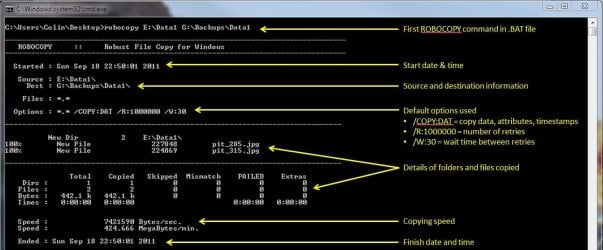
R1.JPG

The same information is repeated for every ROBOCOPY line in the .BAT file.


In order to utilise some of the powerful functionality in ROBOCOPY, I need to utilise some options in the ROBOCOPY command line. In this next example I want to edit my existing backup strategy such that:
  1. All sub-folders within my data folders are backed up, even if they are empty.
  2. The backup only copies newer files to my existing backup - this means a faster backup time.
  3. The percentage progress counter for copying is not shown - this neatens the overall appearance of the ROBOCOPY information, and creates a smaller log file.
  4. The information normally echoed to the cmd window is saved to a log file that I can examine at a later stage.
In order to do this, I need to specify some additional options in my ROBOCOPY commands like this:

Code:
robocopy E:\Data1 G:\Backups\Data1 [B][COLOR=red]/e /mir /np /log:backup_log.txt[/COLOR][/B]
robocopy F:\Data2 G:\Backups\Data2 [B][COLOR=red]/e /mir /np /log+:backup_log.txt[/COLOR][/B]
robocopy F:\Data3 Q:\Backups\Data3 [B][COLOR=red]/e /mir /np /log+:backup_log.txt[/COLOR][/B]
pause
Where:
/e = copy all sub-folders, even empty ones
/mir = mirror (check the files in the destination, and only copy newer files)
/np = no progress counter
/log: = create a logfile

   Tip

Note the use of the /log+: option in the 2nd and 3rd line of the .BAT file. This option ensures that the results of the 2nd and 3rd ROBOCOPY are appended to the log file created in the 1st ROBOCOPY line, meaning I only need one log file to capture all the information I backup.

The log file is always saved to the same folder as the .BAT file - in my case, the folder is saved to my Desktop.


Since the output from ROBOCOPY is written to the log file, the cmd window will not display the output from ROBOCOPY. If I wish to have this information written to both the log file and the cmd window for visual tracking of the backup process, then I can add the /tee option to each line in the .BAT file, as shown below.

Code:
robocopy E:\Data1 G:\Backups\Data1 /e /mir /np [B][COLOR=red]/te[/COLOR][COLOR=red]e[/COLOR][/B] /log:backup_log.txt
robocopy F:\Data2 G:\Backups\Data2 /e /mir /np [COLOR=red][B]/tee[/B][/COLOR] /log+:backup_log.txt
robocopy F:\Data3 Q:\Backups\Data3 /e /mir /np[COLOR=red][B] /tee[/B][/COLOR] /log+:backup_log.txt
pause
This is an example of the typical output to the the log file - it looks exactly the same as what is echoed to the cmd window.

Code:
-------------------------------------------------------------------------------
   ROBOCOPY     ::     Robust File Copy for Windows                              
-------------------------------------------------------------------------------
  Started : Sun Sep 18 23:35:01 2011
   Source : E:\Data1\
     Dest : G:\Backups\Data1\
    Files : *.*
 
  Options : *.* /S /E /COPY:DAT /PURGE /MIR /R:1000000 /W:30 
------------------------------------------------------------------------------
                    2 E:\Data1\
------------------------------------------------------------------------------
               Total    Copied   Skipped  Mismatch    FAILED    Extras
    Dirs :         1         0         1         0         0         0
   Files :         2         0         2         0         0         0
   Bytes :   442.1 k         0   442.1 k         0         0         0
   Times :   0:00:00   0:00:00                       0:00:00   0:00:00
   Ended : Sun Sep 18 23:35:01 2011
Since one of the data folders I am backing up is being copied across a network, I want to ensure that any possible network outages do not cause some critical files to be skipped in the backup. To do this, I can make use of the /z option in the 3rd line of my .BAT file (backup to my network storage) as shown below.

Code:
robocopy E:\Data1 G:\Backups\Data1 /e /mir /np /tee /log:backup_log.txt
robocopy F:\Data2 G:\Backups\Data2 /e /mir /np /tee /log+:backup_log.txt
robocopy F:\Data3 Q:\Backups\Data3 /e /mir /np [B][COLOR=red]/z[/COLOR][/B] /tee /log+:backup_log.txt
This option implements a "retry" for the copying. If I were part way through the copying process, and I lost connection with the network, then ROBOCOPY would automatically restart the copying at the point of failure once the network connection was re-established. It would retrying a million times every 30 seconds (the default settings shown in the image above). The only drawback with this option, is that it can significantly increase the backup time.

ROBOCOPY also has the ability to perform faster multi-threaded copying by simply using the option /mt. I can choose the number of threads to use by specifying a number between 1 and 128 after the /mt option, or if I just specify /mt without a number then the it will use 8 threads by default. In the example below, I use 4 threads to copy to my USB drive, and 8 threads (no number) to copy to my network drive.

Code:
robocopy E:\Data1 G:\Backups\Data1 /e /mir /np /tee [B][COLOR=red]/mt:4[/COLOR][/B] /log:backup_log.txt
robocopy F:\Data2 G:\Backups\Data2 /e /mir /np /tee [COLOR=red][B]/mt:4[/B][/COLOR] /log+:backup_log.txt
robocopy F:\Data3 Q:\Backups\Data3 /e /mir /np [COLOR=black]/z[/COLOR] /tee [COLOR=red][B]/mt[/B][/COLOR] /log+:backup_log.txt
Below is a template that you can use to create your own backup strategy using ROBOCOPY. Simply copy and paste the lines into a blank text document, and then edit as appropriate.

Code:
rem --- Edit the lines below to create your own backup strategy
rem --- The /mir option has been left out for safety sake
rem --- Add more lines for each new folder requiring backup
rem --- Specified 4 threads to use for multi-threaded copying
rem --- The results of the backup can be found in my_backup_log.txt 
robocopy <source> <destination> /e /np /tee /mt:4 /log:my_backup_log.txt
robocopy <source> <destination> /e /np /tee /mt:4 /log+:my_backup_log.txt
pause
   Tip

The can automate your backup's by using the Windows 7 Task Scheduler to run the .BAT file at specific times.

For more information please refer to this tutorial by Orbital Shark:
http://www.sevenforums.com/tutorials/12444-task-scheduler-create-new-task.html


I hope this brief tutorial helps you access the power and simplicity of ROBOCOPY to create some effective backup strategies.

Regards,
Golden
 
Last edited by a moderator:
Hi, No reply to my query from any expert. could i expect a reply
 

My Computer My Computer

At a glance

Microsoft Windows 7 Ultimate 64-bit 7601 Mult...Intel(R) Core(TM)2 Duo CPU E7200 @ 2.53GHz4.00 GBNVIDIA GeForce 210
Computer type
PC/Desktop
Computer Manufacturer/Model Number
custom build
OS
Microsoft Windows 7 Ultimate 64-bit 7601 Multiprocessor Free Service Pack 1
CPU
Intel(R) Core(TM)2 Duo CPU E7200 @ 2.53GHz
Motherboard
To be filled by O.E.M. To be filled by O.E.M.
Memory
4.00 GB
Graphics Card(s)
NVIDIA GeForce 210
Sound Card
(1) NVIDIA High Definition Audio (2) Realtek High Definiti
Screen Resolution
1920 x 1080 x 32 bits (4294967296 colors) @ 60 Hz
Hard Drives
ST3500312CS ATA Device
Hi, I know and read the tutorials and tried myself a bit copying using robocopy which is a free larger size copy commands at cmd.
i tried and copies so much files but now i am having issues with it.
I want to copy a logical drive totally to a ext hard disk and i used this formula, which came with error .
i miss something , would you please correct it
robocopy d:\ g:\appacomputer /E/copyall/dcopy:T
where my d:\ is a logical drive and g:\appacomputer is the destination folder (ext.hdd.disk).
what is the mistake in the formula, it gives error such as destination not specified etc..
Somewhere in some forum, i read it and made some slash changes, which immediately copied , but only the folders and sub folders without the files .
Immediate response would be helpful as, i want to take a backup of the drive , as i am facing data loss. pl
N.B: i want the date of folders and files of original date as at d: drive

You need spaces between /E/copyall/dcopy:T, like this:

D:\ G:\appacomputer /E /COPYALL /DCOPY:T
 

My Computer My Computer

At a glance

Windows 7 Ultimate x64 SP1Core i7 2600k (4.6GHz)16GB G.SKILL Ares 1600MHzMSI R6970 Lightning
Computer type
PC/Desktop
Computer Manufacturer/Model Number
Less is more
OS
Windows 7 Ultimate x64 SP1
CPU
Core i7 2600k (4.6GHz)
Motherboard
ASUS P8Z68 Deluxe (3603)
Memory
16GB G.SKILL Ares 1600MHz
Graphics Card(s)
MSI R6970 Lightning
Sound Card
Asus Xonar Essence ST (UNi drivers 1.41)
Monitor(s) Displays
Samsung P2570, CrossOver 27Q LED-P
Screen Resolution
1920*1080, 2560*1440
Hard Drives
256GB OCZ Vector, 2x Hitachi 4TB (7K4000), Hitachi 3TB (7K3000 & 5K3000)
PSU
Seasonic X750
Case
Lian-Li PC-P80N
Cooling
NZXT HAVIK 140 (2x GELID Wing12PL Push/Pull)
Keyboard
CM Storm Trigger (Brown Switch)
Mouse
Logitech G400
Internet Speed
55Mbps/10Mbps
Other Info
Speakers - Klipsch ProMedia 2.1
Headphones - Sennheiser HD595
Router - ASUS RT-N66U
Webcam - Logitech C910
Hi, Thanks for your reply at last.
Definitely i will try. But what is the error, that i committed and what would happen if i use my incorrect formula? This is for my learning
 

My Computer My Computer

At a glance

Microsoft Windows 7 Ultimate 64-bit 7601 Mult...Intel(R) Core(TM)2 Duo CPU E7200 @ 2.53GHz4.00 GBNVIDIA GeForce 210
Computer type
PC/Desktop
Computer Manufacturer/Model Number
custom build
OS
Microsoft Windows 7 Ultimate 64-bit 7601 Multiprocessor Free Service Pack 1
CPU
Intel(R) Core(TM)2 Duo CPU E7200 @ 2.53GHz
Motherboard
To be filled by O.E.M. To be filled by O.E.M.
Memory
4.00 GB
Graphics Card(s)
NVIDIA GeForce 210
Sound Card
(1) NVIDIA High Definition Audio (2) Realtek High Definiti
Screen Resolution
1920 x 1080 x 32 bits (4294967296 colors) @ 60 Hz
Hard Drives
ST3500312CS ATA Device
Hi, why no reply was given for the sub query please
 

My Computer My Computer

At a glance

Microsoft Windows 7 Ultimate 64-bit 7601 Mult...Intel(R) Core(TM)2 Duo CPU E7200 @ 2.53GHz4.00 GBNVIDIA GeForce 210
Computer type
PC/Desktop
Computer Manufacturer/Model Number
custom build
OS
Microsoft Windows 7 Ultimate 64-bit 7601 Multiprocessor Free Service Pack 1
CPU
Intel(R) Core(TM)2 Duo CPU E7200 @ 2.53GHz
Motherboard
To be filled by O.E.M. To be filled by O.E.M.
Memory
4.00 GB
Graphics Card(s)
NVIDIA GeForce 210
Sound Card
(1) NVIDIA High Definition Audio (2) Realtek High Definiti
Screen Resolution
1920 x 1080 x 32 bits (4294967296 colors) @ 60 Hz
Hard Drives
ST3500312CS ATA Device
I am not an expert, but I am not sure what you are asking. You want to know what would happen if you use an incorrect formula? If it is not correct, why would you want to use it because it will not give you the results you want.

I have been told it will work, but I have always had problems copying a drive to a drive. The tutorial says Robocopy is basically a folder to folder copy and that is the way I use it. Using it as a folder to folder copy works very well and I never have problems. Using it as a drive copy I have always had issues, but again, have been told it can be done.

In any command with robocopy or anything else, it requires the correct syntax. The commands have to be exact, written in the correct format. Any deviation, spacing, order or spelling mistake will create an error or do something you did not intend.
 

My Computers My Computers

  • At a glance

    Windows 11 ProRyzen 9 5900X32GB G Skill DDR4-3600EVGA RTX 3080 FTW 3 Ultra
    Computer type
    PC/Desktop
    Computer Manufacturer/Model Number
    ALWAYS UNDER CONSTRUCTION
    OS
    Windows 11 Pro
    CPU
    Ryzen 9 5900X
    Motherboard
    Asus X570 Crosshair Viii Hero
    Memory
    32GB G Skill DDR4-3600
    Graphics Card(s)
    EVGA RTX 3080 FTW 3 Ultra
    Sound Card
    On Board/Sennheiser PC37X Headset
    Monitor(s) Displays
    3 X Asus 27"
    Screen Resolution
    2560x1440
    Hard Drives
    2 X 1 TB NVME drives
    PSU
    EVGA 850
    Case
    Phanteks Eclipse P400A
    Cooling
    EVGA 280 AIO
    Keyboard
    Logitech G510s/ Logitech G13
    Mouse
    Logitech G502
    Internet Speed
    24/1
    Antivirus
    ESET/MBAM Pro/SAS Pro
    Browser
    Chrome/ Firefox/ Edge
  • At a glance

    Windows 11 ProIntel Ultra 9 288V32 GB LPDDR5X 8533
    Computer type
    Laptop
    System Manufacturer/Model Number
    Dell 16 Plus
    OS
    Windows 11 Pro
    CPU
    Intel Ultra 9 288V
    Memory
    32 GB LPDDR5X 8533
    Monitor(s) Displays
    16" Mini-LED HDR600 Touch 90 Hz
    Screen Resolution
    2560X1600
    Hard Drives
    1 TB NVME
Hi, Thanks for your reply at last.
Definitely i will try. But what is the error, that i committed and what would happen if i use my incorrect formula? This is for my learning

It's hard to help with why you got the error as you haven't posted the actual error message you got (from what i can see) but the chances are the syntax was incorrect as per 0pTicaL response.

As per essenbe's response, if you run a command with an incorrect syntax it could just simply fail and do nothing or could actually run but under the wrong instructions / conditions and create an undesirable result such as duplicated, deleted or missing files etc...

The safest thing to do would be to test/learn on a test set of data or a different laptop/pc where possible until you are confident.
 

My Computer My Computer

At a glance

Windows 8.1 Pro x64Intel Core i5-2500K @ 3.30GHz - S11558GB Corsair DDR3 XMS3, PC3-12800NVIDIA GeForce GTX 650
Computer type
PC/Desktop
Computer Manufacturer/Model Number
Self Built
OS
Windows 8.1 Pro x64
CPU
Intel Core i5-2500K @ 3.30GHz - S1155
Motherboard
Asus P8P67 LE Rev3, Intel P67, S115
Memory
8GB Corsair DDR3 XMS3, PC3-12800
Graphics Card(s)
NVIDIA GeForce GTX 650
Sound Card
On-Board
Monitor(s) Displays
3 x 24" {Extended Display}
Screen Resolution
1920 x 1080
Hard Drives
300GB Seagate Barracuda 7200
PSU
550W Coolermaster GX550
Case
Silverstone Precision PS04B
Cooling
Stock
Keyboard
Logitech K120
Mouse
World of Warcraft Cataclysm MMO Gaming Mouse
Internet Speed
80 MB
Antivirus
MSE / Windows Defender
Browser
Chrome
Hi, Essenbe, Your formula is correct. Why i have asked you is , it just not only copies the desired folder in the source, but tries to over copy something more, which resulted in error, waiting messages and not going further.
I just used your formula to retain the date of folder creation in a folder , source: external Hard drive. It was getting well with copying speed and correct. All of a sudden, i get error message, that the computer drive to which i am copying from source, space not enough and waiting for 30 seconds repeating the same thing over looping and again.. It was a backup file from macrium reflect, which i have not selected for copying.
I just quit , but found what i wanted. The other file had not been copied for want of space and so, it was enough that i got what i want, maintaining the date of folder creation. I wish to point out, that this folder was not visible at first. I just went to the folders and option menu to show all the files , to see the files.
 

My Computer My Computer

At a glance

Microsoft Windows 7 Ultimate 64-bit 7601 Mult...Intel(R) Core(TM)2 Duo CPU E7200 @ 2.53GHz4.00 GBNVIDIA GeForce 210
Computer type
PC/Desktop
Computer Manufacturer/Model Number
custom build
OS
Microsoft Windows 7 Ultimate 64-bit 7601 Multiprocessor Free Service Pack 1
CPU
Intel(R) Core(TM)2 Duo CPU E7200 @ 2.53GHz
Motherboard
To be filled by O.E.M. To be filled by O.E.M.
Memory
4.00 GB
Graphics Card(s)
NVIDIA GeForce 210
Sound Card
(1) NVIDIA High Definition Audio (2) Realtek High Definiti
Screen Resolution
1920 x 1080 x 32 bits (4294967296 colors) @ 60 Hz
Hard Drives
ST3500312CS ATA Device
I'm glad it helped you. It is the switches that determines what is copied and how it does it. It will copy the folder and everything inside it. For instance, if you want the destination folder to be an exact duplicate of the source folder, I use the /mir switch.The /mir switch is mirror. But you always have to make sure you have the space on the destination drive. Post #1 in this thread tells what many of the switches do. This Technet article will explain more Robocopy. Just keep it a simple as possible.
 

My Computers My Computers

  • At a glance

    Windows 11 ProRyzen 9 5900X32GB G Skill DDR4-3600EVGA RTX 3080 FTW 3 Ultra
    Computer type
    PC/Desktop
    Computer Manufacturer/Model Number
    ALWAYS UNDER CONSTRUCTION
    OS
    Windows 11 Pro
    CPU
    Ryzen 9 5900X
    Motherboard
    Asus X570 Crosshair Viii Hero
    Memory
    32GB G Skill DDR4-3600
    Graphics Card(s)
    EVGA RTX 3080 FTW 3 Ultra
    Sound Card
    On Board/Sennheiser PC37X Headset
    Monitor(s) Displays
    3 X Asus 27"
    Screen Resolution
    2560x1440
    Hard Drives
    2 X 1 TB NVME drives
    PSU
    EVGA 850
    Case
    Phanteks Eclipse P400A
    Cooling
    EVGA 280 AIO
    Keyboard
    Logitech G510s/ Logitech G13
    Mouse
    Logitech G502
    Internet Speed
    24/1
    Antivirus
    ESET/MBAM Pro/SAS Pro
    Browser
    Chrome/ Firefox/ Edge
  • At a glance

    Windows 11 ProIntel Ultra 9 288V32 GB LPDDR5X 8533
    Computer type
    Laptop
    System Manufacturer/Model Number
    Dell 16 Plus
    OS
    Windows 11 Pro
    CPU
    Intel Ultra 9 288V
    Memory
    32 GB LPDDR5X 8533
    Monitor(s) Displays
    16" Mini-LED HDR600 Touch 90 Hz
    Screen Resolution
    2560X1600
    Hard Drives
    1 TB NVME
Hi, Thanks once again.
I understand folder include sub folders and file in it.....
But what it copies is the files outside this folder that caused me the concern.
as already said, i first found out the folder , which was hidden in the ext.hdd.
This i could guess from the storage shown.
Then i used the folder copy to the computer to retain the date of creation, ie, date stamp.
It copied taking less time the entire folder i selected. But , after finishing it, it tries the other files present in outside this folder. Your command gives exact. source folder g:\xxxx destination d:\.
But it tries to copy a backup file, stored elsewhere on the same ext.hdd.
This , i could not guess.
The back up was created by using acronis application and stored in the ext.hdd for security backup purpose.I think that it mrmg. extension file, which normally is a large size file about 18 gb size.
So, while copying this file, i got the error and i quit.
I got all i wanted, as it copied the contents of the g:\xxxx folder.
am i making it clear
Your formula is simple to understand than the one at the link you give. It does not convey correctly.
 

My Computer My Computer

At a glance

Microsoft Windows 7 Ultimate 64-bit 7601 Mult...Intel(R) Core(TM)2 Duo CPU E7200 @ 2.53GHz4.00 GBNVIDIA GeForce 210
Computer type
PC/Desktop
Computer Manufacturer/Model Number
custom build
OS
Microsoft Windows 7 Ultimate 64-bit 7601 Multiprocessor Free Service Pack 1
CPU
Intel(R) Core(TM)2 Duo CPU E7200 @ 2.53GHz
Motherboard
To be filled by O.E.M. To be filled by O.E.M.
Memory
4.00 GB
Graphics Card(s)
NVIDIA GeForce 210
Sound Card
(1) NVIDIA High Definition Audio (2) Realtek High Definiti
Screen Resolution
1920 x 1080 x 32 bits (4294967296 colors) @ 60 Hz
Hard Drives
ST3500312CS ATA Device
Really it should not copy anything you did not tell it to copy. Mine never does. I really don't have any idea why it would do that. I would check the path for your source folder to make sure it is correct.
 

My Computers My Computers

  • At a glance

    Windows 11 ProRyzen 9 5900X32GB G Skill DDR4-3600EVGA RTX 3080 FTW 3 Ultra
    Computer type
    PC/Desktop
    Computer Manufacturer/Model Number
    ALWAYS UNDER CONSTRUCTION
    OS
    Windows 11 Pro
    CPU
    Ryzen 9 5900X
    Motherboard
    Asus X570 Crosshair Viii Hero
    Memory
    32GB G Skill DDR4-3600
    Graphics Card(s)
    EVGA RTX 3080 FTW 3 Ultra
    Sound Card
    On Board/Sennheiser PC37X Headset
    Monitor(s) Displays
    3 X Asus 27"
    Screen Resolution
    2560x1440
    Hard Drives
    2 X 1 TB NVME drives
    PSU
    EVGA 850
    Case
    Phanteks Eclipse P400A
    Cooling
    EVGA 280 AIO
    Keyboard
    Logitech G510s/ Logitech G13
    Mouse
    Logitech G502
    Internet Speed
    24/1
    Antivirus
    ESET/MBAM Pro/SAS Pro
    Browser
    Chrome/ Firefox/ Edge
  • At a glance

    Windows 11 ProIntel Ultra 9 288V32 GB LPDDR5X 8533
    Computer type
    Laptop
    System Manufacturer/Model Number
    Dell 16 Plus
    OS
    Windows 11 Pro
    CPU
    Intel Ultra 9 288V
    Memory
    32 GB LPDDR5X 8533
    Monitor(s) Displays
    16" Mini-LED HDR600 Touch 90 Hz
    Screen Resolution
    2560X1600
    Hard Drives
    1 TB NVME
This is the exact formula i used to copy. Please give corrections to it
G:\appapcddrive D:\ /E /COPYALL /DCOPY:T
where g is the source and d is the destination drive is the spacing correct. please
 

My Computer My Computer

At a glance

Microsoft Windows 7 Ultimate 64-bit 7601 Mult...Intel(R) Core(TM)2 Duo CPU E7200 @ 2.53GHz4.00 GBNVIDIA GeForce 210
Computer type
PC/Desktop
Computer Manufacturer/Model Number
custom build
OS
Microsoft Windows 7 Ultimate 64-bit 7601 Multiprocessor Free Service Pack 1
CPU
Intel(R) Core(TM)2 Duo CPU E7200 @ 2.53GHz
Motherboard
To be filled by O.E.M. To be filled by O.E.M.
Memory
4.00 GB
Graphics Card(s)
NVIDIA GeForce 210
Sound Card
(1) NVIDIA High Definition Audio (2) Realtek High Definiti
Screen Resolution
1920 x 1080 x 32 bits (4294967296 colors) @ 60 Hz
Hard Drives
ST3500312CS ATA Device
Try this if those are the switches you want to use. Create a folder on your D Drive and name it backup (or whatever you want)

Robocopy G:\appapcddrive D:\backup \e \copyall \Dcopy:T /log:backup_log.txt

This will also make a log of what was done. If anything goes wrong you can see where it happened.

If it works, you can also copy/paste this into notepad and name it whatever you want with a .bat extension and just click that and it will run by itself. The echo is if you want to watch what it does in a command window. If you don't make it echo off.

Code:
echo
Robocopy G:\appapcddrive D:\backup \e \copyall \Dcopy:T /log:backup_log.txt
pause
 

My Computers My Computers

  • At a glance

    Windows 11 ProRyzen 9 5900X32GB G Skill DDR4-3600EVGA RTX 3080 FTW 3 Ultra
    Computer type
    PC/Desktop
    Computer Manufacturer/Model Number
    ALWAYS UNDER CONSTRUCTION
    OS
    Windows 11 Pro
    CPU
    Ryzen 9 5900X
    Motherboard
    Asus X570 Crosshair Viii Hero
    Memory
    32GB G Skill DDR4-3600
    Graphics Card(s)
    EVGA RTX 3080 FTW 3 Ultra
    Sound Card
    On Board/Sennheiser PC37X Headset
    Monitor(s) Displays
    3 X Asus 27"
    Screen Resolution
    2560x1440
    Hard Drives
    2 X 1 TB NVME drives
    PSU
    EVGA 850
    Case
    Phanteks Eclipse P400A
    Cooling
    EVGA 280 AIO
    Keyboard
    Logitech G510s/ Logitech G13
    Mouse
    Logitech G502
    Internet Speed
    24/1
    Antivirus
    ESET/MBAM Pro/SAS Pro
    Browser
    Chrome/ Firefox/ Edge
  • At a glance

    Windows 11 ProIntel Ultra 9 288V32 GB LPDDR5X 8533
    Computer type
    Laptop
    System Manufacturer/Model Number
    Dell 16 Plus
    OS
    Windows 11 Pro
    CPU
    Intel Ultra 9 288V
    Memory
    32 GB LPDDR5X 8533
    Monitor(s) Displays
    16" Mini-LED HDR600 Touch 90 Hz
    Screen Resolution
    2560X1600
    Hard Drives
    1 TB NVME
ROBOCOPY PROGRESS

Hello

I have a menu that I use at work for testing and accessing other systems.
I input the systems NAME or IP and I have a list of tools I can run.
One item in my TOOLS MENU is ROBOCOPY it is listed below here.

Can I add a ETA or better yet a progress bar?

=====MY SCRIPT -

:ROBOCOPY
set /P source=Enter Source Folder^>
set /P target=Enter \Install\Target Folder Name^>
robocopy "%source%" "\\%host%\c$\Install\%target%" /mir /ETA /r:1 /w:1
goto:options

Thank you all for all your help
 

My Computer My Computer

At a glance

Windows 7 pro (64bit)
OS
Windows 7 pro (64bit)
Back
Top