RS232 problem

barend

New member
Member
VIP
Local time
7:46 AM
Messages
126
This is for the really old hands...:D

Got this Seiko labelprinter on Com4 (hispeed pci serial card).
My mobo is Asus P5Q3 wifi-ap deluxe.
I am always on a hell of a ride before I get this to work, these are the options shown in device mgr.:
bps 9600...115200 (several tried)
databits 8
parity none
stop bits 1
flow control none/hardware/xon-xoff (think hardware was the control of choice when it at at last worked for prior W7 installs: Beta, RC, W7)
Com 4

Msg "printer communication error".
Only possible setting on the printer is the com port.

Now I can try for days changing this and that and maybe as before it starts to work "just like that", but it is annoying: I had a crash and reinstalled W7 Ultimate.

W7 gives me a choice of two universal drivers, V8 and V10, tried to change to V8 but that doesn't change anything.

Anyone?
 

My Computer

OS
Windows 7
Normally you don't need to change settings on the port itself. I would look towards a driver issue here (check for drivers for the printer itself that are comparable with W7)
 

My Computer

Computer Manufacturer/Model Number
Proline
OS
Windows 7 Pro 64 bit
CPU
Intel(R) Core(TM) i7 CPU 870 @ 2.93GHz
Motherboard
H55-G43(MS-7638)
Memory
4GB
Graphics Card(s)
NVIDIA GeForce GTX 470
Sound Card
Onboard
Monitor(s) Displays
Proline LCD 19 inch
Screen Resolution
1280 x 1024
Hard Drives
2 x SATA 250 Gig 1 x External 2TB
PSU
RX 730 SS
Case
Proline
Cooling
Standard
Keyboard
PS2
Mouse
PS2
Internet Speed
To embarrassed to tell lol
Thanks!
Nothing here is compatible with W7, it was made in the early Windows 95 days!
Below is from the readme.
Haven't got a clue how to disable fifo, as there's no option for it in the device mgr, on itself or under the Com4.

Windows 3.x users should add a COMxFIFO=0 statement in the 386 enhanced section of your SYSTEM.INI file (substitute the x with the appropriate COM port--e.g. COM2FIFO=0). For more on this option, read the SYSINI.WRI file in your Windows directory.

Windows 95 users can disable COMFIFO by following these steps:
1. From the Start Menu, Select Settings-->Control Panel
2. Double Click on the System Icon
3. From the System Dialog Select the Device Manager Tab.
4. Click the "+" by "Ports (COM & LPT) in the device list.
5. Select the COM Port to which the SLP is connected and click the Properties button.
6. In the Communication Port Properties Dialog select the Port Settings tab.
7. Click the Advanced button.
8. In the Advanced Port Settings dialog, clear the "Use FIFO buffers" checkbox.
Windows NT 4.0 users can disable COMFIFO by following these steps:
1. From the Start Menu, Select Settings-->Control Panel
2. Double Click on the "Ports" Icon
3. Select the COM Port to which the SLP is connected and click the "Settings..." button.
4. Click the Advanced button.
5. In the Advanced Port Settings dialog, clear the "FIFO Enabled" checkbox.
 

My Computer

OS
Windows 7
Right click on Computer
Select Properties
Select Device manager
Expand Ports and right click on the Com port you are trying to use.
Select Properties
Select the Port Settings Tab
Select advanced
Uncheck Use FIFO buffers.
 

My Computer

Computer type
PC/Desktop
Computer Manufacturer/Model Number
Custom Built
OS
Windows 10 Pro x64, Windows 8.1 Pro x64, Windows 7 Ultimate x64 SP1,
CPU
INTEL i9-7920X LGA 2066
Motherboard
Gigabyte X299-WU8 F3
Memory
64 GB (4 X 16 GB) G-Skill V Series DDR4 3200 Quad Channel
Graphics Card(s)
EVGA GTX 1060 SC 3 GB
Sound Card
Realtek Onboard ALC1220
Monitor(s) Displays
2 x Samsung S27E310
Screen Resolution
1920x1080
Hard Drives
Samsung 2 x 970 EVO Plus 500 GB NVMe
1 x 6TB WD 6003FZBX SATA
1 x 6TB WD 60EFRX SATA
12 x 3TB WD 30EFRX SATA
PSU
Seasonic X-1050
Case
Thermaltake Armor+
Cooling
Corsair H80i V2 Liquid AOI Cooler
Keyboard
Logitech G510s
Mouse
Logitech MX Master 2S
Internet Speed
200 Mb/s
Antivirus
ESET NOD32 13.1
Browser
EDGE (Dev, Canary, Beta), Chrome
Other Info
ASUS RT-AC68U router
Malwarebytes 4.0.4
Thanks,

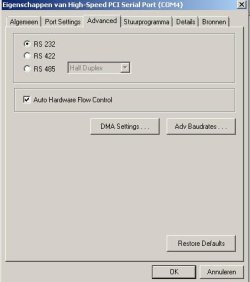
Had a look for the 100th time and I actually managed to overlook one option: auto flow control...
Now it's working ! :D
 

Attachments

  • screenshot.jpg
    screenshot.jpg
    18.3 KB · Views: 137

My Computer

OS
Windows 7
Back
Top