Safe removal of Vista partition on a Dual Boot.

Use Win7 Professional x64 English Official ISO Download

Write to stick or burn to DVD using tool provided in Step 2 of Clean Reinstall - Factory OEM Windows 7.

F12 Diagnostics should have tested all of your hardware. Did it offer that option? Either way it's up to you if you want to keep that partition since other bootable hardware tests exist, especially if its only offering a HD test. In that case it would be better to delete all partitions to get it cleanest.

As to your backup, its always good to browse in to see that your files are all there. The tutorial Clean Reinstall - Factory OEM Windows 7 provides a checklist of everything that needs to be remembered since it compiles the experiences of thousands of installs including ones where data was accidentally left behind. So double check against the steps.

Keep asking back questions as we will help see that you get it perfect.

Most important is to put your network adapter driver in the backup so if it isn't provided during install you can install it to get online, enable Automatically deliver drivers via Windows Update (Step 3),
then run all rounds of Important and Optional WIndows Update, with reboots, until there are no more when you Check for Updates. You can do these as you set up your desktop and isntall other programs, but since you had problems with your last install I would allow time between each group of Updates and then each program install to see which, if any, is affecting performance.

If you want to try to repair your existing OS you can try a Repair Install but since it reinstalls Windows while keeping everything in-place it might not help if you have corrupt settings or botched the install otherwise, plus it will probably take nearly as long.
 
Hi Greg

F12 didn't give me any options - it just did its test, I think, of just the HD drive.

I will check the tutorials you recommend but I'm getting well outside my comfort zone here; it's getting a bit too technical for me.

But it is getting late here so I'll look at it afresh in the morning. I'll just follow Clean Reinstall - Factory OEM Windows 7 as best I can.

Thanks for your help.
 

My Computer My Computer

At a glance

Windows 7 Professional 64 bit2.13 Ghz Intel6 GB
Computer type
PC/Desktop
Computer Manufacturer/Model Number
Dell
OS
Windows 7 Professional 64 bit
CPU
2.13 Ghz Intel
Memory
6 GB
Hard Drives
300 GB
Antivirus
Microsoft Essentials
Browser
Chrome
If you have a Dell then reboot and hold the F12 key down. It should show a Boot menu of your attached devices.

If not reboot and tap the F2 key or whichever is listed to Enter BIOS setup. Look for a setting to enable F12 menu, Save Changes and Exit.

Rather than assuming that it's too technical for you, keep asking back questions to see if you can learn. If not then you'll know its too technical for you.

This is the top technical forums on the web, considered by MS to be the best ever with top experts in every field. Why be any less than confident. We will not let you fail.
 
Hi Greg

I've certainly learned a lot in this excellent forum.

I've now entered BIOS which confirmed f2 and f12 menus to be active. So I've now gone back into f12 so I can let you know exactly what I get.

The Boot Device Menu is giving me 5 options - Intel Array; Onboard or USB CD-ROM drive; System Setup; Hard Drive Diagnostics; Boot to Utility Partition.

I ran the HDD option yesterday. The first info received was: Drive 0: WDC WD1600JS-75NCB3 - Pass. Then Drive 1 (same reference) - Pass. Then drives 2, 3, 4, & 5; for 2 & 3 (disk drives) diagnostics were not supported. Drives 4 & 5 had no device.

I was then invited to press Enter to reboot. As I said yesterday there was no window produced and the process was totally different to that should on YouTube.

From here I will download and burn the ISO file and I will check my backup files. I'll let you know what I see in the Backup and hold until I see your reply as I'm uncertain about steps 4 & 5 in the Clean Reinstall menu

I'll hold at that point until I hear back from you

UPDATE:

I've looked at the backup files but they mean nothing to me. Can you tell from the snips below if I've got everything I need, including bookmarks, Outlook data, etc?

FURTHER UPDATE:

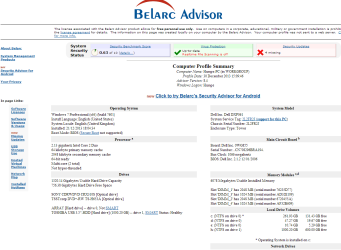
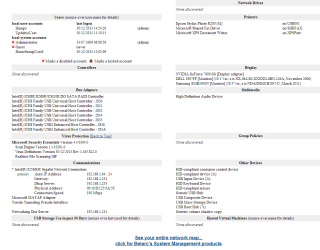
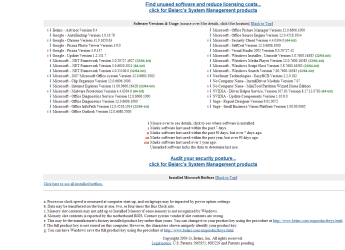
Have now attached Belarc report. Would you mind guiding me through what I need to do with the results? Thank you.
 

Attachments

  • Capture2.PNG
    Capture2.PNG
    16.2 KB · Views: 0
  • Capture3.PNG
    Capture3.PNG
    27 KB · Views: 0
  • Capture4.PNG
    Capture4.PNG
    40.6 KB · Views: 0
  • Capture5.PNG
    Capture5.PNG
    32.7 KB · Views: 0
  • Capture6.PNG
    Capture6.PNG
    34.3 KB · Views: 0
  • Capture7.PNG
    Capture7.PNG
    36.1 KB · Views: 0
Last edited:

My Computer My Computer

At a glance

Windows 7 Professional 64 bit2.13 Ghz Intel6 GB
Computer type
PC/Desktop
Computer Manufacturer/Model Number
Dell
OS
Windows 7 Professional 64 bit
CPU
2.13 Ghz Intel
Memory
6 GB
Hard Drives
300 GB
Antivirus
Microsoft Essentials
Browser
Chrome
On that model, to get the full diagnostics you'll need to choose Boot to Utility Partition and select the full range of tests.

Please remove the Belarc report to protect your Windows 7 and Office Product Keys.

What type of Win7 OEM key are you using to activate the WIn7 install? That would normally be for builder's OEM or preinstalled factory OEM.

I would use the method for backing up your files in the tutorial and not use Windows Backup which can lose your data. Simply organize your files into their respective User folders and then drag or copy those to the storage drive. Anything else needing backup is in the tutorial.

I see you made a backup image - is this for Vista or the bad Win7 install? You'd really only want to keep Vista image in case you didn't make your Vista Recovery disks, so you have a path back if you ever want to sell the machine with the native license. Or you can always Clean Reinstall Vista like you're doing Win7.
 
Thanks. I'm doing the quick test now - or did you want me to carry out the extended test?

Regarding backup - I did a manual backup of Vista but it was no more than copying the contents of the C Drive (as it was) and pasting it to my external drive. I don't know if everything is there as I didn't have the knowledge then that I have now.

I'll do a further backup of my current C Drive as you say.

The backup image I made was of my current C Drive under Seven. I have no other backups.

I have the Win7 reinstallation DVD (red one).
 

My Computer My Computer

At a glance

Windows 7 Professional 64 bit2.13 Ghz Intel6 GB
Computer type
PC/Desktop
Computer Manufacturer/Model Number
Dell
OS
Windows 7 Professional 64 bit
CPU
2.13 Ghz Intel
Memory
6 GB
Hard Drives
300 GB
Antivirus
Microsoft Essentials
Browser
Chrome
I'd run the Extended test located on the Utility partition of all the hardware to check its condition, and know that the OEM tools partition is worth keeping for these valuable diagnostics which happen to be able to run after a clean install on the rest of the drive.
 
OK. Running extended now.

I wasn't given any results to play with after the quick test. Hopefully the extended test will give me something so that I can act on it as you suggest.

Earlier I restarted the Windows Installer in Services, rebooted, but my programs still won't load.

Is there anything else you wish to comment on following my ramblings?

LATER: I've now run the extended version. The test completed but again didn't display any results.

Is there any way I can re-install the Windows Installer as, at least, I could catch up with some work before I continue the reinstall? I restarted Windows Installer and the RPC because it was a dependancy - but it made no difference.
 
Last edited:

My Computer My Computer

At a glance

Windows 7 Professional 64 bit2.13 Ghz Intel6 GB
Computer type
PC/Desktop
Computer Manufacturer/Model Number
Dell
OS
Windows 7 Professional 64 bit
CPU
2.13 Ghz Intel
Memory
6 GB
Hard Drives
300 GB
Antivirus
Microsoft Essentials
Browser
Chrome
Hi Greg

I realise you're very busy and for me to ask back questions it was going to take for ever to complete the reinstallation.

So I've done a simple clean install of Win7 and Windows Installer is working again.

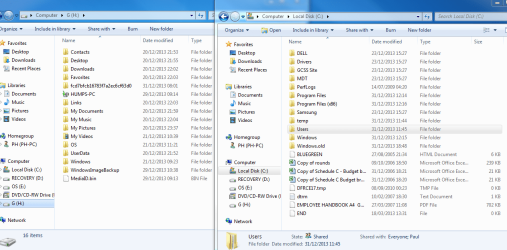
I just need guidance now on which part of the old backed-up Vista drive I should move across. The User files are obvious but what other folders do I need to move in order to get my browser bookmarks, Outlook data and any other settings I may have had previously?

I've attach a snip showing the folders in C and in G. It seems that a few files that were saved directly to the C drive have been retained!!
 

Attachments

  • Capture.PNG
    Capture.PNG
    54.7 KB · Views: 0

My Computer My Computer

At a glance

Windows 7 Professional 64 bit2.13 Ghz Intel6 GB
Computer type
PC/Desktop
Computer Manufacturer/Model Number
Dell
OS
Windows 7 Professional 64 bit
CPU
2.13 Ghz Intel
Memory
6 GB
Hard Drives
300 GB
Antivirus
Microsoft Essentials
Browser
Chrome
I had already addressed this earlier so hope you followed the tutorial to assure you get and keep a perfect install:

As to your backup, its always good to browse in to see that your files are all there. The tutorial Clean Reinstall - Factory OEM Windows 7 provides a checklist of everything that needs to be remembered since it compiles the experiences of thousands of installs including ones where data was accidentally left behind. So double check against the steps. .

It explains in the tutorial how to easily copy back into the new User folders their content from the backup. Just Select All in each folder, left-click-hold and drag the content to the corresponding User folder on the left-hand Explorer bar, don't release left-click til it confirms destination folder in the hypertext.

I hope you deleted all partitions during the booted install. If in doubt post back a screenshot of Disk Management - Post a Screen Capture Image
 
Been working on it all day, but nearly there. Its not quite as straightforward when your files are all over the place but I've finally managed to track them all down and relocate them. The pst files have been a particular nightmare but I think all the important stuff is there.

I haven't deleted the other partitions yet but plan to do so with the PIW shortly. I assume that's just as effective?
 

My Computer My Computer

At a glance

Windows 7 Professional 64 bit2.13 Ghz Intel6 GB
Computer type
PC/Desktop
Computer Manufacturer/Model Number
Dell
OS
Windows 7 Professional 64 bit
CPU
2.13 Ghz Intel
Memory
6 GB
Hard Drives
300 GB
Antivirus
Microsoft Essentials
Browser
Chrome
May I ask why you didn't follow the tutorial to back up your files ahead of time, then delete all partitions except the Dell OEM partition to do a booted Clean Install Windows 7?

By not doing so you've made it much more unnecessarily complicated.

To remove the other useless partitions when ready we need to see a screenshot of Disk Management - Post a Screen Capture Image to see how it has changed. Post it up now so we can see if there are any other more serious problems since you're clearly not following steps.
 
The reason I didn't follow the steps is because I came up against issues that I needed clarification on as the process didn't flow exactly as set out in the procedures. Only minor points, but I was trying to do everything precisely as stated (for example, the fact that the full f12 test didn't produce a report).

As you suggested, I did ask back questions but I'm sure you are busy dealing with lots of dummies like me and I couldn't afford the time to wait for your answer.

So I decided on this course as it would at least give me a functioning PC which I can work upon whilst attending to those other issues (eg Updates, moving Outlook files, etc).

Anyway, here's a snip of where we stand now.

Regards.
 

Attachments

  • Capture1.PNG
    Capture1.PNG
    24.9 KB · Views: 4
Last edited:

My Computer My Computer

At a glance

Windows 7 Professional 64 bit2.13 Ghz Intel6 GB
Computer type
PC/Desktop
Computer Manufacturer/Model Number
Dell
OS
Windows 7 Professional 64 bit
CPU
2.13 Ghz Intel
Memory
6 GB
Hard Drives
300 GB
Antivirus
Microsoft Essentials
Browser
Chrome
Make sure you have a backup of your files externally. Partition Wizard boot disk has never failed in tens of thousands of operations we've helped with here, but we still need to say that. All other partition managers including PW installed version can fail with data loss, except Disk Mgmt which can't do these operations.

Boot into a Elevated Command Prompt to Mark G Partition Inactive - Windows 7 Forums

Power down to unplug Disk1, boot PW CD, rightclick Recovery and Vista partitions to Delete, click OK after each. Apply steps for both.

Now rightclick on Win7 partition to Resize, drag left border all the way to the left to take up the deleted Recovery and VIsta space: Partition Wizard to Resize Partition - Video Help. Apply step.

Win7 should boot but if not boot its installation media or Repair CD to run Startup Repair until it starts.

I would then go over the rest of the steps from Clean Reinstall - Factory OEM Windows 7 to assure you get and keep a perfect install.
 
Hi Greg

Haven't had the opportunity yet to delete the other partition but have done a backup with system image. Currently removing duplicates in Outlook using a neat little free tool from Remove duplicate emails in Outlook 2010 and 2013 quickly and safely

I've also downloaded the other tools you recommended and have also downloaded WinMerge. I assume this is the right tool for identifying all the duplicate files that now exist on my C drive. Would you please let me know if this is the correct action to take.

Also, how long do you recommend I leave it until I delete the windows.old folder that was created during the reinstall?
 

My Computer My Computer

At a glance

Windows 7 Professional 64 bit2.13 Ghz Intel6 GB
Computer type
PC/Desktop
Computer Manufacturer/Model Number
Dell
OS
Windows 7 Professional 64 bit
CPU
2.13 Ghz Intel
Memory
6 GB
Hard Drives
300 GB
Antivirus
Microsoft Essentials
Browser
Chrome
You ignore our steps, don't appear to have even looked at the tutorial which has guided tens of thousands of users to get and keep a perfect install. I also gave you customized steps to get rid of Vista which you ignore, asking back how to fix your mess because you haven't followed any of our advice. Why would you come to the top site for reinstalling Windows and just blithely ignore all advice for doing it correctly?

Everything is outlined for how to prepare for, get and keep and perfect install in http://www.sevenforums.com/tutorials/219487-clean-reinstall-factory-oem-windows-7-a.html#post1839164
Nobody who has followed it has ever reported back duplicate files and emails. Not once.

Why make a Win7 backup image of an install which is still being booted by Vista if the plan was to remove Vista? Your backup was to have been done following the steps in the tutorial which compile everything not to forget.

And you'd save windows.old for as long as it takes to know for sure you have everything.
 
With the greatest respect Greg, as I have said before, I only diverted from your excellent tutorial because you were unable to respond promptly to my back questions regarding it. I asked quite a few questions and all the time my PC wasn't working. It's not your fault you can't respond for over 24 hours at times; had you been able to then I would certainly followed through on the Tutorial, which I must have read 3 or 4 times now.

So I made the conscious decision to abandon the Clean Reinstall and get myself back to the point where I was when you first intervened in this post in the knowledge that there would be a "mess" to sort out but at least I'd have access I'd need to all the programs I need to do my job.

You seem upset that I have gone down a different path but I'm sure that, on reflection, you will understand why I had to go that way. I followed your advice to the letter up to that point, even taking the external backup mentioned in your penultimate post - which now appears to be wrong......."Make sure you have a backup of your files externally".

Anyway, there's no need for me to be defensive; I'm less stressed now than I was New Year's Eve when I was checking my emails every 30 minutes to see what I should do because the f12 extended diagnostic didn't throw up any results.

That's not a complaint - I'm very grateful for your support.

The duplicate files haven't been created by the install, they were on my old PC too. I just never got round to sorting it. Now, with my greater knowledge as a result of reading every link in your tutorial, I am wondering if the WinMerge app is what I need to do the job.
 

My Computer My Computer

At a glance

Windows 7 Professional 64 bit2.13 Ghz Intel6 GB
Computer type
PC/Desktop
Computer Manufacturer/Model Number
Dell
OS
Windows 7 Professional 64 bit
CPU
2.13 Ghz Intel
Memory
6 GB
Hard Drives
300 GB
Antivirus
Microsoft Essentials
Browser
Chrome
Another question: In your penultimate post you said : Boot into a Elevated Command Prompt to Mark G Partition Inactive - Windows 7 Forums. The G partition is my external hard drive; Is it not sufficient to just disconnect it?
 

My Computer My Computer

At a glance

Windows 7 Professional 64 bit2.13 Ghz Intel6 GB
Computer type
PC/Desktop
Computer Manufacturer/Model Number
Dell
OS
Windows 7 Professional 64 bit
CPU
2.13 Ghz Intel
Memory
6 GB
Hard Drives
300 GB
Antivirus
Microsoft Essentials
Browser
Chrome
Following the next step in your instruction but the machine can't read the PW disk.

I don't suppose I can delete the other partitions from the application?
 

My Computer My Computer

At a glance

Windows 7 Professional 64 bit2.13 Ghz Intel6 GB
Computer type
PC/Desktop
Computer Manufacturer/Model Number
Dell
OS
Windows 7 Professional 64 bit
CPU
2.13 Ghz Intel
Memory
6 GB
Hard Drives
300 GB
Antivirus
Microsoft Essentials
Browser
Chrome
Can the drive read any other disks? If so burn another PW disk using WIndows Image Burner, with a fresh ISO.

When you are receiving hundreds of dollars of free support and need interactive support, you'll have to wait for reply. It's a small price to pay for free.
 
Back
Top