SATA Drivers and Windows 7

UnchainedM

New member
Local time
6:50 AM
Messages
14
Location
Australia
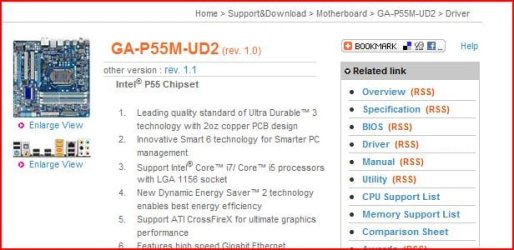
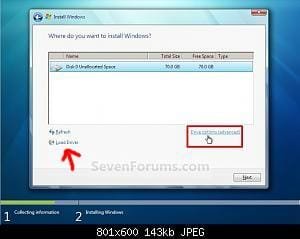
I have a computer I've just recently built with a Gigabyte P55m UD2 motherboard, with an Intel i5 750 CPU, 4 GB of RAM, A SATA Hard drive and a SATA cd/drive, after I accept the license agreement the screen to select where you wish to install windows 7 appears but my hard drive doesn't.

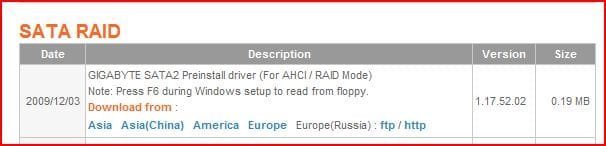
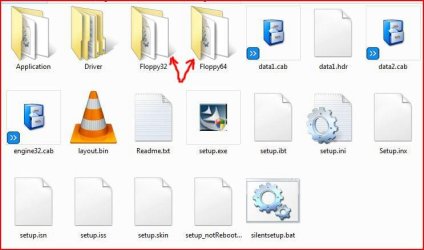
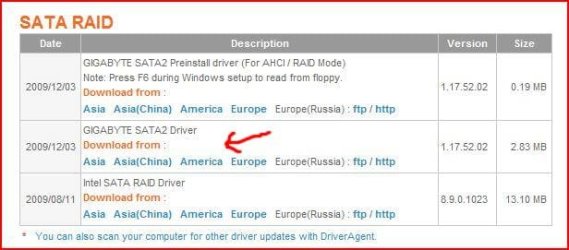
1. Which driver should I download? How do I load it up so that Windowscan see it?

2. I don't have a floppy disk, is there a way to load the drivers to get this thing working?

So far I've set the Sata stuff on the bios to ACHI and I don't believe there are any issues there.
 

My Computer

OS
Windows 7
I've done this and windows isn't finding them... The question is which driver do I download? Why isn't it finding them? If I find one it loads and then goes back to the screen and my hard drive still isn't showing up.
 

My Computer

OS
Windows 7
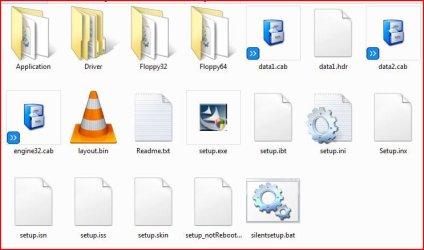
Are you unziping the download?
 

Attachments

  • Capture2.JPG
    Capture2.JPG
    13.6 KB · Views: 14
  • Capture3.JPG
    Capture3.JPG
    16.1 KB · Views: 32
  • Capture4.JPG
    Capture4.JPG
    42.9 KB · Views: 39

My Computer

OS
ME/XP/Vista/Win7
I have a computer I've just recently built with a Gigabyte P55m UD2 motherboard, with an Intel i5 750 CPU, 4 GB of RAM, A SATA Hard drive and a SATA cd/drive, after I accept the license agreement the screen to select where you wish to install windows 7 appears but my hard drive doesn't.

1. Which driver should I download? How do I load it up so that Windowscan see it?

2. I don't have a floppy disk, is there a way to load the drivers to get this thing working?

So far I've set the Sata stuff on the bios to ACHI and I don't believe there are any issues there.
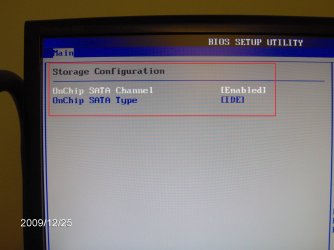
I would suggest that you change your mass storage settings in the bios to IDE.
If you intend to use redundandt drives then leave the setting. But since you have only 1 hard drive leave the hard drive as sata, which one is it? SATA 1 or 2?
You cannot install drivers from bios, windows 7 has all default drivers.
 

My Computer

Computer Manufacturer/Model Number
Custom Build
OS
Windows 7 7600 1 X64
CPU
AMD PHENOM II X 550 PROCESSOR 3.1 ghz
Motherboard
ASUS M4A78-TE
Memory
Corsair 4 gig ddr 3
Graphics Card(s)
ati radeon 3300
Sound Card
ati hd
Monitor(s) Displays
syncmaster 2033sw
Screen Resolution
1600X900 60 hz refresh
Hard Drives
twin_seagates SATA's 1 TB & 500 Gig, hitachi_slimline 160 gig
PSU
antec_550 watt
Case
cooler master GLite
Cooling
stock_heat sink
Internet Speed
20mbs up/ 1.5mbs down
Other Info
favorite child "stewie"
favorite dog "brian"
Bios setting

Unchained, attached is my bios settings for SATA hard drives.
The first screen shot is the actual hard drives, which I have 2.
The second is my storage configuration which is set to IDE.
 

Attachments

  • bios2.jpg
    bios2.jpg
    337.1 KB · Views: 1,226
  • bios1.jpg
    bios1.jpg
    516.8 KB · Views: 114

My Computer

Computer Manufacturer/Model Number
Custom Build
OS
Windows 7 7600 1 X64
CPU
AMD PHENOM II X 550 PROCESSOR 3.1 ghz
Motherboard
ASUS M4A78-TE
Memory
Corsair 4 gig ddr 3
Graphics Card(s)
ati radeon 3300
Sound Card
ati hd
Monitor(s) Displays
syncmaster 2033sw
Screen Resolution
1600X900 60 hz refresh
Hard Drives
twin_seagates SATA's 1 TB & 500 Gig, hitachi_slimline 160 gig
PSU
antec_550 watt
Case
cooler master GLite
Cooling
stock_heat sink
Internet Speed
20mbs up/ 1.5mbs down
Other Info
favorite child "stewie"
favorite dog "brian"
So far I've set the Sata stuff on the bios to ACHI and I don't believe there are any issues there.

I agree with Adrian, especially since the suggested drivers state for AHCI or RAID. The only problem with not setting AHCI now is if you want to change later, you will have to do a registry hack after the install.

There have been several folks recently that say win 7 will not see their hard drives. The only reason I can think of (if the drives show up and are set to IDE in the Bios) might be the drive had been wiped and needed to be initialized.

You can download and burn, if you have that capability either Partition Wizard, or GParted. Boot to them might be able to see the drive and get it formatted.

Something you might try during the install where the drive does not show up is hit shift+F10 to open a command window.

Start Diskpart by typing diskpart then hit enter. Also hit enter after the following commands.

list disk

Should show your hard drive as Disk 0

to exit the utility, type exit, then exit again to leave the window.

You can format from Diskpart is you so desire, if the drive shows up.

Let us know.
 

My Computer

Computer Manufacturer/Model Number
Homebuilt
OS
Windows 7 x64
CPU
i7-2600K
Motherboard
Asus P8Z77-v Pro
Memory
8 G
Graphics Card(s)
GTX 480
Sound Card
Onboard
Monitor(s) Displays
LG W2753V
Screen Resolution
1920x1080
Hard Drives
Crucial M4 128 G SSD
[/QUOTE]
If you intend to use redundandt drives then leave the setting.[/QUOTE]

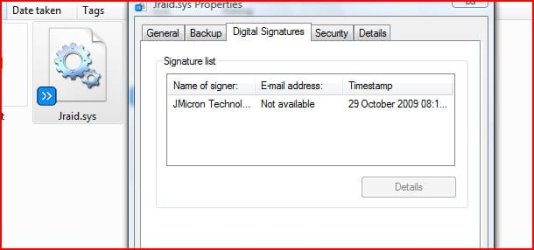
These drivers are not redundandt, where Digital Signstures on 29/10/2009.
 

Attachments

  • 3.JPG
    3.JPG
    28 KB · Views: 39

My Computer

OS
ME/XP/Vista/Win7
I had a look using the prompt window thing and it's not showing up. Someone mentioned to me a master/slave thing, does that apply to SATA? It's a bit of an issue when you have zero instuctions to follow. SATA 2 I believe.
 

My Computer

OS
Windows 7
I had a look using the prompt window thing and it's not showing up. Someone mentioned to me a master/slave thing, does that apply to SATA? It's a bit of an issue when you have zero instuctions to follow. SATA 2 I believe.
Since you are installed a SATA Connect drive and not a PATA drive you have no Master/Slave switches to worry about. As I suggested in an earlier post change your setting in your bios! View the right side screen shot and change the AHCI setting to IDE and re-install the OS.

Regards,
Adrian
 

My Computer

Computer Manufacturer/Model Number
Custom Build
OS
Windows 7 7600 1 X64
CPU
AMD PHENOM II X 550 PROCESSOR 3.1 ghz
Motherboard
ASUS M4A78-TE
Memory
Corsair 4 gig ddr 3
Graphics Card(s)
ati radeon 3300
Sound Card
ati hd
Monitor(s) Displays
syncmaster 2033sw
Screen Resolution
1600X900 60 hz refresh
Hard Drives
twin_seagates SATA's 1 TB & 500 Gig, hitachi_slimline 160 gig
PSU
antec_550 watt
Case
cooler master GLite
Cooling
stock_heat sink
Internet Speed
20mbs up/ 1.5mbs down
Other Info
favorite child "stewie"
favorite dog "brian"

Attachments

  • 9.jpg
    9.jpg
    10 KB · Views: 374
  • 8.JPG
    8.JPG
    41.1 KB · Views: 19
  • 7.JPG
    7.JPG
    10.9 KB · Views: 372
  • 6.JPG
    6.JPG
    13.7 KB · Views: 18
  • 5.JPG
    5.JPG
    13.6 KB · Views: 14
  • 4.JPG
    4.JPG
    31.7 KB · Views: 18
  • 3.JPG
    3.JPG
    20.4 KB · Views: 13
  • 2.JPG
    2.JPG
    12.1 KB · Views: 11
  • 1.JPG
    1.JPG
    42 KB · Views: 23

My Computer

OS
ME/XP/Vista/Win7
@theog: I've downloaded, unzipped and tinkered with all sort of drivers, it's just not working.

I'll give the IDE thing a try, thing is if I want the SATA mode later, how do I get that?
 

My Computer

OS
Windows 7

My Computer

Computer type
PC/Desktop
Computer Manufacturer/Model Number
Home Built
OS
Windows 8.1 Pro w/Media Center 64bit, Windows 7 HP 64bit
CPU
Phenom II X6 1100T
Motherboard
ASUS M5A99X EVO
Memory
Crucial Balistic 8gb DDR3-1866 CL9
Graphics Card(s)
MSI R6850 Cyclone IGD5 PE
Sound Card
On Board
Monitor(s) Displays
ASUS VE258Q 25" LED with DVI-HDMI-DisplayPort
Screen Resolution
1920 x 1080
Hard Drives
Two WD Cavier Black 2TB Sata III, WD My Book Essential 2TB USB 3.0
PSU
Seasonic X650 80 Plus GOLD Modular
Case
Corsair 400R
Cooling
Antec Kuhler H2O 620, Two 120mm and four 140mm
Keyboard
Logitech K120
Mouse
Logitech Marble Mouse USB, Logitech Precision Game Pad
Internet Speed
15MB
Antivirus
Norton IS 2013, Malwarebytes Pro Beta 2
Browser
IE-11, FF-27
Other Info
APC UPS ES 750, Netgear WNR3500L Gigabit & Wireless N Router with SamKnows Test Program, Motorola SB6120 Gigabit Cable Modem. Brother HL-2170W Laser Printer, Epson V300 Scanner
1) Check all cables & Connectors.

2) Make sure HD is spinning.

3) Go back to AHCI mode.

4) Go to page 24 to 25 of the manual, make sure your HD is plug into SATA 0.

5) Go to page 96 of the manual, load drivers as stated.
 

My Computer

OS
ME/XP/Vista/Win7
There are no error messages, just no hard drive even in IDE mode.
Unchained, in defference to Theog. There are to many giving you information.
Why don't you tell us what steps have you taken. I get the feeling that you are confused and bewildered as to how to approach this issue. Let me ask you a couple of questions so that you can take us through the build etc.
  1. This is a custom build, did you build it your self?
  2. If you built the system yourself, after completion did you run the power performance test and did the system run all post tests?
  3. Does your hard drive spool up and can you see the busy light when you power ON your system?
  4. Do understand " Basic In Out System" AKA BIOS settings?
  5. Do you know how to change basic settings in your BIOS environment?
Again I defer to Theog, AHCI settings in a SATA environment are recommended when you are trying to set up redundant drives also known as RAID where you run multiple hard drives and each drive backs up a piece of the same data in case 1 drive fails, but when you told us you are running 1 HDD AHCI is not the perferred setting, IDE is the recommended setting for an onboard SATA chip as I've shown you in a screenshot. We saw this issue come up on numerous situations during the beta and RTM releases.
So I suggest that you review the questions and if you feel like posting a reply we will further assist you in trouble shooting the issue.

Regards,
Adrian
 

My Computer

Computer Manufacturer/Model Number
Custom Build
OS
Windows 7 7600 1 X64
CPU
AMD PHENOM II X 550 PROCESSOR 3.1 ghz
Motherboard
ASUS M4A78-TE
Memory
Corsair 4 gig ddr 3
Graphics Card(s)
ati radeon 3300
Sound Card
ati hd
Monitor(s) Displays
syncmaster 2033sw
Screen Resolution
1600X900 60 hz refresh
Hard Drives
twin_seagates SATA's 1 TB & 500 Gig, hitachi_slimline 160 gig
PSU
antec_550 watt
Case
cooler master GLite
Cooling
stock_heat sink
Internet Speed
20mbs up/ 1.5mbs down
Other Info
favorite child "stewie"
favorite dog "brian"
I built the system myself and I now understand that the settings I had them on, according to you fellows, is the incorrect setting. So even though it's now set to IDE, the hard drive is not appearing at all. As far as I can tell, yes the Hard drive is spinning and there is blinking from the HD activity light. As for the BIOS, I understand he options I have and most of them are things I don't want to touch. Both SATA devices show up on the POST screen. So It appears that they are recognised by the BIOS.

So the issue is, why isn't the Hard drive showing up for Windows 7?

Someone else has said that sometimes it requires another, older Windows to intialize the drive and then use the Windows 7 disc to install over that version. Perhaps this is the way to go?
 

My Computer

OS
Windows 7
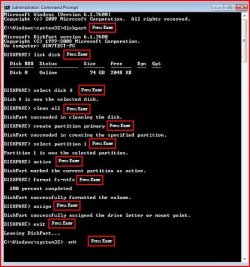
Try this with one HD installed.

1) Boot DVD.

2) Press Shift+F10 (for command prompt)

Type in command line

DISKPART
LIST DISK
SELECT DISK 0 (win 7 HD)
CLEAN ALL
CREATE PARTITION PRIMARY
SELECT PARTITION 1
ACTIVE
FORMAT=NTFS
ASSIGN
EXIT
EXIT
 

Attachments

  • Capture5.JPG
    Capture5.JPG
    45.3 KB · Views: 51

My Computer

OS
ME/XP/Vista/Win7
Using command prompt solved the issue. I had to create a partition this way before creating the partition through the installer. Thanks guys. :)
 

My Computer

OS
Windows 7
Back
Top