"Scan for Hardware Changes" fixes audio problem, but problem returns

Chappter31

New member
Local time
12:12 AM
Messages
5
"Scan for Hardware Changes" fixes audio problem, but problem returns

Hi all,

Issue: The sound on my internal laptop speakers does not work when I try to play audio.

Solution:
However, if I go into "Device Manager" and click "Scan for Hardware Changes" on the "Sounds, video and game controllers" section, my sound returns instantly. The moment I click "Scan..." the sound appears straight away and plays back without issue.

The Problem:
Problem is, while the sound plays back fine as long as I am playing sound, the problem of no sound returns once I stop audio payback. I've noticed I can stop playback and the sound will still play back for a minute or two, but if I don't play audio for longer than about 5 minutes the sound again disappears next time I try to play back and I have to do the "Scan..." thing again to get it working. It's as though my system keeps defaulting back to an incorrect setting or something after a few minutes.

External Speakers: There is no problem at all when I have my (bluetooth) external speakers selected. Sound plays through them fine.

What I've tried to fix:
- Troubleshoot both "Playback Audio" and "Hardware and Devices" through Control Panel, but neither fixes issue
- Update Driver Software for my "Conexant High Definition SmartAudio HD2", but it says I'm up to date
- Read the forums to find my specific problem, but couldn't...apologies if I've missed it.

............................

From Speccy > Audio

- Sound Cards
Conexant High Definition SmartAudio HD2
Bluetooth Hands-free Audio
Bluetooth Stereo Audio

- Playback Devices
Speakers (Conexant High Definition SmartAudio HD2) (default)
SPDIF Interface (Conexant High Definition SmartAudio HD2)

From Speccy > General

Operating System
Windows 7 Home Premium 32-bit SP1

CPU
Intel Mobile Core 2 Duo T5200 @ 1.60GHz 69 °C
Merom 65nm Technology
RAM
4.00GB Dual-Channel DDR2 @ 266MHz (4-4-4-12)

Motherboard
TOSHIBA Satellite P100 (U2E1) 70 °C

Graphics
Generic PnP Monitor (1440x900@59Hz)
Intel Mobile Intel 945 Express Chipset Family (Toshiba)

Storage
93GB TOSHIBA MK1032GSX ATA Device (SATA) 39 °C

Optical Drives
MATSHITA DVD-RAM UJ-850S ATA Device

Audio
Conexant High Definition SmartAudio HD2

..................


I hope that's as much information as you guys need to help me. Advice much appreciated.

Thanks.
 

My Computer

Computer type
Laptop
Computer Manufacturer/Model Number
Toshiba
OS
Windows 7 Home Premium, 32 Bit
CPU
Intel Core 2 CPU, T5200 @ 1.6GGHZ
Memory
4GB, 2.99 Useable
Hard Drives
Internal HD
Antivirus
MS Security Essentials
Browser
Firefox

My Computer

Computer type
PC/Desktop
Computer Manufacturer/Model Number
My Own Build
OS
Windows 10 64 bit
CPU
Intel i7 6700K
Motherboard
ASUS ROG Maximus VIII Hero
Memory
16GB Corsair Dominator
Graphics Card(s)
Intel CPU Graphics
Sound Card
RealTek
Monitor(s) Displays
27" Dell S2719dgf
Screen Resolution
2560X1440
Hard Drives
1 TB Samsung 850 EVO SSD for Win 10 Pro
500GB Samsung 850 EVO SSD for Win 10 Insider
2 TB drive for backup
PSU
EVGA Supernova 750G2
Case
BeQuiet Silent Base 600
Cooling
Deepcool Captain 120EX
Keyboard
Microsoft Wireless 2000
Mouse
Microsoft wireless
Internet Speed
100 MB/sec (Cable)
Antivirus
Microsoft Defender and Malwarebytes
Browser
Edge/Firefox
Other Info
Cakewalk (Sonar) by BandLab and Studio One 4.1 Pro recording studio software. MOTU 896Mk3 Hybrid recording interface, Frontier Tranzport wireless control unit, Behringer X-Touch Control Surface.
Five USB connected optical drives for CD Audio production using Nero BurningROM
Hi Fireberd,

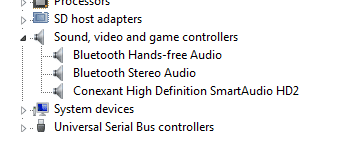
Screen shot of the Device Manager/Sounds section as requested:


Dev Audio.png
 

My Computer

Computer type
Laptop
Computer Manufacturer/Model Number
Toshiba
OS
Windows 7 Home Premium, 32 Bit
CPU
Intel Core 2 CPU, T5200 @ 1.6GGHZ
Memory
4GB, 2.99 Useable
Hard Drives
Internal HD
Antivirus
MS Security Essentials
Browser
Firefox
The Bluetooth is suspect. What shows up in the Control Panel/Hardware and Sound and finally the Sound panel playback? If it is setting the Bluetooth as the default Playback device, the speakers will not work.
 

My Computer

Computer type
PC/Desktop
Computer Manufacturer/Model Number
My Own Build
OS
Windows 10 64 bit
CPU
Intel i7 6700K
Motherboard
ASUS ROG Maximus VIII Hero
Memory
16GB Corsair Dominator
Graphics Card(s)
Intel CPU Graphics
Sound Card
RealTek
Monitor(s) Displays
27" Dell S2719dgf
Screen Resolution
2560X1440
Hard Drives
1 TB Samsung 850 EVO SSD for Win 10 Pro
500GB Samsung 850 EVO SSD for Win 10 Insider
2 TB drive for backup
PSU
EVGA Supernova 750G2
Case
BeQuiet Silent Base 600
Cooling
Deepcool Captain 120EX
Keyboard
Microsoft Wireless 2000
Mouse
Microsoft wireless
Internet Speed
100 MB/sec (Cable)
Antivirus
Microsoft Defender and Malwarebytes
Browser
Edge/Firefox
Other Info
Cakewalk (Sonar) by BandLab and Studio One 4.1 Pro recording studio software. MOTU 896Mk3 Hybrid recording interface, Frontier Tranzport wireless control unit, Behringer X-Touch Control Surface.
Five USB connected optical drives for CD Audio production using Nero BurningROM
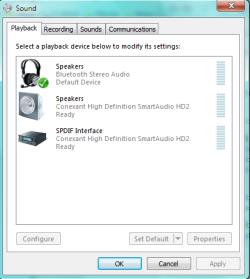
Screenshot when BT is off:

Play.png

And when BT speakers are switched on:

Play 2.png
 

My Computer

Computer type
Laptop
Computer Manufacturer/Model Number
Toshiba
OS
Windows 7 Home Premium, 32 Bit
CPU
Intel Core 2 CPU, T5200 @ 1.6GGHZ
Memory
4GB, 2.99 Useable
Hard Drives
Internal HD
Antivirus
MS Security Essentials
Browser
Firefox
Do this, if there is any Windows corruption with the Conexant HD Audio it will fix it.

Go to the Device Manager, RIGHT click on the Conexant entry and then LEFT click "Uninstall". DO NOT check the box to also uninstall the drivers Restart the PC and when Windows starts it will detect and reinstall the Conexant. This fixes a lot of flakey problems.
 

My Computer

Computer type
PC/Desktop
Computer Manufacturer/Model Number
My Own Build
OS
Windows 10 64 bit
CPU
Intel i7 6700K
Motherboard
ASUS ROG Maximus VIII Hero
Memory
16GB Corsair Dominator
Graphics Card(s)
Intel CPU Graphics
Sound Card
RealTek
Monitor(s) Displays
27" Dell S2719dgf
Screen Resolution
2560X1440
Hard Drives
1 TB Samsung 850 EVO SSD for Win 10 Pro
500GB Samsung 850 EVO SSD for Win 10 Insider
2 TB drive for backup
PSU
EVGA Supernova 750G2
Case
BeQuiet Silent Base 600
Cooling
Deepcool Captain 120EX
Keyboard
Microsoft Wireless 2000
Mouse
Microsoft wireless
Internet Speed
100 MB/sec (Cable)
Antivirus
Microsoft Defender and Malwarebytes
Browser
Edge/Firefox
Other Info
Cakewalk (Sonar) by BandLab and Studio One 4.1 Pro recording studio software. MOTU 896Mk3 Hybrid recording interface, Frontier Tranzport wireless control unit, Behringer X-Touch Control Surface.
Five USB connected optical drives for CD Audio production using Nero BurningROM
Do this, if there is any Windows corruption with the Conexant HD Audio it will fix it.

Go to the Device Manager, RIGHT click on the Conexant entry and then LEFT click "Uninstall". DO NOT check the box to also uninstall the drivers Restart the PC and when Windows starts it will detect and reinstall the Conexant. This fixes a lot of flakey problems.


I tried this last night - Windows didn't re-install the Conexant when I re-started my computer, but I ran a manual Windows Update and that re-installed Conexant, although it didn't fix the sound problem.

I then gave your suggestion a second try...but again Windows didn't re-install the Conexant automatically and when I tried to do it manually it didn't find any updates that way either.

Now, the sound icon in my tray is showing "No Audio Output Devices Installed", with a red cross over the icon. When I re-start computer, it doesn't seem to recognise that the component is missing. Troubleshooting "Sound Problems" doesn't re-install/fix it either.

Ugh, not sure what's going on...:confused:
 

My Computer

Computer type
Laptop
Computer Manufacturer/Model Number
Toshiba
OS
Windows 7 Home Premium, 32 Bit
CPU
Intel Core 2 CPU, T5200 @ 1.6GGHZ
Memory
4GB, 2.99 Useable
Hard Drives
Internal HD
Antivirus
MS Security Essentials
Browser
Firefox
  1. Look in Programs and Features, see if Conexant audio entry. If yes, uninstall it from there
  2. Go to the Toshiba support and use the driver you find from Toshiba for your specific model
  3. When BT installed (see your 2nd screen shot) note you must set speakers back to default device for them to output sound (in your screen shot BT is default)
  4. Ctl Pnl->Sounds. Right click the speakers. Select Advanced tab. Make sure exclusive mode is turned off
  5. If you still have a red X, go to DevMgr, right click the audio driver->Properties->General tab. Under Device Status what's the numeric code?
 

My Computer

Computer type
PC/Desktop
Computer Manufacturer/Model Number
Dell Optiplex 360 and Optiplex 755
OS
Desk 1: Win 7 Pro x32; Desk 2: Windows 10 x64
Hard Drives
500GB Crucial SSD in both Desktops
Other Info
Buffalo 6TB NAS, Raid 1
Hi ComputerGeek - thanks for your input.

..............

My red X is gone after I performed a Manual Windows Update, so I guess the system eventually found the missing componant.

..............

On my original issue, the reason I chose the thread title "Scan for Hardware Changes" fixes audio... was because I thought it might be possible to infer something from that fix. In other words, if "Scan for Hardware Changes" is the solution, perhaps we could work back to identify the problem?

I'm not a PC guy, but it seems to me that the computer has all the components it needs to play sound, but for some reason it keeps on defaulting back to a state that doesn't recognise some kind of hardware change/configuration that I instead need to manually prompt it to search for. As I mentioned, clicking "Scan for Hardware Changes" restores the sound the instant I click that option and the box appears saying "Scanning Plug and Play Compliant Hardware".

I could be on totally the wrong track there, but I'll throw it out there.

Thanks.
 

My Computer

Computer type
Laptop
Computer Manufacturer/Model Number
Toshiba
OS
Windows 7 Home Premium, 32 Bit
CPU
Intel Core 2 CPU, T5200 @ 1.6GGHZ
Memory
4GB, 2.99 Useable
Hard Drives
Internal HD
Antivirus
MS Security Essentials
Browser
Firefox
I'm not a PC guy<snip>
You may not be a computer guy, but you sure think like one! :thumbsup:
Disconnect or disable BT. I don't BT as an audio option during these tests. Also, I'm assuming your audio driver is installed - whether it's working or not, as long as it's installed. Do the following
  1. Click Start. In the search box type dxdiag. Hit enter
    • If you are running 64-bit Windows, you'll see a 64bit Dxdiag button at the bottom of the window
    • Click it to generate a 64bit dxdiag report
    • Now click the Save All Information button, save as a text file, and upload the report to next post
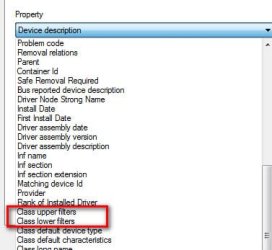
  2. Right click the audio device in DevMgr->Properties->Details. Scroll down and look for Upper and Lower Class Filters (see pic below)
    • If one or other doesn't exist for the device, you may not see an entry. But if either exist in the pull down menu, select them. Then copy/paste what you see for each
You can probably only do the following when the driver is installed and there's no device error in DevMgr
> Verify your speakers are the default device
> Turn off exclusive mode on your speakers. (See my post #8)
 

Attachments

  • Filters.jpg
    Filters.jpg
    18.7 KB · Views: 14

My Computer

Computer type
PC/Desktop
Computer Manufacturer/Model Number
Dell Optiplex 360 and Optiplex 755
OS
Desk 1: Win 7 Pro x32; Desk 2: Windows 10 x64
Hard Drives
500GB Crucial SSD in both Desktops
Other Info
Buffalo 6TB NAS, Raid 1
Hi im having the same problem

How did you fix it? I tried to reinstall audio driver, delete flash setting data in control panel ...
Nothing work
 

My Computer

Computer type
PC/Desktop
OS
window 8 x64
Back
Top