screen color

cooler2005

New member
Local time
4:13 PM
Messages
11
Hi..

I'm using Windows 7 64 bit..

The problem i'm having is this...

color_mis.png

this image is originally this...

28543-bcss.jpg

when i open it with any program be it windows picture viewer or photoshop or any other program i get a tint color as u can see in the first image...why is this happenig?? i've checked my monitor settings and they seem to be perfect...

can someone help plz..??

thanks
 

My Computer

OS
windows 7
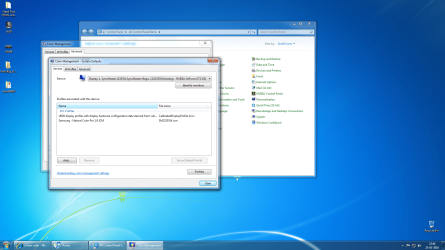
Check Color management in control panel. The yellow tint is from mis-configured Color management

zzz2496
 

My Computer

Computer Manufacturer/Model Number
Self Built
OS
Windows7 Ultimate 64bit
CPU
Intel Core 2 Quad Q6600
Motherboard
Abit IN9-32X-MMAX
Memory
DDR2 Adata 4GB
Graphics Card(s)
Nvidia GeForce GTX 285 1024 and Nvidia GeForce 8800GT 512
Sound Card
Asus Xonar HDAV 1.3
Monitor(s) Displays
Dell 2407WFP and BenQ 2400v and Philips 150v3
Screen Resolution
3840x1200 and 1024x768
Hard Drives
2 WDC 1TB
1 WDC 1.5TB
1 WDC 640GB
1 WDC 320GB
1 Seagate 200GB
PSU
Corsair TX 850W
Case
Cooler Master HAF932
Cooling
Arctic Cooling Freezer Extreme and plenty of fans...
Keyboard
MicrosoftNaturalKeyboard 4000/Apple Alu keyboard/Dinovo mini
Mouse
Logitech G5/MarbleMouseTrackball/PerformanceMX/SpacePilotPRO
Internet Speed
1.5Mbps down/384Kbps up
Other Info
APC SURT 1000XL
Logitech Z-560
Wiimote
Mikrotik Router
Linksys (now Cisco) SD2008 8 port Gigabit switch
Linksys WRT54G (acting as AP)
Apple wireless Aluminium keyboard
Apple Magic Mouse
Xbox360 wired controller
If you want to change the system default colors for a specific device so that the color settings are used by all users on the computer who are using the default color settings, do the following (Note that to change the system default color settings, you need to be an administrator or a member of the Administrators group):

  1. Open Color Management by clicking the Start button
    4f6cbd09-148c-4dd8-b1f2-48f232a2fd33.png
    , clicking Control Panel, clicking Hardware and Sound, and then clicking Color Management.
  2. Click the Advanced tab, and then click Change System Defaults.
  3. From the Device list, select the color device that you want to associate with one or more color profiles for all users on the computer that are using the default color settings for that device.
  4. Do one or more of the following:
    • If you want to add a new color profile for the selected device, click Add, and then go to step 5.
    • If you want remove a color profile for the selected device, click the color profile, and then click Remove. To continue, go to step 6.
    • If you want to make a color profile the default profile for the selected device, click the color profile that you want to set as the default, and then click Set as Default Profile. To continue, go to step 6.
  5. In the Associate Color Profile dialog box, do one or both of the following:
    • If you want to specify a color profile that’s already installed on the computer, click the color profile in the list, and then click OK.
    • If you want to specify a custom color profile that isn’t already installed on the computer, click Browse, locate the custom color profile, and then click Add.
      The selected color profile (or profiles) is now associated with the device and will be used describe the color characteristics of that device.
  6. Do one of the following (Optional):
    • To save the association between the selected device and the current set of profiles that it uses, click Profiles, and then click Save associations. In the File name box, type a name for the device association, and then click Save.
    • To load a device association file so that the selected device uses the color settings that are specified in the association file, click the Profiles button, and then click Load associations. Locate and select the saved association file, and then click Open.
  7. Close the Color Management – System Defaults dialog box.
  8. Close the Color Management dialog box.
    Now, if the default color settings aren’t already being used (which means that the Use my settings for this device check box is selected), the user will be notified when they open Color Management that the system default color settings have been changed. At that time, a user can choose to merge those changes with their own settings or reset their color settings to match the new system default color settings for the selected device.
ORIGINAL POST FROM HERE
 

My Computer

OS
window's 7
CPU
core 2 quad
Motherboard
gigabyte
Memory
2gb corsair
Graphics Card(s)
ati hd4850
Monitor(s) Displays
lg
Screen Resolution
1600 X 900
Case
power logic
Other Info
none of the spec above is accurate
Hi...thanks for the detailed info...but how do i reset the color settings or how do i set the settings on their custom defaults...thre are two profiles made in the "associated profiles" i'm not sure which one is the default monitor profile...

and just to let you know...i've attached my monitor to the nvidia gts 250 graphic card.....
 

My Computer

OS
windows 7
two profiles? and what is the profile name
 

My Computer

OS
window's 7
CPU
core 2 quad
Motherboard
gigabyte
Memory
2gb corsair
Graphics Card(s)
ati hd4850
Monitor(s) Displays
lg
Screen Resolution
1600 X 900
Case
power logic
Other Info
none of the spec above is accurate
i see you have srgb and samsung. does your monitor brand samsung?
 

My Computer

OS
window's 7
CPU
core 2 quad
Motherboard
gigabyte
Memory
2gb corsair
Graphics Card(s)
ati hd4850
Monitor(s) Displays
lg
Screen Resolution
1600 X 900
Case
power logic
Other Info
none of the spec above is accurate
try that one and set is as default and create a restore point before you do it as a precautions way
 

My Computer

OS
window's 7
CPU
core 2 quad
Motherboard
gigabyte
Memory
2gb corsair
Graphics Card(s)
ati hd4850
Monitor(s) Displays
lg
Screen Resolution
1600 X 900
Case
power logic
Other Info
none of the spec above is accurate
nope..did'nt work..i set it as default and rstarted the pc...still the same... :(
 

My Computer

OS
windows 7
mind trying the other one and remember this
Now, if the default color settings aren’t already being used (which means that the Use my settings for this device check box is selected), the user will be notified when they open Color Management that the system default color settings have been changed
 

My Computer

OS
window's 7
CPU
core 2 quad
Motherboard
gigabyte
Memory
2gb corsair
Graphics Card(s)
ati hd4850
Monitor(s) Displays
lg
Screen Resolution
1600 X 900
Case
power logic
Other Info
none of the spec above is accurate
i tried both of them...tried plugging the vga cable to the onboard video port...but the monitor didnt start then....
 

My Computer

OS
windows 7
if thats's the case return back where your monitor works. i'm gonna start more simple for you


  1. Click Start, type Color Management in the Start Search box, and then press ENTER.
  2. In the Color Management dialog box, click to select the Use my settings for this device check box.
  3. In the Profiles associated with this device list, click the color profile that you want to remove, and then click Remove.

    Note If you receive a warning message, click Yes.
  4. Click Close to close the Color Management dialog box.
  5. Restart the computer.
  6. Open an image in Windows Photo Gallery to test it out
this is the issue with windows photo gallery itself
 

My Computer

OS
window's 7
CPU
core 2 quad
Motherboard
gigabyte
Memory
2gb corsair
Graphics Card(s)
ati hd4850
Monitor(s) Displays
lg
Screen Resolution
1600 X 900
Case
power logic
Other Info
none of the spec above is accurate
what if i delete both the profiles? then when i restart the monitor should reinstall it's color profile..is'nt it?
 

My Computer

OS
windows 7
try it and keep me posted
 

My Computer

OS
window's 7
CPU
core 2 quad
Motherboard
gigabyte
Memory
2gb corsair
Graphics Card(s)
ati hd4850
Monitor(s) Displays
lg
Screen Resolution
1600 X 900
Case
power logic
Other Info
none of the spec above is accurate
Back
Top