Screen Saver - Enable or Disable

How to Enable or Disable Screen Savers in Vista, Windows 7, and Windows 8

   Information
This tutorial will show you how to enable or disable screen savers from being able to run for all or specific users in Vista, Windows 7, and Windows 8.

You must be logged in as an administrator to be able to do the steps in this tutorial.

   Note
By default the Windows 7 Starter and Windows 7 Home Basic editions do not include the Personalization features such as change desktop background, Desktop Slideshow, and Windows Color and Appearance.

This Screen Saver shortcut will allow you to change the Screen Saver Settings in the Windows 7 Starter and Windows 7 Home Basic editions even though they do not include the Desktop context menu Personalize item included.


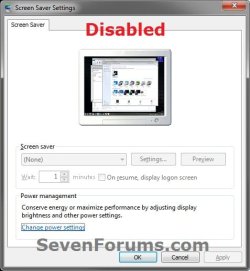
EXAMPLE: Screen Savers Enabled and Disabled
NOTE: When disabled, the Screen Saver Settings window is grayed out.
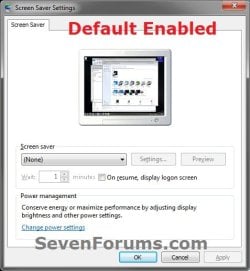
Default.jpgDisabled.jpg


OPTION ONE

To Enable or Disable Screen Savers using a REG File Download


1. To Enable Screen Savers for All Users
NOTE: This is the default setting.
A) Click/tap on the Download button below to download the file below, and go to step 3 below.
Enable_Screen_Savers.reg

Download


2. To Disable Screen Savers for All Users
A) Click/tap on the Download button below to download the file below, and go to step 3 below.
Disable_Screen_Savers.reg

Download


3. Save the .reg file to your desktop.

4. Double click/tap on the downloaded .reg file to merge it.

5. Click/tap on Run, Yes (Windows 7/8) or Continue (Vista), Yes, and OK when prompted.

6. If open, close and reopen the Screen Saver Settings window to apply.

7. When finished, you can delete the downloaded .reg file if you like.


OPTION TWO

To Enable or Disable Screen Savers using Group Policy


1. Open the all users, specific users or groups, or all users except administrators Local Group Policy Editor for how you want this policy applied.

2. In the left pane, click/tap on to expand User Configuration, Administrative Templates, Control Panel, and Personalization. (see screenshot below)
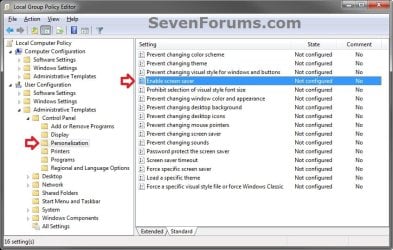
GPEDIT-1.jpg
3. In the right pane, double click/tap on Enable screen saver to edit it. (see screenshot above)

4. To Enable Screen Saver
A) Select (dot) either Not Configured or Enabled. (see screenshot below step 6)
NOTE: Not Configured is the default setting.

B) Go to step 6.
5. To Disable Changing Screen Saver
A) Select (dot) Disabled. (see screenshot below step 6)
6. Click/tap on OK. (see screenshot below)
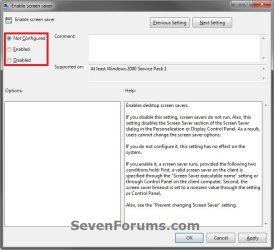
GPEDIT-2.jpg
7. Close the Local Group Policy Editor window.

8. If open, close and reopen the Screen Saver Settings window to apply.
That's it,
Shawn


Attachments

Last edited:
Wait is grey'ed out, can't enable it

My HP 6930p doesn't activate the screensaver ever. I put it to sleep. I've adjusted the power saving features, changed the screensaver selection but it never activates. The local group policy says it should but it doesn't work.

The "Wait XX Minutes and check On resume, display logon screen" part of the Screensaver dialog is grey and I can't change it.

Where can I enable this?
 

My Computer

OS
Windows 7 Enterprise

My Computer

Computer type
PC/Desktop
Computer Manufacturer/Model Number
Self built custom
OS
64-bit Windows 11 Pro for Workstations
CPU
Intel i7-8700K OC'd to 5 GHz
Motherboard
ASUS ROG Maximus XI Formula Z390
Memory
64 GB (4x16GB) G.SKILL TridentZ RGB DDR4 3600 MHz
Graphics Card(s)
ASUS ROG-STRIX-GTX1080TI-O11G-GAMING
Sound Card
Integrated
Monitor(s) Displays
2 x Samsung Odyssey G7 27"
Screen Resolution
2560x1440
Hard Drives
1TB Samsung 990 PRO M.2,
4TB Samsung 990 PRO PRO M.2,
TerraMaster F8 SSD Plus NAS
PSU
Seasonic Prime Titanium 850W
Case
Thermaltake Core P3
Cooling
Corsair Hydro H115i
Keyboard
Logitech wireless K800
Mouse
Logitech MX Master 4
Internet Speed
2 Gb/s Download and 100 Mb/s Upload
Antivirus
Malwarebyte Anti-Malware Premium
Browser
Google Chrome
Other Info
Logitech Z625 speaker system,
Logitech BRIO 4K Pro webcam,
HP Color LaserJet Pro MFP M477fdn,
APC SMART-UPS RT 1000 XL - SURT1000XLI,
Galaxy S23 Plus phone
Screensaver won't activate

Used option 2 to enable the time option. Its no longer grey'ed out but setting it doesn't do anything.

I set the time to 1 minute, waited 90 seconds, nothing happened, then set to 2 minutes, waited 150 seconds, nothing happened.

Removed the powersave password prompt in regedit - no change. Powersave options don't trigger anything, dimming screen, putting it to sleep. I can manually put it to sleep with the Func F3 (sleep key), manually lock it with CTRL-ALT-DEL Enter. But can't get it to auto lock or sleep.
 

My Computer

OS
Windows 7 Enterprise
Did you also select a screen saver other than (None)?

Could you also post a screenshot of your Screen Saver Settings window to see if something may standout?
 

My Computer

Computer type
PC/Desktop
Computer Manufacturer/Model Number
Self built custom
OS
64-bit Windows 11 Pro for Workstations
CPU
Intel i7-8700K OC'd to 5 GHz
Motherboard
ASUS ROG Maximus XI Formula Z390
Memory
64 GB (4x16GB) G.SKILL TridentZ RGB DDR4 3600 MHz
Graphics Card(s)
ASUS ROG-STRIX-GTX1080TI-O11G-GAMING
Sound Card
Integrated
Monitor(s) Displays
2 x Samsung Odyssey G7 27"
Screen Resolution
2560x1440
Hard Drives
1TB Samsung 990 PRO M.2,
4TB Samsung 990 PRO PRO M.2,
TerraMaster F8 SSD Plus NAS
PSU
Seasonic Prime Titanium 850W
Case
Thermaltake Core P3
Cooling
Corsair Hydro H115i
Keyboard
Logitech wireless K800
Mouse
Logitech MX Master 4
Internet Speed
2 Gb/s Download and 100 Mb/s Upload
Antivirus
Malwarebyte Anti-Malware Premium
Browser
Google Chrome
Other Info
Logitech Z625 speaker system,
Logitech BRIO 4K Pro webcam,
HP Color LaserJet Pro MFP M477fdn,
APC SMART-UPS RT 1000 XL - SURT1000XLI,
Galaxy S23 Plus phone
Screenshot

Here's a screen shot attached, thanks for the help.
 

Attachments

  • ScreenSave.jpg
    ScreenSave.jpg
    91 KB · Views: 2,244

My Computer

OS
Windows 7 Enterprise
If you waited and let the computer be idle for that amount of time, then you might see if running a sfc /scannow command may be able to help if it's a bad system file issue.
 

My Computer

Computer type
PC/Desktop
Computer Manufacturer/Model Number
Self built custom
OS
64-bit Windows 11 Pro for Workstations
CPU
Intel i7-8700K OC'd to 5 GHz
Motherboard
ASUS ROG Maximus XI Formula Z390
Memory
64 GB (4x16GB) G.SKILL TridentZ RGB DDR4 3600 MHz
Graphics Card(s)
ASUS ROG-STRIX-GTX1080TI-O11G-GAMING
Sound Card
Integrated
Monitor(s) Displays
2 x Samsung Odyssey G7 27"
Screen Resolution
2560x1440
Hard Drives
1TB Samsung 990 PRO M.2,
4TB Samsung 990 PRO PRO M.2,
TerraMaster F8 SSD Plus NAS
PSU
Seasonic Prime Titanium 850W
Case
Thermaltake Core P3
Cooling
Corsair Hydro H115i
Keyboard
Logitech wireless K800
Mouse
Logitech MX Master 4
Internet Speed
2 Gb/s Download and 100 Mb/s Upload
Antivirus
Malwarebyte Anti-Malware Premium
Browser
Google Chrome
Other Info
Logitech Z625 speaker system,
Logitech BRIO 4K Pro webcam,
HP Color LaserJet Pro MFP M477fdn,
APC SMART-UPS RT 1000 XL - SURT1000XLI,
Galaxy S23 Plus phone
mscorsvw.exe running

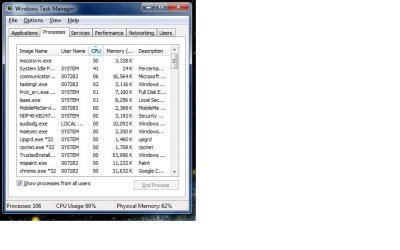
scannow isn't running but mscorsvw.exe is running using about 50% of CPU. I quit all my apps, still running.

Is this keeping the computer from going idle? Any thoughts on how to kill it?
 

Attachments

  • mscorsvw.jpg
    mscorsvw.jpg
    49.2 KB · Views: 1,811

My Computer

OS
Windows 7 Enterprise

My Computer

Computer type
PC/Desktop
Computer Manufacturer/Model Number
Self built custom
OS
64-bit Windows 11 Pro for Workstations
CPU
Intel i7-8700K OC'd to 5 GHz
Motherboard
ASUS ROG Maximus XI Formula Z390
Memory
64 GB (4x16GB) G.SKILL TridentZ RGB DDR4 3600 MHz
Graphics Card(s)
ASUS ROG-STRIX-GTX1080TI-O11G-GAMING
Sound Card
Integrated
Monitor(s) Displays
2 x Samsung Odyssey G7 27"
Screen Resolution
2560x1440
Hard Drives
1TB Samsung 990 PRO M.2,
4TB Samsung 990 PRO PRO M.2,
TerraMaster F8 SSD Plus NAS
PSU
Seasonic Prime Titanium 850W
Case
Thermaltake Core P3
Cooling
Corsair Hydro H115i
Keyboard
Logitech wireless K800
Mouse
Logitech MX Master 4
Internet Speed
2 Gb/s Download and 100 Mb/s Upload
Antivirus
Malwarebyte Anti-Malware Premium
Browser
Google Chrome
Other Info
Logitech Z625 speaker system,
Logitech BRIO 4K Pro webcam,
HP Color LaserJet Pro MFP M477fdn,
APC SMART-UPS RT 1000 XL - SURT1000XLI,
Galaxy S23 Plus phone
Back
Top