
How to Enable or Disable Screen Saver Password Protection in Windows 7 and Windows 8
Information
This tutorial will show you how to enable or disable password protection to display the logon screen on resuming from the screen saver in Windows 7 and Windows 8.
OPTION ONE
Through Screen Saver Settings for "Current User" Only
NOTE: This option will only affect the user that you are currently logged in as.
1. Do step 2 or 3 below depending on what edition of Windows 7 or Windows 8 you have.
2. For Windows 7 Starter or Windows 7 Home Basic editions
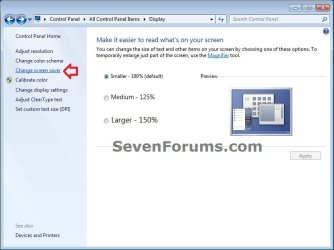
A) Open the Control Panel (icons view), click on the Display icon, click on the Change screen saver link in the left blue pane, and go to step 4 below. (see screenshot below)
3. For Windows 7 Home Premium, Professional, Ultimate, Enterprise, and All Windows 8 editions
A) Right click or press and hold on a empty space on the desktop, click/tap on Personalize, and go to step 4 below.
NOTE: The Windows 7 Starter and Home Basic editions do not have Personalize included in them.
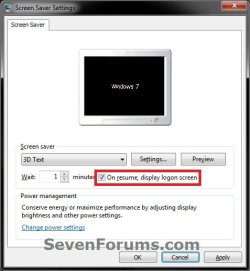
4. Click on the Screen Saver link at the bottom right of the Personalization window. (see screenshot below)
5. To Turn On Screen Saver Password Protection
A) Check the On resume, display logon screen box.
B) If You Selected a Screen Saver
- Select how many idle minutes to Wait before the selected screen saver displays.
- Go to step 5D.
- Select how many idle minutes to Wait before going straight to the log on screen (Windows 7) or lock screen (Windows 8) without a screen saver displaying first.
- Continue on to step 5D.
6. To Turn Off Screen Saver Password Protection
A) Uncheck the On resume, display logon screen box, then click/tap on OK. (see screenshot above)
OPTION TWO
Using a REG File Download for "All Users"
NOTE: You must be logged in as an administrator to be able to do this option.
1. For Default Screen Saver Password Protection
NOTE: If you set it to not configured, then all users on the computer will be able to choose whether or not to set password protection for screen savers in their own user user account.
A) Click/tap on the Download button below to download the file below.
Default_Screen_Saver_Password_Protection.reg
Download
B) Go to step 4.
2. To Enable Screen Saver Password Protection for All Users
NOTE: If you enable this setting, all screen savers are password protected for all users on the computer and cannot be changed.
A) Click/tap on the Download button below to download the file below.
Enable_Screen_Saver_Password_Protection.reg
Download
B) Go to step 4.
3. To Disable Screen Saver Password Protection for All Users
NOTE: If you disable this setting, then password protection cannot be set on any screen saver for all users on the computer.
A) Click/tap on the Download button below to download the file below.
Disable_Screen_Saver_Password_Protection.reg
Download
4. Save the .reg file to your desktop.
5. Right click on the downloaded .reg file and click on Merge.
6. Click on Run, Yes (UAC), Yes, and OK when prompted.
7. Restart the computer to apply.
8. When done, you can delete the downloaded .reg file if you like.
OPTION THREE
Through Local Group Policy Editor
NOTE: You must be logged in as an administrator to be able to do this option.
1. Open the all users, specific users or groups, or all users except administrators Local Group Policy Editor for how you want this policy applied.
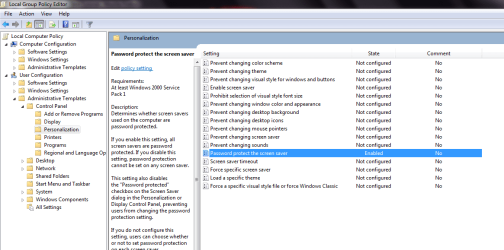
2. Browse to User Configuration, Administrative Templates, Control Panel, Personalization, and double click on Password Protect the Screen Saver.
3. For Default Screen Saver Password Protection
NOTE: If you set it to not configured, then all users on the computer will be able to choose whether or not to set password protection for screen savers in their own user user account.
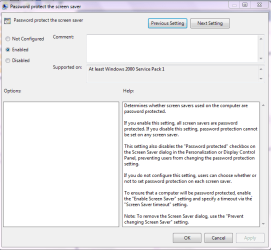
A) Select (dot) Not Configured, and click/tap on OK. (See screenshot below)
4. To Enable Screen Saver Password Protection for all Users
NOTE: If you enable this setting, all screen savers are password protected for all users on the computer and cannot be changed.
A) Select (dot) Enabled,and click/tap on OK. (See screenshot below step 3)
5. To Disable Screen Saver Password Protection for All Users
NOTE: If you disable this setting, then password protection cannot be set on any screen saver for all users on the computer.
A) Select (dot) Disabled, and click/tap on OK. (See screenshot below step 3)
6. Close the Local group Policy Editor, and restart your computer.
That's it,

Dinesh.
Thanks to Shawn for creating the bb codes list.

Related Tutorials
- How to Change Screen Saver Grace Period to Bypass Password Protection in Windows
- How to Turn Screen Saver On or Off in Windows 7
- How to Change the Screen Saver in Windows 7
- How to Add and Restore the Windows Energy Screen Saver Back in Windows 7
- How to Add and Restore the Aurora Screen Saver Back in Windows 7
- How to Allow or Prevent Changing Screen Saver in Windows 7
- How to Automatically Log On a User Account at Windows 7 Startup
- How to Set Windows 8 to Require Users to Sign in with User Name and Password
- How to Enable or Disable Require Password on Wakeup in Windows 7
- How to Set or Change the Screen Saver Timeout Period in Windows 7
- How to Specify a Default Screen Saver for All Users in Windows 7
- How to Enable or Disable Screen Savers in Windows 7 and Vista
- How to Add "Lock Computer and Turn Off Monitor" to the Context Menu in Windows
- How to Enable or Disable Password Protection on Wakeup in Windows 8
- How to Change the Lock Screen Timeout Period in Windows 8
- How to Set to Turn Off the Display after Specified Time in Windows
- How to Require a Password after Display is Off for Specified Time in Windows 8.1
Attachments
Last edited by a moderator:


