
Searching In Explorer Question

phaze3131

New member
Local time
3:35 AM
Messages
21
Hey guys I am wondering how to get my explorer searching to return Folders and not just files?

Like I am typing in a search of my aim logs for the name "hanna" and there is a folder with my friends screen name 00hanna00 but it just keeps returning the files inside that folder which contain the name "hanna" in the files names which are html files, and not the actual name of the folder.


Thanks for the help!

Travis
 

My Computer

Computer Manufacturer/Model Number
I am a work at home internet marketer. I run a blog which educates people on <a href="http://www.to
OS
C:\Documents and Settings\admin\My Documents\mypics\travisblog.jpg
Hey guys I am wondering how to get my explorer searching to return Folders and not just files?

Like I am typing in a search of my aim logs for the name "hanna" and there is a folder with my friends screen name 00hanna00 but it just keeps returning the files inside that folder which contain the name "hanna" in the files names which are html files, and not the actual name of the folder.


Thanks for the help!

Travis

Travis the default search returns folders, but exact only unless you uae wild cards. I just did a search for a folder named "dell" and it found it. I then renamed the folder 00dell00 indexed then searched again, nothing. I then searched ??dell?? and it was found.

Try it and let us know the results

Ken
 

My Computer

Computer Manufacturer/Model Number
HP Pavillion dv-7 1005 Tx
OS
Win 8 Release candidate 8400
CPU
[email protected]
Memory
4 gigs
Graphics Card(s)
Nvidia 9600M
Sound Card
HD built-in
Monitor(s) Displays
17" Wxga
Screen Resolution
1440x900
Cooling
none
Internet Speed
45Mb down 5Mb up
Hey guys I am wondering how to get my explorer searching to return Folders and not just files?

Like I am typing in a search of my aim logs for the name "hanna" and there is a folder with my friends screen name 00hanna00 but it just keeps returning the files inside that folder which contain the name "hanna" in the files names which are html files, and not the actual name of the folder.


Thanks for the help!

Travis

Travis the default search returns folders, but exact only unless you uae wild cards. I just did a search for a folder named "dell" and it found it. I then renamed the folder 00dell00 indexed then searched again, nothing. I then searched ??dell?? and it was found.

Try it and let us know the results

Ken


I'm sure that works, and without trying that I know that will be of no use to my searching.


For example, my friends screen name is actually 0x0hannnaaa0x0 but I did not memorize this and nor do I care to memorize it (if I did then I really wouldn't need to search to find it I could sort alphabetically and find it).

But I do know for a fact that it contains "han" so I just want to find and return things that contain "han" and I need the folders too.


There has to be a way to do this right? I could do it easily in Windows XP, and Windows 7 has upgraded searching I read about right?

Thanks for the help much appreciated!

Travis
 

My Computer

Computer Manufacturer/Model Number
I am a work at home internet marketer. I run a blog which educates people on <a href="http://www.to
OS
C:\Documents and Settings\admin\My Documents\mypics\travisblog.jpg
Try this.

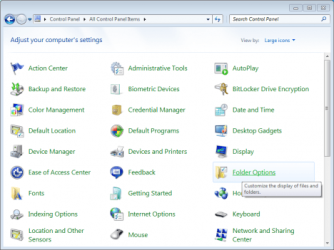
Set Search to Find Partial Matches

1. Open the Control Panel from the Start menu.

2. Open Folder Options in the Control Panel.

windows-search-partial-matches-1-1-468x351.png

**Note: If Folder Options isn’t available, change View by to Large icons at the top right of the Control Panel.

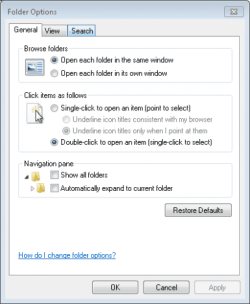
3. Select the Search tab in the Folder Options window.

windows-search-partial-matches-2-385x468.png

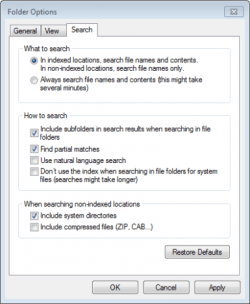
4. Check off Find partial matches in the How to search section and then click OK.

windows-search-partial-matches-3-1-385x468.PNG


Hope this helps solve your problem ;)
 

My Computer

Computer Manufacturer/Model Number
emachines EL 1200-06w
OS
Microsoft Windows 7 Ultimate
CPU
AMD Athlon 2650e, 1600 MHz (8 x 200)
Motherboard
eMachines WMCP61M
Memory
3 GB (2.75 Usable)
Graphics Card(s)
NVIDIA GeForce 6150SE nForce 430
Sound Card
Reltek ALC888/1200 @ nVIDIA nforce 6100-430
Monitor(s) Displays
Generic PnP Monitor [NoDB]; E19T6W
Screen Resolution
1440 x 900 (recommended)
Hard Drives
160GB SATA II (7200rpm, 8MB cache)
Keyboard
Standard multifunction keyboard
Mouse
2-button wheel mouse (PS/2)
Awesome I am going to try this asap thank you alot for the help!
 

My Computer

Computer Manufacturer/Model Number
I am a work at home internet marketer. I run a blog which educates people on <a href="http://www.to
OS
C:\Documents and Settings\admin\My Documents\mypics\travisblog.jpg
[FONT=&quot]Thanks for explaining in steps and it is working. [/FONT]
[FONT=&quot]Nice :)
[/FONT]
 

My Computer

OS
na
Try this.

Set Search to Find Partial Matches

1. Open the Control Panel from the Start menu.

2. Open Folder Options in the Control Panel.

View attachment 33981

**Note: If Folder Options isn’t available, change View by to Large icons at the top right of the Control Panel.

3. Select the Search tab in the Folder Options window.

View attachment 33982

4. Check off Find partial matches in the How to search section and then click OK.

View attachment 33983


Hope this helps solve your problem ;)

It didn't work, still does not display folders as part of the search...
 

My Computer

Computer Manufacturer/Model Number
I am a work at home internet marketer. I run a blog which educates people on <a href="http://www.to
OS
C:\Documents and Settings\admin\My Documents\mypics\travisblog.jpg
Try this.

Set Search to Find Partial Matches

1. Open the Control Panel from the Start menu.

2. Open Folder Options in the Control Panel.

View attachment 33981

**Note: If Folder Options isn’t available, change View by to Large icons at the top right of the Control Panel.

3. Select the Search tab in the Folder Options window.

View attachment 33982

4. Check off Find partial matches in the How to search section and then click OK.

View attachment 33983


Hope this helps solve your problem ;)

It didn't work, still does not display folders as part of the search...

me too
 

My Computer

Computer Manufacturer/Model Number
Gateway/NV7923u & NV79C52u Laptops
OS
windows 7 professional & ultimate 64bit laptops
CPU
2.27 boost to 2.53 & 2.53 boost to 2.80
Motherboard
Mobile Intel® HM55 Express Chipset ???
Memory
4GB
Graphics Card(s)
Intel® Graphics Media Accelerator HD
Sound Card
realtek High-definition audio support
Monitor(s) Displays
17.3 " HD 1600 x 900
Hard Drives
hatachi Travelstar 5400 500GB & west digital 500GB
Internet Speed
35MB fios
Control Panel>Indexing Options>Modify Button>Add Volumes that you want to be able to search.

EDIT: I forgot step 2. After doing step 1 above, close that window, then select the Advanced button and select the Rebuild Index button in the Troubleshooting section.
 
Last edited:

My Computer

Computer Manufacturer/Model Number
DIY
OS
W7x64 Pro, SuSe 12.1/** W7 x64 Pro, XP MCE
CPU
Phenom II 1090T w/Noctua NH-D14 /**4400+ X2 w/CM Hyper TX 3
Motherboard
ASRock 890FX Deluxe 4/**A8N-SLI
Memory
2 x 2GB Patriot PGS34g1600LLKA/**4x1GB Corsair VS
Graphics Card(s)
EVGA GTX460 SC/**EVGA 8800GTS
Sound Card
Asus Xonar D2X/**Xonar D1
Monitor(s) Displays
Acer X233H, Dell E152FPc /**LG M237-WD
Screen Resolution
1920x1080 & 1024x768/**1980x1080
Hard Drives
WDC 2TB, 1.5TB, 1TB, 500GB,Seagate 500GB , Maxtor 80GB /**500GB Seagate & WDC 1TB Black
PSU
CM RS600 w/ APC BX1000G/**Antec 500 TP w/ APC BX1000
Case
HAF922/**Antec 1040IIB
Cooling
3x200mm, 1x140 and 1x120mm/**5x80mm fans
Keyboard
Logitech Media USB/**Saitek Eclipse
Mouse
Cordless Trackman Wheel/**Ditto
Internet Speed
3.3Mbps
Other Info
SB 560 5.1 w/ Sennheiser RS140/**Creative T20 speakers, Dvico FusionHDTV7 Gold RT, Cisco E3000, HP 5510V AIO, Linksys E3000, Belkin F5U237 hub and **F5D8055 adapter
(** = 2nd rig)
Back
Top