Second Hard disk partitioning

cheesum

New member
Member
Local time
11:36 PM
Messages
61
Hi all,
Need some help here. Need to partition the second hard disk drive (500GB WD Black 7200 RPM). The Windows C drive is running off SSD and this second hard disk drive is sitting in the caddy tray in my laptop. Need to partition it and need some advice.

Type of stuff in the 2nd hard disk drive:
- Games (loads of Games - which i moved from the SSD),
- small files such as MS Excel, MS Words, various documents, photos, music, videos....

My concern is which files fit into which partitions?
Being told that the partition at the front will have faster read speed compared to the partition at the back........hence, is it a good idea to place game files in the partition at the front? How about the small files like MS Excel, Words, etc..? Where do they fit ~ front or back partition? Also, how many partition i should have and what is the ideal size of each partition?

ANyway, attached the read speed screenshot. Please teach me how to read the table below.
WD Black partition.png
 

My Computer

Computer type
Laptop
Computer Manufacturer/Model Number
Lenovo Ideapad Y580
OS
Windows 7 Home Premium 64Bit
There is no ideal way, but yes, keep your game programs on the 1st partition and keep all your data on the 2nd.

Your files will fit until you`re out of room, that`s it.

As long as you have some type of order, you should be fine. ;)
 

My Computer

Computer type
PC/Desktop
Computer Manufacturer/Model Number
Skylake Special #666
OS
Windows 10 Pro x64
CPU
Intel Core i7 6700K
Motherboard
Asus Sabertooth Z170 Mark 1
Memory
GSkill TridentZ RGB 16GB 3600 16-16-16-36
Graphics Card(s)
EVGA GTX 980 Ti SC x2
Sound Card
Realtek High Definition
Monitor(s) Displays
AOC G2460PG
Screen Resolution
1920 x 1080 144Hz
Hard Drives
Samsung 860 Pro 256GB, Seagate Barracuda 4TB x2
PSU
EVGA 1000 P2, EVGA White Custom Braided Cables
Case
Corsair Vengeance C70 Gunmetal Black
Cooling
Corsair H100i v2, Corsair ML120 x2, Thermal Grizzly Kryonaut
Keyboard
Logitech G910 Orion Spectrum
Mouse
Logitech G700s
Internet Speed
Verizon Fios Quantum Gateway 75/75
Antivirus
Windows Defender, Malwarebytes Free 3.8.3
Browser
Chrome
Other Info
Corsair SP120 x4, LG Blu-ray Drive, Durabrand HT-395 100 Watt Dolby Digital Amp, Corsair H2100 Wireless 7.1 Headset
heh, will not really matter a lot whatever you do. If it was system partition you would notice it, but for games or files... heh. Especially if you have a SSD.

You could make a single partition and leave it at that, or make two. More are usually redundant, but won't impact performance either way.

The graph shows read times and access times on all the areas of your drive (left is the outer regions and right the inner regions).
The data physically placed in the outer regions of the disk platters has a faster read/write speed (more disk surface read at the same speed), but a worse seek speed thus longer access times (more data= more time to find stuff), the data placed in the inner regions of the disk platter is the reverse. Less disk surface so it's less data at same speed, less data so faster access times.

It's a pretty normal HDD from the graph.
 

My Computer

Computer type
PC/Desktop
Computer Manufacturer/Model Number
custom built
OS
Win 7 Pro 64-bit 7601
CPU
AMD Phenom 9650 QuadCore, revision DR-B3
Motherboard
ASUS M4A78
Memory
5 GB yes I run 2x 2GB and 1x 1GB, different brand, spank me.
Graphics Card(s)
NVIDIA GeForce 9800 GT 512 Mb, unknown manufacturer.
Sound Card
Crappy Realtek Integrated Audio
Monitor(s) Displays
Fujitsu Siemens P19-3P
Screen Resolution
1280 x 1024 x 32 bits @ 60 Hz Oh yeah, 4:3 rocks!
Hard Drives
(1) MAXTOR S TM3320613AS SATA Disk Device (2) STM35004 18AS SATA Disk Device (3) TOSHIBA USB 2.5"-HDD
PSU
whatever, around 450w
Case
Scavenged from old company PC, 10+ years old
Cooling
CPU fan, GPU fan, case fan, nothing fancy
Keyboard
Microsoft, PS/2, white.
Mouse
Optical, logitec.
Internet Speed
effective max speeds: 70-ish kB/s down 30-ish kB/s up
Antivirus
Avira, free edition.
Browser
Firefox with FXChrome to make it look like Google Chrome :P
Other Info
Was discarded by previous owner due to "horrible performance".
Was running Win Xp from a IDE drive. Yeah. Was a pain.
SATA II drive and Win7 and it zips away! Yay!
There is no ideal way, but yes, keep your game programs on the 1st partition and keep all your data on the 2nd.

Your files will fit until you`re out of room, that`s it.

As long as you have some type of order, you should be fine. ;)

Hi - complete computer novice here.

Just asking, does it mean that when we create partition 1, it is automatically placed on the far left ~ outer region (with very fast read and write speed) whilst when we create partition 2 , it is progressively placed towards the right ~ inner region (with decreasing read and write speed)?

If this is the case, then should i install install games on partition 1?. Then, partition 2 (placed on right ~ inner region) has slower read and write speed, so we will place smaller files (words, excel, photos, music, small apps not exceeding 20MB) on it.

I am trying to get the logic of doing this. Please help to check whether the logic is correct?
The reason why we place files like words, excel, photo, music, very small apps (less than 20.0MB) on partition 2 is because it is located on the right hand side of the partition with faster seek time. Hence, it is faster for the HDD to seek it but because the file is small, hence it is okay for the HDD to read it at a lower read time (as compared to read time on the outer region of the disk)??? Is this logic correct????

Also, where to place the user profile? Is it placed on partition 1 or partition 2? Plan to do this tutorial - moving the user profile from C Drive to D Drive.
http://www.sevenforums.com/tutorials/87555-user-profile-change-default-location.html
 

My Computer

Computer type
Laptop
Computer Manufacturer/Model Number
Lenovo Ideapad Y580
OS
Windows 7 Home Premium 64Bit
heh, will not really matter a lot whatever you do. If it was system partition you would notice it, but for games or files... heh. Especially if you have a SSD.

You could make a single partition and leave it at that, or make two. More are usually redundant, but won't impact performance either way.

The graph shows read times and access times on all the areas of your drive (left is the outer regions and right the inner regions).
The data physically placed in the outer regions of the disk platters has a faster read/write speed (more disk surface read at the same speed), but a worse seek speed thus longer access times (more data= more time to find stuff), the data placed in the inner regions of the disk platter is the reverse. Less disk surface so it's less data at same speed, less data so faster access times.

It's a pretty normal HDD from the graph.

Hi - complete computer novice here. But why there is more data placed on partition 1 (left - outer region) compared to partition 2 (right - inner region)? Is the data being spread by the HDD itself? I thought we can control the data placed on the partition 1 and 2? As to ensure seek time is not affected?
What is the difference between seek and read time? What are their relationship?
 

My Computer

Computer type
Laptop
Computer Manufacturer/Model Number
Lenovo Ideapad Y580
OS
Windows 7 Home Premium 64Bit
But why there is more data placed on partition 1 (left - outer region) compared to partition 2 (right - inner region)?

Where are you seeing this? HD Tune tells you nothing about where data is placed, or even that there is any data on the drive at all.

Read time is the time it takes to transfer data from the drive to the buffer. Seek time is the time it takes to move the drive head to the track where the desired data is stored.There really isn't any direct relationship between them. From a practical performance standpoint it really doesn't matter much on which partition data is placed. HD Tune is showing a benchmark of several drive performance characteristics. Such benchmarks often don't mean very much under practical situations because there are so many other factors involved in performance.
 

My Computer

Computer type
PC/Desktop
Computer Manufacturer/Model Number
HP
OS
Windows 7 Pro 64 bit
CPU
Xeon W3520
Memory
8 GB
Graphics Card(s)
Nvidia Geforce 210
Just asking, does it mean that when we create partition 1, it is automatically placed on the far left ~ outer region (with very fast read and write speed) whilst when we create partition 2 , it is progressively placed towards the right ~ inner region (with decreasing read and write speed)?

If this is the case, then should i install install games on partition 1?. Then, partition 2 (placed on right ~ inner region) has slower read and write speed, so we will place smaller files (words, excel, photos, music, small apps not exceeding 20MB) on it.
Correct. Don't expect massive differences though.

What is the difference between seek and read time? What are their relationship?
Seek time is time needed to find a file or free space, BEFORE it can be read/written (respectively).
Read speed is the speed at which the file is read once it is found. Write speed is write speed once some free space is found.

Seek time will impact performance more when you are opening a ton of small files together (tens or hundreds of very small files opened at the same time, this happens with file fragmentation, read below), as for each of these small files you will add the seek times before you can open and use them.
Bigger files won't suffer so much of worse seek times because most of their loading time is dictated by reading speed due to sheer size. (if to read it you need more than 2-3 seconds, a few dozen milliseconds of seek time become irrelevant)

For the sake of making a complete picture, file fragmentation does impact read-write performance, as bigger files are split into multiple parts placed relatively distant from each other on a disk (while still showing as single file to you, the user), adding seek times again for each fragment as now it's no more a single file all nicely written together.
Running a good file defrag program like Puran Defrag every once in a while to make sure that the drives are fully defragmented does increase performance. Don't go bonkers with it, defrag every time you install/remove a game or move a substantial amount of dumb data, not more. There is only so much that it can do.
Generally a good through defrag is noticeable if the drive was very fragmented before.
These partitioning tricks... not so much, but maybe you can notice it.

DO NOT run defrag programs on SSD drives as that is a different technology. (actually, in a SSD the defrag/optimization happens anyway but it is done by the SSD itself without any user/software interaction, as this way it is better tailored to the specific hardware it is made with).

Also, where to place the user profile? Is it placed on partition 1 or partition 2? Plan to do this tutorial - moving the user profile from C Drive to D Drive.
http://www.sevenforums.com/tutorials/87555-user-profile-change-default-location.html
Why you plan to do this? Unless you plan to keep huge amounts of data on your desktop this is more trouble than it is worth.

But why there is more data placed on partition 1 (left - outer region) compared to partition 2 (right - inner region)?
Sorry, was not clear enough.
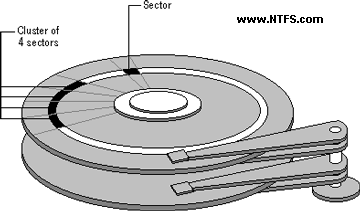
A hard drive is basically a glorified high-tech gramophone (or rewritable CD player).
The data is written in circular tracks on the surface of its internal disks.
The outermost tracks are longer than the innermost tracks, because well, it is a spinning disk.
This is why the performance (read speed and seek times) vary across disk surface.
Partition size is fully arbitrary however. You decide how big will be D: and E: and whatever.
The hardware will adjust accordingly
recover-hard-drive-sectors-and-clusters.gif
Here is a simplified scheme where you see the disks in gray and the reading heads (in gray as well).
The white circle is a track. You see only one in the image, but the full disk surface is full of them.
 
Last edited:

My Computer

Computer type
PC/Desktop
Computer Manufacturer/Model Number
custom built
OS
Win 7 Pro 64-bit 7601
CPU
AMD Phenom 9650 QuadCore, revision DR-B3
Motherboard
ASUS M4A78
Memory
5 GB yes I run 2x 2GB and 1x 1GB, different brand, spank me.
Graphics Card(s)
NVIDIA GeForce 9800 GT 512 Mb, unknown manufacturer.
Sound Card
Crappy Realtek Integrated Audio
Monitor(s) Displays
Fujitsu Siemens P19-3P
Screen Resolution
1280 x 1024 x 32 bits @ 60 Hz Oh yeah, 4:3 rocks!
Hard Drives
(1) MAXTOR S TM3320613AS SATA Disk Device (2) STM35004 18AS SATA Disk Device (3) TOSHIBA USB 2.5"-HDD
PSU
whatever, around 450w
Case
Scavenged from old company PC, 10+ years old
Cooling
CPU fan, GPU fan, case fan, nothing fancy
Keyboard
Microsoft, PS/2, white.
Mouse
Optical, logitec.
Internet Speed
effective max speeds: 70-ish kB/s down 30-ish kB/s up
Antivirus
Avira, free edition.
Browser
Firefox with FXChrome to make it look like Google Chrome :P
Other Info
Was discarded by previous owner due to "horrible performance".
Was running Win Xp from a IDE drive. Yeah. Was a pain.
SATA II drive and Win7 and it zips away! Yay!
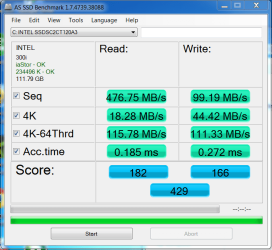
Thanks alot. On another matter. Complete SSD novice here. Just performed a benchmark test on the Intel SSD330 series. Do not know what the results meant. Please help to enlighten me.
2013-06-25 21_15_44-AS SSD Benchmark.png


Where can i read more about this? What is the meaning of
Sequential read/ write,
4K read/ write,
4k - 64thrd,
Acc time.

Also, what is the best SSD benchmark tool out there? And how do i improve the performance of the SSD on windows 7?

Thanks alot.
 

My Computer

Computer type
Laptop
Computer Manufacturer/Model Number
Lenovo Ideapad Y580
OS
Windows 7 Home Premium 64Bit
Sequential read/ write,= read/write speed of a big file, usually more than 10-100 MB, depends from the benchamrking software and the options you set.
You see that while write performance is around on par with your HDD benchmark above, read speed is something like 3-4 times the HDD. This benchmark tests the best possible scenario for a SSD.

4k is a test where the drive is asked to write and read a file of the size of 4 kilobyte, in a random position. This is usually more taxing for the drive controller, so the performance will be lower.
This is the worst case scenario for a SSD, this is the kind of things it does more poorly.

4k - 64thrd is like above, but now there are 64 files written/read in random positions. This tests how good is the drive at managing multiple file requests at the same time, with a worst case scenario.

Acc time is access time, the same as the "seek time" for your HDD above. Note that it is 0.1 or 0.2 milliseconds while for a hdd it's more than 10 milliseconds.

This is a reputable review of your device, this is another reputable review. Any SSD has been benchmarked, so you can easily compare yours to whatever.

And how do i improve the performance of the SSD on windows 7?
This tutorial (the link pointing to Intel Rapid Storage tech drivers is very outdated, use the latest chipset drivers for your own chipset instead).
Also make sure that its partitions are aligned, read here. And here to fix misalignment. Here an explanation of what that means more in depth.
 

My Computer

Computer type
PC/Desktop
Computer Manufacturer/Model Number
custom built
OS
Win 7 Pro 64-bit 7601
CPU
AMD Phenom 9650 QuadCore, revision DR-B3
Motherboard
ASUS M4A78
Memory
5 GB yes I run 2x 2GB and 1x 1GB, different brand, spank me.
Graphics Card(s)
NVIDIA GeForce 9800 GT 512 Mb, unknown manufacturer.
Sound Card
Crappy Realtek Integrated Audio
Monitor(s) Displays
Fujitsu Siemens P19-3P
Screen Resolution
1280 x 1024 x 32 bits @ 60 Hz Oh yeah, 4:3 rocks!
Hard Drives
(1) MAXTOR S TM3320613AS SATA Disk Device (2) STM35004 18AS SATA Disk Device (3) TOSHIBA USB 2.5"-HDD
PSU
whatever, around 450w
Case
Scavenged from old company PC, 10+ years old
Cooling
CPU fan, GPU fan, case fan, nothing fancy
Keyboard
Microsoft, PS/2, white.
Mouse
Optical, logitec.
Internet Speed
effective max speeds: 70-ish kB/s down 30-ish kB/s up
Antivirus
Avira, free edition.
Browser
Firefox with FXChrome to make it look like Google Chrome :P
Other Info
Was discarded by previous owner due to "horrible performance".
Was running Win Xp from a IDE drive. Yeah. Was a pain.
SATA II drive and Win7 and it zips away! Yay!
Back
Top