Set default action for CD/DVD/BD/Etc

Tbird761

New member
Local time
5:06 PM
Messages
6
How is it possible to change the default action (eg: double-click on the drive icon; the bold entry in the right-click context menu) for an optical drive?

Keep in mind that this has nothing to do with AutoPlay. I always turn AutoPlay completely off. I just want double-click to perform the old school "Open" action on an optical drive instead of "Play" since I virtually NEVER want to do that with a disc. There doesn't appear to be a place to set this. I guess Microsoft is trying to make things easier for their users, but the lack of configurability is frustrating.

Edit For Future Readers: Success! Thanks to shoelessinsight, we finally have an answer! You can fix this by changing the default action to "Open" for the "DVD" entry under HKCR in your registry. Works for video DVDs at least...may be other keys you'll have to find for other disc types.

Short version fix: Run the attached .reg file. LOOK AT THE CONTENTS FIRST BEFORE RUNNING A .REG FROM A STRANGER OF COURSE! (But seriously, it's not going to do anything but change this value for you.)
 

Attachments

Last edited:

My Computer

OS
Windows 7 Professional x64
CPU
Phenom II X6 1090T
Motherboard
Gigabyte GA-890FXA-UD5
Memory
8GB DDR3-2000
Graphics Card(s)
Radeon HD 5850 OC 1GB
Sound Card
ASUS Xonar DX PCIe
Monitor(s) Displays
Dell 2408FPW + 2 x Dell 2007FP
Hard Drives
5 x Hitachi T7K2000 7200 RPM SATA
8 x Fujitsu MBA3147RC 15K SAS
PSU
Seasonic X-750 Gold
Cooling
Tuniq Tower 120 Extreme
Right click and choose open doesn't work?
 

My Computer

Computer type
PC/Desktop
Computer Manufacturer/Model Number
Bruce ... somewhere in his 40's
OS
Windows 7 Ultimate 32bit SP1
CPU
Intel(R) Core(TM)2 Quad CPU @ 2.40GHz, 2400 MHz
Motherboard
INTEL/D975XBX2
Memory
4 GB
Graphics Card(s)
ATI Radeon HD 2600 Pro
Monitor(s) Displays
Samsung SyncMaster 914v
Screen Resolution
1280 x 1024
Hard Drives
2/500GB each ... ST3500630AS ATA Device.
One is not connected
PSU
Rocketfish 700 W
Case
G.Skill Gigabyte Chassis
Keyboard
Standard PS/2 Keyboard
Mouse
Microsoft PS/2 Mouse
Internet Speed
DSL
Antivirus
Avira Internet Security
Browser
IE 11
Other Info
ATI HDMI Audio
That accomplishes opening the disc, but I want open to be the default. I more often want open than anything else, so why not make that the normal double-click action?
 

My Computer

OS
Windows 7 Professional x64
CPU
Phenom II X6 1090T
Motherboard
Gigabyte GA-890FXA-UD5
Memory
8GB DDR3-2000
Graphics Card(s)
Radeon HD 5850 OC 1GB
Sound Card
ASUS Xonar DX PCIe
Monitor(s) Displays
Dell 2408FPW + 2 x Dell 2007FP
Hard Drives
5 x Hitachi T7K2000 7200 RPM SATA
8 x Fujitsu MBA3147RC 15K SAS
PSU
Seasonic X-750 Gold
Cooling
Tuniq Tower 120 Extreme
Autoplay

Open autoplay in control panel. You will have all kinds of options.
 

My Computer

OS
windows 7 home premium
@greyoldchief: AutoPlay is completely unrelated, as stated in the first post.

@TooCrooked: I never found an answer to this particular issue, either.
 

My Computer

OS
Windows 7 Professional x64
CPU
Phenom II X6 1090T
Motherboard
Gigabyte GA-890FXA-UD5
Memory
8GB DDR3-2000
Graphics Card(s)
Radeon HD 5850 OC 1GB
Sound Card
ASUS Xonar DX PCIe
Monitor(s) Displays
Dell 2408FPW + 2 x Dell 2007FP
Hard Drives
5 x Hitachi T7K2000 7200 RPM SATA
8 x Fujitsu MBA3147RC 15K SAS
PSU
Seasonic X-750 Gold
Cooling
Tuniq Tower 120 Extreme
You need to leave Autoplay enabled and use it's settings to control the default action, as greyoldchief mentioned.
 

My Computer

Computer type
PC/Desktop
Computer Manufacturer/Model Number
Lenovo IdeaCenter 450
OS
Windows 10 Pro X64
CPU
Intel Quad Core i7-4770 @ 3.4Ghz
Memory
16.0GB PC3-12800 DDR3 SDRAM 1600 MHz
Graphics Card(s)
Intel Integrated HD Graphics
Sound Card
Realtek HD Audio
Monitor(s) Displays
HP 22" LCD
Screen Resolution
1680 x 1050
Hard Drives
250GB Samsung EVO SATA-3 SSD
2TB Seagate ST2000DM001 SATA-2
1.5TB Seagate ST3150041AS SATA
Keyboard
Dell USB
Mouse
Lenovo USB
Internet Speed
Cable via Road Runner 3MB Upload, 30MB Download
Antivirus
Windows Defender, MBAM Pro, MBAE
Browser
Seamonkey
Other Info
UEFI/GPT
PLDS DVD-RW DH16AERSH
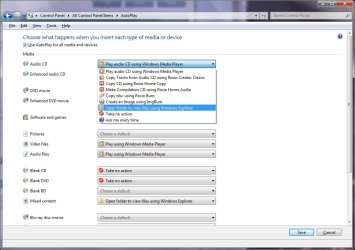
Tbird761 asked how to make Open the default action. Autoplay from Control Panel allows you to do this, see the picture below.

AutoPlay.jpg

It doesn't seem to change the Bolded action in the right click Context Menu though.

This worked for XP, may still work for Vista and Win 7: Search Companion Starts If You Double-Click a Folder
 

My Computer

Computer type
PC/Desktop
Computer Manufacturer/Model Number
Lenovo IdeaCenter 450
OS
Windows 10 Pro X64
CPU
Intel Quad Core i7-4770 @ 3.4Ghz
Memory
16.0GB PC3-12800 DDR3 SDRAM 1600 MHz
Graphics Card(s)
Intel Integrated HD Graphics
Sound Card
Realtek HD Audio
Monitor(s) Displays
HP 22" LCD
Screen Resolution
1680 x 1050
Hard Drives
250GB Samsung EVO SATA-3 SSD
2TB Seagate ST2000DM001 SATA-2
1.5TB Seagate ST3150041AS SATA
Keyboard
Dell USB
Mouse
Lenovo USB
Internet Speed
Cable via Road Runner 3MB Upload, 30MB Download
Antivirus
Windows Defender, MBAM Pro, MBAE
Browser
Seamonkey
Other Info
UEFI/GPT
PLDS DVD-RW DH16AERSH
Yes, autoplay is unrelated. Setting the default autoplay action has no impact on the default double click action, only that which happens automatically when a disc is inserted. These are very different problems. Autoplay is not the answer, but many people trying to help on various forums have made that same mistake.
 

My Computer

OS
Windows 7 Professional x64
CPU
Phenom II X6 1090T
Motherboard
Gigabyte GA-890FXA-UD5
Memory
8GB DDR3-2000
Graphics Card(s)
Radeon HD 5850 OC 1GB
Sound Card
ASUS Xonar DX PCIe
Monitor(s) Displays
Dell 2408FPW + 2 x Dell 2007FP
Hard Drives
5 x Hitachi T7K2000 7200 RPM SATA
8 x Fujitsu MBA3147RC 15K SAS
PSU
Seasonic X-750 Gold
Cooling
Tuniq Tower 120 Extreme
Sorry to join this discussion late, but I just ran across this thread while looking for the same information. Since I couldn't find any answers on the internet, I did some trial and error in my Windows 7 Registry and quickly found a solution.

For data discs, such as game DVDs, my default has always been "Open" without any registry edits. If I recall correctly, I made that change through the Autorun dialog, as Ztruker suggested, but it didn't work for movie discs. To make "Open" the default for movie DVDs and BDs, follow the instructions below.

First, I give everyone the standard disclaimer that editing the Windows Registry carries the risk of damaging your Windows installation, so proceed with caution if you decide to make these changes.

Open your Registry Editor by pressing the "Windows" key + "R", and then typing "Regedit" (without quotes) in the "Run" window.

Open "HKEY_CLASSES_ROOT", then scroll down until you find "DVD". Open that key and click on the key labeled "shell".

In the right pane you will see an entry titled "Default", which probably has a value like "Play" or "PlayWithPowerDVD". Double-click on "Default" and change the value to "Open" (without quotes).

This seemed to affect my Blu-ray discs as well, but there is also a "BluRay" key in "HKEY_CLASSES_ROOT". For good measure, I made the same change to the "shell" key there as well. I could not find any key for "CD", so the above two changes should be enough.

The changes take effect immediately, so right click on your DVD drive to test it. It worked like a charm for me.

This fix took me all of ten minutes to find and test, so it's entirely possible that I'm missing a few cases where that annoying "Play" default will still show up. If anybody finds anything, let me know.

Good luck!
 

My Computer

OS
Windows 7 Home Premium x64
Sorry to join this discussion late, but I just ran across this thread while looking for the same information. Since I couldn't find any answers on the internet, I did some trial and error in my Windows 7 Registry and quickly found a solution.

For data discs, such as game DVDs, my default has always been "Open" without any registry edits. If I recall correctly, I made that change through the Autorun dialog, as Ztruker suggested, but it didn't work for movie discs. To make "Open" the default for movie DVDs and BDs, follow the instructions below.

First, I give everyone the standard disclaimer that editing the Windows Registry carries the risk of damaging your Windows installation, so proceed with caution if you decide to make these changes.

Open your Registry Editor by pressing the "Windows" key + "R", and then typing "Regedit" (without quotes) in the "Run" window.

Open "HKEY_CLASSES_ROOT", then scroll down until you find "DVD". Open that key and click on the key labeled "shell".

In the right pane you will see an entry titled "Default", which probably has a value like "Play" or "PlayWithPowerDVD". Double-click on "Default" and change the value to "Open" (without quotes).

This seemed to affect my Blu-ray discs as well, but there is also a "BluRay" key in "HKEY_CLASSES_ROOT". For good measure, I made the same change to the "shell" key there as well. I could not find any key for "CD", so the above two changes should be enough.

The changes take effect immediately, so right click on your DVD drive to test it. It worked like a charm for me.

This fix took me all of ten minutes to find and test, so it's entirely possible that I'm missing a few cases where that annoying "Play" default will still show up. If anybody finds anything, let me know.

Good luck!

We have a winner! :) Someone who finally took the time to read the posts. I'd looked in the registry before, but I didn't think to look in the classes node since that's normally for file associations instead of devices. I was crawling all through HKLM instead.

Short version for future readers: Run the attached reg (after you view it to make sure I'm not including bad stuff...you should ALWAYS check!).
 

Attachments

My Computer

OS
Windows 7 Professional x64
CPU
Phenom II X6 1090T
Motherboard
Gigabyte GA-890FXA-UD5
Memory
8GB DDR3-2000
Graphics Card(s)
Radeon HD 5850 OC 1GB
Sound Card
ASUS Xonar DX PCIe
Monitor(s) Displays
Dell 2408FPW + 2 x Dell 2007FP
Hard Drives
5 x Hitachi T7K2000 7200 RPM SATA
8 x Fujitsu MBA3147RC 15K SAS
PSU
Seasonic X-750 Gold
Cooling
Tuniq Tower 120 Extreme
Glad to hear that it was what you were looking for. =)

Out of curiosity, do you have the "BluRay" key that I mentioned? If so, do you have a Blu-ray drive? Since I have Blu-ray, it left me wondering if this key existed for computers that don't have a Blu-ray drive installed.

I haven't tested it much, but from what I can see the "BluRay" key doesn't seem to do anything.
 

My Computer

OS
Windows 7 Home Premium x64
No keys starting with "blu" on my machine despite the presence of a bluray drive. I wasn't concerned about it since you noted it didn't appear to effect anything. It must have been created by some program you installed.

Thanks again
 

My Computer

OS
Windows 7 Professional x64
CPU
Phenom II X6 1090T
Motherboard
Gigabyte GA-890FXA-UD5
Memory
8GB DDR3-2000
Graphics Card(s)
Radeon HD 5850 OC 1GB
Sound Card
ASUS Xonar DX PCIe
Monitor(s) Displays
Dell 2408FPW + 2 x Dell 2007FP
Hard Drives
5 x Hitachi T7K2000 7200 RPM SATA
8 x Fujitsu MBA3147RC 15K SAS
PSU
Seasonic X-750 Gold
Cooling
Tuniq Tower 120 Extreme
To had to say thank you ,as my double click and "play" both stopped working once i removed access to wmp and no matter what i tried,i couldn't get wmp classic to play my dvd film with a simple double click or even right click and choosing "play" action . I used to use the "action" method in xp ,but once again ,ms removed this from windows 7 ,so thanks to you and a bit more research ,i got this working through the registry,something i don't like messing with ,but thanks to ms wisdom,more people have to now mess about with the registry than they used to under xp ? And here's the other info i needed to get my "play" action working again. Default DVD player - Microsoft Help | DSLReports Forums (Page 2)
 

My Computer

OS
xp
To change the default action when double clicked - on AudioCD - similar regedit activities are required:
run regedit, then navigate to HKCR\AudioCD\shell - change the default action to Open.

My question: what if a CD has "enhanced content" - such that even if you've fixed the DVD, CD default actions (when double clicked - NOT referring to either AutoPlay or AutoRun)... How do you fix the default action for this?

It seems that the "optical disk" will always be called something else - rather than DVD or AudioCD (even on the same physical reading device) - you'd look for something like HKCR\[somethingElse]\shell

I was only able to find "Run enhanced content" under the "Explorer" section - and that only while the "enhanced content CD" was in the tray.

HKCU\Software\Microsoft\Windows\CurrentVersion\Explorer\MountPoints2\{codeAssociated_withthe_CD}\shell\AutoRun\(default action:Run enhanced content)

The {codeAssociated_withthe_CD} above disappears from the registry when you remove the CD, so it's likely tied to each individual CD at this point in the registry, rather than something that could be fixed once (and certainly wouldn't be 'fixed' for different users that logged onto the machine).

Suggestions?
Thanks!
 

My Computer

OS
Windows 7 Home Premium 64, Linux
I see that this is useful, but how can I do this with my Seagate External? The default action keeps being, "Start my Seagate FreeAgent" but I want it to be FREAKIN' OPEN! I've been looking for a solution for about a week, now...Can't find anything on it at all.
 

My Computer

Computer Manufacturer/Model Number
Intel ThinkCentre MT-M 8215-29U
OS
Windows Vista 32-Bit
CPU
1.6 P4 HT @ 3.2Ghrz
Motherboard
Intel
Memory
4 Gigs
Graphics Card(s)
Intel
Sound Card
Creative Sound Blaster
Monitor(s) Displays
Dell. Highest Res, 1600x900. (Vid Card restricts, though.)
Hard Drives
2 Hard drives, one 75Gig and one 500gig external.
Cooling
8 Fans, baby.
running .REG file works! No more errors but folder opens

THANKS!

The .reg file was great.

I was getting an error every time I double clicked on a DVD image under My Computer.

Now when doing so the folder opens which is much preferred and way less annoying than having to right click-open.

THANKS AGAIN! Great issue to have addressed and SOLVED.

:D
 

My Computer

OS
Texas
A program that I use will do all that everyone is looking for. It's called "Default Programs Editor" -- see: Default Programs Editor
It tweaks AutoPlay, Context Menus, Default Programs and more. Best of all, it's "DonationWare" -- and you'll want to make a donation!
 

My Computer

Computer Manufacturer/Model Number
Dell XPS 630i
OS
Windows Vista x64
CPU
Intel Core2 Quad Q9450 @ 2.66 GHz
Memory
8 Gb
Graphics Card(s)
ATI Radeon HD 4850
Sound Card
Creative SoundBlaster X-Fi Extreme Gamer
Monitor(s) Displays
Dell 2408WFP & ACER Ferrari F-20
Screen Resolution
1920x1200 & 1680x1050
Hard Drives
nVidia On-Board RAID Controller
3 - Western Digital Caviar 500GB SATA
Seagate FreeAgentDesktop drive 500Gb
Seagate GoFlex drive 3Tb
Keyboard
Logitech Wireless Illuminated Keyboard K800
Mouse
Performance Mouse MX
Internet Speed
12 Gb
It doesn't do what the reg files heredo for file type association repair. Other then that it looks interesting.
 

My Computer

Computer type
PC/Desktop
Computer Manufacturer/Model Number
Lenovo IdeaCenter 450
OS
Windows 10 Pro X64
CPU
Intel Quad Core i7-4770 @ 3.4Ghz
Memory
16.0GB PC3-12800 DDR3 SDRAM 1600 MHz
Graphics Card(s)
Intel Integrated HD Graphics
Sound Card
Realtek HD Audio
Monitor(s) Displays
HP 22" LCD
Screen Resolution
1680 x 1050
Hard Drives
250GB Samsung EVO SATA-3 SSD
2TB Seagate ST2000DM001 SATA-2
1.5TB Seagate ST3150041AS SATA
Keyboard
Dell USB
Mouse
Lenovo USB
Internet Speed
Cable via Road Runner 3MB Upload, 30MB Download
Antivirus
Windows Defender, MBAM Pro, MBAE
Browser
Seamonkey
Other Info
UEFI/GPT
PLDS DVD-RW DH16AERSH
Try this...
Run "Default Programs Editor"
Choose Autoplay Settings
Choose DVD movie
Click Next
Choose or Add the Handler you want...
(For purposes of this discussion, click on: Open folder to view files)
Notice the following option then appears near the bottom:
"Set selected handler as default for DVD movie media"
The new default action is bolded.
Click Save Autoplay settings (or choose the save dropdown to save a .reg file
TA DA
 

My Computer

Computer Manufacturer/Model Number
Dell XPS 630i
OS
Windows Vista x64
CPU
Intel Core2 Quad Q9450 @ 2.66 GHz
Memory
8 Gb
Graphics Card(s)
ATI Radeon HD 4850
Sound Card
Creative SoundBlaster X-Fi Extreme Gamer
Monitor(s) Displays
Dell 2408WFP & ACER Ferrari F-20
Screen Resolution
1920x1200 & 1680x1050
Hard Drives
nVidia On-Board RAID Controller
3 - Western Digital Caviar 500GB SATA
Seagate FreeAgentDesktop drive 500Gb
Seagate GoFlex drive 3Tb
Keyboard
Logitech Wireless Illuminated Keyboard K800
Mouse
Performance Mouse MX
Internet Speed
12 Gb
Sorry to join this discussion late, but I just ran across this thread while looking for the same information. Since I couldn't find any answers on the internet, I did some trial and error in my Windows 7 Registry and quickly found a solution.

For data discs, such as game DVDs, my default has always been "Open" without any registry edits. If I recall correctly, I made that change through the Autorun dialog, as Ztruker suggested, but it didn't work for movie discs. To make "Open" the default for movie DVDs and BDs, follow the instructions below.

First, I give everyone the standard disclaimer that editing the Windows Registry carries the risk of damaging your Windows installation, so proceed with caution if you decide to make these changes.

Open your Registry Editor by pressing the "Windows" key + "R", and then typing "Regedit" (without quotes) in the "Run" window.

Open "HKEY_CLASSES_ROOT", then scroll down until you find "DVD". Open that key and click on the key labeled "shell".

In the right pane you will see an entry titled "Default", which probably has a value like "Play" or "PlayWithPowerDVD". Double-click on "Default" and change the value to "Open" (without quotes).

This seemed to affect my Blu-ray discs as well, but there is also a "BluRay" key in "HKEY_CLASSES_ROOT". For good measure, I made the same change to the "shell" key there as well. I could not find any key for "CD", so the above two changes should be enough.

The changes take effect immediately, so right click on your DVD drive to test it. It worked like a charm for me.

This fix took me all of ten minutes to find and test, so it's entirely possible that I'm missing a few cases where that annoying "Play" default will still show up. If anybody finds anything, let me know.

Good luck!
can u please tell me how can i make Double clicking on a DVD (:E) play with Media player 12?
because it used to play with media player classic , and after i deleted it it now shows an error
 

My Computer

OS
Windows 7 64 bit
Back
Top