Set up Dual Boot w/same Win 7: conflicting instructions

MichaelDSM

New member
Local time
8:57 AM
Messages
6
Hello. First my thanks to such members as gregrocker, Kari, Brink, Barefoot Kid, and Shawn for the helpful posts and tutorials I have read since starting to come here!

My question is whether to install the 2nd OS from within the 1st or from outside of it (by booting from the install disc).

Brink wrote this tutorial, and in it said to: "Insert the second OS (Windows 7 or Vista) installation DVD, and restart the computer to start installing it."

That would be the same as saying to boot from the DVD.

However, I read this thread on the subject, where a junior member said: "One other tip when creating multiboot. Boot into your existing 7 installation like normal. Insert your windows install disc in your optical drive and run it from WITHIN your existing 7 installation. This will allow the two installations to 'know' about each other. DO NOT boot from from the install disc to do your second install. Doing it this way makes each installation unaware of the other and you will not be presented with a menu to choose which one to run when you boot."

Gregrocker had later postings and didn't contradict it, so it would seem that he agreed (admission by omission?) :geek:

The business about the installations "knowing about each other" sounds sensible enough. It is true or "urban legend"? I don't want to have to do it twice!

Thank you,

Mike
 

My Computer My Computer

Computer Manufacturer/Model Number
HP ProBook 4530s
OS
Windows 7 Home Premium x64, Windows 7 Pro x32
CPU
Intel Core i3 210GHz
Memory
4 GB DDR3
Hello MichaelDSM, welcome to Seven Forums! Thank you for the kind words.


If you don't boot the Windows 7 installation media the 'new' install will not get the C: drive letter which is always an inferior situation.

If you have 2 separate HDDs you could do it this way which is the best possible way.


   Note

The easiest way to do away with boot issues between separate Operating Systems (OS) is to use the BIOS one time boot menu to select which OS to boot at system startup, each motherboard has an individual hot-key to tap during system start-up to access this menu.

If you have 2 separate Hard Disk Drives (HDD) and have one OS installed to one HDD and you want to install another OS to the second HDD, disconnect the HDD with the first OS installed on it and leave only the HDD you want to install the second OS to connected.

Install the second OS to the connected HDD and when complete and the system is booting good, power down and reconnect the first HDD with the first OS on it.

This way the OSs will boot independently of each other and there will be no boot conflicts between the 2 separate OSs to have to sort later.


Then set the BIOS to boot the HDD / OS you want as default and if you want to start the other (new) OS you use the BIOS one-time boot menu to select that HDD / OS to start when the PC is started.
  • Asus - F8
  • HP/Compaq - Esc
  • Sony - F2
  • Acer – F12
  • Packard Bell
  • Gateway - F10
  • eMachnes - F10
  • Gigabyte – F12
  • Toshiba - F12
  • Dell - F12
  • IBM/Lenovo - the blue Thinkvantage button
 

My Computer My Computer

Computer Manufacturer/Model Number
* BFK Customs *
OS
W 7 64-bit Ultimate
CPU
Intel Q9550 Yorkfield
Motherboard
ASUS P5Q Pro
Memory
8GB Dominator 8500C5D
Graphics Card(s)
ATI : XFX 5870
Sound Card
Realtek HD Audio 7-1
Monitor(s) Displays
1x 47" LCD HDMI & 3x 26" LCD HDMI
Screen Resolution
1920x1080P & 1920x1200
Hard Drives
1x 80GB Intel X25-M G2 SSD : 1x 500GB & 1x 640GB WD Caviar Black(s)
PSU
Corsair 620HX
Case
Cooler Master RC-690
Cooling
Tuniq Tower 120, 2x 140mm and 3x 120mm case fans
Keyboard
Microsoft 500
Mouse
Razer Diamondback 3G
Internet Speed
14 Mb/s
Other Info
1x Koutech 3Gb/s SATA HDD Hot Swap Rack
That 2nd statement, thread, etc. is completely inaccurate :rolleyes:
 

My Computer My Computer

Computer type
PC/Desktop
Computer Manufacturer/Model Number
Skylake Special #666
OS
Windows 10 Pro x64
CPU
Intel Core i7 6700K
Motherboard
Asus Sabertooth Z170 Mark 1
Memory
GSkill TridentZ RGB 16GB 3600 16-16-16-36
Graphics Card(s)
EVGA GTX 980 Ti SC x2
Sound Card
Realtek High Definition
Monitor(s) Displays
AOC G2460PG
Screen Resolution
1920 x 1080 144Hz
Hard Drives
Samsung 860 Pro 256GB, Seagate Barracuda 4TB x2
PSU
EVGA 1000 P2, EVGA White Custom Braided Cables
Case
Corsair Vengeance C70 Gunmetal Black
Cooling
Corsair H100i v2, Corsair ML120 x2, Thermal Grizzly Kryonaut
Keyboard
Logitech G910 Orion Spectrum
Mouse
Logitech G700s
Internet Speed
Verizon Fios Quantum Gateway 75/75
Antivirus
Windows Defender, Malwarebytes Free 3.8.3
Browser
Chrome
Other Info
Corsair SP120 x4, LG Blu-ray Drive, Durabrand HT-395 100 Watt Dolby Digital Amp, Corsair H2100 Wireless 7.1 Headset
Thank you both for the quick replies!

Yes, I actually have done the BIOS boot method on home built machines in the past. This will be on a laptop, so just 1 HDD, and my first time trying a dual boot separated only by software partitions.

I understand the C: drive letter business, yes that would be messy.

So it's safe to presume that Windows will present me with a Boot Manager of some kind? I've never seen a Windows based boot manager so please excuse me for being a bit ignorant.

Thank you!

Mike
 

My Computer My Computer

Computer Manufacturer/Model Number
HP ProBook 4530s
OS
Windows 7 Home Premium x64, Windows 7 Pro x32
CPU
Intel Core i3 210GHz
Memory
4 GB DDR3
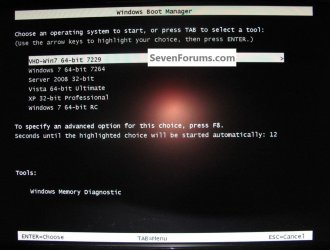
This was my system at one time, I like to show it as it was fun at the time but I don't really dual boot much anymore, this is a Windows managed boot manager.

I find the easiest way to dual boot now is to put the preferred OS on the first partition on the HDD as a Primary partition and install the subsequent OS(s) on an Extended partition Logical drive(s)

Have a look through this tutorial for some ideas; this method makes it very easy to remove OS(s) at will without any boot loader issues at all.


My Computer My Computer

Computer Manufacturer/Model Number
* BFK Customs *
OS
W 7 64-bit Ultimate
CPU
Intel Q9550 Yorkfield
Motherboard
ASUS P5Q Pro
Memory
8GB Dominator 8500C5D
Graphics Card(s)
ATI : XFX 5870
Sound Card
Realtek HD Audio 7-1
Monitor(s) Displays
1x 47" LCD HDMI & 3x 26" LCD HDMI
Screen Resolution
1920x1080P & 1920x1200
Hard Drives
1x 80GB Intel X25-M G2 SSD : 1x 500GB & 1x 640GB WD Caviar Black(s)
PSU
Corsair 620HX
Case
Cooler Master RC-690
Cooling
Tuniq Tower 120, 2x 140mm and 3x 120mm case fans
Keyboard
Microsoft 500
Mouse
Razer Diamondback 3G
Internet Speed
14 Mb/s
Other Info
1x Koutech 3Gb/s SATA HDD Hot Swap Rack
I find the easiest way to dual boot now is to put the preferred OS on the first partition on the HDD as a Primary partition and install the subsequent OS(s) on an Extended partition Logical drive(s)

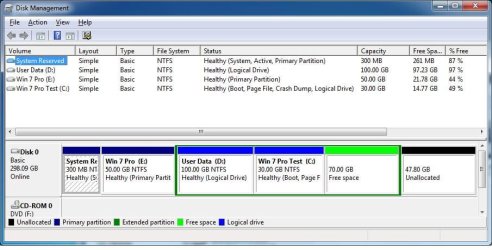
Great! I happened to find and read that tutorial just today, and it was very useful but I was still a bit fuzzy on specifics when it came to exactly the where and how. Thank you for clearly stating those things. Luckily, I was headed in the right direction already: System partition first, then preferred OS on a 50GB Primary, then at lunch I had time to create a 200 GB Extended with a 100GB Logical for the Users & program Data folders, a 30GB Logical for the 2nd OS, and some undecided extra.

It just seemed to make sense from all I've read (right here on this site - what a resource!), but I wasn't at all certain about it.

So I presume that by doing it that way the Windows Boot Manager will put my preferred OS first? Hopefully I'll know by the time I check back - busy weekend ahead, I may not visit until Monday.

I'll post back with my results!

Thank you,

Mike
 

My Computer My Computer

Computer Manufacturer/Model Number
HP ProBook 4530s
OS
Windows 7 Home Premium x64, Windows 7 Pro x32
CPU
Intel Core i3 210GHz
Memory
4 GB DDR3
There's rarely a day passes here in 3 years where I don't remind users to always boot the installer to install Win7.

If you incorrectly run the installer from another OS on C it prevents it from claiming the letter as it always will when correctly booted. This is easily prevented by booting the installer. There is no reason not to, except not knowing.

The best practices for a Win7 install are the same as given here for Clean Reinstall - Factory OEM Windows 7.
 
Glad I could help Mike, be sure to post back with updates.
 

My Computer My Computer

Computer Manufacturer/Model Number
* BFK Customs *
OS
W 7 64-bit Ultimate
CPU
Intel Q9550 Yorkfield
Motherboard
ASUS P5Q Pro
Memory
8GB Dominator 8500C5D
Graphics Card(s)
ATI : XFX 5870
Sound Card
Realtek HD Audio 7-1
Monitor(s) Displays
1x 47" LCD HDMI & 3x 26" LCD HDMI
Screen Resolution
1920x1080P & 1920x1200
Hard Drives
1x 80GB Intel X25-M G2 SSD : 1x 500GB & 1x 640GB WD Caviar Black(s)
PSU
Corsair 620HX
Case
Cooler Master RC-690
Cooling
Tuniq Tower 120, 2x 140mm and 3x 120mm case fans
Keyboard
Microsoft 500
Mouse
Razer Diamondback 3G
Internet Speed
14 Mb/s
Other Info
1x Koutech 3Gb/s SATA HDD Hot Swap Rack
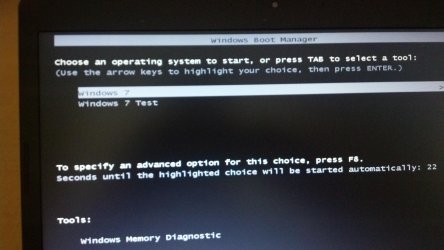
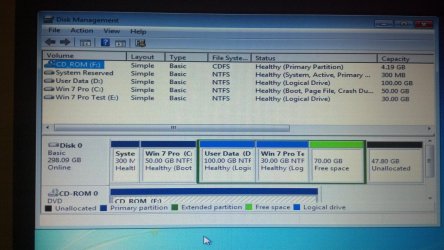
OK! I think I've got it:

Boot manager.jpg
Disk Mgmt.jpg

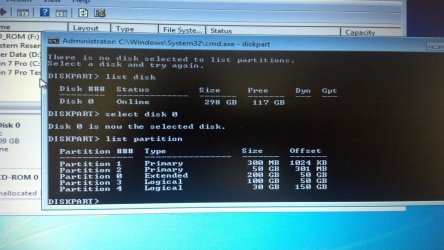
I'm curious about one thing - something in Diskpart that doesn't make complete sense to me:

Diskpart.jpg

Diskpart shows each partition in the order I purposely created them, in the order they reside on the disk, and Disk Management seems to agree.

But why do you suppose they are numbered this way (1, 2, 0, 3, 4)?

Mike
 

My Computer My Computer

Computer Manufacturer/Model Number
HP ProBook 4530s
OS
Windows 7 Home Premium x64, Windows 7 Pro x32
CPU
Intel Core i3 210GHz
Memory
4 GB DDR3
It's an extended (container) for the Logicals, that's all.

When Win7 Pro Test is booted is it C?

With Partition Wizard boot CD you can rightclick on E to slide it over to make more room for data partition, then click on Data to drag it's right border to the right. Or you can resize E to the right to take up the free space.

You can also resize the Logical container to the right or left using PW CD.

Partition Wizard Move/Resize Partition Video Help.
 
I think that's a left-over from the "old days" of computing, perhaps Extended partitions were the first ever to be created and then Windows decided to use Primaries and Extended still keep the designation " 0 " like the letters " A & B " are left-over from the FDD era.

I'd be really interested in hearing from someone that has a definitive answer myself.
 

My Computer My Computer

Computer Manufacturer/Model Number
* BFK Customs *
OS
W 7 64-bit Ultimate
CPU
Intel Q9550 Yorkfield
Motherboard
ASUS P5Q Pro
Memory
8GB Dominator 8500C5D
Graphics Card(s)
ATI : XFX 5870
Sound Card
Realtek HD Audio 7-1
Monitor(s) Displays
1x 47" LCD HDMI & 3x 26" LCD HDMI
Screen Resolution
1920x1080P & 1920x1200
Hard Drives
1x 80GB Intel X25-M G2 SSD : 1x 500GB & 1x 640GB WD Caviar Black(s)
PSU
Corsair 620HX
Case
Cooler Master RC-690
Cooling
Tuniq Tower 120, 2x 140mm and 3x 120mm case fans
Keyboard
Microsoft 500
Mouse
Razer Diamondback 3G
Internet Speed
14 Mb/s
Other Info
1x Koutech 3Gb/s SATA HDD Hot Swap Rack
Sorry for the long delay!

Yes, the 2nd OS is also configured as C:
Win 7 Pro Test My Computer.JPG
Win 7 Pro Test Disk Mgmt.JPG

Thanks for keeping me on the right track!

And Gregrocker, thanks for the info on Partition Wizard. I actually had already utilized another post of yours in another thread to download and use that program when I started all this. I burned it to two different DVD's using two different methods and couldn't get either to work. Each method left a slightly different image on the DVD, I forget the details now (too much else to do!). So I read yet another post on this site about using YUMI multiboot installer to boot from USB - and that worked great! :D I have to go thank Jumanji for that one.

I still have way too much work ahead of me, so I'm posting this as Solved and moving on. But this site is a godsend, and I'll be here reading (and posting) on other subjects.

My thanks to you both - to all of you who contribute so much. I'm grateful.

Mike
 

My Computer My Computer

Computer Manufacturer/Model Number
HP ProBook 4530s
OS
Windows 7 Home Premium x64, Windows 7 Pro x32
CPU
Intel Core i3 210GHz
Memory
4 GB DDR3
Use WIndows Image BUrner or ImgBurn to burn PW CD ISO to CD, not DVD. No one else reports problems using those burners.

You could easily Resize the Logical container to the right into the Unallocated space with PW CD.

Then you can resize C into the space to the right as much as you want, even saving space for more storage if you desire.

Partition Wizard Resize Partition Video Help.
 
Thanks for the advice. I did use the Windows Image Burner, but didn't have any CD's on hand (and may never again) so thought that DVD would be the equal. But I'm really happy with the USB solution, I'll probably go with USB from here on out - except possibly for a Windows Repair Disc.

But I will definitely be using PW to rearrange partitions in the future. Good video!

Mike
 

My Computer My Computer

Computer Manufacturer/Model Number
HP ProBook 4530s
OS
Windows 7 Home Premium x64, Windows 7 Pro x32
CPU
Intel Core i3 210GHz
Memory
4 GB DDR3
Back
Top