Solved Setup was unable to create a new system partition...HELP!!!

JBiscuit

New member
Local time
6:55 AM
Messages
10
So, I am having this very irritating problem where I cannot install Windows, nor do anything else for that matter, on my Asus G73jh.

Last night I attempted to reset to factory settings, only to get a white screen with ERROR in big red letters around the 22% mark. From what I could understand, this was a software problem with Windows. I don't really know if that's true or not, it's just what everyone else who's gotten this has said. And Geek Squad. But, I didn't use them because it was hella expensive.

So, now I have been trying to install Windows again, but every time I click the next button on the "Where do you want to install Windows?" screen I get the error message on the bottom saying, "Setup was unable to create a new system partition or locate a system partition. See the Setup log files for more information."

I did all the steps in another thread on this site (the Diskpart clean, format, assign, and active steps) and still the same thing. It seemed to work for that guy in the other thread so I was really hoping it'd work, but damn they don't make this easy haha!

Either way, if anyone could help it'd be highly appreciated. This has taken 2 days out of my life so far and I'm almost ready to just ship it in and pay for it to be fixed.

Fair warning: I'm not the most fluent in Computer-speak, so be easy on me! (Though I've learned a hell of a lot about Diskpart and how to make partitions and what not!).

Thank you!

- Joe
 

My Computer My Computer

Computer type
Laptop
OS
Windows 7 64-bit
Problem is, I have no idea what you are talking about lol I don't know if I have an EFI BIOS, or what the even means for that matter.
 

My Computer My Computer

Computer type
Laptop
OS
Windows 7 64-bit
Watch this video to understand it better as it is new and takes some navigating to even do a normal install or repair if you have one: Technical Note: UEFI BIOS vs. Legacy BIOS - YouTube

Then boot into BIOS setup by tapping the key given on your first BIOS screen when booting. Look at the BIOS boot order. Are there UEFI devices listed? If so, look for a setting for Legacy BIOS or Compatibility Support Module (CSM) to enable if you want to Bypass UEFI to Install WIn7.

Let us know what you find, or if you need further help to determine this.
 
Last edited:
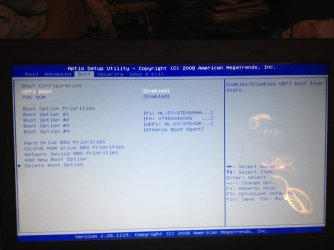
Ok the only thing I can bring up is the Boot Menu, or the Aptio Setup Utility. It shows the Boot Option Priorities as follows: Boot Option #1 [P0: ST9500420AS] and Boot Option #2 [HL-DT-STDVDRAM GT30N] and Disabled. That's it. Also, when I look at the Hard Drive BBS Priorities, there is another listed that doesn't appear in the Boot Menu. It's P4: ST9500420AS.

There is the UEFI Boot option under Boot Configuration. It is currently disabled. Also, there is a PXE ROM option there too that is disabled.

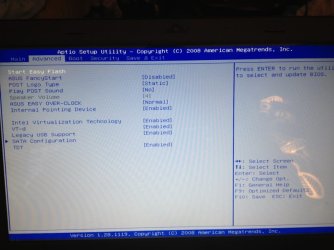
I also see Legacy USB Support is enabled.

Sorry if I'm not getting something that's simple. I tried to warn ya lol
 

My Computer My Computer

Computer type
Laptop
OS
Windows 7 64-bit
what kind of hard drive do you have?
 

My Computer My Computer

Computer type
PC/Desktop
Computer Manufacturer/Model Number
Pandora (computer name)
OS
Windows 7 x64 / Windows Server 2008 / Linux (Redhat & Deb distros) / OS X / More
CPU
AMD FX 8150 Eight-Core Processor 4.23 Ghz OC
Motherboard
ASUS SaberTooth 990FX
Memory
G.SKILL Ripjaws X Series 32GB (4 x 8GB) DDR3 SDRAM 1333
Graphics Card(s)
2X Radeon HD 4870 CrossFire X
Sound Card
Onboard and loving it
Monitor(s) Displays
2x HP w2480 Wide LCD
Screen Resolution
1920x1200 each
Hard Drives
RAID (6x0 Seagate Barracuda 7200 rpm 32 MB cache 500Gb SATA)
PSU
Antec 850 Watt
Case
Antec 900
Cooling
Lots of fans
Keyboard
Logitech
Mouse
Rat 9
Internet Speed
40 Mbps Down 5 Mbps Up
Antivirus
AVG
Browser
Chrome, Firefox, IE
Other Info
My main desktop
Last night I attempted to reset to factory settings,

Are you trying to use the factory Recovery Partition?
If YES,
you have deleted the Partition here
I did all the steps in another thread on this site (the Diskpart clean, format, assign, and active steps) and still the same thing. It seemed to work for that guy in the other thread so I was really hoping it'd work, but damn they don't make this easy haha!
 

My Computer My Computer

OS
ME/XP/Vista/Win7
Just a quick question before I start on those steps; did the fact that I had a virus cause all of this trouble? I'm starting to assume my hard drive is corrupt.
 

My Computer My Computer

Computer type
Laptop
OS
Windows 7 64-bit
I just completed all of the steps provided and it is still saying the same thing:

"Setup was unable to create a new system partition or locate an existing system partition. See the Setup log files for more information."

With a yellow triangle with an exclamation point next to it.
 

My Computer My Computer

Computer type
Laptop
OS
Windows 7 64-bit
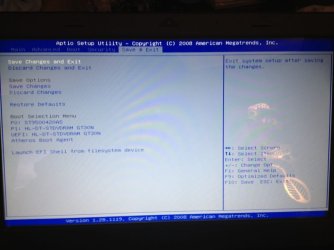
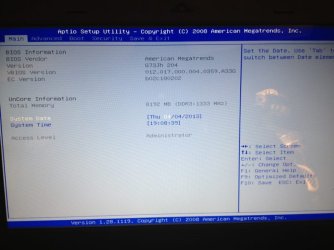
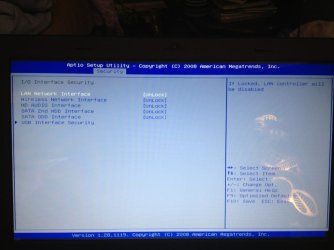
Yeah, sorry I couldn't find that, but here are screenshots of all the options in my BIOS setup:
 

Attachments

  • IMG_0060.jpg
    IMG_0060.jpg
    37 KB · Views: 6
  • IMG_3033.jpg
    IMG_3033.jpg
    40.2 KB · Views: 5
  • IMG_5942.jpg
    IMG_5942.jpg
    40.7 KB · Views: 6
  • IMG_6307.jpg
    IMG_6307.jpg
    43.2 KB · Views: 4
  • IMG_7321.jpg
    IMG_7321.jpg
    46.8 KB · Views: 5
  • IMG_9299.jpg
    IMG_9299.jpg
    53.3 KB · Views: 5

My Computer My Computer

Computer type
Laptop
OS
Windows 7 64-bit
The Boot tab shows that you have UEFI enabled so unless you change its setting you'll need to install in UEFI (Unified Extensible Firmware Interface) - Install Windows 7 with - Windows 7 Forums.

The UEFI DVD listing is there to move up to the top of boot priority, or press the BIOS Boot Menu key at boot to choose it there.

If you use flash stick method you'll need to create a UEFI Bootable USB Flash Drive - Create in Windows.

I would use the DVD method since there are some discrepancies arising in the USB create tutorial which are addressed in my comments at the end of the comments section.
http://www.eightforums.com/tutorials/15458-uefi-bootable-usb-flash-drive-create-windows.html
 
Ok, I made the UEFI the top boot priority and boot from there. I'm on the install dialogue box now, and it's saying that "Windows cannot be installed to this disk. The selected disk has an MBR partition table. On EFI systems, Windows can only be installed to GPT disks." That warning is for the disk partition that I had created in the previous steps.

I have a feeling I'm getting closer and closer to fixing this damn thing haha. Thank you all for the help, I truly appreciate it, and I apologize if I'm not getting this as fast as I should.
 

My Computer My Computer

Computer type
Laptop
OS
Windows 7 64-bit
All you need to do now is clean the HD to clear the MBR formatting since you're installing with UEFI which can only be to a GPT disk. .

At first installer screen press Shift + F10 to open a Command Prompt to run Diskpart Clean Command.

Then close command box and commence with install, create partitions as you wish in Steps 6/7 of Clean Install Windows 7
 
IT WORKED! I just downloaded it to my full HD, but I'll change all that later. I'm just happy it's working now. I'll let you guys know if the install goes cleanly. Thanks for all the help!!!
 

My Computer My Computer

Computer type
Laptop
OS
Windows 7 64-bit
Just a quick question now that everything is fixed. Do I have to install all my drivers again from the Asus website? If so, which ones are not important? There's a shit ton, so I'm not sure which ones aren't actually necessary.
 

My Computer My Computer

Computer type
Laptop
OS
Windows 7 64-bit
Install only the LAN or wireless driver first to get online and do all rounds of Important and Optional Updates after enabling Automatically deliver drivers via Windows Update (Step 3).

Only supply drivers that are then missing after all Updates are done.

With Asus you don't want to reinstall their crapware which is very poorly designed unlike their hardware. If you feel you might need the extra software for touchpad, hotkeys, battery, Acer updates, etc I would google the name of it to read how others regard it because you'll likely not want any of it unless its a function special to you, or needed to make something work correctly like a patch.

All of the tips collected since before Win7 was release in helping with countless thousands of reinstalls are here in Clean Reinstall - Factory OEM Windows 7 so study them over and ask back any other questions.
 
Back
Top