
How to Delete Shadow Copies in Vista and Windows 7
Information
Shadow Copies (Previous versions) are copies of files and folders created by Windows Backup when you back up your files, and copies of files and folders that Windows automatically saves as part of a restore point. When system protection is turned on, Windows will only automatically create previous versions of files and folders that have been modified since the last restore point was made.
This will show you how to delete shadow copies in Vista Ultimate, Business, and Enterprise editions, and all editions of Windows 7.
This will show you how to delete shadow copies in Vista Ultimate, Business, and Enterprise editions, and all editions of Windows 7.
Warning
BEFORE YOU START
To View Volume Shadow Copies Details
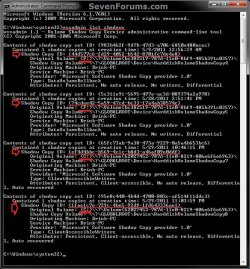
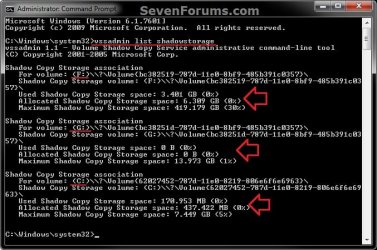
NOTE: You will need to do this first to know what drives/volumes letters you have shadow copies on, and for how much disk space the shadow copies use before conitnuing on to the options below. The example shadow copies below contain two restore points on drive C: , and two backups on drive F: .
1. vssadmin list shadows
NOTE: This command lists existing volume shadow copies, the time the shadow copy was created and its location. You need this to see and know the Shadow Copy ID needed in OPTION TWO and OPTION THREE below, and to see how many shadow copies are on each hard drive letter.
A) Open a elevated command prompt.
B) In the elevated command prompt, type the command below and press enter.
vssadmin list shadows
2. vssadmin list shadowstorage
NOTE: This command lists the volume shadow storage space usage, the allocated space while a shadow copy is active and the maximum space that can be used. This is useful to see how much total space is being used on each hard drive letter by the shadow copies on it.
A) Open another elevated command prompt.
B) In the elevated command prompt, type the command below and press enter.
vssadmin list shadowstorage
3. Set these command windows aside for easy reference when you do either OPTION ONE, OPTION TWO, or OPTION THREE below for what you would like to do to delete the shadow copies.
OPTION ONE
Delete Shadow Copies Using "Disk Cleanup"
NOTE: Disk Cleanup will delete all shadow copies and restore points saved to the selected hard drive letter except the most recent copy.
1. Open the Start Menu, type cleanmgr into the search box, and press Enter.
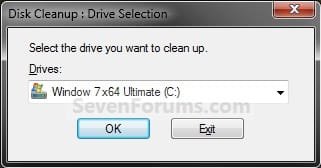
2. Select the drive/volume letter that you want to delete shadow copies on, and click on OK. (see screenshot below)
NOTE: You will not see this window unless you have more than one drive or partition on your computer.
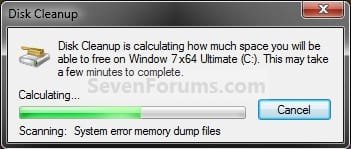
3. You will now see this screenshot below for a moment. (see screenshot below)
4. Click on the Clean up system files button. (see screenshot below)
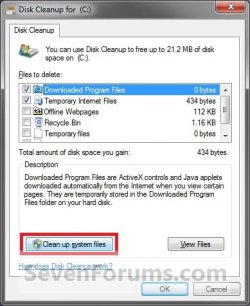
5. If prompted by UAC, then click on Yes (Windows 7) or Continue (Vista)
6. Repeat steps 2 and 3.
7. Click on the More Options tab, and click on the Clean up button in the bottom System Restore and Shadow Copies section. (see screenshot below)

8. Click on the Delete button. (see screenshot below)

9. Click on OK. (see screenshot below step 7)
10. Click on the Delete Files button for the final confirmation. (see screenshot below)

11. When the shadow copies and restore points are finished being deleted, Disk Cleanup will close.
OPTION TWO
Delete Shadow Copies Using "wmic shadowcopy delete" Command
WARNING: This option is for advanced users, and should not be tried by beginners.
1. Be sure you do the "BEFORE YOU START" section at the top first.
2. Open a elevated command prompt.
3. In the elevated command prompt, type wmic and press Enter. After a few seconds wmic:root\cli> will appear.
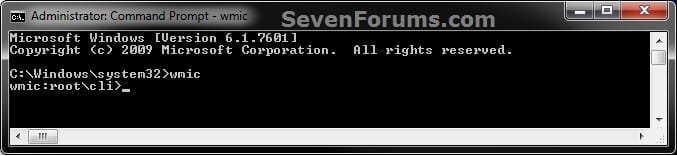
4. Copy and paste the command below and press enter.
shadowcopy delete
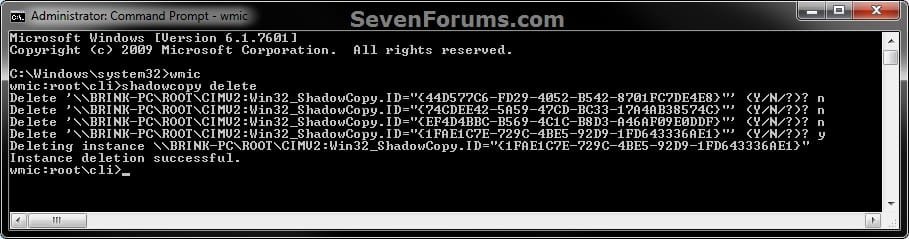
5. You will now be asked Y/N for if you wanted to delete the available shadow copies one by one. Type your answer and press Enter after each one. (see screenshot below)
Note
The listed shadow copies that you answer Y/N to delete or not are referenced by their Shadow Copy ID number. You can compare this Shadow Copy ID number with the ones listed from step 1 in the "BEFORE YOU START" section to know for sure which one you are deleting or not.
For example, the Shadow Copy ID below for the one I deleted in step 5 above is the bottom shadow copy listed in my examples in step 1 of the "BEFORE YOU START" section for the C: drive. You can also compare the Shadow Copy Volume number between step 1 and step 2 in the "BEFORE YOU START" section for additional information about the shadow copy.
Shadow Copy ID
{1FAE1C7E-729C-4BE5-92D9-1FD643336AE1}
Shadow Copy Volume
{62027452-787d-11e0-8219-806e6f6e6963}
For example, the Shadow Copy ID below for the one I deleted in step 5 above is the bottom shadow copy listed in my examples in step 1 of the "BEFORE YOU START" section for the C: drive. You can also compare the Shadow Copy Volume number between step 1 and step 2 in the "BEFORE YOU START" section for additional information about the shadow copy.
Shadow Copy ID
{1FAE1C7E-729C-4BE5-92D9-1FD643336AE1}
Shadow Copy Volume
{62027452-787d-11e0-8219-806e6f6e6963}
6. When finished, close all command prompts.
OPTION THREE
Delete Shadow Copies with "vssadmin delete shadows" Command
WARNING: This option is for advanced users, and should not be tried by beginners.
Note
Only shadow copies that have the ClientAccessible type can be deleted using this command.
For example, if you look at my examples in step 1 in the "BEFORE YOU START" section, you will notice that only the C: drive/volume shadow copies have Client-accessible listed in their Attributes, and not the F: drive/volume shadow copies. This means that I can only delete the C: drive/volume shadow copies using this command. I would have to use OPTION TWO to be able to delete the F: drive/volume shadow copies instead.
For example, if you look at my examples in step 1 in the "BEFORE YOU START" section, you will notice that only the C: drive/volume shadow copies have Client-accessible listed in their Attributes, and not the F: drive/volume shadow copies. This means that I can only delete the C: drive/volume shadow copies using this command. I would have to use OPTION TWO to be able to delete the F: drive/volume shadow copies instead.
1. Be sure you do the "BEFORE YOU START" section at the top first.
2. Open a elevated command prompt.
3. Do step 4, 5, or 6 below for how you would like to delete the shadow copies.
4. To Delete the Oldest Shadow Copy on a Specific Volume
NOTE: This can be handy if you have more than one shadow copy on a drive/volume letter, and wanted to only delete the oldest one.
A) Type the command below and press Enter.
NOTE: Substitute C: in the command below for the drive letter that you want to delete the oldest shadow copy in instead.
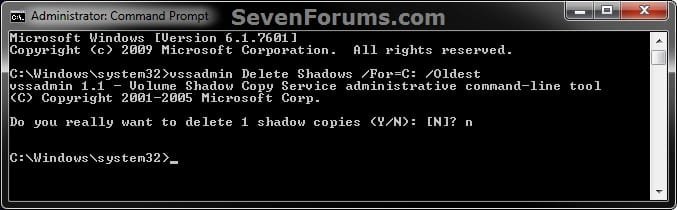
vssadmin Delete Shadows /For=C: /Oldest
B) Type Y or N to delete the shadow copy or not. (see screenshot below)
C) Go to step 7.
5. To Delete All Shadow Copies on a Specific Volume
A) Type the command below and press Enter.
NOTE: Substitute C: in the command below for the drive letter that you want to delete the oldest shadow copy in instead.
vssadmin Delete Shadows /For=C: /All
B) Type Y or N to delete the shadow copies or not. (see screenshot below)

C) Go to step 7.
6. To Delete a Specific Shadow Copy from Any Volume
A) Type the command below and press Enter.
NOTE: Substitute {Shadow Copy ID} in the command below with the actual Shadow Copy ID number of the shadow copy that you want to delete from step 1 of the "BEFORE YOU START" section.
vssadmin Delete Shadows /shadow={Shadow Copy ID}
For example, if I wanted to delete the 3rd shadow copy with the Shadow Copy ID of {ef4d4bbc-b569-4c1c-b8d3-a46af09e0ddf} in my example in step 1 of the "BEFORE YOU START" section, I would type this below.
Code:
vssadmin Delete Shadows /shadow=[B][COLOR=red]{ef4d4bbc-b569-4c1c-b8d3-a46af09e0ddf}[/COLOR][/B]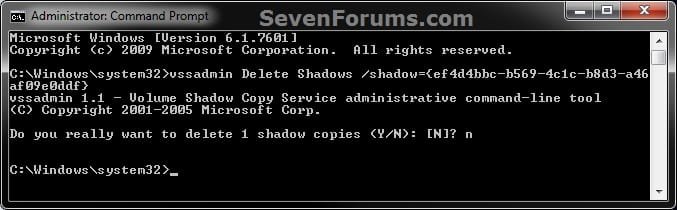
C) Continue on to step 7.
7. When finished, close all command prompts.
That's it,
Shawn
Related Tutorials
- How to Turn System Protection On or Off in Windows 7
- How to Delete System Protection Restore Points in Windows 7
- How to Create a System Restore Point in Windows 7
- How to Change the System Protection Disk Space Usage in Window 7
- How to Restore Files and Folders in Windows 7 with Previous Versions
- How to Restore Previous Versions of a File and Folder in Vista
- How to Add or Remove "Previous Versions" Tab from Properties
- How to Hide or Show Previous Versions of Files from a Backup Location
- How to Hide or Show Previous Versions of Files from File Shares
- How to Recover Lost Files and Folders with ShadowExplorer
- How to Backup User and System Files in Windows 7
- How to Delete Windows 7 User and System Backup Files
- How to Free Up and Recover Hard Drive Space in Windows 7
- How to Extract Files and Folders from System Restore Points in Windows 7 and Vista
Last edited:

