Sharing programs

Fatblack46

New member
Local time
9:47 PM
Messages
3
What is the deal with sharing programs with windows 7. If I load something under my account, why doesn't it populate to the other people/users on my computer (home system). It seem like I have to induvidually load each one, which is different from what I am use to. Can anyone answer this for me? As an example , I downloaed a game and I can play it but it does not show up on the other users.
Thanks ya'll
 

My Computer

Computer Manufacturer/Model Number
Dell Studio Xps 8100
OS
windows 7 premium 64
CPU
I5
Hi fat46. For other users to use the Game you downloaded (for example.) Have the other user log on to the system. Using Explorer, navigate to the Program Folder. Find the .exe file for the game program and right click on it. Chose from options "Send to desktop as a shortcut". This user should now be able to click on this new desktop shortcut and play the game. This should work for any program no mater what user installed it.
Cheers
Johnnya
 

My Computer

Computer Manufacturer/Model Number
Toshiba C650
OS
Windows Home Premium 64bit
CPU
T61-- 2.0ghz
Motherboard
Toshiba
Memory
4 GB
Graphics Card(s)
On board
Sound Card
On board
Monitor(s) Displays
15.6"
Hard Drives
500 GB
Johnnya,
thank you for the reply, however, when I went to explorer (which is the icon with the files on it) I opened it but I did not see a programs file. Any other suggestions?
Thanks
 

My Computer

Computer Manufacturer/Model Number
Dell Studio Xps 8100
OS
windows 7 premium 64
CPU
I5
Explorer is a Windows built-in program that let's you see the contents of a drive or folder in a window. Following Johnnya's instructions above, you get what you want.

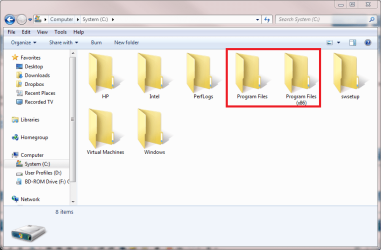
Windows 7 installs most programs in a folder called Program Files, creating a subfolder for the program. (A 64-bit Windows 7 also uses a folder called Program Files (x86), installing 32-bit programs there and only 64-bit programs to Program Files.)

You find the Program Files folder in Explorer when opening the drive C:

Explorer_1.png

Opening Program Files, you'll see subfolders for your installed software:

Explorer_2.PNG

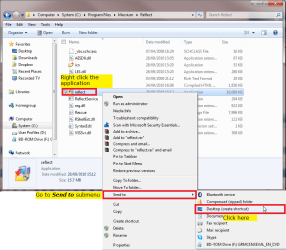
Here I have opened the folder for Macrium Reflect, a so called imaging program, wanting to create a shortcut to desktop to start this application. Explorer shows me the content of that folder, and using details view, I can easily find the right file, the application I was looking for:

Explorer_3.png

I select the file, right click it to open so called context menu, go to Send to submenu, and click Desktop. This sends (saves) a shortcut to this application to current user's desktop. Double clicking it launches the application:

Explorer_4.png

Kari
 

My Computer

Computer type
Laptop
Computer Manufacturer/Model Number
HP ENVY 17-1150eg
OS
Windows 10 Pro x64 EN-GB
CPU
1.6 GHz Intel Core i7-720QM Processor
Memory
6 GB
Graphics Card(s)
ATI Mobility Radeon HD 5850 Graphics
Sound Card
Beats sound system with integrated subwoofer
Monitor(s) Displays
17" laptop display, 22" LED and 32" Full HD TV through HDMI
Screen Resolution
1600*900 (1), 1920*1080 (2&3)
Hard Drives
Internal: 2 x 500 GB SATA Hard Disk Drive 7200 rpm
External: 2TB for backups, 3TB USB3 network drive for media
Cooling
As Envy runs a bit warm, I have it on a Cooler Master pad
Keyboard
Logitech diNovo Media Desktop Laser (bluetooth)
Mouse
Logitech Performance Mouse MX
Internet Speed
50/10 Mbps VDSL
Antivirus
Windows Defender 4.3.9431.0
Browser
Maxthon 3.5.2., IE11
Back
Top