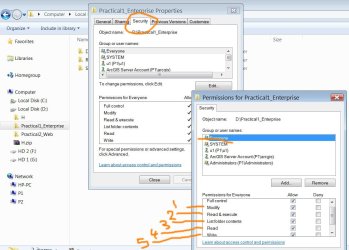
Sharing + security properties of a particular folder,

Jamal NUMAN

New member
Member
VIP
Local time
4:11 PM
Messages
144
Sharing + security properties of a particular folder,

I couldn’t figure out the difference between sharing a particular folder and granting security control on it. Are these two options doing the same kind of work (attached)?

What might be the critical difference between sharing a folder and granting security control on it?

Thank you very much

Best

Jamal
 

Attachments

  • Clip_286.jpg
    Clip_286.jpg
    82.2 KB · Views: 11
  • Clip_287.jpg
    Clip_287.jpg
    93.8 KB · Views: 12

My Computer My Computer

OS
Windows 7 Ultimate x64
When you share a folder or drive you give people on computers other than which the share is located access to objects within that folder or drive.

Share permissions determine what a user can do with the SHARE itself. Granting full control to a share is generally not recommended. A general rule of thumb is that you grant only the permissions required for the access needed and no more.

The security permissions determine what a user can do with oibjects WITHIN the share. Again, you would generally not grant full control, as this allows the user to take ownership, delete everything, and change permissions and could even lock everyone else out of access to the objects within that share.

I have a server with 15TB of storage. On it we have our personal folders. They are centralised for backup and purposes. The shares are called Tanya, Peyton, Trent and Public. Each share has a permission of CHANGE.

The security for these shares are set to allow access only to the person whose folder it is. Eg Peyton has Modify rights to his folder, but no one else can access it, except the administrator, and only from the server. The public folder has USERS(modify), so that we can all acess stuff in that folder.

So, SHARE permissions determine what can be done with a SHARE, and security permissions determine what can be done with files, folders, and other objects that are stored ON THAT SHARE.

hth
Tanya
 

My Computer My Computer

Computer type
PC/Desktop
Computer Manufacturer/Model Number
Home Made
OS
Linux Mint 17 Cinnamon | Win 7 Ult x64
CPU
Intel I7-3770K @ 4.2ghz
Motherboard
ASRock Extreme 4
Memory
32GB G-Skill C10Q
Graphics Card(s)
EVGA GTX 670 2GB SC
Sound Card
Creative Fatality ExtremeGamer
Monitor(s) Displays
LG E2742V x 2
Screen Resolution
1920x1080
Hard Drives
256GB Vertex 4 SSD
2TB Seagate ST2000DM001
1TB Seagate ST1000DM003
PSU
Corsair HX 650
Case
HAF 932 advanced
Cooling
Corsair H100i liquid cooler
Keyboard
Logitech Wireless
Mouse
Logitech Wireless
Internet Speed
OptusNet NBN 100/40
Antivirus
Malwarebytes
Browser
Firefox 30
Other Info
Router: Sagemcom F@st 3846 Crippled by Optus.
When you share a folder or drive you give people on computers other than which the share is located access to objects within that folder or drive.

Share permissions determine what a user can do with the SHARE itself. Granting full control to a share is generally not recommended. A general rule of thumb is that you grant only the permissions required for the access needed and no more.

The security permissions determine what a user can do with oibjects WITHIN the share. Again, you would generally not grant full control, as this allows the user to take ownership, delete everything, and change permissions and could even lock everyone else out of access to the objects within that share.

I have a server with 15TB of storage. On it we have our personal folders. They are centralised for backup and purposes. The shares are called Tanya, Peyton, Trent and Public. Each share has a permission of CHANGE.

The security for these shares are set to allow access only to the person whose folder it is. Eg Peyton has Modify rights to his folder, but no one else can access it, except the administrator, and only from the server. The public folder has USERS(modify), so that we can all acess stuff in that folder.

So, SHARE permissions determine what can be done with a SHARE, and security permissions determine what can be done with files, folders, and other objects that are stored ON THAT SHARE.

hth
Tanya

Thank you TanyaC for the very informative answer. This is quite helpful


As an example, I wanted to share a folder (named R) such that users:

· Can access it and view its content
· Can copy data from it
· Can add data to it: TO THE ROOT ONLY (they are allowed to add data to the root folder but not to the subfolders)
· Can’t delete any data from it
· Can’t modify data on it
· Can’t rename data on it

What might be then the best settings for sharing/security to achieve the abovementioned scenario?

All the best

Jamal
 

My Computer My Computer

OS
Windows 7 Ultimate x64
· [/FONT]Can access it and view its content
· Can copy data from it
· Can add data to it: TO THE ROOT ONLY (they are allowed to add data to the root folder but not to the subfolders)
· Can’t delete any data from it
· Can’t modify data on it
· Can’t rename data on it

What might be then the best settings for sharing/security to achieve the abovementioned scenario?

All the best

Jamal

This would be easier to set up as two shares, but it can be done with one. The reason being, your requirement to allow add permissions only at the root level, and that means we have to play around with a third set of permissions, called "Special permissions".

I'm going to assume that the users are "users" and not "administrators".

Create your folder that you want to share if you have not already.
Using Properties, sharing, advanced sharing share the folder as R and click permissions.
I always remove the Everyone permission, and grant group permissions for users and administrators, Eg. Users(change), Administrators(Full control). But if you'd prefer you can just share it to everyone with change permissions.

Next comes the security. By default users get Read, execute and List contents.

The table here explains the file/folder permissions, I'd recommend you have a read.

File and Folder Permissions

If you wish to limit subfolder creation from this root folder, you are going to have to use special permissions.

This table explains the special permissions.

Microsoft Corporation

Again, have a read. It's a little technical but I think you can get the idea.

Have a play around with that. If you set up a test folder, you can delete it and recreate it if it doesn't work exactly how you want. Once you find the combination of permissions that suites your needs best you can apply that to your live folder.

If you need more help just let us know.

 

My Computer My Computer

Computer type
PC/Desktop
Computer Manufacturer/Model Number
Home Made
OS
Linux Mint 17 Cinnamon | Win 7 Ult x64
CPU
Intel I7-3770K @ 4.2ghz
Motherboard
ASRock Extreme 4
Memory
32GB G-Skill C10Q
Graphics Card(s)
EVGA GTX 670 2GB SC
Sound Card
Creative Fatality ExtremeGamer
Monitor(s) Displays
LG E2742V x 2
Screen Resolution
1920x1080
Hard Drives
256GB Vertex 4 SSD
2TB Seagate ST2000DM001
1TB Seagate ST1000DM003
PSU
Corsair HX 650
Case
HAF 932 advanced
Cooling
Corsair H100i liquid cooler
Keyboard
Logitech Wireless
Mouse
Logitech Wireless
Internet Speed
OptusNet NBN 100/40
Antivirus
Malwarebytes
Browser
Firefox 30
Other Info
Router: Sagemcom F@st 3846 Crippled by Optus.
· [/FONT]Can access it and view its content
· Can copy data from it
· Can add data to it: TO THE ROOT ONLY (they are allowed to add data to the root folder but not to the subfolders)
· Can’t delete any data from it
· Can’t modify data on it
· Can’t rename data on it

What might be then the best settings for sharing/security to achieve the abovementioned scenario?

All the best

Jamal

This would be easier to set up as two shares, but it can be done with one. The reason being, your requirement to allow add permissions only at the root level, and that means we have to play around with a third set of permissions, called "Special permissions".

I'm going to assume that the users are "users" and not "administrators".

Create your folder that you want to share if you have not already.
Using Properties, sharing, advanced sharing share the folder as R and click permissions.
I always remove the Everyone permission, and grant group permissions for users and administrators, Eg. Users(change), Administrators(Full control). But if you'd prefer you can just share it to everyone with change permissions.

Next comes the security. By default users get Read, execute and List contents.

The table here explains the file/folder permissions, I'd recommend you have a read.

File and Folder Permissions

If you wish to limit subfolder creation from this root folder, you are going to have to use special permissions.

This table explains the special permissions.

Microsoft Corporation

Again, have a read. It's a little technical but I think you can get the idea.

Have a play around with that. If you set up a test folder, you can delete it and recreate it if it doesn't work exactly how you want. Once you find the combination of permissions that suites your needs best you can apply that to your live folder.

If you need more help just let us know.
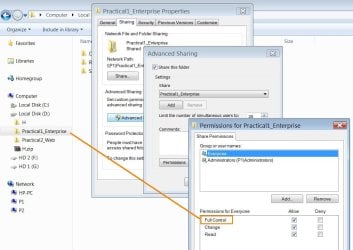
Thank you TanyaC for the very informative answer.

I did my best but couldn’t know which combinations of the sharing/security properties might achieve the above mentioned shared folder.

What might i need to check/unchecked from the sharing/security (to achieve my aim)?
Sharing: full control/change/read
Security: full control/modify/read and execute/list folder content/read/write/special permissions

Best

Jamal
 

My Computer My Computer

OS
Windows 7 Ultimate x64
Back
Top