Solved SSD Errors, Low Level Format Required?

lehnerus2000

New member
Guru
Gold Member
VIP
Local time
12:17 AM
Messages
4,058
Location
Adelaide
I have a partition on an SSD, which contains some VMs.

I attempted to copy a VM from that drive to several different locations.
Each time Windows spat out an error message, "Unexpected Error ...".

Check Disk reported no errors on any of the drives used.
SMART reports no errors either.

I tried copying the file using Linux Mint, but it gave an error message "File Splitting Error ...".

I've managed to copy the files I wanted from the VM (it seems to run normally).

It seems like the drive has "Bad Sectors".

Would using Check Disk (with the " /r") option be sufficient to fix the problem, OR should I run a Low Level Format to "block" the Bad Sectors?
 

My Computer

Computer type
PC/Desktop
Computer Manufacturer/Model Number
n/a
OS
W7 Ultimate SP1, LM19.2 MATE, W10 Home 1703, W10 Pro 1703 VM, #All 64 bit
CPU
AMD Phenom II x6 1100T, 3.3 GHz
Motherboard
ASUS M4A88T-M/USB3 (AM3)
Memory
12GB DDR3 1333 G-Skill (4GB x 2), G-Skill (2GB x 2)
Graphics Card(s)
NVIDIA GeForce GTX 660
Sound Card
Realtek?
Monitor(s) Displays
Samsung S23B350
Screen Resolution
1920x1080
Hard Drives
WD Green 2TB (SATA), WD Green 3TB (SATA), WD Blue 4TB (SATA), WD Blue 6TB (SATA)
PSU
Cooler Master
Case
Antec GX300 Tower
Cooling
3x Antec TRICOOL 120mm Fans
Mouse
Wired Optical
Internet Speed
DSL
Antivirus
Avast
Browser
Pale Moon (64 bit)
Other Info
2018-12-27 Upgraded HDDs
2015-12-10 Upgraded case, graphics card, storage
2015-08-15 Upgraded motherboard & RAM
2015-07-15 Upgraded LM17.1 to LM17.2
- If check disk didn't find any problems, seems that isn't logical.
- The "Unexpected Error ...". error could be from a Windows as some file could be in use, but an error with Linux, seems to be more serious.
- What you mean "I've managed to copy the files I wanted from the VM (it seems to run normally)"?

Ask Jumanji for help. He is the disk guru.
 

My Computers

System One System Two

  • Computer type
    PC/Desktop
    Computer Manufacturer/Model Number
    custom build
    OS
    Windows 7 HP 64
    CPU
    i5 6600K - 800MHz to 4200MHz
    Motherboard
    GA-Z170-HD3P
    Memory
    4+4G GSkill DDR4 3000
    Graphics Card(s)
    IG - Intel 530
    Monitor(s) Displays
    Samsung 226BW
    Screen Resolution
    1680x1050
    Hard Drives
    (1) -1 SM951 – 128GB M.2 AHCI PCIe SSD drive for Windows 7 and Lubuntu
    (2) -1 WD SATA 3 - 1T for Data
    (3) -1 WD SATA 3 - 1T for backup
    PSU
    Thermaltake 450W TR2 gold
    Keyboard
    Old and good Chicony mechanical keyboard
    Mouse
    Logitech mX performance - 9 buttons (had to disable some)
    Internet Speed
    500Mb/s
    Browser
    Firefox 64
    Other Info
    TinyWall firewall
  • Computer type
    Laptop
    System Manufacturer/Model Number
    Asus Q550LF
    OS
    Windows 7 Pro
    CPU
    i7-4500U 800MHz to 3.0GHz
    Motherboard
    Asus Q550LF
    Memory
    (4+4)G DDR3 1600
    Graphics Card(s)
    IG intel 4400 + NVIDIA GeForce GT 745M
    Sound Card
    Realtek
    Monitor(s) Displays
    LG Display LP156WF4-SPH1
    Screen Resolution
    1920 x 1080
    Hard Drives
    BX500 120G SSD for Windows and programs +
    1T HDD for data
    Internet Speed
    500 Mb/s
    Browser
    Firefox
    Other Info
    TinyWall firewall
It's Weird

My SSD has 3 partitions on it.

The W7 and LM18 partitions haven't displayed any strange behaviour.
Disk Management SSD 2017-07-24.png
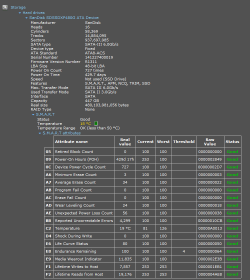
Speccy SSD 2017-07-24 Cropped.png
The "Reported Uncorrectable Errors" count was 0 (on 2017-07-11).

The Virtual partition has 3 VMs on it (LM17, W7 & XP).

The LM17 & XP VMs run with no apparent issues.
The W7 VM failed to boot, but it worked correctly when I used a snapshot (from a few months ago).

I was able to:

  • Start the LM17 VM and copy all of the files to my Host PC, except for 2 jpgs (I cannot copy or clone this VM).
  • Clone the W7 VM
  • Copy the XP VM
I have no experience with SSD Failure Behaviours/Symptoms (i.e. this is my first SSD).
If this was occurring on a HDD partition, I'd assume that it had defective Blocks/Sectors and the HDD would need to replaced.

I always thought that "CHKDSK /F" only checked the MFT to see if the items in it, matched disk locations.
Whenever I've wanted to find dead HDD Blocks/Sectors, I've had to run "CHKDSK /R".

I feel that I have basically eliminated the following factors as the cause:

  • USB - can't copy the file to external and/or internal drives
  • File System - "CHKDSK /F" found no issues
  • OS - Both W7 & LM 18 were unable to copy the file
As far as I can tell the only thing left is the SSD partition itself.

So my questions are:

  1. Can I force the SSD controller to acknowledge the error(s)?
  2. What is the best method to do this?
  3. If the SSD Controller finds and quarantines the error(s) will the drive be usable?
  4. Is this the start of an avalanche of errors (just like a HDD)?
 

My Computer

Computer type
PC/Desktop
Computer Manufacturer/Model Number
n/a
OS
W7 Ultimate SP1, LM19.2 MATE, W10 Home 1703, W10 Pro 1703 VM, #All 64 bit
CPU
AMD Phenom II x6 1100T, 3.3 GHz
Motherboard
ASUS M4A88T-M/USB3 (AM3)
Memory
12GB DDR3 1333 G-Skill (4GB x 2), G-Skill (2GB x 2)
Graphics Card(s)
NVIDIA GeForce GTX 660
Sound Card
Realtek?
Monitor(s) Displays
Samsung S23B350
Screen Resolution
1920x1080
Hard Drives
WD Green 2TB (SATA), WD Green 3TB (SATA), WD Blue 4TB (SATA), WD Blue 6TB (SATA)
PSU
Cooler Master
Case
Antec GX300 Tower
Cooling
3x Antec TRICOOL 120mm Fans
Mouse
Wired Optical
Internet Speed
DSL
Antivirus
Avast
Browser
Pale Moon (64 bit)
Other Info
2018-12-27 Upgraded HDDs
2015-12-10 Upgraded case, graphics card, storage
2015-08-15 Upgraded motherboard & RAM
2015-07-15 Upgraded LM17.1 to LM17.2

"I have no experience with SSD Failure Behaviours/Symptoms (i.e. this is my first SSD)."

1 . Me much less, why less NIL. I haven't even seen one :D. 2. VMs again Nil 3. You have already copied the files. So there is no data recovery involved.

Reasons why I did not want to put my fingers on it even though I had seen your post.

Now I see that you have two jpgs that you couldn't copy.

Now what?

One can low level format a complete disk not a partition. So out of reckoning.( Using bootice however we can find the start sector and end sector and write zeros in all that sectors. You will lose all three VMs in that partition plus no data recovery is possible once you have written zeros. After that you have to do a regular format on that volume and recreate your VMs)

Try your luck running the following checkdisk command and see whether it helps.

CHKDSK K: /f /v /r /x Press enter. Note: Replace K: with the actual drive letter of that partition.

( As a matter of abundant caution please backup all data that you may not want to lose in the other two VMs in that partition before running checkdisk..)
 
Last edited:

My Computer

OS
Windows 7 Home Premium 32 bit
I have a partition on an SSD, which contains some VMs.

I attempted to copy a VM from that drive to several different locations.
Each time Windows spat out an error message, "Unexpected Error ...".

Check Disk reported no errors on any of the drives used.
SMART reports no errors either.

I tried copying the file using Linux Mint, but it gave an error message "File Splitting Error ...".

I've managed to copy the files I wanted from the VM (it seems to run normally).

It seems like the drive has "Bad Sectors".

Would using Check Disk (with the " /r") option be sufficient to fix the problem, OR should I run a Low Level Format to "block" the Bad Sectors?

Are you daft mate? An SSD is little more than a huge Flash Drive, it doesn't have platters, heads or disk sectors. All that stuff is only associated with a mechanical hard drive, also called a 'spinner'.

Once you delete something from an SSD it's gone, just like on a flash drive. There is NO SUCH thing as low level formatting an SSD.

And when an SSD stops working, toss it, because it's DONE.
Been there....done that!

:cool:
 

My Computer

Computer type
PC/Desktop
Computer Manufacturer/Model Number
Various
OS
Win 7 Pro, SP1, x86, Win-11/Pro/64
CPU
AMD
Motherboard
Various
Memory
8GB Crucial
Graphics Card(s)
Various
Sound Card
OnBoard
Monitor(s) Displays
Acer 21.5"
Hard Drives
Crucial SSD, 500 GB
PSU
OEM
Case
SFF Slim Line Case
Cooling
OEM
Keyboard
eMachines
Mouse
Logitech Wireless
Internet Speed
varies
Antivirus
Windows Defender/Super Anti-Spyware
Browser
Firefox
So my questions are:

  1. Can I force the SSD controller to acknowledge the error(s)?
  2. What is the best method to do this?
  3. If the SSD Controller finds and quarantines the error(s) will the drive be usable?
  4. Is this the start of an avalanche of errors (just like a HDD)?
Answers:

1. Possibly. Depends on the controller and the firmware
2. Can't answer this one definitively, though chkdsk /r would seem to be a good choice
3. It will be if it's only a few NAND sectors that have gone bad, and not the controller.
4. As long as it is not the controller, you should be all right if the only problem is premature NAND cell failure. If you have a bad memory chip, you'll get an error cascade over time. Then the drive is toast.


Usually when an SSD dies it just completely stops working. No access at all to any files, and often the drive will go completely offline.

That's not to say that an SSD can't have bad sectors, because the memory cells in the NAND flash can wear out prematurely. It happens with "thumb" or "pen" drives as well. Usually, I just throw those out when they do that, but an SSD might be worth trying to save.

I would try jumanji's chkdsk trick. As long as you can backup beforehand you have nothing to lose.
 

My Computer

Computer type
PC/Desktop
Computer Manufacturer/Model Number
Mellon Labs (custom build)
OS
Win 7 Pro x64/Win 10 Pro x64 dual boot
CPU
AMD FX 8350 Vishera @ 4200
Motherboard
ASUS M5A97 R2.0
Memory
16 GB Mushkin Blackline DDR3-2400 @ 1866 (9-10-10-10-31)
Graphics Card(s)
XFX Radeon R9 280 Double D Black Edition
Sound Card
Realtek HD Audio on MB. Sounds great.
Monitor(s) Displays
Acer 24", Acer 22"
Screen Resolution
3840 x 1080
Hard Drives
1 x Mushkin Chronos 120 GB SSD (Win 10)
1 x Samsung 850 EVO 250 GB SSD (Win 7)
1 x WD 1TB SATA Blue
1 x WD 1TB SATA Green
PSU
Corsair TX-750
Case
CoolerMaster HAF 912+
Cooling
Coolermaster Seidon 240M Liquid AIO. 6 case fans
Keyboard
Logitech G710+
Mouse
Logitech G500s
Internet Speed
Much better since I got fiber, but still way overpriced.
Antivirus
MSE, Malware Bytes for scanning
Browser
Firefox
Other Info
Corsair VOID USB headphones.

A Mellon Labs X-1 - LCD Smartie driven system status display.

Brought to you by the letter E
One can low level format a complete disk not a partition. So out of reckoning.( Using bootice however we can find the start sector and end sector and write zeros in all that sectors. You will lose all three VMs in that partition plus no data recovery is possible once you have written zeros. After that you have to do a regular format on that volume and recreate your VMs)
My bad, wrong terminology. :o

I meant Format the drive, but make sure that "Quick Format" isn't selected.

Try your luck running the following checkdisk command and see whether it helps.

CHKDSK K: /f /v /r /x Press enter. Note: Replace K: with the actual drive letter of that partition.
Thanks for that tip, jumanji. :D

Are you daft mate? An SSD is little more than a huge Flash Drive, it doesn't have platters, heads or disk sectors. All that stuff is only associated with a mechanical hard drive, also called a 'spinner'.
I am aware of the basic construction of SSDs. :D

My understanding is that SSDs simulate HDD structure.
That's why you can format them to use current file systems (like FAT, NTFS, EXT, etc.) instead of having to use some new file system.

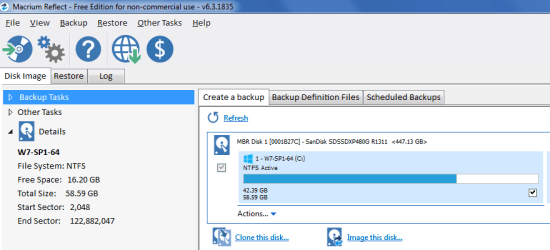
If you use Macrium Reflect to image an SSD partition, it reports Start Sector and End Sector.
Macrium Reflect SSD 2017-07-25.png
Once you delete something from an SSD it's gone, just like on a flash drive.
I am aware of that too.

There is NO SUCH thing as low level formatting an SSD.
My bad, wrong terminology. :o

Answers:

1. Possibly. Depends on the controller and the firmware
2. Can't answer this one definitively, though chkdsk /r would seem to be a good choice
3. It will be if it's only a few NAND sectors that have gone bad, and not the controller.
4. As long as it is not the controller, you should be all right if the only problem is premature NAND cell failure. If you have a bad memory chip, you'll get an error cascade over time. Then the drive is toast.
Thanks Mellon Head. :)

Usually when an SSD dies it just completely stops working. No access at all to any files, and often the drive will go completely offline.
Just like a HDD, if the controller fails it's totally kaput.

That's not to say that an SSD can't have bad sectors, because the memory cells in the NAND flash can wear out prematurely. It happens with "thumb" or "pen" drives as well. Usually, I just throw those out when they do that, but an SSD might be worth trying to save.
My hypothesis was that there was a "minor" failure, given that the:

  • W7 & LM18 partitions seem fine
  • LM17 VM seems to run perfectly (apart from the 2 jpgs).
  • W7 VM ran normally using the snapshot
  • XP VM was unaffected

The SSD is 3-4 years old, so it may be vulnerable to the "power loss damage" issue.
We had several power dropouts last month and on at least one of those occasions, I had left the LM17 VM running. :(
 

My Computer

Computer type
PC/Desktop
Computer Manufacturer/Model Number
n/a
OS
W7 Ultimate SP1, LM19.2 MATE, W10 Home 1703, W10 Pro 1703 VM, #All 64 bit
CPU
AMD Phenom II x6 1100T, 3.3 GHz
Motherboard
ASUS M4A88T-M/USB3 (AM3)
Memory
12GB DDR3 1333 G-Skill (4GB x 2), G-Skill (2GB x 2)
Graphics Card(s)
NVIDIA GeForce GTX 660
Sound Card
Realtek?
Monitor(s) Displays
Samsung S23B350
Screen Resolution
1920x1080
Hard Drives
WD Green 2TB (SATA), WD Green 3TB (SATA), WD Blue 4TB (SATA), WD Blue 6TB (SATA)
PSU
Cooler Master
Case
Antec GX300 Tower
Cooling
3x Antec TRICOOL 120mm Fans
Mouse
Wired Optical
Internet Speed
DSL
Antivirus
Avast
Browser
Pale Moon (64 bit)
Other Info
2018-12-27 Upgraded HDDs
2015-12-10 Upgraded case, graphics card, storage
2015-08-15 Upgraded motherboard & RAM
2015-07-15 Upgraded LM17.1 to LM17.2
Success

Try your luck running the following checkdisk command and see whether it helps.

CHKDSK K: /f /v /r /x Press enter. Note: Replace K: with the actual drive letter of that partition.
I ran this command and it seems to have fixed the issue. :D

It took longer to complete than I expected it to (at least 12 hours).
Some Bad Sectors were detected (affecting the LM17 VM and W7 VM).

After it had finished, all the VMs booted and ran.
I was able to copy the LM17 VM to a new location. :party:
Code:
Microsoft Windows [Version 6.1.7601]
Copyright (c) 2009 Microsoft Corporation.  All rights reserved.

C:\Windows\system32>CHKDSK D: /f /v /r /x
The type of the file system is NTFS.
Volume label is Virtual.

CHKDSK is verifying files (stage 1 of 5)...
  3072 file records processed.
File verification completed.
  276 large file records processed.
  0 bad file records processed.
  0 EA records processed.
  0 reparse records processed.
CHKDSK is verifying indexes (stage 2 of 5)...
  3132 index entries processed.
Index verification completed.
  0 unindexed files scanned.
  0 unindexed files recovered.
CHKDSK is verifying security descriptors (stage 3 of 5)...
  3072 file SDs/SIDs processed.
Security descriptor verification completed.
  31 data files processed.
CHKDSK is verifying Usn Journal...
  48809672 USN bytes processed.
Usn Journal verification completed.
CHKDSK is verifying file data (stage 4 of 5)...
Windows replaced bad clusters in file 43
of name \VMW-W7~1\VMW-W7~1.VMD.
10 percent complete. (1855 of 3056 files processed)
Windows replaced bad clusters in file 1964
of name \VMW-LM~1\VMW-LM~1.VMD.
  3056 files processed.
File data verification completed.
CHKDSK is verifying free space (stage 5 of 5)...
  26914356 free clusters processed.
Free space verification is complete.
Adding 835 bad clusters to the Bad Clusters File.
Correcting errors in the master file table's (MFT) BITMAP attribute.
Correcting errors in the Volume Bitmap.
Windows has made corrections to the file system.

 386929663 KB total disk space.
 279139424 KB in 1790 files.
       940 KB in 32 indexes.
      3340 KB in bad sectors.
    128539 KB in use by the system.
     65536 KB occupied by the log file.
 107657420 KB available on disk.

      4096 bytes in each allocation unit.
  96732415 total allocation units on disk.
  26914355 allocation units available on disk.

C:\Windows\system32>
 

My Computer

Computer type
PC/Desktop
Computer Manufacturer/Model Number
n/a
OS
W7 Ultimate SP1, LM19.2 MATE, W10 Home 1703, W10 Pro 1703 VM, #All 64 bit
CPU
AMD Phenom II x6 1100T, 3.3 GHz
Motherboard
ASUS M4A88T-M/USB3 (AM3)
Memory
12GB DDR3 1333 G-Skill (4GB x 2), G-Skill (2GB x 2)
Graphics Card(s)
NVIDIA GeForce GTX 660
Sound Card
Realtek?
Monitor(s) Displays
Samsung S23B350
Screen Resolution
1920x1080
Hard Drives
WD Green 2TB (SATA), WD Green 3TB (SATA), WD Blue 4TB (SATA), WD Blue 6TB (SATA)
PSU
Cooler Master
Case
Antec GX300 Tower
Cooling
3x Antec TRICOOL 120mm Fans
Mouse
Wired Optical
Internet Speed
DSL
Antivirus
Avast
Browser
Pale Moon (64 bit)
Other Info
2018-12-27 Upgraded HDDs
2015-12-10 Upgraded case, graphics card, storage
2015-08-15 Upgraded motherboard & RAM
2015-07-15 Upgraded LM17.1 to LM17.2
:thumbsup::party::party::party: Glad that you can sleep peacefully now. Thank Megahertz07 for forcibly "dropping" me in into this thread/threat:D while I was reluctant to enter into it and it worked.

In the past while we were trying to recover data from the disks that had turned RAW, running TestDisk File System Utilities, it reported that everything was perfect - the Volume Boot Record, the backup of the Volume Boot Record and also the MFT. Then why is it RAW? As a last option we tried that checkdisk command and Lo and behold the drive came back alive. The OP was immensely happy and dancing with joy.

And when I do recommend this checkdisk procedure, I usually add a sentence not to do anything with the PC while it is running - hands off - and not to abort it midway through for whatever reason even if it takes one week. That could make matters worse. I do not know why I forgot to add this caution in this thread. Anyway you were patient enough to let it run unhindered and achieved the results. Well done.

You may mark this thread as solved if after repeated checks and rechecks you are convinced the problem has been successfully resolved.
 

My Computer

OS
Windows 7 Home Premium 32 bit
Never like to see bad blocks or bad clusters.
And you have 835 bad clusters.
I would replace the SSD drive.

Remember, SSD is a flash memory. And flash memory has a limited erase / write, then it dies. That is why I transfer \users, virtual memory, temp folder, antivirus, etc from the SSD to the HDD.
 

Attachments

My Computers

System One System Two

  • Computer type
    PC/Desktop
    Computer Manufacturer/Model Number
    custom build
    OS
    Windows 7 HP 64
    CPU
    i5 6600K - 800MHz to 4200MHz
    Motherboard
    GA-Z170-HD3P
    Memory
    4+4G GSkill DDR4 3000
    Graphics Card(s)
    IG - Intel 530
    Monitor(s) Displays
    Samsung 226BW
    Screen Resolution
    1680x1050
    Hard Drives
    (1) -1 SM951 – 128GB M.2 AHCI PCIe SSD drive for Windows 7 and Lubuntu
    (2) -1 WD SATA 3 - 1T for Data
    (3) -1 WD SATA 3 - 1T for backup
    PSU
    Thermaltake 450W TR2 gold
    Keyboard
    Old and good Chicony mechanical keyboard
    Mouse
    Logitech mX performance - 9 buttons (had to disable some)
    Internet Speed
    500Mb/s
    Browser
    Firefox 64
    Other Info
    TinyWall firewall
  • Computer type
    Laptop
    System Manufacturer/Model Number
    Asus Q550LF
    OS
    Windows 7 Pro
    CPU
    i7-4500U 800MHz to 3.0GHz
    Motherboard
    Asus Q550LF
    Memory
    (4+4)G DDR3 1600
    Graphics Card(s)
    IG intel 4400 + NVIDIA GeForce GT 745M
    Sound Card
    Realtek
    Monitor(s) Displays
    LG Display LP156WF4-SPH1
    Screen Resolution
    1920 x 1080
    Hard Drives
    BX500 120G SSD for Windows and programs +
    1T HDD for data
    Internet Speed
    500 Mb/s
    Browser
    Firefox
    Other Info
    TinyWall firewall
I thought about the 3340KB in bad sectors. I also thought about the two jpg files which lehrenus2000 was not able to copy. These could have been the files in the bad sectors. Was Lehrenus able to copy the files after the 12 hour checkdisk run? Only Lehrenus can tell.

Now, Megahertz07's concerns are valid. In a hdd if bad sectors show up we indeed recommend to keep a watch on the HDD. If the bad sector count keeps increasing, then it is an alarm signal.

Lehrenus: "If this was occurring on a HDD partition, I'd assume that it had defective Blocks/Sectors and the HDD would need to replaced."
"Is this the start of an avalanche of errors (just like a HDD)?"
"The SSD is 3-4 years old, so it may be vulnerable to the "power loss damage" issue.
We had several power dropouts last month and on at least one of those occasions, I had left the LM17 VM running. :( "

Does what applies to a HDD also apply to a SSD? Hey, this is electronics. Given the power drop outs mentioned by lehrenus, that could have caused the damage to a few sectors. If it is so, I don't see an avalanche effect as we are afraid of in the case of HDDs. Bad sectors in an SSD cannot and need not be equated with bad sectors in a HDD.

Did lehrenus lose some files in the bad sectors? Or was windows able to retrieve the files in the bad sectors, before marking those as Bad?

Whatever, lehrenus need not relate an SSD to the HDD and live in fear.Nevertheless, given that our understanding of SSDs is still sketchy, it will be prudent to keep a watch on the bad sector count atleast for a reasonable time period. Whatever has been stated above is still a reasonable speculation :).

Note: Believe me, I started writing this in my last post itself but on second thoughts deleted it. I did not want to sound an alarm. Also leherenus has been reasoning so well throughout this thread, I did not feel that was necessary.
 

My Computer

OS
Windows 7 Home Premium 32 bit
Finally Dead

Never like to see bad blocks or bad clusters.
And you have 835 bad clusters.
I would replace the SSD drive.
I was hoping that it might last for a month, so that I could save up some cash for a new one.

Remember, SSD is a flash memory. And flash memory has a limited erase / write, then it dies. That is why I transfer \users, virtual memory, temp folder, antivirus, etc from the SSD to the HDD.
Thanks for your tip list.
smile.gif


I move the Page File off of an SSD when I can (one of my friends "pays me out" for doing that).
My main PC has an SSD + 3 HDDs.
My laptop and other Desktop only have a single SSDs (no HDDs). :(

Was Lehrenus able to copy the files after the 12 hour checkdisk run? Only Lehrenus can tell.
Before I tried "CHKDSK /R", I deleted the 2 jpgs (from "inside" the VM) and attempted to copy the VM.
Deleting those files didn't fix the issue.

Does what applies to a HDD also apply to a SSD? Hey, this is electronics. Given the power drop outs mentioned by lehrenus, that could have caused the damage to a few sectors. If it is so, I don't see an avalanche effect as we are afraid of in the case of HDDs. Bad sectors in an SSD cannot and need not be equated with bad sectors in a HDD.
I guess we won't discover the answer to that question using my SSD.

It's possible that the Bad Sectors and subsequent Controller failure were unrelated, but it seems suspicious.

It seems that as soon as you notice any errors on an SSD, it will be dead in a few days (unlike a HDD).

I checked my records, the SSD was 3 years old.
I've only had one internal HDD fail after 2 years + 10 months use.

I bought an external HDD that was broken, before I opened the package.
I returned it to the store and the replacement is still running.

It seems SSDs do everything faster including self-destruct. :D
I was able to run the operating systems and VMs for ~1 day after the repair.

I wonder if VMs somehow cause additional "wear & tear" on SSDs.

The SSD died whilst I was watching it.
As I was copying some files from a VM, I noticed that the transfer speed steadily decreased until it was running at ~2 MB/s.
When I shutdown the VM, I noticed that W7 was lagging badly.
I've seen that happen when there are memory/storage issues.

I booted in to LM18 and it was running normally.
When I tried to reboot into W7, the SSD died totally (no longer appeared in the BIOS). :eek:

The only good thing was the replacement SSD was on special, so I "saved" $30.
 
Last edited:

My Computer

Computer type
PC/Desktop
Computer Manufacturer/Model Number
n/a
OS
W7 Ultimate SP1, LM19.2 MATE, W10 Home 1703, W10 Pro 1703 VM, #All 64 bit
CPU
AMD Phenom II x6 1100T, 3.3 GHz
Motherboard
ASUS M4A88T-M/USB3 (AM3)
Memory
12GB DDR3 1333 G-Skill (4GB x 2), G-Skill (2GB x 2)
Graphics Card(s)
NVIDIA GeForce GTX 660
Sound Card
Realtek?
Monitor(s) Displays
Samsung S23B350
Screen Resolution
1920x1080
Hard Drives
WD Green 2TB (SATA), WD Green 3TB (SATA), WD Blue 4TB (SATA), WD Blue 6TB (SATA)
PSU
Cooler Master
Case
Antec GX300 Tower
Cooling
3x Antec TRICOOL 120mm Fans
Mouse
Wired Optical
Internet Speed
DSL
Antivirus
Avast
Browser
Pale Moon (64 bit)
Other Info
2018-12-27 Upgraded HDDs
2015-12-10 Upgraded case, graphics card, storage
2015-08-15 Upgraded motherboard & RAM
2015-07-15 Upgraded LM17.1 to LM17.2
That is very unfortunate. It then turns out that the creation of bad sectors is not attributable or related to the power dropouts but the start of the dreaded selfdestructive process in SSDs.
 

My Computer

OS
Windows 7 Home Premium 32 bit
That is very unfortunate. It then turns out that the creation of bad sectors is not attributable or related to the power dropouts but the start of the dreaded selfdestructive process in SSDs.
That seems to be true in this case. :(

Thanks for everyone's input. :)
 

My Computer

Computer type
PC/Desktop
Computer Manufacturer/Model Number
n/a
OS
W7 Ultimate SP1, LM19.2 MATE, W10 Home 1703, W10 Pro 1703 VM, #All 64 bit
CPU
AMD Phenom II x6 1100T, 3.3 GHz
Motherboard
ASUS M4A88T-M/USB3 (AM3)
Memory
12GB DDR3 1333 G-Skill (4GB x 2), G-Skill (2GB x 2)
Graphics Card(s)
NVIDIA GeForce GTX 660
Sound Card
Realtek?
Monitor(s) Displays
Samsung S23B350
Screen Resolution
1920x1080
Hard Drives
WD Green 2TB (SATA), WD Green 3TB (SATA), WD Blue 4TB (SATA), WD Blue 6TB (SATA)
PSU
Cooler Master
Case
Antec GX300 Tower
Cooling
3x Antec TRICOOL 120mm Fans
Mouse
Wired Optical
Internet Speed
DSL
Antivirus
Avast
Browser
Pale Moon (64 bit)
Other Info
2018-12-27 Upgraded HDDs
2015-12-10 Upgraded case, graphics card, storage
2015-08-15 Upgraded motherboard & RAM
2015-07-15 Upgraded LM17.1 to LM17.2
Back
Top