SSD - Install and Transfer the Operating System

How to Physically Install a SSD and Transfer the Operating System


Introduction

If you never owned an SSD, you have missed something. Yes, they are not cheap, but Dollar per Dollar there is no other piece of hardware that can give you as much additional performance than an SSD.

Because SSDs are expensive, their current use is for placing the operating system. That’s how you get the best mileage. Although XP and Vista can be installed on SSDs, it is recommended to use them for Windows7, which is the first system to support Trim.

For desktops, an SSD with a 60GB capacity is usually sufficient. The user data can be moved to the HDD – I will explain the procedure later. Should you have very large programs, e.g., games, you should move their program files during the installation of the game to the HDD too.

For laptops, the situation is more complicated because you usually have only one disk bay. I use 80GB and 90GB SSDs on my laptops. In addition, I use the HDD that I recovered from the laptop after I installed the SSD in an external USB enclosure. But, if you move around a lot with the laptop, that may not be so convenient and a bigger SSD (120GB or 250GB) may be in order (budget allowing).


Hardware Installation

For a desktop, you will need a bracket if it is a 2.5” SSD (like most today). But, there are also 3.5” SSDs that will fit without adaptor brackets into the disk bays. You also need a cable to attach the SSD to the motherboard. For electricity, there is usually an extra plug at the PSU which you can use for the SSD’s.

Once you have all those bits, you can install the SSD in an available disk bay – or if none available, some self-adhesive Velcro will also do. The SSDs are light and do not produce any vibration or heat.

For a laptop, you need an external enclosure that attaches to a USB port. That will allow you to make the initial SSD setups. The one I linked attaches via USB2 and eSata, which may be practical later to use as external drive with the HDD that you recovered from the laptop. Also for hot swapping bare bone HDDs. But there are cheaper enclosures for USB2 only and also some that allow attachment to USB3.

Transfer the Operating System

There are two ways to transfer the operating system from your current HDD to the SSD:
1. The Geeky way which comes for free and
2. The easy way that costs $19.95.

1.The Geeky way requires the following steps:

Prepare the SSD – You first have to initialize the SSD to create the MBR. You can do that with Disk Management or with this program (which you will need later anyhow).

Then you need to align the SSD and define an active partition on it. You use an elevated Command Prompt with the following commands:

Diskpart
List disk
Select disk n (where n is the number that was given for your SSD in List disk)
Clean
Create partition primary align=1024
Format fs=ntfs quick
Active (assuming you want to install an OS)
Exit

Note: If you are more comfortable working with Disk Management, you can also define a primary active partition with Disk Management. On a SSD, the partition will be automatically aligned by 1024.


If you want to verify that the alignment is correct, you use these commands:

Diskpart
List disk
Select disk n
List partition


You should see a result like this:

Partition ### Type Size Offset


------------- ---------------- ------- -------
Partition 1 Primary 59 GB

1024 KB - but 64KB or any number divisible by 4 is also good. The offset has to be divisible by 4.

In Windows7, you may have the 100MB active boot partition. The easiest way to deal with that is to move the bootmgr to the C: partition using EasyBCD. That you do on your HDD before you transfer anything to the SSD. Then you do not have to worry about it and you need only transfer the C: partition to the SSD.


But if you care to keep the 100MB partition, then the partition you just created on the SSD is for that 100MB partition. The next step is to shrink the partition you just created to a 100MB size (make sure it is not any smaller). With Disk Management you will have trouble to do that. I recommend this program for the operation.

From the free space you gained, you create the C: partition for the OS. This partition must not be active and need not be a primary (because the 100MB partition contains the boot manager).

Alternatively and easier is if you first create the 100MB partition with these commands:

Diskpart
List disk
Select disk n (where n is the number that was given for your SSD in List disk)
Clean
Create partition primary size=100 align=1024
Format fs=ntfs quick
Active
Exit

Note: The unit in the size parameter is MB

After this action you can use Disk Management to create the C partition from the remaining unallocated space. That can be a logical partition.

If there is no 100MB partition, things are easy. The partition you created with Command Prompt will receive the C partition including boot manager and all.

There may be more partitions on your factory HDD – e.g., the Recovery partition and a Tools Partition. Those you should not transfer to the SSD because of space constraints. I would back them up – e.g., with an imaging program. The Recovery Partition you can also burn to DVDs.

The OS transfer

This is done with an image. There are a variety of free imaging programs (e.g., the free editions of Macrium, Paragon, Acronis, etc.) that are suitable for the task. You can also use the Windows7 imaging, which has the advantage that it deals with the 100MB active boot partition automatically. Disadvantage is that you never know exactly what it does.

You image your partitions to an external disk (you may have to assign a drive letter to the 100MB partition so that the imaging program can identify it) and then pull the images back in to the SSD (using the bootable recovery program of the imaging program).
The recovery is partition by partition. So you have to make separate runs for the 100MB partition (if any) and the C: partition.

Note: Many free imaging programs cannot shrink the originating partition to fit into the usually much smaller C: partition on the SSD - even if the amount of data in that partition would fit. In that case you will need to shrink the C: partition on the HDD prior to imaging it. The HDD C: partition must be smaller or equal in size to the designated partition on the SSD. For that operation I also recommend this program because Disk Management might not be able to shrink it enough. Note: Free Macrium can image to a smaller disk if the data fits.

It is, of course, understood, that the amount of data on your HDD C: partition must not exceed the capacity of the designated C: partition on the SSD. Should you have more data on your HDD C: partition than the size of the SSD C: partition can hold, I suggest you first create a data partition on the HDD system and move the user data there. Here is my video tutorial that explains how this is done. When you finally are on the SSD system, you then right click on the user folders in the data partition (Documents, Pictures, etc.) and Include them into the appropriate library. That approach does not require you to move the user folders later.

Next step is to change the boot sequence in the BIOS to set the SSD as second boot device (leave the CD/DVD reader as first boot device) and, hopefully, your system will boot.

2.The easy way for transferring the OS requires you to purchase this program. It does everything for you – alignment, deals with the 100MB partition, transfers C:, shrinks the originating partition, etc. All you will have to do is change the boot sequence.

Note: Before you activate the SSD, it is recommended to set the BIOS to AHCI. Best time to do that is just before you change the boot sequence. Once Windows7 is running, you make the corresponding settings in the OS. Here is a tutorial on how to do that.
Many people claim that there is a significant performance gain with AHCI. I, however, did not see that. But it may be different from system to system.

Settings after the OS transfer

Disk Defragmentation makes no sense on an SSD. For a laptop, go into Services, navigate to Disk Defragmenter, right click on it and go to Properties. Here you set the service to Disabled.
For a desktop, you may want to disable defrag in the Disk Defragmenter and only for the SSD so that the remaining HDDs can still be defragmented.

Note: As long as Defrag Service is turned off, you cannot shrink any partition. The partition shrink process requires the Defrag service. If you need to shrink a partition later, turn the Defragmentation Service temporarily on.

Hibernation File – most of us do not use Hibernation, but Sleep instead. But, the hiberfile takes precious space on your SSD – to the same tune as the size as your RAM. To get rid of it, run the following command in elevated Command Prompt: powercfg –h off. If you ever want it back, it is powercfg – h on.

Superfetch – many “experts” suggest to turn Superfetch off. I think that is not appropriate. Fetching a program or data from RAM is still a lot faster than fetching it from a disk – even from an SSD.

There are no other settings that are necessary. On the SSD forums you will find a lot of tweaks. I recommend you stay away from them.


Move the user folders to the HDD

To move the user folders to the HDD is very simple. Create a Data partition on the HDD. Define folders in that partition – e.g., Documents, Music, Pictures, etc. One for each folder you want to move off the SSD. The name of those folders can be anything. The system will rename them anyhow. It is just more obvious if you call them by the same name as the originating folders.

Then, open the Explorer and right click on, e.g., My Documents folder (not the Documents Library) in the left pane. Go to Properties and click on the Location tab. Here you click on Move and navigate to the corresponding folder in your Data Partition on the HDD. Then you Select that folder and Apply it.

Very Important: You must move the SSD folder to the corresponding Data Partition folder – NOT to the root of the partition itself. That would create a mess.


Last edited:
Don't worry about the port to which you attach the SSD. The port0 story has only some relevance when you make a fresh install of Win7. The reason I explained earlier - because the installer likes to put the bootmgr on the disk with the lowest port.

But when you transfer the OS with an image. the port number has no relevance.
 

My Computer My Computer

Computer Manufacturer/Model Number
HP, Dell, Gateway, Toshiba - 4 laptops and 2 desktops
OS
Vista, Windows7, Mint Mate, Zorin, Windows 8
CPU
from 1.6GHz Duo to i7
Monitor(s) Displays
2x HP w2207
Hard Drives
5x HDD, 7x SSD, 12x Externals
Keyboard
with trackball - no mices
Mouse
Trackball mice
Internet Speed
DSL 6000
"PS: I am currently in Europe. So my answers may have a time delay because of the time difference."

- where do you think Holland is, dude ;)

I'm getting Macronis right now.
 

My Computer My Computer

Computer Manufacturer/Model Number
Advanced Power "Stealth III"
OS
Windows 7 Professional x64 (English)
CPU
i7 870 2.93GHz
Motherboard
MSI H55M-E33
Memory
12GB DDR3
Graphics Card(s)
ASUS/NVidia GTX 560ti GPU (1GB/900MHz overclocked)
Sound Card
Realtek HD audio (to Logitech Z550 5.1)
Monitor(s) Displays
-Samsung 24" Monitor 1920x1200 2-Samsung 32" HDTV 1768x992
Screen Resolution
see above
Hard Drives
C: 120GB ADATA S510 SSD - O/S only
D: 2TB Seagate Barracuda 7200rpm - Progs, Games etc
E: 2TB WD Green Caviar - Media & Projects
F: 40GB Intel Speed Demon SSD - Skyrim
also 3x 1TB WD MyBook Essential for offline backup.
PSU
500W
Case
CoolerMaster
Cooling
six inch on pack panel
Keyboard
Steelseries Merc Stealth gaming keyboard
Mouse
Cyborg R.A.T. 7
Internet Speed
18MB/S down 1.2MB/S up
Other Info
Logitech Z550 5.1 surround system
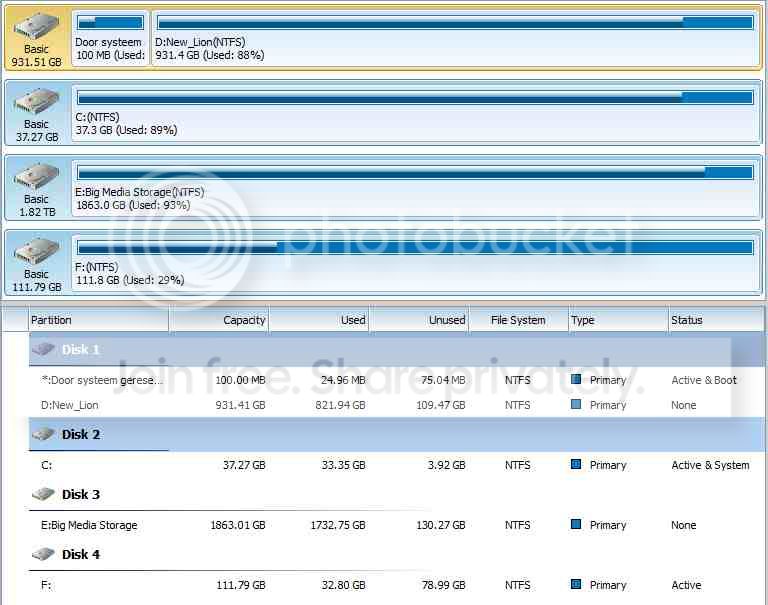
Keej, I've just used EasyBCD to copy the boot info to C:
It says to reboot & alter the bios now, do I need to do that BEFORE I image C: with Macrium or can it wait?
Also, Partition Wizard still shows D: as Active & Boot but C: now shows as Active & System is that right?

I'll "rehearse" the imaging while I wait. It's kewl, I'm not in Amsterdam for the tulips & museums ;)
(It must be 4:20 somewhere right now)
 
Last edited:

My Computer My Computer

Computer Manufacturer/Model Number
Advanced Power "Stealth III"
OS
Windows 7 Professional x64 (English)
CPU
i7 870 2.93GHz
Motherboard
MSI H55M-E33
Memory
12GB DDR3
Graphics Card(s)
ASUS/NVidia GTX 560ti GPU (1GB/900MHz overclocked)
Sound Card
Realtek HD audio (to Logitech Z550 5.1)
Monitor(s) Displays
-Samsung 24" Monitor 1920x1200 2-Samsung 32" HDTV 1768x992
Screen Resolution
see above
Hard Drives
C: 120GB ADATA S510 SSD - O/S only
D: 2TB Seagate Barracuda 7200rpm - Progs, Games etc
E: 2TB WD Green Caviar - Media & Projects
F: 40GB Intel Speed Demon SSD - Skyrim
also 3x 1TB WD MyBook Essential for offline backup.
PSU
500W
Case
CoolerMaster
Cooling
six inch on pack panel
Keyboard
Steelseries Merc Stealth gaming keyboard
Mouse
Cyborg R.A.T. 7
Internet Speed
18MB/S down 1.2MB/S up
Other Info
Logitech Z550 5.1 surround system
Hmm, sorry, I did not focus on your NL location.

Yes, now you have both the SSD and the 1TB disk active. That is OK. As I said, the bootmgr was only copied to the SSD. You can still boot from the 1TB HDD.

AHCI you can set at any time. Hopefully it will give you a small performance boost. But I would do it at the very end.
 

My Computer My Computer

Computer Manufacturer/Model Number
HP, Dell, Gateway, Toshiba - 4 laptops and 2 desktops
OS
Vista, Windows7, Mint Mate, Zorin, Windows 8
CPU
from 1.6GHz Duo to i7
Monitor(s) Displays
2x HP w2207
Hard Drives
5x HDD, 7x SSD, 12x Externals
Keyboard
with trackball - no mices
Mouse
Trackball mice
Internet Speed
DSL 6000
Imaging running now - hope I didn't need the reboot/bios tweak first!

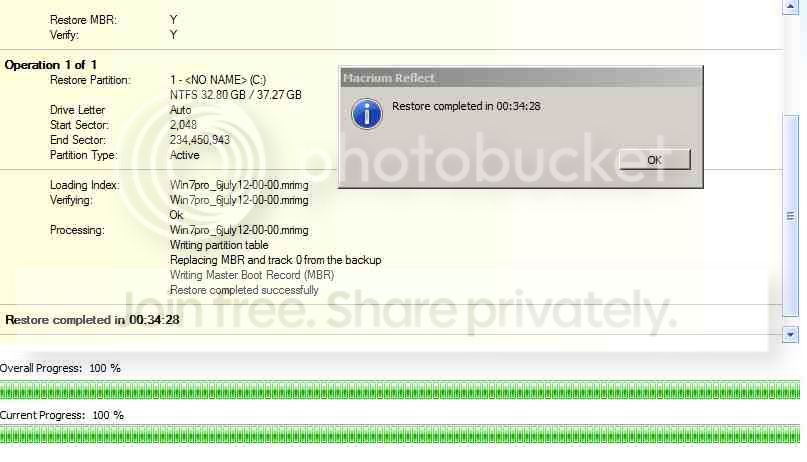
e2a - imaging sucessful, now restoring image to new SSD, resizing partition to full size of disk.
Maybe 20 minutes to wait ;)
 
Last edited:

My Computer My Computer

Computer Manufacturer/Model Number
Advanced Power "Stealth III"
OS
Windows 7 Professional x64 (English)
CPU
i7 870 2.93GHz
Motherboard
MSI H55M-E33
Memory
12GB DDR3
Graphics Card(s)
ASUS/NVidia GTX 560ti GPU (1GB/900MHz overclocked)
Sound Card
Realtek HD audio (to Logitech Z550 5.1)
Monitor(s) Displays
-Samsung 24" Monitor 1920x1200 2-Samsung 32" HDTV 1768x992
Screen Resolution
see above
Hard Drives
C: 120GB ADATA S510 SSD - O/S only
D: 2TB Seagate Barracuda 7200rpm - Progs, Games etc
E: 2TB WD Green Caviar - Media & Projects
F: 40GB Intel Speed Demon SSD - Skyrim
also 3x 1TB WD MyBook Essential for offline backup.
PSU
500W
Case
CoolerMaster
Cooling
six inch on pack panel
Keyboard
Steelseries Merc Stealth gaming keyboard
Mouse
Cyborg R.A.T. 7
Internet Speed
18MB/S down 1.2MB/S up
Other Info
Logitech Z550 5.1 surround system
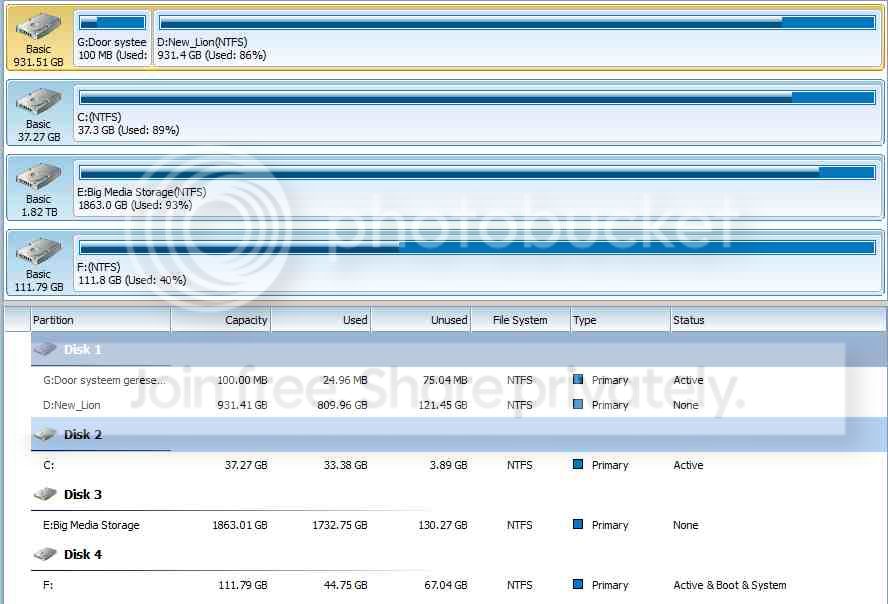
Well, so far so good....

DiskManagement3.jpg


..one WEIRD thing though - whilst restoring, my 'memory meter' (sidebar gadget) was jammed against the red-line (12GB) but even after it finished it's still at 93% so even this browser window is V E R Y slow to respond :(

Here's a snip of the 'new' set-up from Partition Wizard...

DiskManagement4.jpg


I did the full Macrium 'rescue disk' thing too, just for safety, btw.

I'm not re-booting quite yet, just a few more questions, just to be sure...

So, if I'm following it all right, I now have THREE 'bootable' disks - C: D: & F: ..assuming everything goes OK & when I've told BIOS to look for the "F:" drive first, it actually does boot up into Windows...

1) How can I be sure it booted from F:?
2) Can I 'get rid of' the 100MB section on D:? Best way?
3) Any pitfalls about re-lettering the drives so the new SSD becomes C: & the old SSD becomes say X:?
4) Simplest way to get the old SSD non-bootable & ready to have 'Skyrim' installed on it?

I did warn you that this would take a bit of hand-holding!

e2a - would this be a reasonable upgrade to replace the 1TB Hitachi? I'm kinda running out of space everywhere! - Seagate Barracuda 2TB SATA-600 7200rpm 64MB €120
 

My Computer My Computer

Computer Manufacturer/Model Number
Advanced Power "Stealth III"
OS
Windows 7 Professional x64 (English)
CPU
i7 870 2.93GHz
Motherboard
MSI H55M-E33
Memory
12GB DDR3
Graphics Card(s)
ASUS/NVidia GTX 560ti GPU (1GB/900MHz overclocked)
Sound Card
Realtek HD audio (to Logitech Z550 5.1)
Monitor(s) Displays
-Samsung 24" Monitor 1920x1200 2-Samsung 32" HDTV 1768x992
Screen Resolution
see above
Hard Drives
C: 120GB ADATA S510 SSD - O/S only
D: 2TB Seagate Barracuda 7200rpm - Progs, Games etc
E: 2TB WD Green Caviar - Media & Projects
F: 40GB Intel Speed Demon SSD - Skyrim
also 3x 1TB WD MyBook Essential for offline backup.
PSU
500W
Case
CoolerMaster
Cooling
six inch on pack panel
Keyboard
Steelseries Merc Stealth gaming keyboard
Mouse
Cyborg R.A.T. 7
Internet Speed
18MB/S down 1.2MB/S up
Other Info
Logitech Z550 5.1 surround system
1. To be 100% sure, disconnect the other disks.

2. Not reallly any need to do that - not worth it. And reusing the space requires an OEM product.

3. No need to reletter. The running OS will always be C.

4. Reformat

e2a. I would get an additional disk - even one that is eSata attached if you have no more free ports.

.
 

My Computer My Computer

Computer Manufacturer/Model Number
HP, Dell, Gateway, Toshiba - 4 laptops and 2 desktops
OS
Vista, Windows7, Mint Mate, Zorin, Windows 8
CPU
from 1.6GHz Duo to i7
Monitor(s) Displays
2x HP w2207
Hard Drives
5x HDD, 7x SSD, 12x Externals
Keyboard
with trackball - no mices
Mouse
Trackball mice
Internet Speed
DSL 6000
Between Wimbledon semi-finals I nipped out to 'computerland' & got the 2TB Seagate. I have 2 spare SATA ports but no power cables left so I'll connect it externally with my USB-SATA kit until I'm sure about everything else.

When I got back, I took the plunge & hit the reboot button.....

Well, not a disaster so far. With a couple of scares it did reboot to Windows after the BIOS tweaks.
Speaking of which, I had a look at all the options I could see & nowhere did I see mention of an ACHI option.
I think it must be still considering D: as the primary, though coz I ran WEI & it still gives 5.9 :(

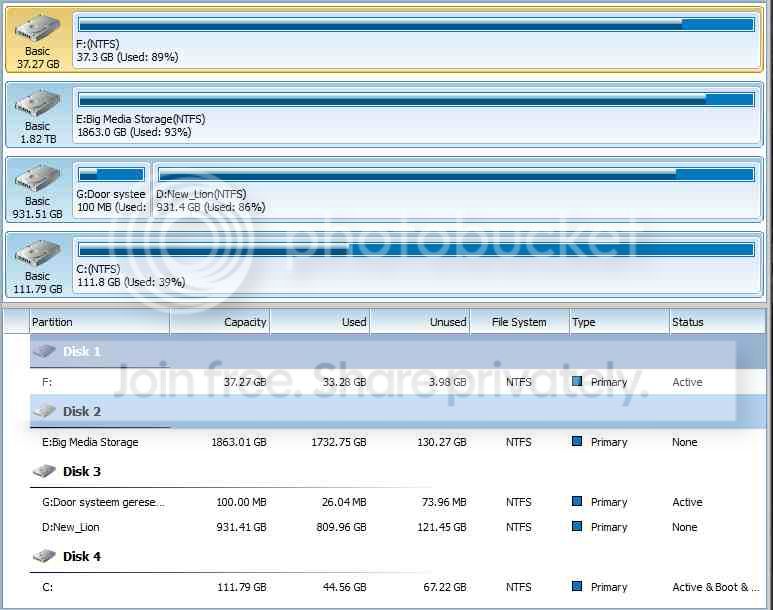
Here's what Partition Wizard shows now-

DiskManagement5.jpg


F: shows as boot which is good but didn't you say it would automatically set the OS drive as C:?

Anyway, what I'm going to do next is to disconnect the SATA cables to all but the DVD-R & the new SSD & see if it boots. If not I'll replug 1st the D: then the C: to see what happens.

Fingers crossed!
 

My Computer My Computer

Computer Manufacturer/Model Number
Advanced Power "Stealth III"
OS
Windows 7 Professional x64 (English)
CPU
i7 870 2.93GHz
Motherboard
MSI H55M-E33
Memory
12GB DDR3
Graphics Card(s)
ASUS/NVidia GTX 560ti GPU (1GB/900MHz overclocked)
Sound Card
Realtek HD audio (to Logitech Z550 5.1)
Monitor(s) Displays
-Samsung 24" Monitor 1920x1200 2-Samsung 32" HDTV 1768x992
Screen Resolution
see above
Hard Drives
C: 120GB ADATA S510 SSD - O/S only
D: 2TB Seagate Barracuda 7200rpm - Progs, Games etc
E: 2TB WD Green Caviar - Media & Projects
F: 40GB Intel Speed Demon SSD - Skyrim
also 3x 1TB WD MyBook Essential for offline backup.
PSU
500W
Case
CoolerMaster
Cooling
six inch on pack panel
Keyboard
Steelseries Merc Stealth gaming keyboard
Mouse
Cyborg R.A.T. 7
Internet Speed
18MB/S down 1.2MB/S up
Other Info
Logitech Z550 5.1 surround system
Don't worry about AHCI. That is not a must have. SSDs work very well in IDE mode. Let's first see whether it works at all. Then we can worry about the nits.
 

My Computer My Computer

Computer Manufacturer/Model Number
HP, Dell, Gateway, Toshiba - 4 laptops and 2 desktops
OS
Vista, Windows7, Mint Mate, Zorin, Windows 8
CPU
from 1.6GHz Duo to i7
Monitor(s) Displays
2x HP w2207
Hard Drives
5x HDD, 7x SSD, 12x Externals
Keyboard
with trackball - no mices
Mouse
Trackball mice
Internet Speed
DSL 6000
Sorry, I'm not handing out any cigars yet :(

I disconnected all the SATA cables bar F: & DVD-R

On Boot (splash screen?) I got "Preparing your desktop" for about 2 minutes, then to a plain pale blue screen with a (working) mouse-cursor and small white text in the bottom left corner saying
Windows 7
Build 7601
This copy of windows is not genuine
(It bloody well is, I have the disk, it's REAL Microsoft, not just an oem thing)
no response to LM RM or the three-key death-grip (ctrl alt del) just a plain screen and a mouse cursor. No icons, no 'start button', nothing.
I powered down by the front-panel button, then the switch on the PSU.
Waited 2 minutes then connected the D: drive & rebooted.
EXACTLY the same as above.
Then connected the E: drive
Same again :(
Then connected the C: drive
The bios hung up on "Autodetecting USB Mass Storage Devices Dev #01:"
pressed F11 to get back to bios, went "exit without saving"
Got to splash screen but windows hung up on "please wait"
Rebooted from front panel.
Got the "Windows Recovery Error" screen, used "start windows normally"
It did, that's how I'm able to post, but I've got a pop-up box on the desktop saying "Microsoft Windows - you must re-start your computer to apply these changes....".

I'll do that as soon as I post this. I'll be at work in an hour, I have use of a lappy there so can check my mail/this forum from time to time.

But what the heck has gone 'wrong' and what can I do about it?
 

My Computer My Computer

Computer Manufacturer/Model Number
Advanced Power "Stealth III"
OS
Windows 7 Professional x64 (English)
CPU
i7 870 2.93GHz
Motherboard
MSI H55M-E33
Memory
12GB DDR3
Graphics Card(s)
ASUS/NVidia GTX 560ti GPU (1GB/900MHz overclocked)
Sound Card
Realtek HD audio (to Logitech Z550 5.1)
Monitor(s) Displays
-Samsung 24" Monitor 1920x1200 2-Samsung 32" HDTV 1768x992
Screen Resolution
see above
Hard Drives
C: 120GB ADATA S510 SSD - O/S only
D: 2TB Seagate Barracuda 7200rpm - Progs, Games etc
E: 2TB WD Green Caviar - Media & Projects
F: 40GB Intel Speed Demon SSD - Skyrim
also 3x 1TB WD MyBook Essential for offline backup.
PSU
500W
Case
CoolerMaster
Cooling
six inch on pack panel
Keyboard
Steelseries Merc Stealth gaming keyboard
Mouse
Cyborg R.A.T. 7
Internet Speed
18MB/S down 1.2MB/S up
Other Info
Logitech Z550 5.1 surround system
This is pretty mysterious. I have never seen such a sequence of events. You should have never gotten the "Preparing your desktop' to start with since you imaged a running system - at least I assume that the system was still running from the 40GB SSD after you copied the bootmgr. I suggest to test that too with all other disks disconnected.

If that works, then you must have made a little mistake during the imaging and we can take it from there.
 

My Computer My Computer

Computer Manufacturer/Model Number
HP, Dell, Gateway, Toshiba - 4 laptops and 2 desktops
OS
Vista, Windows7, Mint Mate, Zorin, Windows 8
CPU
from 1.6GHz Duo to i7
Monitor(s) Displays
2x HP w2207
Hard Drives
5x HDD, 7x SSD, 12x Externals
Keyboard
with trackball - no mices
Mouse
Trackball mice
Internet Speed
DSL 6000
[From my laptop at work]

It rebooted OK but it must still be seeing D as the primary coz WEI is still 5.9 for disk speed. I had a quick look at F before I came to work, in addition to the bootmanager it also now has a 12GB pagefile (.sys if I remember right)

So, 2moro I'll disconnect all but the C drive & see what happens. Unless I hear otherwise before then, I'll also plug it into the primary sata port.

If it's just a badly-done image or restore, no damage done, that can be done again - or even try just cloning C to F with Acronis or Paragon?

It's not like anything is a one-shot operation as long as everything on C D & E stay intact until F is working right.

e2a- just remembered - the 100mb system partition now shows up as the G: drive in partition wizard.
 

My Computer My Computer

Computer Manufacturer/Model Number
Advanced Power "Stealth III"
OS
Windows 7 Professional x64 (English)
CPU
i7 870 2.93GHz
Motherboard
MSI H55M-E33
Memory
12GB DDR3
Graphics Card(s)
ASUS/NVidia GTX 560ti GPU (1GB/900MHz overclocked)
Sound Card
Realtek HD audio (to Logitech Z550 5.1)
Monitor(s) Displays
-Samsung 24" Monitor 1920x1200 2-Samsung 32" HDTV 1768x992
Screen Resolution
see above
Hard Drives
C: 120GB ADATA S510 SSD - O/S only
D: 2TB Seagate Barracuda 7200rpm - Progs, Games etc
E: 2TB WD Green Caviar - Media & Projects
F: 40GB Intel Speed Demon SSD - Skyrim
also 3x 1TB WD MyBook Essential for offline backup.
PSU
500W
Case
CoolerMaster
Cooling
six inch on pack panel
Keyboard
Steelseries Merc Stealth gaming keyboard
Mouse
Cyborg R.A.T. 7
Internet Speed
18MB/S down 1.2MB/S up
Other Info
Logitech Z550 5.1 surround system
Progress I suppose-

With C the only drive connected (connected to SATA 1), it booted to windows OK - and fast!

However windows explorer refuses to work, I get popups saying "windows explorer.exe - server execution failed" or " ::{26EE ..... 683}/o - server execution failed".

Partition wizard is on the D drive so I can't try it.

I'm going to hook up the new ssd now & try a quick 'Paragon' now. Just for the heck of it!

Can report easily no matter what, brought the lappy back from work ;)

e2a- argh, paragon is on D: too so I had to hook it up again, did E: as well for completeness, 22 seconds from WinBoot to welcome chime - not bad ;) explorer working now too.

Had to ' reboot to save changes' & still only 5.9 WEI gonna Paragon now.....
 
Last edited:

My Computer My Computer

Computer Manufacturer/Model Number
Advanced Power "Stealth III"
OS
Windows 7 Professional x64 (English)
CPU
i7 870 2.93GHz
Motherboard
MSI H55M-E33
Memory
12GB DDR3
Graphics Card(s)
ASUS/NVidia GTX 560ti GPU (1GB/900MHz overclocked)
Sound Card
Realtek HD audio (to Logitech Z550 5.1)
Monitor(s) Displays
-Samsung 24" Monitor 1920x1200 2-Samsung 32" HDTV 1768x992
Screen Resolution
see above
Hard Drives
C: 120GB ADATA S510 SSD - O/S only
D: 2TB Seagate Barracuda 7200rpm - Progs, Games etc
E: 2TB WD Green Caviar - Media & Projects
F: 40GB Intel Speed Demon SSD - Skyrim
also 3x 1TB WD MyBook Essential for offline backup.
PSU
500W
Case
CoolerMaster
Cooling
six inch on pack panel
Keyboard
Steelseries Merc Stealth gaming keyboard
Mouse
Cyborg R.A.T. 7
Internet Speed
18MB/S down 1.2MB/S up
Other Info
Logitech Z550 5.1 surround system
I it is that fast, I would not worry about the WEI. It is a bit strange though. Was that WEI measured when only the SSD was connected? Maybe a WEI update will help.
 

My Computer My Computer

Computer Manufacturer/Model Number
HP, Dell, Gateway, Toshiba - 4 laptops and 2 desktops
OS
Vista, Windows7, Mint Mate, Zorin, Windows 8
CPU
from 1.6GHz Duo to i7
Monitor(s) Displays
2x HP w2207
Hard Drives
5x HDD, 7x SSD, 12x Externals
Keyboard
with trackball - no mices
Mouse
Trackball mice
Internet Speed
DSL 6000
Have done a WEI update every time I changed anything.

OK, REAL progress at last, thanks to the Paragon tool. Cloned the drive, rebooted, altered BIOS, now here's Partition Wizard:-

DiskManagement6.jpg


Gratifying to see that the new drive is now C; & the old one has been relegated to F: :)

Now I'm gonna disconect the old SSD now & see if everything is still OK.
 

My Computer My Computer

Computer Manufacturer/Model Number
Advanced Power "Stealth III"
OS
Windows 7 Professional x64 (English)
CPU
i7 870 2.93GHz
Motherboard
MSI H55M-E33
Memory
12GB DDR3
Graphics Card(s)
ASUS/NVidia GTX 560ti GPU (1GB/900MHz overclocked)
Sound Card
Realtek HD audio (to Logitech Z550 5.1)
Monitor(s) Displays
-Samsung 24" Monitor 1920x1200 2-Samsung 32" HDTV 1768x992
Screen Resolution
see above
Hard Drives
C: 120GB ADATA S510 SSD - O/S only
D: 2TB Seagate Barracuda 7200rpm - Progs, Games etc
E: 2TB WD Green Caviar - Media & Projects
F: 40GB Intel Speed Demon SSD - Skyrim
also 3x 1TB WD MyBook Essential for offline backup.
PSU
500W
Case
CoolerMaster
Cooling
six inch on pack panel
Keyboard
Steelseries Merc Stealth gaming keyboard
Mouse
Cyborg R.A.T. 7
Internet Speed
18MB/S down 1.2MB/S up
Other Info
Logitech Z550 5.1 surround system
(Starts to relax & enjoy the cruise to the finishing line)

I've now booted with the old SSD disconnected, all seems OK. WEI rating gone up to 6.9 (I was expecting higher) but at least it's gone up.

So, remaining tasks -

Copy D: drive (partition) to new 2TB seagate & try to replace D to see if I can live without the sytem partition.
Format old SSD for Skyrim. (I have an ultra-modded rig, folder is nearly 15GB!)
Full system backup to external disks.

...D'ya know, I think I've got the confidence to do that myself now. I'll declare the project a success, your cigar (or whatever ;) ) awaits you in Amsterdam, thank you very much for your insight and above all your patience.

Tell me where I can endorse/rate/big you up generally and I'll happily do it.

I salute you, Sir.
 

My Computer My Computer

Computer Manufacturer/Model Number
Advanced Power "Stealth III"
OS
Windows 7 Professional x64 (English)
CPU
i7 870 2.93GHz
Motherboard
MSI H55M-E33
Memory
12GB DDR3
Graphics Card(s)
ASUS/NVidia GTX 560ti GPU (1GB/900MHz overclocked)
Sound Card
Realtek HD audio (to Logitech Z550 5.1)
Monitor(s) Displays
-Samsung 24" Monitor 1920x1200 2-Samsung 32" HDTV 1768x992
Screen Resolution
see above
Hard Drives
C: 120GB ADATA S510 SSD - O/S only
D: 2TB Seagate Barracuda 7200rpm - Progs, Games etc
E: 2TB WD Green Caviar - Media & Projects
F: 40GB Intel Speed Demon SSD - Skyrim
also 3x 1TB WD MyBook Essential for offline backup.
PSU
500W
Case
CoolerMaster
Cooling
six inch on pack panel
Keyboard
Steelseries Merc Stealth gaming keyboard
Mouse
Cyborg R.A.T. 7
Internet Speed
18MB/S down 1.2MB/S up
Other Info
Logitech Z550 5.1 surround system

My Computer My Computer

Computer Manufacturer/Model Number
HP, Dell, Gateway, Toshiba - 4 laptops and 2 desktops
OS
Vista, Windows7, Mint Mate, Zorin, Windows 8
CPU
from 1.6GHz Duo to i7
Monitor(s) Displays
2x HP w2207
Hard Drives
5x HDD, 7x SSD, 12x Externals
Keyboard
with trackball - no mices
Mouse
Trackball mice
Internet Speed
DSL 6000
Aaargh!

Not out of the woods yet :(

It won't even start to boot to windows unless the drive with the 100MB system partition is connected. Suspect that might explain why WEI is lower than expected?

Took me a while to discover this, one of my external HDDs died during copy of 1TB drive but now got it 'safe' on 2nd one. Took about 18 hours each run, USB2 :(

I got the .pdf for the BIOS manual, been through the whole thing, NO mention of AHCI :(

I can confirm that the alignment of the new SSD is verified at 1024kb.

The only thing I can think of trying is to re-format the new SSD, then copy/clone both the System partition & the Old SSD to it. I'm past the "everything is reversable" stage now anyway, after the copy of the 1TB drive all the shortcuts to stuff on it have GONE, including in the start menu & the 'all programs' list.

Is that worth trying?
 

My Computer My Computer

Computer Manufacturer/Model Number
Advanced Power "Stealth III"
OS
Windows 7 Professional x64 (English)
CPU
i7 870 2.93GHz
Motherboard
MSI H55M-E33
Memory
12GB DDR3
Graphics Card(s)
ASUS/NVidia GTX 560ti GPU (1GB/900MHz overclocked)
Sound Card
Realtek HD audio (to Logitech Z550 5.1)
Monitor(s) Displays
-Samsung 24" Monitor 1920x1200 2-Samsung 32" HDTV 1768x992
Screen Resolution
see above
Hard Drives
C: 120GB ADATA S510 SSD - O/S only
D: 2TB Seagate Barracuda 7200rpm - Progs, Games etc
E: 2TB WD Green Caviar - Media & Projects
F: 40GB Intel Speed Demon SSD - Skyrim
also 3x 1TB WD MyBook Essential for offline backup.
PSU
500W
Case
CoolerMaster
Cooling
six inch on pack panel
Keyboard
Steelseries Merc Stealth gaming keyboard
Mouse
Cyborg R.A.T. 7
Internet Speed
18MB/S down 1.2MB/S up
Other Info
Logitech Z550 5.1 surround system

My Computer My Computer

Computer Manufacturer/Model Number
HP, Dell, Gateway, Toshiba - 4 laptops and 2 desktops
OS
Vista, Windows7, Mint Mate, Zorin, Windows 8
CPU
from 1.6GHz Duo to i7
Monitor(s) Displays
2x HP w2207
Hard Drives
5x HDD, 7x SSD, 12x Externals
Keyboard
with trackball - no mices
Mouse
Trackball mice
Internet Speed
DSL 6000
Now it will boot with just C: & E: connected but I have no windows explorer - that server execution failed error again :(
 

My Computer My Computer

Computer Manufacturer/Model Number
Advanced Power "Stealth III"
OS
Windows 7 Professional x64 (English)
CPU
i7 870 2.93GHz
Motherboard
MSI H55M-E33
Memory
12GB DDR3
Graphics Card(s)
ASUS/NVidia GTX 560ti GPU (1GB/900MHz overclocked)
Sound Card
Realtek HD audio (to Logitech Z550 5.1)
Monitor(s) Displays
-Samsung 24" Monitor 1920x1200 2-Samsung 32" HDTV 1768x992
Screen Resolution
see above
Hard Drives
C: 120GB ADATA S510 SSD - O/S only
D: 2TB Seagate Barracuda 7200rpm - Progs, Games etc
E: 2TB WD Green Caviar - Media & Projects
F: 40GB Intel Speed Demon SSD - Skyrim
also 3x 1TB WD MyBook Essential for offline backup.
PSU
500W
Case
CoolerMaster
Cooling
six inch on pack panel
Keyboard
Steelseries Merc Stealth gaming keyboard
Mouse
Cyborg R.A.T. 7
Internet Speed
18MB/S down 1.2MB/S up
Other Info
Logitech Z550 5.1 surround system
Back
Top