SSD w/ HDD - Windows 7 setup help

Torque21

New member
Local time
3:10 PM
Messages
6
Location
Long Island, NY
Hello!

I've recently completed my first PC build ever, coming from my beloved MacBook Pro. With that being said, I am as much of a Windows noob as can be.

Anyway, I have a 60GB Vertex 3 that I want to use strictly for my OS and maybe one game and a 500GB Caviar Blue that I want to use for everything else. I want Windows 7 to be installed onto the SSD and then for it to never attempt to use the SSD for anything else, unless I tell it to. As it is right now, programs are defaulted to installing on the SSD and even when I change the location to the HDD, a lot of stuff still ends up on the SSD.

So what I intend to do is wipe my SSD and HDD clean and start from scratch, the right way, hopefully with your guys' help. I'm thinking the steps to do so would be something like:

  1. Wipe the SSD and HDD clean, then unplug the HDD
  2. Install Windows 7 back onto the SSD
  3. Install Windows 7 updates and various drivers with the HDD still unplugged (or do I install the drivers onto the HDD?)
  4. Plug the HDD back in, format it, then proceed to move users and program files folders to the HDD from the SSD (??? - is this how you do what I'm ultimately trying to accomplish?)
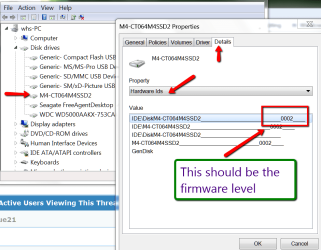
The other thing I've been confused about is SSD firmware. I can't figure out which firmware my SSD has and I know anything but the latest has been extremely unstable. If I can somehow find out which version I have and it's not the latest, how do I go about updating it? I know it doesn't work when you have an OS installed on the SSD. Does that mean before I do the four steps above I should install Windows onto my HDD so I can update the firmware on my SSD? Or is there another way to do it?


All the help I can get would be greatly appreciated! :confused:
 

My Computer

OS
Windows 7 Home Premium 64-bit (OEM)
CPU
Intel i5-2500K
Motherboard
Asus P8Z68-V
Memory
G.SKILL 8GB DDR3 1600
Graphics Card(s)
HIS 6870
Monitor(s) Displays
ViewSonic VX2450wm-LED
Hard Drives
OCZ Vertex 3 60GB
Western Digital Caviar Blue 500GB
PSU
OCZ ZX 850W
Case
NZXT. Source 210 Elite
for #1 have a look here How to securely erase an SSD drive | How To - CNET

#2 is OK with the HDD unplugged

#3 no need to keep the HDD unplugged

#4 no need to move any system files. The user files you can move by changing the default location http://www.sevenforums.com/tutorials/18629-user-folders-change-default-location.html

The firmware level you should find in device manager > device properties > details (see picture). For updating the firmware consult the OCZ forum.

Here is one of my SSD tutorials where you may find some more helpful details http://www.sevenforums.com/tutorials/149969-ssd-install-transfer-operating-system.html
 

Attachments

  • 2012-01-03_1507.png
    2012-01-03_1507.png
    37.9 KB · Views: 188

My Computer

Computer Manufacturer/Model Number
HP, Dell, Gateway, Toshiba - 4 laptops and 2 desktops
OS
Vista, Windows7, Mint Mate, Zorin, Windows 8
CPU
from 1.6GHz Duo to i7
Monitor(s) Displays
2x HP w2207
Hard Drives
5x HDD, 7x SSD, 12x Externals
Keyboard
with trackball - no mices
Mouse
Trackball mice
Internet Speed
DSL 6000
Wow, thanks for the quick and helpful response! Turns out my SSD actually already has the latest firmware, which is awesome. But as for #4 (changing the default location of the user folders), is that the only thing I would need to do to guarantee nothing but the OS is ever going to be on the SSD? Also, what is the smallest amount of space I can make Windows 7 use up on the SSD? I ask because I'd like to also install the game I play the most on my SSD, but as the game is nearly 30GB, and the SSD is only 60GB, I'm not sure I can fit both the game and Windows unless I have the absolute bare minimum of Windows related stuff on the SSD.

Edit: After I install Windows, exactly which drivers do I want to install and in what order? The first time I did this I went off of what the Newegg tutorial video said, but I the video could have been a little more descriptive in this area. And should I change the user folders location first and then install the drivers so that they're on the HDD?

Edit 2: One more thing... Is there no way to just erase the SSD and HDD from the Windows installer or BIOS or something similar? Do I need to actually download a program to do it? And if so, if I need Windows to run the program and Windows is installed on the SSD I'm erasing, what am I to do?
 

My Computer

OS
Windows 7 Home Premium 64-bit (OEM)
CPU
Intel i5-2500K
Motherboard
Asus P8Z68-V
Memory
G.SKILL 8GB DDR3 1600
Graphics Card(s)
HIS 6870
Monitor(s) Displays
ViewSonic VX2450wm-LED
Hard Drives
OCZ Vertex 3 60GB
Western Digital Caviar Blue 500GB
PSU
OCZ ZX 850W
Case
NZXT. Source 210 Elite
1. If you have a retail installation disc, the OS should not be more than 20GB - at the very most including a good selection of programs,

2. I am not sure that it is such a good idea to install the game on the SSD. Does it really access the disk so often to make it worthwhile.

3. Get rid of the hiberfile. That will save space equivalent to the size of your RAM. The command is powercfg -h off .

4. You normally do not have to worry about drivers. Win7 finds them automatically - unless you have a really weird device.

5. You can leave it up to the installer to erase your SSD (not the HDD though). But that is not the same thing as a clean erase. Your SSD will be slower in the write operations until garbage collection has completely cleaned it -and I have no idea how long that takes.But if the SSD is brand new, you do not have to worry about that. It is clean.
 

My Computer

Computer Manufacturer/Model Number
HP, Dell, Gateway, Toshiba - 4 laptops and 2 desktops
OS
Vista, Windows7, Mint Mate, Zorin, Windows 8
CPU
from 1.6GHz Duo to i7
Monitor(s) Displays
2x HP w2207
Hard Drives
5x HDD, 7x SSD, 12x Externals
Keyboard
with trackball - no mices
Mouse
Trackball mice
Internet Speed
DSL 6000
I don't mean to be a pest but I do want to make sure I ask all my questions first and do everything right this time around, so...

3. I pretty much have no idea what a hiberfile is and what it means to get rid of it. And is this definitely a safe thing to do? And is there anything else I can get rid of to free up SSD space?

4. According to the Newegg tutorial video, the drivers that Windows uses are not the best/latest, and the everything will work better if you download the latest. Is it definitely unnecessary to download the drivers? And if I do download them, would that mean I have would have two sets of everything (the ones Windows installed + the ones I downloaded)?

5. The installer can erase the SSD but not completely? Therefore making it slower? But since my SSD is brand new and has only been used for about a week and done nothing major (mainly just browse the internet), I should be fine as there's unlikely to be junk on it yet? Just making sure I'm understanding you correctly. As for the HDD, that can be cleared out/reformatted after I install Windows, right?
 

My Computer

OS
Windows 7 Home Premium 64-bit (OEM)
CPU
Intel i5-2500K
Motherboard
Asus P8Z68-V
Memory
G.SKILL 8GB DDR3 1600
Graphics Card(s)
HIS 6870
Monitor(s) Displays
ViewSonic VX2450wm-LED
Hard Drives
OCZ Vertex 3 60GB
Western Digital Caviar Blue 500GB
PSU
OCZ ZX 850W
Case
NZXT. Source 210 Elite
hiberfile = hibernation. If you don't use it then do as above. It will only disable it not remove. Very easy to re-enable. Gives you back your memory size in gb to the SSD.

You can also move a few things from the SSD to the HHD. Internet files, temp files.
 

My Computer

Computer Manufacturer/Model Number
Custom
OS
Windows 7 Pro x64 -- PCLinuxOS KDE4 FullMonty 2011
CPU
i7-875k @ Turbo - 7,6,5,5 - 3.6ghz
Motherboard
Asus P7P55D-E Deluxe
Memory
Corsair CMD8GX3M4A1600C8 8gb
Graphics Card(s)
Asus EAH5850 DirectCU/2DIS/1GD5
Sound Card
On Board
Monitor(s) Displays
Samsung SyncMaster T220 - Panasonic VT30a 50"
Screen Resolution
1680x1050 -
Hard Drives
Corsair Force 3 SSD 120GB x 2 ::
WD VelociRaptor 150GB WD1500HLFS x 2
PSU
Corsair HX-850 Power Supply
Case
Coolmaster HAF 932
Cooling
Corsair H50
Keyboard
Logitech Wireless MK700
Mouse
Logitech Wireless MX620
Internet Speed
Good enough for now
Other Info
Voip. Insanely cheap phone calls.
What does hibernation do exactly? What would I be losing out on by disabling it?

And wouldn't I technically want to move all possible files from the SSD to the HDD? (I mean, I do, unless there's a reason not to.) Is there a list of everything I can move?
 

My Computer

OS
Windows 7 Home Premium 64-bit (OEM)
CPU
Intel i5-2500K
Motherboard
Asus P8Z68-V
Memory
G.SKILL 8GB DDR3 1600
Graphics Card(s)
HIS 6870
Monitor(s) Displays
ViewSonic VX2450wm-LED
Hard Drives
OCZ Vertex 3 60GB
Western Digital Caviar Blue 500GB
PSU
OCZ ZX 850W
Case
NZXT. Source 210 Elite
You are certainly no pest. We are here to help and it is normal that you have a lot of questions. I had wished that I could have asked someone 4 years ago when I started with my first SSD. But I guess I was a pioneer in those days. LOL

ad 3. As Hipster says, you can delete the hiberfile if you do not use hibernation - most people don't. And if you ever want it back, it is very easy. The command is powercfg -h on

There is not a lot more you can get rid of. If you have a large RAM, you may reduce the pagefile to 1 or 2GBs. Everything else I can think of should stay as is.

ad 4. i suggest you stay away from the drivers and let the system manage them. Only in very exceptional and very rare cases is human intervention is required.

ad 5. I think you can go with the installer to do the job. But this subject is a bit more complex. You have to understand how an SSD works. It is not a matter of "junk" in the traditional sense.

An SSD can only write to spaces that are completely blank - meaning neither a binary zero nor a binary one must be on the nand. That is the job of Trim and the garage collector. They make sure that this is done after a file or data is deleted by the OS. But that operation is not instant. With a clean erase you make sure that the SSD is clean as if it came out of the box. But in your case you can go without doing the clean erase. The impact will probaby be minimal. Just make sure that about 20% of the SSD are free at all times. That will help the garbage collector.

Read here - that will give you a better understanding: http://en.wikipedia.org/wiki/TRIM
 

My Computer

Computer Manufacturer/Model Number
HP, Dell, Gateway, Toshiba - 4 laptops and 2 desktops
OS
Vista, Windows7, Mint Mate, Zorin, Windows 8
CPU
from 1.6GHz Duo to i7
Monitor(s) Displays
2x HP w2207
Hard Drives
5x HDD, 7x SSD, 12x Externals
Keyboard
with trackball - no mices
Mouse
Trackball mice
Internet Speed
DSL 6000
What does hibernation do exactly? What would I be losing out on by disabling it?

And wouldn't I technically want to move all possible files from the SSD to the HDD? (I mean, I do, unless there's a reason not to.) Is there a list of everything I can move?
Other than what I described before, I would definitely leave any game off the SSD. Games are big and bulky and belong on the HDD. But moving any system file is completely counterproductive.
 

My Computer

Computer Manufacturer/Model Number
HP, Dell, Gateway, Toshiba - 4 laptops and 2 desktops
OS
Vista, Windows7, Mint Mate, Zorin, Windows 8
CPU
from 1.6GHz Duo to i7
Monitor(s) Displays
2x HP w2207
Hard Drives
5x HDD, 7x SSD, 12x Externals
Keyboard
with trackball - no mices
Mouse
Trackball mice
Internet Speed
DSL 6000
Okay, thanks. I'll probably leave the more technical SSD stuff for the future and just take the easy way out for now (wipe it via the installer). The beauty of having built my own computer is that I can do whatever I want to it, whenever I want to.

3. After I install Windows I simply open Command Prompt and paste in powercfg -h on and I gain my 8GB (I have 8GB of memory) of additional SSD space? Are there any cons to disabling hibernation?

And one last thing and I think I'm ready to do this:

Should I follow this tutorial over the one you linked? And is that definitely the only thing I need to do to make sure my computer never uses the SSD for anything but the boot drive? Once I've completed one of the two tutorials, I'm everything will be defaulted to using the HDD, right?

This is, in a way, and without jynxing myself, easier than I had expected. I'm excited to get started.
 

My Computer

OS
Windows 7 Home Premium 64-bit (OEM)
CPU
Intel i5-2500K
Motherboard
Asus P8Z68-V
Memory
G.SKILL 8GB DDR3 1600
Graphics Card(s)
HIS 6870
Monitor(s) Displays
ViewSonic VX2450wm-LED
Hard Drives
OCZ Vertex 3 60GB
Western Digital Caviar Blue 500GB
PSU
OCZ ZX 850W
Case
NZXT. Source 210 Elite
What does hibernation do exactly? What would I be losing out on by disabling it?

And wouldn't I technically want to move all possible files from the SSD to the HDD? (I mean, I do, unless there's a reason not to.) Is there a list of everything I can move?

Sleep and hibernation: frequently asked questions

There is no need for the hibernation file if you don't intend to use hibernation. You turn it off using the command WHS gave you, from a command prompt. There are no cons.

You should be able to put your browser's cache to another drive. That might save a GB on the SSD.

You can reduce the amount of space devoted to System Restore by using the System Restore interface control slider after you install Windows. If you are daring, you can turn off System Restore entirely. It normally takes up at least several GB.
 

My Computer

Computer type
PC/Desktop
Computer Manufacturer/Model Number
Ignatz Special; 4 speed manual gearbox; factory air conditioning; one of one
OS
Windows 7 Home Premium SP1, 64-bit
CPU
Intel Skylake i5-6600K, not overclocked
Motherboard
AsRock Z170M Extreme 4, micro ATX
Memory
8 GB HyperX DDR4-2666 (2 x 4 GB)
Graphics Card(s)
none; graphics are integrated on CPU
Sound Card
onboard: Realtek ALC1150; external: USB Behringer UF0-202
Monitor(s) Displays
Dell S2340M 23 inch IPS
Screen Resolution
1600 x 900
Hard Drives
System: Crucial MX100 series SSD, 128 GB;
Data: Samsung Spinpoint 103SJ, 1 TB;
Backup: WD Caviar Green WD30EZRX-00D8PB0, 3 TB
PSU
Rosewill SilentNight 500 watt fanless, semi-modular
Case
Antec Solo II
Cooling
Noctua NH-U12S; Noctua F12 intake, Noctua S12A exhaust
Keyboard
Microsoft 200 6JH-00001 USB
Mouse
Dell or Microsoft optical wired; USB
Antivirus
Microsoft Security Essentials and Malwarebytes Premium
Browser
Pale Moon
Other Info
All fans PWM; speeds at idle: CPU circa 500 rpm; intake circa 600 rpm; exhaust circa 600 rpm; CPU temps 27 idle and 47 C load in a warm room (27 C/81 F) when running Intel Extreme Tuning Utility stress test.
3. Make sure you open command prompt as admin - else cmd does not play. And no, there are absolutely no downsides to deleting the hiberfile - other than losing hivernation which nobody uses.

You can use either tutorial. I think the one I linked is more recent.

Take your time and set one foot after the other. No need to rush. Easy does it.
 

My Computer

Computer Manufacturer/Model Number
HP, Dell, Gateway, Toshiba - 4 laptops and 2 desktops
OS
Vista, Windows7, Mint Mate, Zorin, Windows 8
CPU
from 1.6GHz Duo to i7
Monitor(s) Displays
2x HP w2207
Hard Drives
5x HDD, 7x SSD, 12x Externals
Keyboard
with trackball - no mices
Mouse
Trackball mice
Internet Speed
DSL 6000
Saving space on the SSD is not as much of a priority now as I've been talked out of wanting to install the game onto the SSD. At this point my only concern is making sure nothing ever touches the SSD besides the Windows 7 install or something that I manually did.
 

My Computer

OS
Windows 7 Home Premium 64-bit (OEM)
CPU
Intel i5-2500K
Motherboard
Asus P8Z68-V
Memory
G.SKILL 8GB DDR3 1600
Graphics Card(s)
HIS 6870
Monitor(s) Displays
ViewSonic VX2450wm-LED
Hard Drives
OCZ Vertex 3 60GB
Western Digital Caviar Blue 500GB
PSU
OCZ ZX 850W
Case
NZXT. Source 210 Elite
You can reduce the amount of space devoted to System Restore by using the System Restore interface control slider after you install Windows. If you are daring, you can turn off System Restore entirely. It normally takes up at least several GB.
Ignatz. only, and only if you do imaging instead.
 

My Computer

Computer Manufacturer/Model Number
HP, Dell, Gateway, Toshiba - 4 laptops and 2 desktops
OS
Vista, Windows7, Mint Mate, Zorin, Windows 8
CPU
from 1.6GHz Duo to i7
Monitor(s) Displays
2x HP w2207
Hard Drives
5x HDD, 7x SSD, 12x Externals
Keyboard
with trackball - no mices
Mouse
Trackball mice
Internet Speed
DSL 6000
I like hibernation as a way to shut down your computer when you walk away from it and leave work open on the desktop. There is no pressure to return to shut it down if you have it sleep after, say, 30 minutes then 30 minutes after that Hibernate. It writes the desktop which has been stored in RAM during sleep to the HD and then shuts down completely. When you start it up it starts twice as fast or more and has everything just as you left it on the deskstop.

I see Users walk away all the time who don't come back for hours or days and everything has been saved, including lots of power, wear and tear, and all of their work. Rarely there are network reconnection issues, but mostly it has been perfected in Win7 and is one of the nicest modern features.
 
Back
Top