CAOgdin
New member
I have a printer that I use two specific ways: 1) to print "Booklets" (4 letter-sized to a single 11x17" duplex sheet) and 2) to print "Tabloid" (full sized on a single 11x17" sheet).
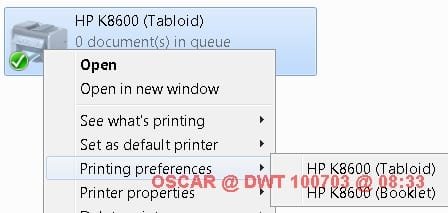
In XP, I could create two separate printer icons, and select the one I want from MS Word or other applications by unique name. In Windows 7, the same drivers are "stacked" into one icon with a configuration/selection option (see the graphic, below).
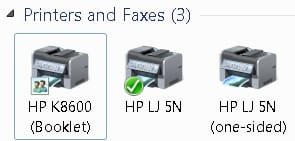
Sometimes, Windows 7 configures a printer with two separate icons when they are installed (same driver, different configurations), but usually it stacks them.
Does anybody know of a configuration/policy/registry change that I can use to force the printers to be separately shown in the Windows "Devices and Printers" window, and in dialog boxes for printing from applications?
--Carol Anne
In XP, I could create two separate printer icons, and select the one I want from MS Word or other applications by unique name. In Windows 7, the same drivers are "stacked" into one icon with a configuration/selection option (see the graphic, below).
Sometimes, Windows 7 configures a printer with two separate icons when they are installed (same driver, different configurations), but usually it stacks them.
Does anybody know of a configuration/policy/registry change that I can use to force the printers to be separately shown in the Windows "Devices and Printers" window, and in dialog boxes for printing from applications?
--Carol Anne
Attachments
My Computer
- Computer Manufacturer/Model Number
- Dell Optiplex GX960
- OS
- Windows 7 Pro