Strange Remote Desktop Connection Behavior

Keiichi25

New member
Guru
Local time
7:31 AM
Messages
465
I am working with a user and found a rather odd behavior with a Windows 7 RDC connection to a Windows 2008 R2 server. We have it using all the monitors she has, so in this case, a Laptop Screen and a Desktop Monitor, desktop extended. The laptop screen, obviously smaller than the Monitor that she has as the primary.

Now the strange behavior is this. When she moves her cursor towards the laptop monitor side, usually in the boundary that is not part of the laptop size, the screens displace, literally shift as if you are panning the screens over. Another way to describe it is the screens are panning, and you see the laptop screen slowly shift over into the desktop monitor.

Just so you know, in the display part, when you tell it to use all your monitors, you can't resize your screen. And you can only do the multi-monitor RDC to Windows 2008 R2 servers or Windows 7 machines.

This is with an Ienovo Thinkpad, an X201. I've looked at everything and can't explain why it would do that, but I can't get it to replicate on other computers, even a Dell Latitude E4310 with Windows 7. Just wondering if anyone has seen something similar happen
 

My Computer

Computer Manufacturer/Model Number
Alienware Area 51 Desktop and Dell Inspirion 17R (N7010)
OS
Windows 7 Ultimate x64 and Home Premium x64
CPU
Intel i7 960 (3.2 GHz Quad Core)
Motherboard
Alienware Intel based X58
Memory
12 Gigs (Triple Channel)
Graphics Card(s)
Alienware OEM nVidia GTX 560 Ti (1.25 Gig)
Sound Card
Creative Labs X-Fi Titanium
Monitor(s) Displays
Samsung PX2370 LED 23" Monitor
Screen Resolution
1920x1080
Hard Drives
2 320 Gig SATA in Raid 1 Configuration (System/App)
1 1 Tera SATA (Games)
1 1 Tera SATA (Data/Music/Videos)
PSU
750 Watt Power Supply
Case
Alienware Area 51 Desktop
Cooling
Liquid Cooled
Keyboard
Logitech G510
Mouse
Microsoft Trackball Explorer
Internet Speed
Cable
I'm not quite sure what you mean by "We have it using all the monitors she has", but usually a laptop monitor will pan in that way when the working resolution is too high. If you are using the laptop to RDC to the server, you may want to lower the resoltution in RDC Options\Display tab.

James
 

My Computer

OS
Win7U 64 RTM
CPU
Q9550
Motherboard
GA-EP45-UD3R
Memory
8GB Gskill
Graphics Card(s)
ASUS|EAH4850/HTDI/1GD3/A
Sound Card
xfi Plat
Monitor(s) Displays
Dell 2405fpw
Screen Resolution
1920x1200
Hard Drives
Seagate & WD sata Drives
PSU
Antec
Case
Antec
Keyboard
MS Natural Ergonomic 4000
Mouse
Logitech MX610 USB Cordless
moz-screenshot-1.png
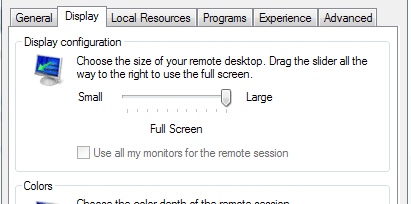
If you look at this picture, it states "Use all my monitors for the remote session".

This is used by RDC to allow the Windows 7 user with more than one monitor to connect to a server with 2 monitors.

The normal case I have seen with other users is that there is NO panning of the screen. The point is that it tells the server the connection will be using the full screen of the two monitors.
 

Attachments

  • rdp.PNG
    rdp.PNG
    5.4 KB · Views: 14

My Computer

Computer Manufacturer/Model Number
Alienware Area 51 Desktop and Dell Inspirion 17R (N7010)
OS
Windows 7 Ultimate x64 and Home Premium x64
CPU
Intel i7 960 (3.2 GHz Quad Core)
Motherboard
Alienware Intel based X58
Memory
12 Gigs (Triple Channel)
Graphics Card(s)
Alienware OEM nVidia GTX 560 Ti (1.25 Gig)
Sound Card
Creative Labs X-Fi Titanium
Monitor(s) Displays
Samsung PX2370 LED 23" Monitor
Screen Resolution
1920x1080
Hard Drives
2 320 Gig SATA in Raid 1 Configuration (System/App)
1 1 Tera SATA (Games)
1 1 Tera SATA (Data/Music/Videos)
PSU
750 Watt Power Supply
Case
Alienware Area 51 Desktop
Cooling
Liquid Cooled
Keyboard
Logitech G510
Mouse
Microsoft Trackball Explorer
Internet Speed
Cable
Your 1st image doesn't show up here. At any rate, I've not tried using two monitors, so my response was speculation, but have you tried reducing the full screen slider? The only time I've ever seen a laptop screen behave that way is when the reolution is higher than is supported by the laptop (or, perhaps better put, panning is how a laptop handles higher than supported resolutions).

James
 

My Computer

OS
Win7U 64 RTM
CPU
Q9550
Motherboard
GA-EP45-UD3R
Memory
8GB Gskill
Graphics Card(s)
ASUS|EAH4850/HTDI/1GD3/A
Sound Card
xfi Plat
Monitor(s) Displays
Dell 2405fpw
Screen Resolution
1920x1200
Hard Drives
Seagate & WD sata Drives
PSU
Antec
Case
Antec
Keyboard
MS Natural Ergonomic 4000
Mouse
Logitech MX610 USB Cordless
As mentioned before, Go into Remote Desktop Connection, click on options in the lower left hand corner which expands out and gives you tabs. Click on the Display tab and you will see it.

Second, also mentioned before, when you click on the 'Use all my monitors for the remote session' it prevents you from using the slider bar at all.
 

My Computer

Computer Manufacturer/Model Number
Alienware Area 51 Desktop and Dell Inspirion 17R (N7010)
OS
Windows 7 Ultimate x64 and Home Premium x64
CPU
Intel i7 960 (3.2 GHz Quad Core)
Motherboard
Alienware Intel based X58
Memory
12 Gigs (Triple Channel)
Graphics Card(s)
Alienware OEM nVidia GTX 560 Ti (1.25 Gig)
Sound Card
Creative Labs X-Fi Titanium
Monitor(s) Displays
Samsung PX2370 LED 23" Monitor
Screen Resolution
1920x1080
Hard Drives
2 320 Gig SATA in Raid 1 Configuration (System/App)
1 1 Tera SATA (Games)
1 1 Tera SATA (Data/Music/Videos)
PSU
750 Watt Power Supply
Case
Alienware Area 51 Desktop
Cooling
Liquid Cooled
Keyboard
Logitech G510
Mouse
Microsoft Trackball Explorer
Internet Speed
Cable
Still looking for some answers to the issue. Seems to be on the laptop in question, as I tried a different profile and same problems.
 

My Computer

Computer Manufacturer/Model Number
Alienware Area 51 Desktop and Dell Inspirion 17R (N7010)
OS
Windows 7 Ultimate x64 and Home Premium x64
CPU
Intel i7 960 (3.2 GHz Quad Core)
Motherboard
Alienware Intel based X58
Memory
12 Gigs (Triple Channel)
Graphics Card(s)
Alienware OEM nVidia GTX 560 Ti (1.25 Gig)
Sound Card
Creative Labs X-Fi Titanium
Monitor(s) Displays
Samsung PX2370 LED 23" Monitor
Screen Resolution
1920x1080
Hard Drives
2 320 Gig SATA in Raid 1 Configuration (System/App)
1 1 Tera SATA (Games)
1 1 Tera SATA (Data/Music/Videos)
PSU
750 Watt Power Supply
Case
Alienware Area 51 Desktop
Cooling
Liquid Cooled
Keyboard
Logitech G510
Mouse
Microsoft Trackball Explorer
Internet Speed
Cable
Well, finally found out what was causing the problem.

Lenovo includes with their Laptops a program called 'Lenovo Auto-Scroll Utility'. This is referenced here:

http://download.lenovo.com/ibmdl/pub/pc/pccbbs/mobiles/81vu22ww.txt

Basically:

<AutoScroll Utility>
This program provides a function to improve usability for window operation.
Window position of the foreground application is automatically adjusted.

Well, there is a glitch with this program. The glitch is, that it ignores certain scenarios, such as dual monitor setups, where one monitor is set at 1920x1080 and another at 1280x800 (Which was the case for my user having a single monitor and laptop display). As described earlier, if you put the two displays, so you basically have a 'screen' of 3200x1080 (Side by side), there is a dead space of 1280x200.

Under normal circumstances, there is no issue, HOWEVER, when you go to a Terminal Server with 'Use all my monitors' checked, the Utility kicks in, treating the screen as being more than it should be and scrolling or panning things based on that orientation. Which also includes if you try to go into the 'dead' space on the laptop screen, it tries to go into that dead space on the laptop and moving the desktop from the Terminal Service downward, causing serious confusion for users.

Turning this Utility off, stops the issue. I didn't know this was causing the problem until I noticed the process running on another computer.
 

My Computer

Computer Manufacturer/Model Number
Alienware Area 51 Desktop and Dell Inspirion 17R (N7010)
OS
Windows 7 Ultimate x64 and Home Premium x64
CPU
Intel i7 960 (3.2 GHz Quad Core)
Motherboard
Alienware Intel based X58
Memory
12 Gigs (Triple Channel)
Graphics Card(s)
Alienware OEM nVidia GTX 560 Ti (1.25 Gig)
Sound Card
Creative Labs X-Fi Titanium
Monitor(s) Displays
Samsung PX2370 LED 23" Monitor
Screen Resolution
1920x1080
Hard Drives
2 320 Gig SATA in Raid 1 Configuration (System/App)
1 1 Tera SATA (Games)
1 1 Tera SATA (Data/Music/Videos)
PSU
750 Watt Power Supply
Case
Alienware Area 51 Desktop
Cooling
Liquid Cooled
Keyboard
Logitech G510
Mouse
Microsoft Trackball Explorer
Internet Speed
Cable
Thanks!

THANK YOU!
I have run into the same issue. Lenovo laptop with 2 identical external monitors. One is portrait. When I remote into work (where the monitors are the same size and setup) the landscape monitor "scrolled" as if it had the same vertical resolution as the vertical screen which was very confusing and difficult to use. Nearly a year after you posted this, the problem is still there for Lenovo.

Since you're #1 google search result on "remote desktop windows 7 strange" I want to add one point: I found it difficult to find a clear way to turn off the AutoScroll utility
To turn off the Lenovo AutoScroll stop and disable the Levovo Auto Scroll service

For those who don't know how to do this:
1. Right click "My computer", choose 'Manage'
2. Go to 'Services and Applications'
3. In Services, find Lenovo Auto Scroll in the list
4. Right click it, choose 'Properties'
5. Change 'Startup type' to 'disabled', hit the stop button

Thanks an enjoy!
 

My Computer

OS
Windows 7 64 Pro
Thank you

To both postees,
A big thanks. I was going spare trying to work out how to deal with my strange scrolling screens in RDC from my Lenovo laptop to my Lenovo Desktop over the past few months.
I keep trying to search mouse sensitivity, window displacement, I read every forum post I could find on RDC.
And with your problem description, plus the straight forward steps to disable lenovo autoscroll, I am now cruising again.
 

My Computer

Computer type
Laptop
Computer Manufacturer/Model Number
Lenovo
OS
7 64 bit
Back
Top