System Icons - Enable or Disable

How to Enable or Disable System Icons on Taskbar in Windows 7 and Windows 8

   Information
The notification area is a part of the taskbar that provides a temporary source for notifications and status. It can also be used to display icons for system and program features that are not on the desktop. The notification area was known historically as the system tray or status area.

By default, the only icons that will be visible in this area are some system icons. However, you can select which icons appear on the taskbar, and which icons hide in the overflow section.

This will show you how to enable or disable the Notification Area System Icons for all user accounts on the computer. These are the Clock, Volume, Network, Action Center, and Power (battery) icons in the bottom right corner of the taskbar.

You must be logged in as an administrator to be able to do the steps in this tutorial.

   Note
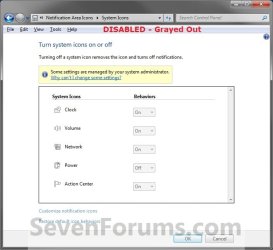
When disabled, these icons are grayed out in System Icons and will no longer appear at the Notification Area.

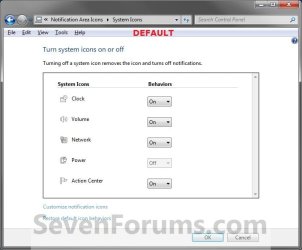
When enabled, these icons can be turned on and off at will in System Icons and will appear in the Notification Area if turned on.


   Tip

  • Check to make sure that the system icon is turned on.
  • Check to make sure that the system icon is not hidden.
  • Make sure that the drivers and devices that are for the system icons are installed and working properly. They will not work if the device or driver does not.
  • Sometimes to simply log off and log on, or restart the computer, will enable the missing notification icons again. You should try this first.
  • Sometimes resetting the Notification Icons will clear the problem.
  • Sometimes on a laptop, you can shutdown the laptop and remove the battery pack, reconnect it, and power the laptop back up to get the Power (battery) icon back or ungrayed.
EXAMPLE: System Icons
NOTE: When disabled, the system icons will be grayed out and cannot be turned on and off by all users on the computer.
Example1.jpg

Example2.jpg


OPTION ONE

Through Local Group Policy Editor


1. Open the all users, specific users or groups, or all users except administrators Local Group Policy Editor for how you want this policy applied.

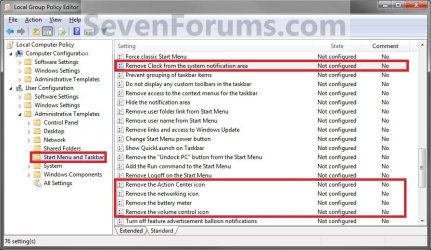
2. In the left pane, click/tap on an expand User Configuration, Administrative Templates, and Start Menu and Taskbar. (See screenshot below)
Group_Policy.jpg
3. For the Clock Icon - In the right pane, double click/tap on Remove Clock from the system notification area to edit it. (See screenshot above)
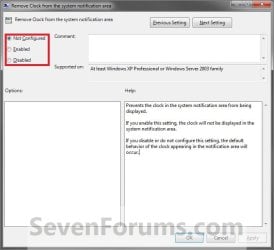
A) To Disable the Clock Icon - Select (dot) Enabled and click/tap on OK. (See screenshot below step 8)

B) To Enable the Clock Icon - Select (dot) Disabled or Not Configured and click/tap on OK. (See screenshot below step 8)
4. For the Volume Icon - In the right pane, double click/tap on Remove the volume control icon to edit it. (See screenshot below step 2)
A) To Disable the Volume Icon - Select (dot) Enabled and click/tap on OK. (See screenshot below step 8)

B) To Enable the Volume Icon - Select (dot) Disabled or Not Configured and click/tap on OK. (See screenshot below step 8)
5. For the Network Icon - In the right pane, double click/tap on Remove the networking icon to edit it. (See screenshot below step 2)
NOTE: To make sure that this icon works properly you should also have the Network Connections, Network List Service, Network Location Awareness, and Network Store Interface Service Services set to Started and Automatic.
A) To Disable the Network Icon - Select (dot) Enabled and click/tap on OK. (See screenshot below step 8)

B) To Enable the Netwok Icon - Select (dot) Disabled or Not Configured and click/tap on OK. (See screenshot below step 8)
6. For the Power (battery) Icon - In the right pane, double click/tap on Remove the battery meter to edit it. (See screenshot below step 2)
NOTE: This will remain grayed out, even when enabled, unless your computer is a laptop or has a UPS battery backup connected to it.
A) To Disable the Power Icon - Select (dot) Enabled and click/tap on OK. (See screenshot below step 8)

B) To Enable the Power Icon - Select (dot) Disabled or Not Configured and click/tap on OK. (See screenshot below step 8)
7. For the Action Center Icon - In the right pane, double click/tap on Remove the Action Center icon to edit it. (See screenshot below step 2)
A) To Disable the Action Center Icon - Select (dot) Enabled and click/tap on OK. (See screenshot below step 8)

B) To Enable the Action Center Icon - Select (dot) Disabled or Not Configured and click/tap on OK. (See screenshot below step 8)
8. When done, close the Local Group Policy Editor.
Properties.jpg
9. Log off and log on, or restart the computer to fully apply.


OPTION TWO

Using a REG File Download


1. To Enable the Action Center Icon
A) Click/tap on the Download button below to download the file below.
Enable_Action_Center_Notification_Icon.reg

Download


2. To Disable the Action Center Icon
A) Click/tap on the Download button below to download the file below.
Disable_Action_Center_Notification_Icon.reg

Download


3. To Enable the Clock Icon
A) Click/tap on the Download button below to download the file below.
Enable_Clock_Notification_Icon.reg

Download


4. To Disable the Clock Icon
A) Click/tap on the Download button below to download the file below.
Disable_Clock_Notification_Icon.reg

Download


5. To Enable the Network Icon
A) Click/tap on the Download button below to download the file below.
Enable_Network_Notification_Icon.reg

Download


6. To Disable the Network Icon
A) Click/tap on the Download button below to download the file below.
Enable_Network_Notification_Icon.reg

Download


7. To Enable the Power (battery) Icon
A) Click/tap on the Download button below to download the file below.
Enable_Power_Notification_Icon.reg

Download


8. To Disable the Power (battery) Icon
A) Click/tap on the Download button below to download the file below.
Disable_Clock_Notification_Icon.reg

Download


9. To Enable the Volume Icon
A) Click/tap on the Download button below to download the file below.
Enable_Volume_Notification_Icon.reg

Download


10. To Disable the Volume Icon
A) Click/tap on the Download button below to download the file below.
Disable_Volume_Notification_Icon.reg

Download


11. Save the .reg file to your Desktop.

12. Double click/tap on the downloaded .reg file to merge it.

13. Click/tap on Run, Yes (UAC), Yes, and OK when prompted.

14. Log off and log on, or restart the computer to fully apply.

15. When done, you can delete the downloaded .reg file if you like.
That's it,
Shawn


Attachments

Last edited:
I too am having the same problem on my HP laptop - on Windows boot, my system icons (action center, power status, network status, and volume) are disabled and cannot be enabled using the normal UI (grayed out). I tried your suggestions - installing the registry keys and updating the group and system policies - but the problem has, if anything, gotten worse.

The problem seems to go away when I kill and restart Windows Explorer from Task Manager. However, the problem returns the next time I boot up. In the "RUN" dialog, there is a notice that the program will be started with administrative privileges. Is it possible that when the system boots, it launches Windows Explorer without elevated privileges? If so, how can I get Explorer to launch with full permissions?
 

My Computer

Computer Manufacturer/Model Number
HP Pavilion dm4t-2100 CTO Entertainment Notebook PC
OS
Windows 7 Home Premium 64-bit SP1
CPU
Intel(R) Core(TM) i3-2330M CPU @ 2.20 GHz
Motherboard
Intel(R) 6 Series/C200 Series Chipset Family
Memory
4.00 GB
Graphics Card(s)
Intel(R) HD Graphics
Sound Card
IDT High Definition Audio CODEC
Monitor(s) Displays
9x16 HD Integrated Display
Screen Resolution
1366x768
Hard Drives
TOSHIBA MK6476GSX (C:\)
HP Portable HD BB07 USB Device (H:\)
PSU
AC adapter
Case
None
Cooling
HP CoolSmart
Keyboard
Integrated keyboard
Mouse
Logitech wireless with USB Nano receiver
Internet Speed
See Other Info
Other Info
HOME INTERNET
<6 Mbs down, <1 Mbs up
UCONN STORRS
>20 Mbs both ways
Hello pikalax,

If this just started recently, then you might see if doing a system restore using a restore point (if available) dated before this start may be able to fix this for you.

Hope this helps. :)
 

My Computer

Computer type
PC/Desktop
Computer Manufacturer/Model Number
Self built custom
OS
64-bit Windows 11 Pro for Workstations
CPU
Intel i7-8700K OC'd to 5 GHz
Motherboard
ASUS ROG Maximus XI Formula Z390
Memory
64 GB (4x16GB) G.SKILL TridentZ RGB DDR4 3600 MHz
Graphics Card(s)
ASUS ROG-STRIX-GTX1080TI-O11G-GAMING
Sound Card
Integrated
Monitor(s) Displays
2 x Samsung Odyssey G7 27"
Screen Resolution
2560x1440
Hard Drives
1TB Samsung 990 PRO M.2,
4TB Samsung 990 PRO PRO M.2,
TerraMaster F8 SSD Plus NAS
PSU
Seasonic Prime Titanium 850W
Case
Thermaltake Core P3
Cooling
Corsair Hydro H115i
Keyboard
Logitech wireless K800
Mouse
Logitech MX Master 4
Internet Speed
2 Gb/s Download and 100 Mb/s Upload
Antivirus
Malwarebyte Anti-Malware Premium
Browser
Google Chrome
Other Info
Logitech Z625 speaker system,
Logitech BRIO 4K Pro webcam,
HP Color LaserJet Pro MFP M477fdn,
APC SMART-UPS RT 1000 XL - SURT1000XLI,
Galaxy S23 Plus phone
Brink, I don't even remember when this problem started, and I've installed a bunch of software since. Most of these software packages have limited activation policies. How can I do a system restore without losing these installations?

EDIT: Never mind, I don't have a restore point from before November, which is around when this all started. It seems the only solution is to set EXPLORER.exe to launch with elevated privileges on boot. However, all the compatibility options are grayed out. How do I configure this?
 

My Computer

Computer Manufacturer/Model Number
HP Pavilion dm4t-2100 CTO Entertainment Notebook PC
OS
Windows 7 Home Premium 64-bit SP1
CPU
Intel(R) Core(TM) i3-2330M CPU @ 2.20 GHz
Motherboard
Intel(R) 6 Series/C200 Series Chipset Family
Memory
4.00 GB
Graphics Card(s)
Intel(R) HD Graphics
Sound Card
IDT High Definition Audio CODEC
Monitor(s) Displays
9x16 HD Integrated Display
Screen Resolution
1366x768
Hard Drives
TOSHIBA MK6476GSX (C:\)
HP Portable HD BB07 USB Device (H:\)
PSU
AC adapter
Case
None
Cooling
HP CoolSmart
Keyboard
Integrated keyboard
Mouse
Logitech wireless with USB Nano receiver
Internet Speed
See Other Info
Other Info
HOME INTERNET
<6 Mbs down, <1 Mbs up
UCONN STORRS
>20 Mbs both ways

My Computer

Computer type
PC/Desktop
Computer Manufacturer/Model Number
Self built custom
OS
64-bit Windows 11 Pro for Workstations
CPU
Intel i7-8700K OC'd to 5 GHz
Motherboard
ASUS ROG Maximus XI Formula Z390
Memory
64 GB (4x16GB) G.SKILL TridentZ RGB DDR4 3600 MHz
Graphics Card(s)
ASUS ROG-STRIX-GTX1080TI-O11G-GAMING
Sound Card
Integrated
Monitor(s) Displays
2 x Samsung Odyssey G7 27"
Screen Resolution
2560x1440
Hard Drives
1TB Samsung 990 PRO M.2,
4TB Samsung 990 PRO PRO M.2,
TerraMaster F8 SSD Plus NAS
PSU
Seasonic Prime Titanium 850W
Case
Thermaltake Core P3
Cooling
Corsair Hydro H115i
Keyboard
Logitech wireless K800
Mouse
Logitech MX Master 4
Internet Speed
2 Gb/s Download and 100 Mb/s Upload
Antivirus
Malwarebyte Anti-Malware Premium
Browser
Google Chrome
Other Info
Logitech Z625 speaker system,
Logitech BRIO 4K Pro webcam,
HP Color LaserJet Pro MFP M477fdn,
APC SMART-UPS RT 1000 XL - SURT1000XLI,
Galaxy S23 Plus phone
Brink, you may be on to something here. I created a new administrator account, and the new account is unaffected by this problem.
 

My Computer

Computer Manufacturer/Model Number
HP Pavilion dm4t-2100 CTO Entertainment Notebook PC
OS
Windows 7 Home Premium 64-bit SP1
CPU
Intel(R) Core(TM) i3-2330M CPU @ 2.20 GHz
Motherboard
Intel(R) 6 Series/C200 Series Chipset Family
Memory
4.00 GB
Graphics Card(s)
Intel(R) HD Graphics
Sound Card
IDT High Definition Audio CODEC
Monitor(s) Displays
9x16 HD Integrated Display
Screen Resolution
1366x768
Hard Drives
TOSHIBA MK6476GSX (C:\)
HP Portable HD BB07 USB Device (H:\)
PSU
AC adapter
Case
None
Cooling
HP CoolSmart
Keyboard
Integrated keyboard
Mouse
Logitech wireless with USB Nano receiver
Internet Speed
See Other Info
Other Info
HOME INTERNET
<6 Mbs down, <1 Mbs up
UCONN STORRS
>20 Mbs both ways
Well, if you like, you could use the new account instead. After copying any files (documents, music, etc....) from the old account, you could delete the old account afterwards to save space if needed.
 

My Computer

Computer type
PC/Desktop
Computer Manufacturer/Model Number
Self built custom
OS
64-bit Windows 11 Pro for Workstations
CPU
Intel i7-8700K OC'd to 5 GHz
Motherboard
ASUS ROG Maximus XI Formula Z390
Memory
64 GB (4x16GB) G.SKILL TridentZ RGB DDR4 3600 MHz
Graphics Card(s)
ASUS ROG-STRIX-GTX1080TI-O11G-GAMING
Sound Card
Integrated
Monitor(s) Displays
2 x Samsung Odyssey G7 27"
Screen Resolution
2560x1440
Hard Drives
1TB Samsung 990 PRO M.2,
4TB Samsung 990 PRO PRO M.2,
TerraMaster F8 SSD Plus NAS
PSU
Seasonic Prime Titanium 850W
Case
Thermaltake Core P3
Cooling
Corsair Hydro H115i
Keyboard
Logitech wireless K800
Mouse
Logitech MX Master 4
Internet Speed
2 Gb/s Download and 100 Mb/s Upload
Antivirus
Malwarebyte Anti-Malware Premium
Browser
Google Chrome
Other Info
Logitech Z625 speaker system,
Logitech BRIO 4K Pro webcam,
HP Color LaserJet Pro MFP M477fdn,
APC SMART-UPS RT 1000 XL - SURT1000XLI,
Galaxy S23 Plus phone
I have tried EVERYTHING still cannot see battery

I have spent about two hours trying to access my battery icon as it has been disabled for a couple of days now (possibly more, and I have absolutely no idea why!), I have done the following: downloaded the REG file; tried to access it from the administrative account; and use task manager to end the explorer.exe process and type in the systray.exe process. Nothing has worked!

It's really frustrating because if I haven't got my computer plugged in, I am unaware if it is lower than 10% battery so it will just cut out in the middle of the work I am doing.

PLEASE HELP!!!
 

My Computer

Computer type
PC/Desktop
Computer Manufacturer/Model Number
Sony Vaio
OS
windows 7 home premium
Hello l0097, and welcome to Seven Forums.

Have you installed all the latest drivers for your computer from the manufacturer Sony?
 

My Computer

Computer type
PC/Desktop
Computer Manufacturer/Model Number
Self built custom
OS
64-bit Windows 11 Pro for Workstations
CPU
Intel i7-8700K OC'd to 5 GHz
Motherboard
ASUS ROG Maximus XI Formula Z390
Memory
64 GB (4x16GB) G.SKILL TridentZ RGB DDR4 3600 MHz
Graphics Card(s)
ASUS ROG-STRIX-GTX1080TI-O11G-GAMING
Sound Card
Integrated
Monitor(s) Displays
2 x Samsung Odyssey G7 27"
Screen Resolution
2560x1440
Hard Drives
1TB Samsung 990 PRO M.2,
4TB Samsung 990 PRO PRO M.2,
TerraMaster F8 SSD Plus NAS
PSU
Seasonic Prime Titanium 850W
Case
Thermaltake Core P3
Cooling
Corsair Hydro H115i
Keyboard
Logitech wireless K800
Mouse
Logitech MX Master 4
Internet Speed
2 Gb/s Download and 100 Mb/s Upload
Antivirus
Malwarebyte Anti-Malware Premium
Browser
Google Chrome
Other Info
Logitech Z625 speaker system,
Logitech BRIO 4K Pro webcam,
HP Color LaserJet Pro MFP M477fdn,
APC SMART-UPS RT 1000 XL - SURT1000XLI,
Galaxy S23 Plus phone
How do I do this?
 

My Computer

Computer type
PC/Desktop
Computer Manufacturer/Model Number
Sony Vaio
OS
windows 7 home premium
What model number is you Sony Vaio?
 

My Computer

Computer type
PC/Desktop
Computer Manufacturer/Model Number
Self built custom
OS
64-bit Windows 11 Pro for Workstations
CPU
Intel i7-8700K OC'd to 5 GHz
Motherboard
ASUS ROG Maximus XI Formula Z390
Memory
64 GB (4x16GB) G.SKILL TridentZ RGB DDR4 3600 MHz
Graphics Card(s)
ASUS ROG-STRIX-GTX1080TI-O11G-GAMING
Sound Card
Integrated
Monitor(s) Displays
2 x Samsung Odyssey G7 27"
Screen Resolution
2560x1440
Hard Drives
1TB Samsung 990 PRO M.2,
4TB Samsung 990 PRO PRO M.2,
TerraMaster F8 SSD Plus NAS
PSU
Seasonic Prime Titanium 850W
Case
Thermaltake Core P3
Cooling
Corsair Hydro H115i
Keyboard
Logitech wireless K800
Mouse
Logitech MX Master 4
Internet Speed
2 Gb/s Download and 100 Mb/s Upload
Antivirus
Malwarebyte Anti-Malware Premium
Browser
Google Chrome
Other Info
Logitech Z625 speaker system,
Logitech BRIO 4K Pro webcam,
HP Color LaserJet Pro MFP M477fdn,
APC SMART-UPS RT 1000 XL - SURT1000XLI,
Galaxy S23 Plus phone
VPCF23P1E
 

My Computer

Computer type
PC/Desktop
Computer Manufacturer/Model Number
Sony Vaio
OS
windows 7 home premium
VPCF23P1E

Here's the driver download page below at Sony for that model number. You can just double check to make sure that you have them installed, and at least the same or newer driver version of them in the Device Manager.

Sony Support

In addition, you might see if removing and connecting the battery may toggle it to show up afterwards. :)
 

My Computer

Computer type
PC/Desktop
Computer Manufacturer/Model Number
Self built custom
OS
64-bit Windows 11 Pro for Workstations
CPU
Intel i7-8700K OC'd to 5 GHz
Motherboard
ASUS ROG Maximus XI Formula Z390
Memory
64 GB (4x16GB) G.SKILL TridentZ RGB DDR4 3600 MHz
Graphics Card(s)
ASUS ROG-STRIX-GTX1080TI-O11G-GAMING
Sound Card
Integrated
Monitor(s) Displays
2 x Samsung Odyssey G7 27"
Screen Resolution
2560x1440
Hard Drives
1TB Samsung 990 PRO M.2,
4TB Samsung 990 PRO PRO M.2,
TerraMaster F8 SSD Plus NAS
PSU
Seasonic Prime Titanium 850W
Case
Thermaltake Core P3
Cooling
Corsair Hydro H115i
Keyboard
Logitech wireless K800
Mouse
Logitech MX Master 4
Internet Speed
2 Gb/s Download and 100 Mb/s Upload
Antivirus
Malwarebyte Anti-Malware Premium
Browser
Google Chrome
Other Info
Logitech Z625 speaker system,
Logitech BRIO 4K Pro webcam,
HP Color LaserJet Pro MFP M477fdn,
APC SMART-UPS RT 1000 XL - SURT1000XLI,
Galaxy S23 Plus phone
I have tried EVERYTHING still cannot see battery

I have spent about two hours trying to access my battery icon as it has been disabled for a couple of days now (possibly more, and I have absolutely no idea why!), I have done the following: downloaded the REG file; tried to access it from the administrative account; and use task manager to end the explorer.exe process and type in the systray.exe process. Nothing has worked!

It's really frustrating because if I haven't got my computer plugged in, I am unaware if it is lower than 10% battery so it will just cut out in the middle of the work I am doing.

PLEASE HELP!!!
download the installer for your system this will give you info about state of your battery.
HWiNFO, HWiNFO32/64 - Download
 

My Computer

Computer type
Laptop
OS
Windows 7 Ultimate 32 bit
Solved

Thank you Problem solved . I applied it on Windows 10 64bit
 

My Computer

Computer type
Laptop
Computer Manufacturer/Model Number
Fujitsu
OS
windows 10 64 bit
CPU
Intel i3
Motherboard
unknown
Memory
transend
Graphics Card(s)
Unknown
Hard Drives
Hitachi
Keyboard
Logitech
Mouse
Logitech
Internet Speed
6Mbps
Antivirus
Windows Defender
Browser
Chrome
Back
Top