System image !!

baxxter

New member
Member
VIP
Local time
12:54 AM
Messages
266
Hello,I created System image and i saved it in the hard disk,But when i tried to restore it its said there is no system image (boot from the DVD) in the disk ?!
 

My Computer

Computer Manufacturer/Model Number
Dell Insporon N7110
OS
Windows 7 Ultimate SP1 64 Bit
CPU
Intel Core i7-2630QM 2.00GHz
Memory
4 Gb ddr3
Graphics Card(s)
Nvidia 520 1G
Monitor(s) Displays
1600 X 900
Screen Resolution
1440*900
Hard Drives
500 GB + 500 GB
Internet Speed
1 mb
I'm a little confused. You say you created the system image and saved it on the hard drive. Where on the hard drive was it saved? Windows 7 cannot include the partition or drive that you are saving the backup image to in the image. So if you tried to image your C: drive and then tried to save it on the C: drive, the image would fail.

Then you say, "But when i tried to restore it its said there is no system image (boot from the DVD) in the disk ?!" Were you trying to boot from an installation DVD, a rescue DVD, or something else? You might want to take a look at this tutorial for creating a system image. Personally, I think it's best to put the system image on an external hard drive.

http://www.sevenforums.com/tutorials/663-backup-complete-computer-create-image-backup.html
 

My Computer

Computer type
Laptop
Computer Manufacturer/Model Number
Sony Vaio VPCEB47GM Laptop
OS
Win 7 Pro 64-bit
CPU
Intel i5 2.4 Ghz
Memory
8GB DDR3
Graphics Card(s)
Intel HD 3000
Sound Card
IDT High Definition
Monitor(s) Displays
15.6 WGXA Anti-Glare LED
Screen Resolution
1280x800
Hard Drives
640Gb 7200rpm
Antivirus
MSE
Browser
Opera (primary) with IE9 backup
I'm a little confused. You say you created the system image and saved it on the hard drive. Where on the hard drive was it saved? Windows 7 cannot include the partition or drive that you are saving the backup image to in the image. So if you tried to image your C: drive and then tried to save it on the C: drive, the image would fail.

Then you say, "But when i tried to restore it its said there is no system image (boot from the DVD) in the disk ?!" Were you trying to boot from an installation DVD, a rescue DVD, or something else? You might want to take a look at this tutorial for creating a system image. Personally, I think it's best to put the system image on an external hard drive.

http://www.sevenforums.com/tutorials/663-backup-complete-computer-create-image-backup.html
I mean i saved it on E. and I boot from an installation DVD.and i have another question,when i want to create a system image of D the C drive always selected ! cant i uncheck it ?
 

My Computer

Computer Manufacturer/Model Number
Dell Insporon N7110
OS
Windows 7 Ultimate SP1 64 Bit
CPU
Intel Core i7-2630QM 2.00GHz
Memory
4 Gb ddr3
Graphics Card(s)
Nvidia 520 1G
Monitor(s) Displays
1600 X 900
Screen Resolution
1440*900
Hard Drives
500 GB + 500 GB
Internet Speed
1 mb
I'm not an expert on imaging but here's what I know. The system imaging tool that comes with Windows 7 is very basic. By that I mean it will make an image of everything on your hard drive. I've heard people say there are ways to select only certain drives or partitions but the failure rate is high. Also, the Windows 7 imaging tool doesn't like making images to DVDs even though that's one of the options.

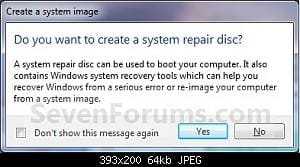
Once you make your image with Windows 7 you have to use a special System Repair Disc in order to access that image. At the end of the imaging process you'll get a prompt "Do you want to create a system repair disc?" (See Step 9 in the tutorial.) You need to create that repair disc on a separate CD and that's the CD you'd use to boot your computer if you ever need to use the image.

Step 9.jpg

If you want a better way to image your computer and be able to select or unselect different drives or partitions, there's a couple of free imaging tools that many people on this forum recommend. One is Macrium Reflect free and the other is Paragon. They will both allow you much more control over what is or isn't imaged. One of the forum members made a nice tutorial for Macrium here. And this is where you can find out more about free Paragon. (If you decide to use either Macrium or Paragon, they will also require that you create a repair disc so you can boot your computer and access their system image.) Hope this helps.
 

My Computer

Computer type
Laptop
Computer Manufacturer/Model Number
Sony Vaio VPCEB47GM Laptop
OS
Win 7 Pro 64-bit
CPU
Intel i5 2.4 Ghz
Memory
8GB DDR3
Graphics Card(s)
Intel HD 3000
Sound Card
IDT High Definition
Monitor(s) Displays
15.6 WGXA Anti-Glare LED
Screen Resolution
1280x800
Hard Drives
640Gb 7200rpm
Antivirus
MSE
Browser
Opera (primary) with IE9 backup
The windows system image requires you to have the image folder [WindowsImageBackup] in the root of a disk partition. It can easily renamed and moved to any folder (without risk) provide it's renamed back to [WindowsImageBackup] and moved back to a root partition position. See
http://www.sevenforums.com/tutorials/663-backup-complete-computer-create-image-backup.html
To restore see
http://www.sevenforums.com/tutorials/675-system-image-recovery.html

Actually all other third party image programs require a special disk. Windows just requires either
- standard system repair DVD (which you should always make) or
- Windows installation DVD or
- F8 when the 100MB system reserved partition is present.

I also use Macrium Reflect and think a good product (good to have a second safeguard image).
 

My Computer

Computer type
PC/Desktop
Computer Manufacturer/Model Number
Own build
OS
Windows 7x64 Home Premium SP1
CPU
Intel i7 2600k
Motherboard
ASUS P8Z68 Deluxe
Memory
G.Skill Ripjaws (DDR3-1600) 2x4GB
Graphics Card(s)
Nvidia GeForce GTS 450; Intel HD Graphics 3000(GT2+)
Monitor(s) Displays
Dell Ultrasharp IPS panel U2311H, Samsung SyncMaster P2350
Screen Resolution
1920x1080
Hard Drives
Samsung 850 Pro SSD 256GB, Samsung SSD 840 120GB, Seagates 1TB Barracuda ST31000528AS x2
PSU
Seasonic M12II 520W
Case
Lian Li Lancool PC-K60
Cooling
Case: 1x120mm, 3x140mm CPU: Hyper 212+
Keyboard
Logitech MK520 (wireless)
Mouse
Logitech MK520
Internet Speed
6-7 Mbps
Antivirus
Norton Security Premium, Malwarebytes on 2 (MSE on 3rd PC)
Browser
FireFox
Other Info
Audio: Logitech Z523 2.1
Back
Top