system interrupts causing 60-80% CPU usage

namniffum

New member
Local time
6:15 PM
Messages
4
I have a computer that I built from the ground up.

it contains:
biostar mcp6p3 motherboard with on board
nvidia GeForce 6150SE nForce 430 graphics
amd athlon II x2 245 2.9ghz dual core cpu
2 2gb ocz gold 1066 ram
windows 7 home premium 64 bit

I have, since day one, had this cpu drain. I can run linux (ubuntu 10.04) without any problem at all (at least with the cpu, software different story). I have been trying for almost a year now to fix this by going through various forums and got no where. I have tried:

removing/rotating ram
running in safe mode
downloading latest drivers
using driver managers
messing with power management
taking it to a computer repair place for three hours
disabling all nonwsentials like usb and sound

I am at wits end, this problem is constant and annoying.

PLZ HELP ME
 

My Computer

Computer Manufacturer/Model Number
self built
OS
windows 7 home premium 64 bit
CPU
amd athlon II x2 245 2.9 ghz
Motherboard
biostar mcp6p3
Memory
ocz gold 4 gb
Graphics Card(s)
nvidia geforce 6150E nforce 430
Sound Card
reltek audio

My Computer

Computer type
Laptop
Computer Manufacturer/Model Number
Sony Vaio VPCEB47GM Laptop
OS
Win 7 Pro 64-bit
CPU
Intel i5 2.4 Ghz
Memory
8GB DDR3
Graphics Card(s)
Intel HD 3000
Sound Card
IDT High Definition
Monitor(s) Displays
15.6 WGXA Anti-Glare LED
Screen Resolution
1280x800
Hard Drives
640Gb 7200rpm
Antivirus
MSE
Browser
Opera (primary) with IE9 backup
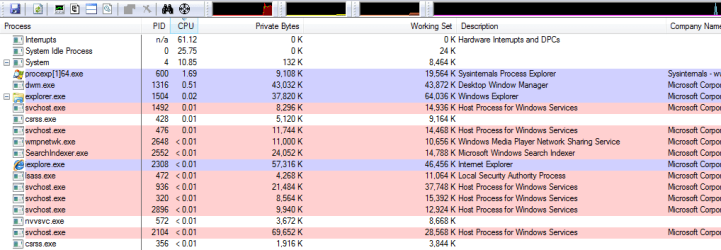
thats the problem, there are no apps open and none of the processes are taking more the 2%, the only way I can even find the system interrupt is in the resource monitor. this is where i got the percentage and it is unstopable.
 

My Computer

Computer Manufacturer/Model Number
self built
OS
windows 7 home premium 64 bit
CPU
amd athlon II x2 245 2.9 ghz
Motherboard
biostar mcp6p3
Memory
ocz gold 4 gb
Graphics Card(s)
nvidia geforce 6150E nforce 430
Sound Card
reltek audio
The unique capabilities of Process Explorer make it useful for tracking down DLL-version problems or handle leaks, and provide insight into the way Windows and applications work.

Then I'd give Process Explorer a try. You don't have to install it, you can run it in your browser from the Run Process Explorer link on the right side or bottom of the web page.
 

My Computer

Computer type
Laptop
Computer Manufacturer/Model Number
Sony Vaio VPCEB47GM Laptop
OS
Win 7 Pro 64-bit
CPU
Intel i5 2.4 Ghz
Memory
8GB DDR3
Graphics Card(s)
Intel HD 3000
Sound Card
IDT High Definition
Monitor(s) Displays
15.6 WGXA Anti-Glare LED
Screen Resolution
1280x800
Hard Drives
640Gb 7200rpm
Antivirus
MSE
Browser
Opera (primary) with IE9 backup
the process explorer says that it is a interrupts and discribes as hardware interrupts and deffered procedure calls. the pid is also n/a.
 

My Computer

Computer Manufacturer/Model Number
self built
OS
windows 7 home premium 64 bit
CPU
amd athlon II x2 245 2.9 ghz
Motherboard
biostar mcp6p3
Memory
ocz gold 4 gb
Graphics Card(s)
nvidia geforce 6150E nforce 430
Sound Card
reltek audio
here is that screen shot
 

Attachments

  • processe.png
    processe.png
    49.6 KB · Views: 1,142

My Computer

Computer Manufacturer/Model Number
self built
OS
windows 7 home premium 64 bit
CPU
amd athlon II x2 245 2.9 ghz
Motherboard
biostar mcp6p3
Memory
ocz gold 4 gb
Graphics Card(s)
nvidia geforce 6150E nforce 430
Sound Card
reltek audio

Speaking of DPCs you might want to look at this.

The DPC Latency Checker tool

If any kernel-mode device driver in your Windows system is implemented improperly and causes excessive latencies of Deferred Procedure Calls (DPCs) then probably drop-outs will occur when you use real-time audio or video streaming applications. For an explanation of this effect see Background information below.

The DPC Latency Checker tool determines the maximum DPC latency that occurs on your Windows system and thus enables you to check the real-time capabilities of your computer. DPC Latency Checker works independent of any external hardware. Using this tool may be helpful in the following situations:

  • You experience interruptions (drop-outs) in a flow of data processed in real-time, for example an audio stream, video stream or a sequence of measuring data, and you want to find out the reason for this problem.
  • You want to verify that your Windows system is configured properly so that it is capable of handling real-time data transfer before you install the corresponding streaming application.
  • You want to check if a particular computer system is suitable for streaming applications, for example before you buy this system.

For more information on the Deferred Procedure Call mechanism and how an excessive DPC latency will affect a streaming application see Background information below.
 

My Computer

Computer Manufacturer/Model Number
Dell 570MT
OS
Windows 7 Home Premium 64bit
CPU
Athlon XII
Motherboard
?
Memory
4GB
Graphics Card(s)
ATI Radeon 4200
Sound Card
?
Monitor(s) Displays
Asus and Dell
Hard Drives
Unknown
PSU
unknown
Case
unknown
Cooling
unknown
Back
Top