System Restore - Enable or Disable

How to Enable or Disable System Restore in Windows 7 and Windows 8

   Information
This tutorial will show you how to enable or disable System Restore for all users in Windows 7 and Windows 8.

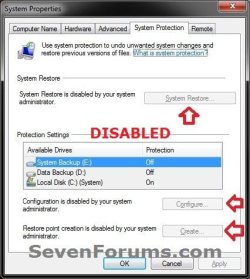
System Restore is enabled by default in Windows. If this is disabled, System Restore is turned off, and the System Restore Wizard cannot be accessed. The option to configure System Restore or create a restore point through System Protection is also disabled and grayed out.

You must be logged in as an administrator to be able to do this tutorial.


EXAMPLE: System Restore Enabled and Disabled
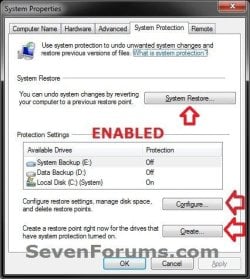
Enabled.jpgDisabled.jpg


OPTION ONE

Using a REG File Download

1. To Enable System Restore A) Click/tap on the Download button below to download the file below, and go to step 3 below.
NOTE: This is the default setting.
Enable_System_Restore.reg

Download


2. To Disable System Restore A) Click/tap on the Download button below to download the file below, and go to step 3 below. Disable_System_Restore.reg

Download


3. Save the .reg file to your desktop.

4. Double click/tap the downloaded .reg file to merge it.

5. If prompted, click/tap on Run, Yes (UAC), Yes, and OK to approve the merge.

6. When finished, you can delete the downloaded .reg file if you like.

7. If the Configure button is still grayed out, then see: http://www.sevenforums.com/tutorials/81499-system-restore-configuration-enable-disable.html

8. If enabled, you can now turn on system protection for restore points.


OPTION TWO

Through the Local Group Policy Editor

1. Open the Local Group Policy Editor.
2. In the left pane, double click/tap on to expand Computer Configuration, Administrative Templates, System, and System Restore. (see screenshot below) GPEDIT-1.jpg
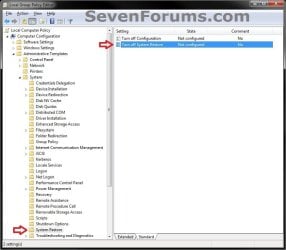
3. In the right pane, double click/tap on Turn off System Restore to edit it. (see screenshot above)

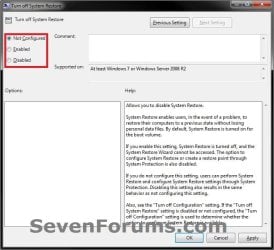
4. To Enable System Restore A) Select (dot) either Not Configured or Disabled, and go to step 6 below. (see screenshot below step 6)
NOTE: The default setting is Not Configured.5. To Disable System Restore A) Select (dot) Enabled, and go to step 6 below. (see screenshot below step 6)
6. Click/tap on OK. (see screenshot below) GPEDIT-2.jpg
7. Close the Local Group Policy Editor window.

8. If the Configure button is still grayed out, then see: http://www.sevenforums.com/tutorials/81499-system-restore-configuration-enable-disable.html

9. If enabled, you can now turn on system protection for restore points.
That's it,
Shawn


Attachments

Last edited:
betaupsilon,

In your situation, I would recommend to keep system images. They are much more reliable than restore points, and won't be deleted when you defrag.
 

My Computer

Computer type
PC/Desktop
Computer Manufacturer/Model Number
Self built custom
OS
64-bit Windows 11 Pro for Workstations
CPU
Intel i7-8700K OC'd to 5 GHz
Motherboard
ASUS ROG Maximus XI Formula Z390
Memory
64 GB (4x16GB) G.SKILL TridentZ RGB DDR4 3600 MHz
Graphics Card(s)
ASUS ROG-STRIX-GTX1080TI-O11G-GAMING
Sound Card
Integrated
Monitor(s) Displays
2 x Samsung Odyssey G7 27"
Screen Resolution
2560x1440
Hard Drives
1TB Samsung 990 PRO M.2,
4TB Samsung 990 PRO PRO M.2,
TerraMaster F8 SSD Plus NAS
PSU
Seasonic Prime Titanium 850W
Case
Thermaltake Core P3
Cooling
Corsair Hydro H115i
Keyboard
Logitech wireless K800
Mouse
Logitech MX Master 4
Internet Speed
2 Gb/s Download and 100 Mb/s Upload
Antivirus
Malwarebyte Anti-Malware Premium
Browser
Google Chrome
Other Info
Logitech Z625 speaker system,
Logitech BRIO 4K Pro webcam,
HP Color LaserJet Pro MFP M477fdn,
APC SMART-UPS RT 1000 XL - SURT1000XLI,
Galaxy S23 Plus phone
betaupsilon,

In your situation, I would recommend to keep system images. They are much more reliable than restore points, and won't be deleted when you defrag.

I would agree with you, except on one point that IMAGES take considerable disk space which makes them not ideal for small to intermediate changes in the system. I use images for significant events. I like to use RESTORE PTS to bridge the gap between my 2 most recent images. Once a new image is created I then delete the RESTORE PTS & start fresh.

So it is disappointing that DEFRAG ruins that approach. I do not view DEFRAG as a change in the system. It just rearranges the furniture on the deck so to speak.

By the way, I did an experiment with the DEFRAG utility. I expanded out the MAX disk space for SYS PROTECTION. I had 4 restore points that took 1.1 Gb of disk space. After DEFRAG the disk usage ballooned to 4.3 Gb. So are the SHADOW copies getting bigger or are there invisible SHADOW copies being created by the DEFRAG utility?
 

My Computer

Computer type
PC/Desktop
OS
Windows 7 Home Prem 32 bit
Defrag wouldn't create any shadow copies, so I'm not sure what that could be from either.

I can see defrag wiping restore points if it messes with its allocated space.
 

My Computer

Computer type
PC/Desktop
Computer Manufacturer/Model Number
Self built custom
OS
64-bit Windows 11 Pro for Workstations
CPU
Intel i7-8700K OC'd to 5 GHz
Motherboard
ASUS ROG Maximus XI Formula Z390
Memory
64 GB (4x16GB) G.SKILL TridentZ RGB DDR4 3600 MHz
Graphics Card(s)
ASUS ROG-STRIX-GTX1080TI-O11G-GAMING
Sound Card
Integrated
Monitor(s) Displays
2 x Samsung Odyssey G7 27"
Screen Resolution
2560x1440
Hard Drives
1TB Samsung 990 PRO M.2,
4TB Samsung 990 PRO PRO M.2,
TerraMaster F8 SSD Plus NAS
PSU
Seasonic Prime Titanium 850W
Case
Thermaltake Core P3
Cooling
Corsair Hydro H115i
Keyboard
Logitech wireless K800
Mouse
Logitech MX Master 4
Internet Speed
2 Gb/s Download and 100 Mb/s Upload
Antivirus
Malwarebyte Anti-Malware Premium
Browser
Google Chrome
Other Info
Logitech Z625 speaker system,
Logitech BRIO 4K Pro webcam,
HP Color LaserJet Pro MFP M477fdn,
APC SMART-UPS RT 1000 XL - SURT1000XLI,
Galaxy S23 Plus phone
Defrag wouldn't create any shadow copies, so I'm not sure what that could be from either.

I can see defrag wiping restore points if it messes with its allocated space.

I'll run the experiment again & use the vssadmin cmd to ascertain if each SHADOW is actually growing & report back.
 

My Computer

Computer type
PC/Desktop
OS
Windows 7 Home Prem 32 bit
Defrag wouldn't create any shadow copies, so I'm not sure what that could be from either.

I can see defrag wiping restore points if it messes with its allocated space.

I'll run the experiment again & use the vssadmin cmd to ascertain if each SHADOW is actually growing & report back.
I have a list of my SHADOW copies, but it does not report the size of each. I only get the VOLUME SHADOW storage info. Is there a way to get size info on individual copies?
 

My Computer

Computer type
PC/Desktop
OS
Windows 7 Home Prem 32 bit

My Computer

Computer type
PC/Desktop
Computer Manufacturer/Model Number
Self built custom
OS
64-bit Windows 11 Pro for Workstations
CPU
Intel i7-8700K OC'd to 5 GHz
Motherboard
ASUS ROG Maximus XI Formula Z390
Memory
64 GB (4x16GB) G.SKILL TridentZ RGB DDR4 3600 MHz
Graphics Card(s)
ASUS ROG-STRIX-GTX1080TI-O11G-GAMING
Sound Card
Integrated
Monitor(s) Displays
2 x Samsung Odyssey G7 27"
Screen Resolution
2560x1440
Hard Drives
1TB Samsung 990 PRO M.2,
4TB Samsung 990 PRO PRO M.2,
TerraMaster F8 SSD Plus NAS
PSU
Seasonic Prime Titanium 850W
Case
Thermaltake Core P3
Cooling
Corsair Hydro H115i
Keyboard
Logitech wireless K800
Mouse
Logitech MX Master 4
Internet Speed
2 Gb/s Download and 100 Mb/s Upload
Antivirus
Malwarebyte Anti-Malware Premium
Browser
Google Chrome
Other Info
Logitech Z625 speaker system,
Logitech BRIO 4K Pro webcam,
HP Color LaserJet Pro MFP M477fdn,
APC SMART-UPS RT 1000 XL - SURT1000XLI,
Galaxy S23 Plus phone
I have a list of my SHADOW copies, but it does not report the size of each. I only get the VOLUME SHADOW storage info. Is there a way to get size info on individual copies?
I actually booted into WinPE mode & accessed the SYS VOL INFO folder directly. I took a snapshot on my phone of the directory & I believe I have the sizes of the individual copies. I still have to do the DEFRAG & will upload the snapshots tomorrow.
 

My Computer

Computer type
PC/Desktop
OS
Windows 7 Home Prem 32 bit
Hi Shawn,
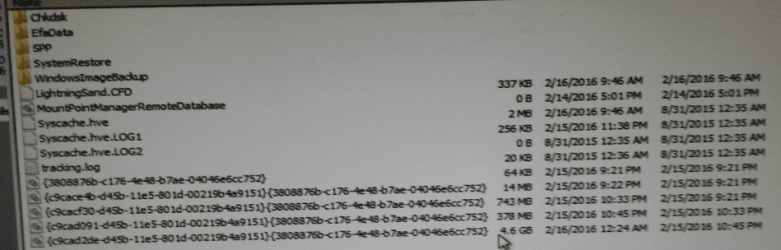
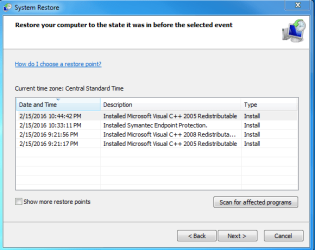
I got the snapshot of the SHADOW copy change on my phone. The last SHADOW went from 320 Mb to 4.6 Gb. So the DEFRAG operation is writing directly to the last SHADOW made by SYS PROTECTION. My understanding was that a SYS RESTORE PT is a SNAPSHOT. It should not be changing in time. This is not the case here. Is the last SHADOW associated with my RESTORE PT or is it something else? I have 4 RESTORE PTS as indicated in the 3rd snapshot.
 

Attachments

  • befirre defrag.PNG
    befirre defrag.PNG
    679.1 KB · Views: 100
  • after defrag.PNG
    after defrag.PNG
    513 KB · Views: 95
  • RESTORE PTS.PNG
    RESTORE PTS.PNG
    46.6 KB · Views: 313

My Computer

Computer type
PC/Desktop
OS
Windows 7 Home Prem 32 bit

My Computer

Computer type
PC/Desktop
Computer Manufacturer/Model Number
Self built custom
OS
64-bit Windows 11 Pro for Workstations
CPU
Intel i7-8700K OC'd to 5 GHz
Motherboard
ASUS ROG Maximus XI Formula Z390
Memory
64 GB (4x16GB) G.SKILL TridentZ RGB DDR4 3600 MHz
Graphics Card(s)
ASUS ROG-STRIX-GTX1080TI-O11G-GAMING
Sound Card
Integrated
Monitor(s) Displays
2 x Samsung Odyssey G7 27"
Screen Resolution
2560x1440
Hard Drives
1TB Samsung 990 PRO M.2,
4TB Samsung 990 PRO PRO M.2,
TerraMaster F8 SSD Plus NAS
PSU
Seasonic Prime Titanium 850W
Case
Thermaltake Core P3
Cooling
Corsair Hydro H115i
Keyboard
Logitech wireless K800
Mouse
Logitech MX Master 4
Internet Speed
2 Gb/s Download and 100 Mb/s Upload
Antivirus
Malwarebyte Anti-Malware Premium
Browser
Google Chrome
Other Info
Logitech Z625 speaker system,
Logitech BRIO 4K Pro webcam,
HP Color LaserJet Pro MFP M477fdn,
APC SMART-UPS RT 1000 XL - SURT1000XLI,
Galaxy S23 Plus phone
What is the max storage size set to for system protection?
I expanded the MAX to be 15Gb.

If it's at least the same size or larger, then it would just be defrag having the max allocated space for system protection available now instead of growing to max as restore points are created.
I don't follow what you are trying to say.
 

My Computer

Computer type
PC/Desktop
OS
Windows 7 Home Prem 32 bit
I just meant that defrag had just made the max size show for it instead of just what was used.
 

My Computer

Computer type
PC/Desktop
Computer Manufacturer/Model Number
Self built custom
OS
64-bit Windows 11 Pro for Workstations
CPU
Intel i7-8700K OC'd to 5 GHz
Motherboard
ASUS ROG Maximus XI Formula Z390
Memory
64 GB (4x16GB) G.SKILL TridentZ RGB DDR4 3600 MHz
Graphics Card(s)
ASUS ROG-STRIX-GTX1080TI-O11G-GAMING
Sound Card
Integrated
Monitor(s) Displays
2 x Samsung Odyssey G7 27"
Screen Resolution
2560x1440
Hard Drives
1TB Samsung 990 PRO M.2,
4TB Samsung 990 PRO PRO M.2,
TerraMaster F8 SSD Plus NAS
PSU
Seasonic Prime Titanium 850W
Case
Thermaltake Core P3
Cooling
Corsair Hydro H115i
Keyboard
Logitech wireless K800
Mouse
Logitech MX Master 4
Internet Speed
2 Gb/s Download and 100 Mb/s Upload
Antivirus
Malwarebyte Anti-Malware Premium
Browser
Google Chrome
Other Info
Logitech Z625 speaker system,
Logitech BRIO 4K Pro webcam,
HP Color LaserJet Pro MFP M477fdn,
APC SMART-UPS RT 1000 XL - SURT1000XLI,
Galaxy S23 Plus phone
I just meant that defrag had just made the max size show for it instead of just what was used.
I still do not understand. If the SHADOW is associated with a RESTORE PT is it not fixed? The RESTORE PT is a snapshot in time. Whatever changes in the system after that should not be written to the SHADOW?

If I had not changed the MAX disk space then I would have lost all of my previous RESTORE PTS. If what you are saying is correct then I shouldn't lose them?
 

My Computer

Computer type
PC/Desktop
OS
Windows 7 Home Prem 32 bit
Yes, but it's the shadow volume for the total max size.

I'm not sure why defrag is increasing the size either, and max size was the only thing I could think of that may be responsible. You could test by reducing the max size to see if there are any coincidences with defrag.
 

My Computer

Computer type
PC/Desktop
Computer Manufacturer/Model Number
Self built custom
OS
64-bit Windows 11 Pro for Workstations
CPU
Intel i7-8700K OC'd to 5 GHz
Motherboard
ASUS ROG Maximus XI Formula Z390
Memory
64 GB (4x16GB) G.SKILL TridentZ RGB DDR4 3600 MHz
Graphics Card(s)
ASUS ROG-STRIX-GTX1080TI-O11G-GAMING
Sound Card
Integrated
Monitor(s) Displays
2 x Samsung Odyssey G7 27"
Screen Resolution
2560x1440
Hard Drives
1TB Samsung 990 PRO M.2,
4TB Samsung 990 PRO PRO M.2,
TerraMaster F8 SSD Plus NAS
PSU
Seasonic Prime Titanium 850W
Case
Thermaltake Core P3
Cooling
Corsair Hydro H115i
Keyboard
Logitech wireless K800
Mouse
Logitech MX Master 4
Internet Speed
2 Gb/s Download and 100 Mb/s Upload
Antivirus
Malwarebyte Anti-Malware Premium
Browser
Google Chrome
Other Info
Logitech Z625 speaker system,
Logitech BRIO 4K Pro webcam,
HP Color LaserJet Pro MFP M477fdn,
APC SMART-UPS RT 1000 XL - SURT1000XLI,
Galaxy S23 Plus phone
Yes, but it's the shadow volume for the total max size.

I'm not sure why defrag is increasing the size either, and max size was the only thing I could think of that may be responsible. You could test by reducing the max size to see if there are any coincidences with defrag.
If I went to the trouble of another experiment would it provide the necessary info to block what DEFRAG is doing?
 

My Computer

Computer type
PC/Desktop
OS
Windows 7 Home Prem 32 bit
No. It may only let you know if defrag is setting the size based off of max size or not.
 

My Computer

Computer type
PC/Desktop
Computer Manufacturer/Model Number
Self built custom
OS
64-bit Windows 11 Pro for Workstations
CPU
Intel i7-8700K OC'd to 5 GHz
Motherboard
ASUS ROG Maximus XI Formula Z390
Memory
64 GB (4x16GB) G.SKILL TridentZ RGB DDR4 3600 MHz
Graphics Card(s)
ASUS ROG-STRIX-GTX1080TI-O11G-GAMING
Sound Card
Integrated
Monitor(s) Displays
2 x Samsung Odyssey G7 27"
Screen Resolution
2560x1440
Hard Drives
1TB Samsung 990 PRO M.2,
4TB Samsung 990 PRO PRO M.2,
TerraMaster F8 SSD Plus NAS
PSU
Seasonic Prime Titanium 850W
Case
Thermaltake Core P3
Cooling
Corsair Hydro H115i
Keyboard
Logitech wireless K800
Mouse
Logitech MX Master 4
Internet Speed
2 Gb/s Download and 100 Mb/s Upload
Antivirus
Malwarebyte Anti-Malware Premium
Browser
Google Chrome
Other Info
Logitech Z625 speaker system,
Logitech BRIO 4K Pro webcam,
HP Color LaserJet Pro MFP M477fdn,
APC SMART-UPS RT 1000 XL - SURT1000XLI,
Galaxy S23 Plus phone
I was reading somewhere about relocating the RESTORE PTS to another drive or partition. Is that even possible?
 

My Computer

Computer type
PC/Desktop
OS
Windows 7 Home Prem 32 bit

My Computer

Computer Manufacturer/Model Number
HP, Dell, Gateway, Toshiba - 4 laptops and 2 desktops
OS
Vista, Windows7, Mint Mate, Zorin, Windows 8
CPU
from 1.6GHz Duo to i7
Monitor(s) Displays
2x HP w2207
Hard Drives
5x HDD, 7x SSD, 12x Externals
Keyboard
with trackball - no mices
Mouse
Trackball mice
Internet Speed
DSL 6000
That is possible in the server edition. But in normal Windows they have to stay in the shadowstorage of the partition. If you want, you can use imaging. That allows to put the images anywhere.

http://www.sevenforums.com/tutorials/73828-imaging-free-macrium.html?ltr=I

Nah, I am very familiar with IMAGING. I like to use my RESTORE PTS as intermediaries between imaging periods, but the DEFRAG utility if on an automated schedule ruins that strategy. Why the DEFRAG utility can write to a SHADOW copy presumably dedicated to a RESTORE PT completely baffles me.
 

My Computer

Computer type
PC/Desktop
OS
Windows 7 Home Prem 32 bit
You are hopping around in circles. But that is no solution. I tell you, with the restore points you will never be safe. They are volatile. Since you know imaging, why don't you use that - but not Windows imaging. That is another headache.
 

My Computer

Computer Manufacturer/Model Number
HP, Dell, Gateway, Toshiba - 4 laptops and 2 desktops
OS
Vista, Windows7, Mint Mate, Zorin, Windows 8
CPU
from 1.6GHz Duo to i7
Monitor(s) Displays
2x HP w2207
Hard Drives
5x HDD, 7x SSD, 12x Externals
Keyboard
with trackball - no mices
Mouse
Trackball mice
Internet Speed
DSL 6000
Shawn,

I have a couple of questions about System Restore / disable.

I'm running Win 7x64 Home Premium so I don't have Group Editor access.

In the past, I've disabled (& enabled) System Restore in the following way:

Control Panel / System & Security / System / System Protection :

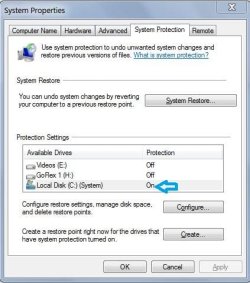
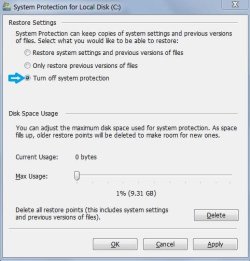
For example, to disable Restore Points on my C: drive (OS Drive), I click on the right-hand pane "System Protection" option, select my C: drive, then turn off System Protection (attached images).

I usually disable it before I install Win Updates to save time and prevent redundant Sys Restore creation points after each Update install (as I typically install 1 update at a time).

I also don't rely on Sys Restore Points as a recovery tool since I Clone (or Image) before installing Win updates.

My questions are:

1) Is the method I use (attached images) accomplishing the same as using your REG file downloads?

From what I can tell, it's the same but I'm not sure about it (per my 2nd question).

2) Are there specific Win Updates that override the user's setting that have the Sys Restore Points disabled?

Here's what I noticed today when I installed the April Win Update rollups & the Monthly Malicious Software Removal Tool KB890830 .

Prior to installing KB890830, I disabled Sys Restore Points using the method I've used in the past (attached images).

That seemed to work as the Win Update dialog Install screen briefly (for about 2 seconds) displayed "Creating a Restore Point", bypassing the usual Restore Point creation status bar, and quickly changed to the "Download Update / Install" dialogs.

However, when I installed the April Rollups Net Framework KB4014981 and the Win 7 Security Monthly Rollup KB4015549, The Sys Restore Points were created, seemingly overriding my current settings for my C: drive (Sys Protection off).

Do the major Rollup updates override the user's Sys Protection settings?

Or is it because my method (attached images) isn't accomplishing the same thing as your REG download (disable) ?
 

Attachments

  • Sys Prot 1.JPG
    Sys Prot 1.JPG
    73.4 KB · Views: 110
  • Sys Prot 2.JPG
    Sys Prot 2.JPG
    74.8 KB · Views: 102

My Computer

Computer type
PC/Desktop
Computer Manufacturer/Model Number
Built at Micro Center Richardson, TX
OS
Windows 7 Home Premium 64 bit
CPU
Intel i5 650 Dual Core 3.20 GHz Cache 4MB Threads: 4
Motherboard
ASUS PRO P7P55D-E
Memory
Corsair 16GB DDR3 1600MHz 9-9-9-24 P/N: CMZ8GX3M2A1600C
Graphics Card(s)
ZOTAC GeFORCE 9500 ZT-95TEK2M-FSL 1GB GDDR2
Sound Card
Mother Bd
Monitor(s) Displays
ASUS V228H 21.5” Diag
Screen Resolution
1440 x 900
Hard Drives
SEAGATE BARRACUDA (2ea) 3.5” INTERNAL 1Tb 16 MB SATA ST1000DM003-9YN162 7200RPM, 64MB, SATA 6Gb/s ** 2 Sata Hot-Swap Racks installed in Tower
PSU
Thermaltake Model TR2 RX 750W
Cooling
2 Tower Fans
Keyboard
Dell Quietkey PS/2 Windows 104 P/N 0463CD
Mouse
Kensington Mechanical Trackball USB Model 64217
Internet Speed
35/35
Antivirus
Norton 360 & MBAM Pro
Browser
IE10
Other Info
Printer: HP DeskJet 3520 USB 2.0 **
Speakers: ALTEC Model VS4621 2.1 28 W/Channel w/Sub-woofer **
IOGEAR HDMI Monitor Switcher Swx3 MODEL GHDSW3 ** Addonics ZDRWESU3 eSata/USB 3.0 external DVD Read/Write DVD Drive** SEAGATE GoFlex USB 2.0 Portable HD 500GB 5400 RPM P/N: 9ZF2A2-570
Back
Top