
System Restore

How to Do a System Restore in Windows 7

   Information
This will show you how to do a System Restore to restore your Windows 7 system files to an earlier point in time. It's a way to undo system changes to your computer without affecting your personal user files, such as e‑mail, documents, or photos.

   Note
System Restore uses a feature called System Protection to regularly create and save restore points of selected hard disks in your computer. These restore points contain information about registry settings and other system information that Windows 7 uses. You can also create restore points manually.

   Warning
A System Restore will uninstall programs and drivers (step 8 in Option One below) that were installed after the date of the selected restore point.

A System Restore will replace the password of all local user accounts to what they were at the time of the selected restore point.

If you do a System Restore when the computer is in safe mode or Windows Recovery Environment (WinRE), then you will not be able to undo the restore operation. However, you are able to still run System Restore again and choose a different restore point if available.


CONTENTS:
  • Option One: To Do a System Restore in Windows 7 using System Protection
  • Option Two: To Do a System Restore at Boot using System Recovery Options


OPTION ONE

To Do a System Restore in Windows 7 using System Protection


NOTE: Be sure to temporarily disable your antivirus program first to prevent it from possibly preventing you from doing a system restore.
1. Do step 2, step 3, step 4, or step 5 below for how you would like to open System Restore.

2. Open the Start Menu, type rstrui.exe in the search box, press Enter, and go to step 6 below.

3. Open the Start Menu.
A) Click on All Programs, Accessories, System Tools, and System Restore, and go to step 6 below. (see screenshot below)
Start_Menu.jpg
4. Open the Control Panel (icons view).
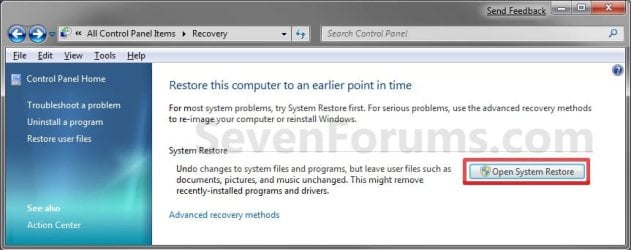
A) Click on the Recovery icon.

B) Click on the Open System Restore button. (see screenshot below)
Recovery.jpg
C) Go to step 7 or step 8 below.
5. Open the Start Menu.
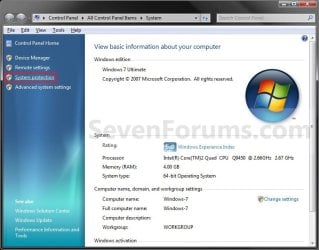
A) Right click on the Computer button and click on Properties.

B) Click on the System Protection link. (see screenshot below)
System.jpg
C) Close the System window, and go to step 6 below. (see screenshot above)
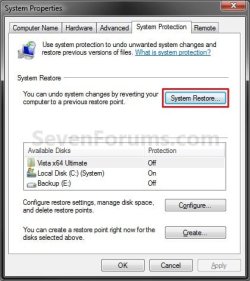
6. Click on the System Restore button. (see screenshot below)
System_Properties.jpg
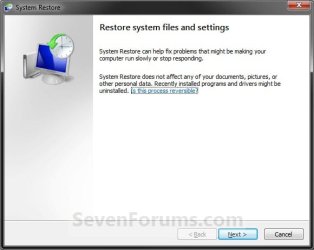
7. If You Have Not Done a System Restore Before
A) Click on the Next button, and go to step 9 below. (see screenshot below)
Restore.jpg
8. If You Have Done a System Restore Before
A) Select (dot) Choose a different restore point, click on the Next button, and go to step 9 below. (see screenshot below)
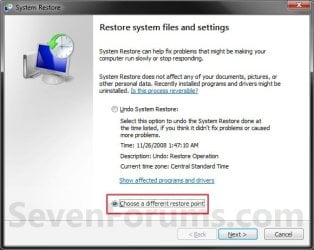
Restore_Point-2.jpg
9. Select (click on) a listed restore point that you want to restore the drives that were included in the restore point back to how they were when the restore point was created. (see screenshot below)
NOTE: Check the Show other restore points box to see any restore points (older) that may not be listed here.
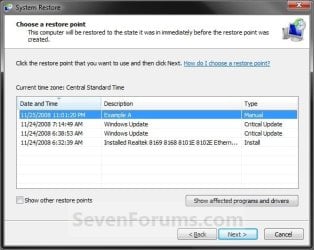
System_Restore.jpg
10. To Show Affected Programs and Drivers
NOTE: This will show you a list of programs and drivers that will be deleted and restored by the selected restore point.
A) Click on the Show affected programs and drivers button. (See screenshot above)

B) When done reviewing, click on the Close button. (see screenshot below)
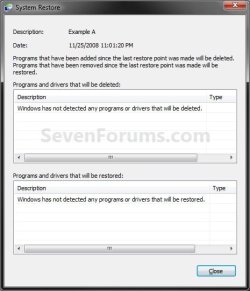
Affected_Programs.jpg
11. Click on the Next button. (see screenshot below step 8)
NOTE: Make sure that the restore point you want is still selected (highlighted).

12. Click on the Finish button. (see screenshot below)
NOTE: The listed drives here will be restored back to how they were for the selected restore point.
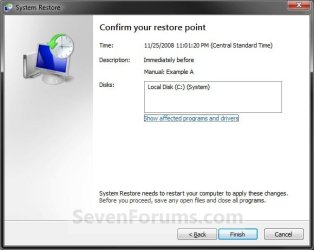
Confirm.jpg
13. Click on Yes to confirm. (see screenshot below)
WARNING: This will immediately restart your computer to finish the system restore.
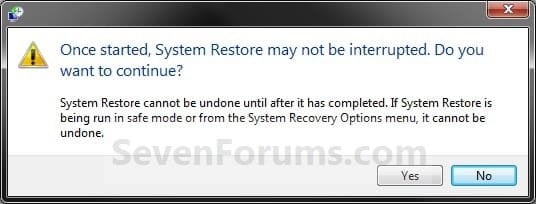
Last_Chance.jpg
14. After the computer has restarted, click on the Close button. (see screenshot below)
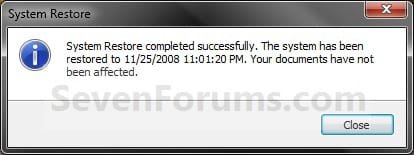
After_Reboot.jpg


OPTION TWO

To Do a System Restore at Boot using System Recovery Options


NOTE: This will allow you to restore Windows 7 to a earlier restore point with a Windows 7 installation disc or System Repair Disc from the System Recovery Options screen at bootup. This can be handy if you cannot startup Windows 7.
1. Using your retail Windows 7 installation disc or System Repair Disc, boot to the System Recovery Options screen.

2. Select the System Restore option. (see screenshot below)
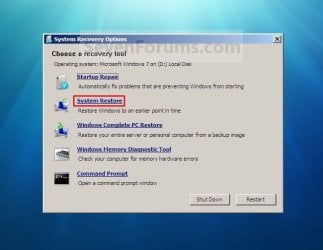
System_Recovery_Options.jpg
3. Continue starting with step 7 or step 8 in Option One above.
That's it,
Shawn


Last edited:
You're most welcome.
 

My Computer

Computer type
PC/Desktop
Computer Manufacturer/Model Number
Self built custom
OS
64-bit Windows 11 Pro for Workstations
CPU
Intel i7-8700K OC'd to 5 GHz
Motherboard
ASUS ROG Maximus XI Formula Z390
Memory
64 GB (4x16GB) G.SKILL TridentZ RGB DDR4 3600 MHz
Graphics Card(s)
ASUS ROG-STRIX-GTX1080TI-O11G-GAMING
Sound Card
Integrated
Monitor(s) Displays
2 x Samsung Odyssey G7 27"
Screen Resolution
2560x1440
Hard Drives
1TB Samsung 990 PRO M.2,
4TB Samsung 990 PRO PRO M.2,
TerraMaster F8 SSD Plus NAS
PSU
Seasonic Prime Titanium 850W
Case
Thermaltake Core P3
Cooling
Corsair Hydro H115i
Keyboard
Logitech wireless K800
Mouse
Logitech MX Master 4
Internet Speed
2 Gb/s Download and 100 Mb/s Upload
Antivirus
Malwarebyte Anti-Malware Premium
Browser
Google Chrome
Other Info
Logitech Z625 speaker system,
Logitech BRIO 4K Pro webcam,
HP Color LaserJet Pro MFP M477fdn,
APC SMART-UPS RT 1000 XL - SURT1000XLI,
Galaxy S23 Plus phone
Hi Shawn,
I am sure this is covered somewhere, but a fundamental question I have about RESTORE PTS is do they leave behind on the hard drive the files & directories a particular software may have installed? The reason I ask this because it appears some software I installed from National Instruments I now want removed. I thought SYSTEM RESTORE prior to the installation would take care of that, but it appears the programs have been disabled & the directories & files still remain? So to do a FULL removal I need to run the PROGRAMS REMOVAL utility or maybe restore the image I created prior to the installation?

So does SYSTEM RESTORE only address REGISTRY issues?
 

My Computer

Computer type
PC/Desktop
OS
Windows 7 Home Prem 32 bit
Hello betaupsilon, :)

It's usually recommended to uninstall the program as usual.

If you're having an issue with that or it's not uninstalling properly, then doing a system restore using a restore point dated before you installed the program will completely remove it.
 

My Computer

Computer type
PC/Desktop
Computer Manufacturer/Model Number
Self built custom
OS
64-bit Windows 11 Pro for Workstations
CPU
Intel i7-8700K OC'd to 5 GHz
Motherboard
ASUS ROG Maximus XI Formula Z390
Memory
64 GB (4x16GB) G.SKILL TridentZ RGB DDR4 3600 MHz
Graphics Card(s)
ASUS ROG-STRIX-GTX1080TI-O11G-GAMING
Sound Card
Integrated
Monitor(s) Displays
2 x Samsung Odyssey G7 27"
Screen Resolution
2560x1440
Hard Drives
1TB Samsung 990 PRO M.2,
4TB Samsung 990 PRO PRO M.2,
TerraMaster F8 SSD Plus NAS
PSU
Seasonic Prime Titanium 850W
Case
Thermaltake Core P3
Cooling
Corsair Hydro H115i
Keyboard
Logitech wireless K800
Mouse
Logitech MX Master 4
Internet Speed
2 Gb/s Download and 100 Mb/s Upload
Antivirus
Malwarebyte Anti-Malware Premium
Browser
Google Chrome
Other Info
Logitech Z625 speaker system,
Logitech BRIO 4K Pro webcam,
HP Color LaserJet Pro MFP M477fdn,
APC SMART-UPS RT 1000 XL - SURT1000XLI,
Galaxy S23 Plus phone
Hi, Brink,

As all other topics this is also a useful tutorial.
My problem is i could create the system restore points, i do not know default system SR is created or not i could see it created.
But when checking randomly, it is surprising that it all vanished.
What is the reason and how to fix it.
How to ask the system to create default SR points.
Some programs on uninstall always create a SR point, and revo uninstaller for any uninstall, create SR point. I wanted to check and delete some of the created points, but to my surprise, no SR point is available except that the program created points after the logon session, ie, present log on. Would you give tips to how to create. If any fix is available by, or reregistering etc..
 

My Computer

Computer type
PC/Desktop
Computer Manufacturer/Model Number
custom build
OS
Microsoft Windows 7 Ultimate 64-bit 7601 Multiprocessor Free Service Pack 1
CPU
Intel(R) Core(TM)2 Duo CPU E7200 @ 2.53GHz
Motherboard
To be filled by O.E.M. To be filled by O.E.M.
Memory
4.00 GB
Graphics Card(s)
NVIDIA GeForce 210
Sound Card
(1) NVIDIA High Definition Audio (2) Realtek High Definiti
Screen Resolution
1920 x 1080 x 32 bits (4294967296 colors) @ 60 Hz
Hard Drives
ST3500312CS ATA Device
It’s been advertised that System Restore doesn’t delete personal files—personal—now I’d like to define what exactly it means by “personal”.

From Monitored File Name Extensions
 
~~C|DCL|INK|OLB|ST4
~~D|DDB|INL|OLD|STB
12A|DDD|INO|OLE|STD
1PA|DEP|INS|OP|STF
1ST|DES|INV|OPG|STP
386|DESKLINK|IP|OR5|SWB
8BA|DET|IRS|OSD|SYM
8BY|DGM|ISA|OUT|SYN
8LI|DIALOG|ISS|P2A|SYS
A2A|DID|ISU|PAG|T32
AAS|DIR|ITF|PBC|TAG
AAX|DISABLED|J0|PBK|TB
ABM|DIX|JA|PBV|TDF
ABR|DLL|JBR|PC3|TH
ACF|DOB|JCM|PCI|THE
ACG|DOS|JGD|PDI|THK
ACO|DRC|K01|PDR|THS
ACS|DRS|K02|PEN|TID
ADK|DRV|K03|PER|TIE
ADW|DS|KBD|PFB|TIP
ADX|DSC|KNN|PFM|TLB
AFM|DSK|KO|PFR|TLD
AID|DSN|L0|PH|TLF
AIP|DSR|L2L|PHO|TLT
ALT|DSX|L2P|PHX|TLU
AM|DT|LAB|PID|TLX
AMB|DTT|LAM|PIF|TMC
APL|DUN|LAST|PL3|TNL
APM|DVB|LCA|PLY|TOL
APP|DWT|LCK|PMT|TPA
APV|DXT|LDA|PNF|TR
AR|DYNCMD|LEX|POC|TRE
ARX|ECF|LGC|POF|TRG
AS|EFF|LGD|POL|TRO
AT|EFM|LGE|PPD|TSK
ATC|EID|LGF|PR4|TSP
ATL|EL|LIC|PROPERTIES|TTF
ATM|ELM|LID|PRX|TTS
ATN|END|LIM|PSC|TUB
AW|ENU|LIVEREG|PSF|TUM
AWE|ENV|LLI|PSP|TUW
AWX|EOT|LMC|PT|TV
AX|EPF|LMG|PTH|TVC
B0|ET|LMP|PTX|TWD
BAT|EX_|LNK|PV|TXR
BCF|EXA|LO~|Q0|TYM
BD|EXCLUDE|LRD|Q32|TZD
BDR|EXE|LRS|Q3X|UBM
BE|EXL|LSM|QDAT|UCM
BGB|F32|LSO|QJF|UCP
BGR|FAE|LSQ|QRS|UCT
BID|FAM|LSS|QTC|UDC
BIT|FAS|LSX|QTD|UDI
BK1|FFP|LT|QTW|UDL
BLD|FIN|LTS|QUE|UDT
BM|FIO|LV|QUF|UID
BMA|FLL|M20|QUT|UIL
BND|FLW|MANIFEST|R0|UK
BNF|FMC|MAPIMAIL|R98|ULG
BOF|FMP|MC|RAD|ULK
BPP|FNT|MCD|RAT|UNT
BPT|FON|MCM|RC2|US
BPX|FSG|MD2|RCP|USA
BT|FSS|MDM|RCT|USERPROFILE
BTN|GCS|MDP|RDB|USP
BUC|GDB|ME|RDC|USR
CAG|GI_|MFL|REF|UTX
CAO|GMS|MHK|REG|V10
CAT|GNG|MIL|RGS|VBS
CBS|GPD|MLN|RH|VBX
CC|GS|MMC|RI|VBZ
CF|GSF|MMM|RJS|VCPREF
CFG|GST|MMX|RO|VDB
CHA|GUIATN|MNC|ROB|VER
CIK|GUICMD|MNL|RPR|VFM
CL|GVT|MNR|RPS|VFX
CLW|GWD|MNS|RSD|VIL
CLX|H16|MOF|RSP|VLX
CLY|HCT|MOR|RSRC|VM
CMD|HDC|MP|RTA|VOF
CNT|HDI|MPD|RTR|VPH
CNV|HDP|MPT|RU|VPX
COL|HFX|MSB|S98|VQA
COM|HGD|MSC|SAM|VQM
CPB|HHC|MSE|SAX|VSC
CPL|HHK|MSI|SCK|VSH
CQM|HK0|MST|SCR|VWP
CR|HK1|MSK|SCS|VXD
CRL|HK2|MSO|SECURITY|W32
CRS|HK3|MXT|SELFREG|W98
CRV|HLP|MYDOCS|SFP|WA_
CS|HM|N0|SG|WBD
CSB|HTA|NAM|SG0|WBM
CSI|HTC|NAME|SG1|WCD
CSL|HTZ|NDX|SHARED|WDL
CSW|HU|NEW|SHR|WDS
CTB|HWL|NFO|SHX|WINSYS
CTG|HYP|NIB|SIF|WIPEINFO
CTY|IAT|NMD|SK|WIPESLACK
CUS|IBD|NOD|SLL|WMZ
CW_|ICD|NPM|SMC|WPC
D01|ICM|NQM|SMM|WPX
D02|ICO|NQV|SNP|WRF
D03|ICR|NSI|SOF|WSL
D04|ICW|NSW|SPC|WTB
D05|ID|NTE|SPE|WTR
D32|IDS|NU4|SPM|XLL
DATA|IFA|NUM|SPT|XMX
DB0|ILF|NUS|SPX|XRS
DB1|ILG|NV|SR|XTU
DB2|ILM|OBE|SRC|ZFSENDTOTARGET
DC2|IN_|OCM|SRG|ZH
DCA|INCL|OCX|SRT|ZH_TW
DCF|INF|ODE|SSM|ZRW
DCI|INI|ODL|SST|
If your file has one of the extensions listed in the above table it is not considered a personal file and System Restore, if unlikely, will eat it during operation. So don’t be surprised if you find yourself missing shortcuts, batch files, or executables after doing a System Restore. Tip, rename the extension of these kinds of files first!
 

My Computer

Computer type
PC/Desktop
OS
Windows 10, Windows 8.1 Pro, Windows 7 Professional, OS X El Capitan
Personal files is for the files in the folders (Desktop, Music, Documents, Pictures, Videos, etc...) of your %UserProfile% folder.

For research purposes, where does it say that those file types are not considered a personal file or will be excluded from a restore point?
 

My Computer

Computer type
PC/Desktop
Computer Manufacturer/Model Number
Self built custom
OS
64-bit Windows 11 Pro for Workstations
CPU
Intel i7-8700K OC'd to 5 GHz
Motherboard
ASUS ROG Maximus XI Formula Z390
Memory
64 GB (4x16GB) G.SKILL TridentZ RGB DDR4 3600 MHz
Graphics Card(s)
ASUS ROG-STRIX-GTX1080TI-O11G-GAMING
Sound Card
Integrated
Monitor(s) Displays
2 x Samsung Odyssey G7 27"
Screen Resolution
2560x1440
Hard Drives
1TB Samsung 990 PRO M.2,
4TB Samsung 990 PRO PRO M.2,
TerraMaster F8 SSD Plus NAS
PSU
Seasonic Prime Titanium 850W
Case
Thermaltake Core P3
Cooling
Corsair Hydro H115i
Keyboard
Logitech wireless K800
Mouse
Logitech MX Master 4
Internet Speed
2 Gb/s Download and 100 Mb/s Upload
Antivirus
Malwarebyte Anti-Malware Premium
Browser
Google Chrome
Other Info
Logitech Z625 speaker system,
Logitech BRIO 4K Pro webcam,
HP Color LaserJet Pro MFP M477fdn,
APC SMART-UPS RT 1000 XL - SURT1000XLI,
Galaxy S23 Plus phone
From Brink's post #145

Personal files is for the files in the folders (Desktop, Music, Documents, Pictures, Videos, etc...) of your %UserProfile% folder.

Just a note from me:

When I use Windows 7 Restore all my personal files/folders are also restored to the date of the restore point. Of course all things after the restore date I will have to updated or re-install.
 

My Computer

Computer type
PC/Desktop
Computer Manufacturer/Model Number
Home made Desktop
OS
Windows 10 Pro. 64/ version 1709 Windows 7 Pro/64
CPU
Intel i7-6800K @ 4.3
Motherboard
ASUS X-99 Deluxe II
Memory
Corsair Platinum 16 gig @2400
Graphics Card(s)
EVGA GTX 1070 OC
Monitor(s) Displays
Asus 27" LED LCD/VE278Q
Screen Resolution
1920-1080 or 1280-720 HDMI
Hard Drives
INTEL SSD 730-240 Gb Sata 3.0/
PSU
EVGA Platium 1200W
Case
Phanteks Luxe Tempered Glass 8 fans/ one radiator
Cooling
XSPC/ Water Cooled CPU
Keyboard
Das 4 Professional
Mouse
Logitech M705/MX Anywhere 2-S
Internet Speed
100 mbits
Antivirus
Microsoft Security Essentials/ Malwarebytes Premium 3.0/ SAS
Browser
I.E. 11 default/Firefox/ ISP Time Warner Cable/Spectrum
Other Info
LG BluRay Burner/
Sound system-KLipsch-THX/
Icy Dock ssd Hot Swap bays.
For research purposes, where does it say that those file types are not considered a personal file or will be excluded from a restore point?
It’s just what I’ve noticed.

As you can imagine, I make frequent modifications to batch files and powershell scripts alike.

I had to do a System Restore recently (graphics driver been playing up after an update and hypervisor issues) and found a few of my batch files have disappeared on me or have been rolled back to a previous date with the restore. None of my powershell scripts, which were modified alongside in time with my batch files, where affected. Guess which of the two file extensions was on the list and which wasn’t.

One executable I downloaded prior to the restore (a hardware stats tool) got deleted from my Downloads directory.

All of these files observed resided within my user profile hierarchy.


When I posted, I hadn’t done significant research. A maybe not-so-creditable source mentioned that files with extensions that were on the list were monitored by System Restore, but then when to say that they had to be marked with the System attribute to be affected, which in my experience is wrong.

Other sources begin to agree with my reasoning.
My suspicions are founded.


When I use Windows 7 Restore all my personal files/folders are also restored to the date of the restore point. Of course all things after the restore date I will have to updated or re-install.
Do all your personal files happen to consist of file names with extensions on the list?


I think it’s safe to justify that System Restore shouldn’t be trusted with your files. Best to backup the important ones before attempting a System Restore just in case.
 

My Computer

Computer type
PC/Desktop
OS
Windows 10, Windows 8.1 Pro, Windows 7 Professional, OS X El Capitan
Interesting.
 

My Computer

Computer type
PC/Desktop
Computer Manufacturer/Model Number
Self built custom
OS
64-bit Windows 11 Pro for Workstations
CPU
Intel i7-8700K OC'd to 5 GHz
Motherboard
ASUS ROG Maximus XI Formula Z390
Memory
64 GB (4x16GB) G.SKILL TridentZ RGB DDR4 3600 MHz
Graphics Card(s)
ASUS ROG-STRIX-GTX1080TI-O11G-GAMING
Sound Card
Integrated
Monitor(s) Displays
2 x Samsung Odyssey G7 27"
Screen Resolution
2560x1440
Hard Drives
1TB Samsung 990 PRO M.2,
4TB Samsung 990 PRO PRO M.2,
TerraMaster F8 SSD Plus NAS
PSU
Seasonic Prime Titanium 850W
Case
Thermaltake Core P3
Cooling
Corsair Hydro H115i
Keyboard
Logitech wireless K800
Mouse
Logitech MX Master 4
Internet Speed
2 Gb/s Download and 100 Mb/s Upload
Antivirus
Malwarebyte Anti-Malware Premium
Browser
Google Chrome
Other Info
Logitech Z625 speaker system,
Logitech BRIO 4K Pro webcam,
HP Color LaserJet Pro MFP M477fdn,
APC SMART-UPS RT 1000 XL - SURT1000XLI,
Galaxy S23 Plus phone
Back
Top