System-Wide Audio Stuttering

SabWhipp

New member
Local time
8:29 AM
Messages
10
For the last day (since April 1) I've noticed that there is a system-wide audio stutter. It doesn't matter if it's Youtube on Google Chrome or IE or music played via VLC media player, the song will stutter once for just a second then keep going. All the aforementioned software is in its latest state (except maybe VLC but I have no idea why that would cause a system-wide problem). Java and Flash are both as up to date as they can be.

I'm running Win 7 64-bit using Malware Bytes and Microsoft Security Essentials for keeping my laptop clean, both are up to date and have found nothing. I found another thread that seemed similar ( http://www.sevenforums.com/sound-audio/87031-music-stutters.html ) which suggested a “DPC Latency Checker” I tried it, and the checker says that my laptop is fine for streaming so it's not that.

On a whim I also tried a quick defrag and a bit of disk cleanup...just in case; didn't help, but figured I'd throw that in just to sum everything up.

So...Advice?

Addendum: The laptop itself is an HP Pavilion dv4, a check through my drivers says that everything audio related is up to date.

System restore has done nothing, neither has a reinstall of my sound card drivers. A list of all the processes that are normally running can be found lower in the thread for those interested. Disabling all non-Microsoft services has done nothing to fix the problem.
 
Last edited:

My Computer

Computer Manufacturer/Model Number
Acer/Aspire 5517
OS
Windows 7 Home Premium 64bit
CPU
AMD Athlon 64 X2 Dual Core Processor TK-42
Memory
3.00GB RAM (2.75GB Usable)
Graphics Card(s)
ATI Radeon HD 3200
Sound Card
Realtek High Definition Audio
Monitor(s) Displays
Generic PnP display (Laptop monitor)
Hard Drives
300GB internal Laptop HDD
External Seagate 1TB HDD
PSU
Laptop battery
Case
Laptop case
Cooling
Laptop fans
One thing I notice, from your System Spec's. You list Win 7 home 64 bit, but only list 3GB of RAM. With only 3GB of RAM you are not getting anything from the 64 bit version. The main thing with the 64 bit version is the ability to access more than 4GB of RAM. Looking at the memory list on the Crucial Memory site, 4GB is Maximum for this model.

You may want to upgrade to max. It won't get you in the 64 bit area, but max memory would be one place to start.

Other potential areas have probably been covered in other posts - this is one of those problems that there is no "one fix". Device drivers for the Video, Sound (use the Acer supplied sound driver, which is the preferred driver). One other trick that helps - sometimes - is to uninstall the sound in the device manager (but NOT the drivers) then restart the PC and when Windows starts it will detect and reinstall the sound. As sound is always on a shared IRQ (Interrupt) with a higher priority device, and subject to interruptions or stuttering, this sometimes puts it on a different IRQ and can have a positive effect.
 

My Computer

Computer type
PC/Desktop
Computer Manufacturer/Model Number
My Own Build
OS
Windows 10 64 bit
CPU
Intel i7 6700K
Motherboard
ASUS ROG Maximus VIII Hero
Memory
16GB Corsair Dominator
Graphics Card(s)
Intel CPU Graphics
Sound Card
RealTek
Monitor(s) Displays
27" Dell S2719dgf
Screen Resolution
2560X1440
Hard Drives
1 TB Samsung 850 EVO SSD for Win 10 Pro
500GB Samsung 850 EVO SSD for Win 10 Insider
2 TB drive for backup
PSU
EVGA Supernova 750G2
Case
BeQuiet Silent Base 600
Cooling
Deepcool Captain 120EX
Keyboard
Microsoft Wireless 2000
Mouse
Microsoft wireless
Internet Speed
100 MB/sec (Cable)
Antivirus
Microsoft Defender and Malwarebytes
Browser
Edge/Firefox
Other Info
Cakewalk (Sonar) by BandLab and Studio One 4.1 Pro recording studio software. MOTU 896Mk3 Hybrid recording interface, Frontier Tranzport wireless control unit, Behringer X-Touch Control Surface.
Five USB connected optical drives for CD Audio production using Nero BurningROM
Thanks for the advice with the ram, I'll upgrade it whenever I get a chance. Laptop came with this OS and this much ram, has been working just fine (well, up until now).

As for your suggestion, wanna make sure I do this right, under the sound and whatever tab of device manager I have a driver for the laptop's webcam, IDT High Definition Audio CODEC, and Intel(R) Display Audio, so I assume you want me to uninstall that last one?
 

My Computer

Computer Manufacturer/Model Number
Acer/Aspire 5517
OS
Windows 7 Home Premium 64bit
CPU
AMD Athlon 64 X2 Dual Core Processor TK-42
Memory
3.00GB RAM (2.75GB Usable)
Graphics Card(s)
ATI Radeon HD 3200
Sound Card
Realtek High Definition Audio
Monitor(s) Displays
Generic PnP display (Laptop monitor)
Hard Drives
300GB internal Laptop HDD
External Seagate 1TB HDD
PSU
Laptop battery
Case
Laptop case
Cooling
Laptop fans
The IDT HD Audio Codec is the PC sound card. That is the one you want to uninstall. RIGHT click on the entry to highlight it and then LEFT click "Uninstall". DO NOT check the box to uninstall the drivers.

No guarantee this will fix it, but a first step.
 

My Computer

Computer type
PC/Desktop
Computer Manufacturer/Model Number
My Own Build
OS
Windows 10 64 bit
CPU
Intel i7 6700K
Motherboard
ASUS ROG Maximus VIII Hero
Memory
16GB Corsair Dominator
Graphics Card(s)
Intel CPU Graphics
Sound Card
RealTek
Monitor(s) Displays
27" Dell S2719dgf
Screen Resolution
2560X1440
Hard Drives
1 TB Samsung 850 EVO SSD for Win 10 Pro
500GB Samsung 850 EVO SSD for Win 10 Insider
2 TB drive for backup
PSU
EVGA Supernova 750G2
Case
BeQuiet Silent Base 600
Cooling
Deepcool Captain 120EX
Keyboard
Microsoft Wireless 2000
Mouse
Microsoft wireless
Internet Speed
100 MB/sec (Cable)
Antivirus
Microsoft Defender and Malwarebytes
Browser
Edge/Firefox
Other Info
Cakewalk (Sonar) by BandLab and Studio One 4.1 Pro recording studio software. MOTU 896Mk3 Hybrid recording interface, Frontier Tranzport wireless control unit, Behringer X-Touch Control Surface.
Five USB connected optical drives for CD Audio production using Nero BurningROM
Okay, so good news, it did as you said it would and installed again right after I restarted; however, there has been no change, Youtube and VLC still stutter once per song/video/insert your favorite media here. Thanks for the help so far Fireberd, any more advice?
 

My Computer

Computer Manufacturer/Model Number
Acer/Aspire 5517
OS
Windows 7 Home Premium 64bit
CPU
AMD Athlon 64 X2 Dual Core Processor TK-42
Memory
3.00GB RAM (2.75GB Usable)
Graphics Card(s)
ATI Radeon HD 3200
Sound Card
Realtek High Definition Audio
Monitor(s) Displays
Generic PnP display (Laptop monitor)
Hard Drives
300GB internal Laptop HDD
External Seagate 1TB HDD
PSU
Laptop battery
Case
Laptop case
Cooling
Laptop fans
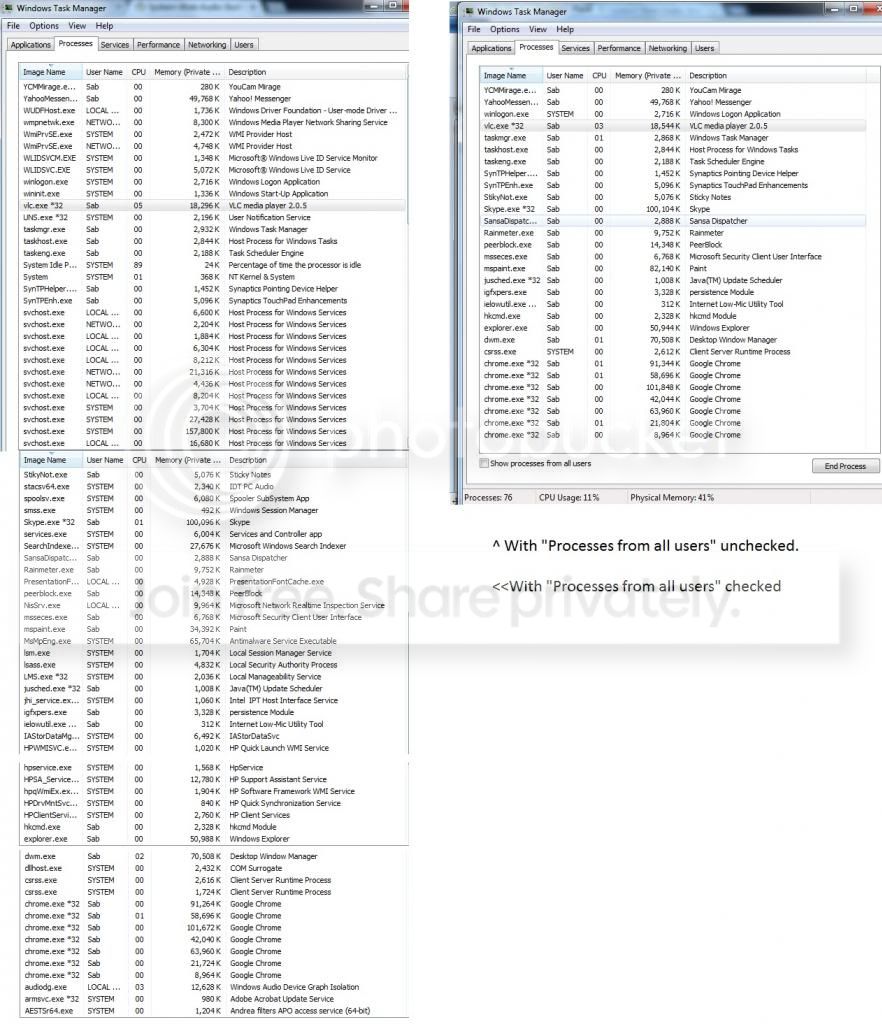
What's the CPU usage while it's stuttering? Can you post an elongated screenshot of the processes tab in task manager (showing most/all processes)?
 
Some other program/application that is running could be causing this. Temporarily stop other programs to see if it makes a difference. Try just the VLC or Windows Media Player with just a song that is already on the PC. Not on line, etc, and see if it does it.
 

My Computer

Computer type
PC/Desktop
Computer Manufacturer/Model Number
My Own Build
OS
Windows 10 64 bit
CPU
Intel i7 6700K
Motherboard
ASUS ROG Maximus VIII Hero
Memory
16GB Corsair Dominator
Graphics Card(s)
Intel CPU Graphics
Sound Card
RealTek
Monitor(s) Displays
27" Dell S2719dgf
Screen Resolution
2560X1440
Hard Drives
1 TB Samsung 850 EVO SSD for Win 10 Pro
500GB Samsung 850 EVO SSD for Win 10 Insider
2 TB drive for backup
PSU
EVGA Supernova 750G2
Case
BeQuiet Silent Base 600
Cooling
Deepcool Captain 120EX
Keyboard
Microsoft Wireless 2000
Mouse
Microsoft wireless
Internet Speed
100 MB/sec (Cable)
Antivirus
Microsoft Defender and Malwarebytes
Browser
Edge/Firefox
Other Info
Cakewalk (Sonar) by BandLab and Studio One 4.1 Pro recording studio software. MOTU 896Mk3 Hybrid recording interface, Frontier Tranzport wireless control unit, Behringer X-Touch Control Surface.
Five USB connected optical drives for CD Audio production using Nero BurningROM
What's the CPU usage while it's stuttering? Can you post an elongated screenshot of the processes tab in task manager (showing most/all processes)?

CPU seems to hang out between 20% and 50% and doesn't really seem to spike when the song stutters. In response to your question about the task list:

Tasklistsmallandbig_zps74ef817e.jpg


As an extra thought: It seems Google Chrome has always had multiple entries in the task manager (closing one will cause tabs open in Chrome to crash and stuff like that). I wonder why it's not just consolidated into one tab, seems it'd make more sense.
 

My Computer

Computer Manufacturer/Model Number
Acer/Aspire 5517
OS
Windows 7 Home Premium 64bit
CPU
AMD Athlon 64 X2 Dual Core Processor TK-42
Memory
3.00GB RAM (2.75GB Usable)
Graphics Card(s)
ATI Radeon HD 3200
Sound Card
Realtek High Definition Audio
Monitor(s) Displays
Generic PnP display (Laptop monitor)
Hard Drives
300GB internal Laptop HDD
External Seagate 1TB HDD
PSU
Laptop battery
Case
Laptop case
Cooling
Laptop fans
hye man, i got the same exact problem, it happened to me acouple of days to, and i tried completely everything, and i still am. but i'll let you know if i ever fix the problem, and it be koo if youd do the same thanks bud -AGEMAN
 

My Computer

Computer type
PC/Desktop
Computer Manufacturer/Model Number
dell windows home premium 2009
OS
windows 7 64 bit
CPU
pentium(R) dual core cpu
What's the CPU usage while it's stuttering? Can you post an elongated screenshot of the processes tab in task manager (showing most/all processes)?

CPU seems to hang out between 20% and 50% and doesn't really seem to spike when the song stutters. In response to your question about the task list:


As an extra thought: It seems Google Chrome has always had multiple entries in the task manager (closing one will cause tabs open in Chrome to crash and stuff like that). I wonder why it's not just consolidated into one tab, seems it'd make more sense.

20-50% during MP3 playback is too much. Can you post the same screenshot while playing a song?

Do this:


1. Right click on the volume icon in the taskbar.
2. Click "Playback devices".
3. Now under the "Playback" tab, select the option which has a green checkmark on it.
4. Now click "Properties" at bottom right.
5. Now go to "Enhancements" tab.
6. Check mark "Disable all enhancements".
7. Click OK.

Now check the playback.

And Google chrome has so many processes running so that in case of crash of a single tab or extension, only one process out of the so many crashes, and the whole browser doesn't stop working, only the particular tab will stop working and the rest of the browser works. Sorry for my English. I know I couldn't explain it very well.
 
Nilank, your English is just fine, if it wasn't for your signature I wouldn't know that English wasn't your first language.

Now about the 20-50 thing, when I wrote that I meant that 20-50% is the normal range for CPU usage on my machine. For example, right now with Chrome, Skype, Yahoo Messenger, Peerblock, and all that jazz going my CPU is between 16% and 45% at the high end.
 

My Computer

Computer Manufacturer/Model Number
Acer/Aspire 5517
OS
Windows 7 Home Premium 64bit
CPU
AMD Athlon 64 X2 Dual Core Processor TK-42
Memory
3.00GB RAM (2.75GB Usable)
Graphics Card(s)
ATI Radeon HD 3200
Sound Card
Realtek High Definition Audio
Monitor(s) Displays
Generic PnP display (Laptop monitor)
Hard Drives
300GB internal Laptop HDD
External Seagate 1TB HDD
PSU
Laptop battery
Case
Laptop case
Cooling
Laptop fans
Nilank, your English is just fine, if it wasn't for your signature I wouldn't know that English wasn't your first language.

Well, that was good to know, I can't believe, lol :p

Now about the 20-50 thing, when I wrote that I meant that 20-50% is the normal range for CPU usage on my machine. For example, right now with Chrome, Skype, Yahoo Messenger, Peerblock, and all that jazz going my CPU is between 16% and 45% at the high end.

Fine, got it. Did you try doing what I suggested in the previous post?
 
The Disable All Enhancements bit? Yep, did that, still there! Hopefully we're getting somewhere though!
 

My Computer

Computer Manufacturer/Model Number
Acer/Aspire 5517
OS
Windows 7 Home Premium 64bit
CPU
AMD Athlon 64 X2 Dual Core Processor TK-42
Memory
3.00GB RAM (2.75GB Usable)
Graphics Card(s)
ATI Radeon HD 3200
Sound Card
Realtek High Definition Audio
Monitor(s) Displays
Generic PnP display (Laptop monitor)
Hard Drives
300GB internal Laptop HDD
External Seagate 1TB HDD
PSU
Laptop battery
Case
Laptop case
Cooling
Laptop fans
press start key, type "msconfig" hit enter, go to "services", select hide all microsoft services, untill only 3rd party apps and add ons show, then click disable all hit enter, "restart" your computer, twice if you have to, then run your audio program and see if it still stutters. if it doesnt, then your problem is in your add ons and 3rd party apps, your welcome!11
 

My Computer

Computer type
PC/Desktop
Computer Manufacturer/Model Number
dell windows home premium 2009
OS
windows 7 64 bit
CPU
pentium(R) dual core cpu
Looked around my non-Microsoft and all checked out as legitimate services...This is the major confusion point: The audio drivers haven't changed, and I haven't installed/removed any software recently that could have caused the stuttering. My computer just up and decided to have a stuttering problem.
 

My Computer

Computer Manufacturer/Model Number
Acer/Aspire 5517
OS
Windows 7 Home Premium 64bit
CPU
AMD Athlon 64 X2 Dual Core Processor TK-42
Memory
3.00GB RAM (2.75GB Usable)
Graphics Card(s)
ATI Radeon HD 3200
Sound Card
Realtek High Definition Audio
Monitor(s) Displays
Generic PnP display (Laptop monitor)
Hard Drives
300GB internal Laptop HDD
External Seagate 1TB HDD
PSU
Laptop battery
Case
Laptop case
Cooling
Laptop fans
follow the steps i provivded
 

My Computer

Computer type
PC/Desktop
Computer Manufacturer/Model Number
dell windows home premium 2009
OS
windows 7 64 bit
CPU
pentium(R) dual core cpu
Didn't work.

So, VLC is in it's vanilla form, Google Chrome only uses Adblock and Flashblock. IE is vanilla. PC itself only uses Rainmeter. All of the stuff I mentioned was installed long ago. I'm starting to wonder if it's something wrong with the sound card itself (from the laptop getting dropped maybe) and its just starting to manifest now.

So...Anyone else got anything?
 

My Computer

Computer Manufacturer/Model Number
Acer/Aspire 5517
OS
Windows 7 Home Premium 64bit
CPU
AMD Athlon 64 X2 Dual Core Processor TK-42
Memory
3.00GB RAM (2.75GB Usable)
Graphics Card(s)
ATI Radeon HD 3200
Sound Card
Realtek High Definition Audio
Monitor(s) Displays
Generic PnP display (Laptop monitor)
Hard Drives
300GB internal Laptop HDD
External Seagate 1TB HDD
PSU
Laptop battery
Case
Laptop case
Cooling
Laptop fans
Audio Suttering

Hi I had this problem after installing a Sound recorder program. Removing didn't solve the problem. System restore did. I undid the system restore and the stutter game back.
I then looked across various forums to no avail. I then looked at the program more closely. It set the sound output to digital (why?).
I then opened Control Panel and opened up Realtek HD AudioManager.
I turned off the speaker under the tab Digital Output ( just click on the speaker it toggles on or off). This fixed the stuttering and popping. I went back in and also turned off Digital Output (Optical) just in case, as I don't use it.
Hope this helps

Sayar
 

My Computer

Computer type
PC/Desktop
Computer Manufacturer/Model Number
custom
OS
windows 7 home premium64 bit
CPU
intel i5 [email protected] lga1156
Motherboard
gigabyte p55a-ud6(c)
Memory
8gb Corsair ddr3-1066
Graphics Card(s)
amd radeon hd 7800 series 2gb ddr5 pcie-3
Hard Drives
Samsung ssd 840 series
WDC 1 TB
2x WDC 2 TB
Antivirus
avast
Browser
firefox
Same problem resolved

I realize this is an old thread but after searching online the stuttering problems still are prevalent and there are still many people looking for resolutions. I just did a fresh install of Win 7 Pro and experienced the constant stuttering problem. I traced it to a sound problem but ended up realizing it was a USB problem regarding my USB headset and the VIA audio Mixer. I removed the USB controllers relating to the headset and the VIA audio mixer in the Hardware Manager and when Windows found them again a repair was performed automatically which in turn fixed all the stuttering problems. Now everything is smooth as butter. I am able to redirect the VIA sound from the mixer to the USB headset as well. If you have stuttering problems on Windows 7 you might want to look at the USB controllers.
Regards
 

My Computer

Computer type
PC/Desktop
Computer Manufacturer/Model Number
Homebrew
OS
Windows 7 Pro x64
CPU
i7-3770K
Motherboard
GA-Z77X-UD3H
Memory
24 gig Kingston
Graphics Card(s)
ASUS GTX770
Hard Drives
Kingston 120gig SSD x 3
Antivirus
Avast
Browser
Firefox
Back
Top